Create a Custom Template
To create a Custom CTA Template, follow the steps below:
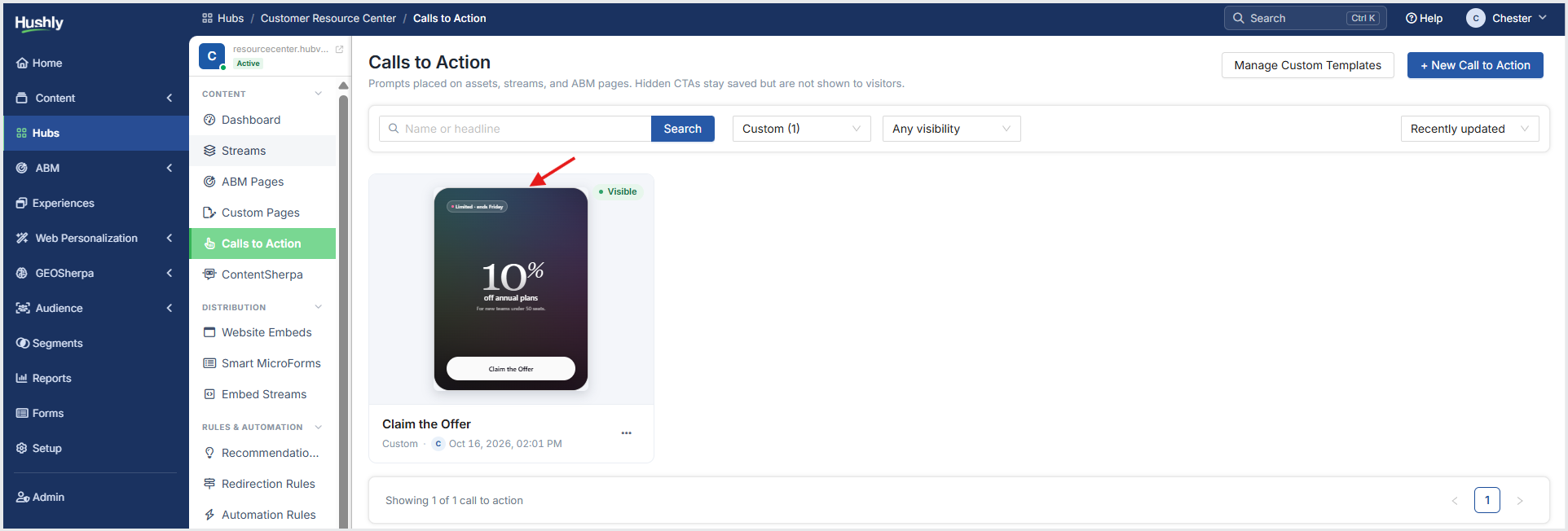
From the Left Navigation Menu, click Hubs. On the Hubs listing page, select the Hub you want to manage. From the Hub Menu, under CONTENT, click Calls to Action.On the Calls to Action listing page, click the Custom CTA you want to save as a Template.
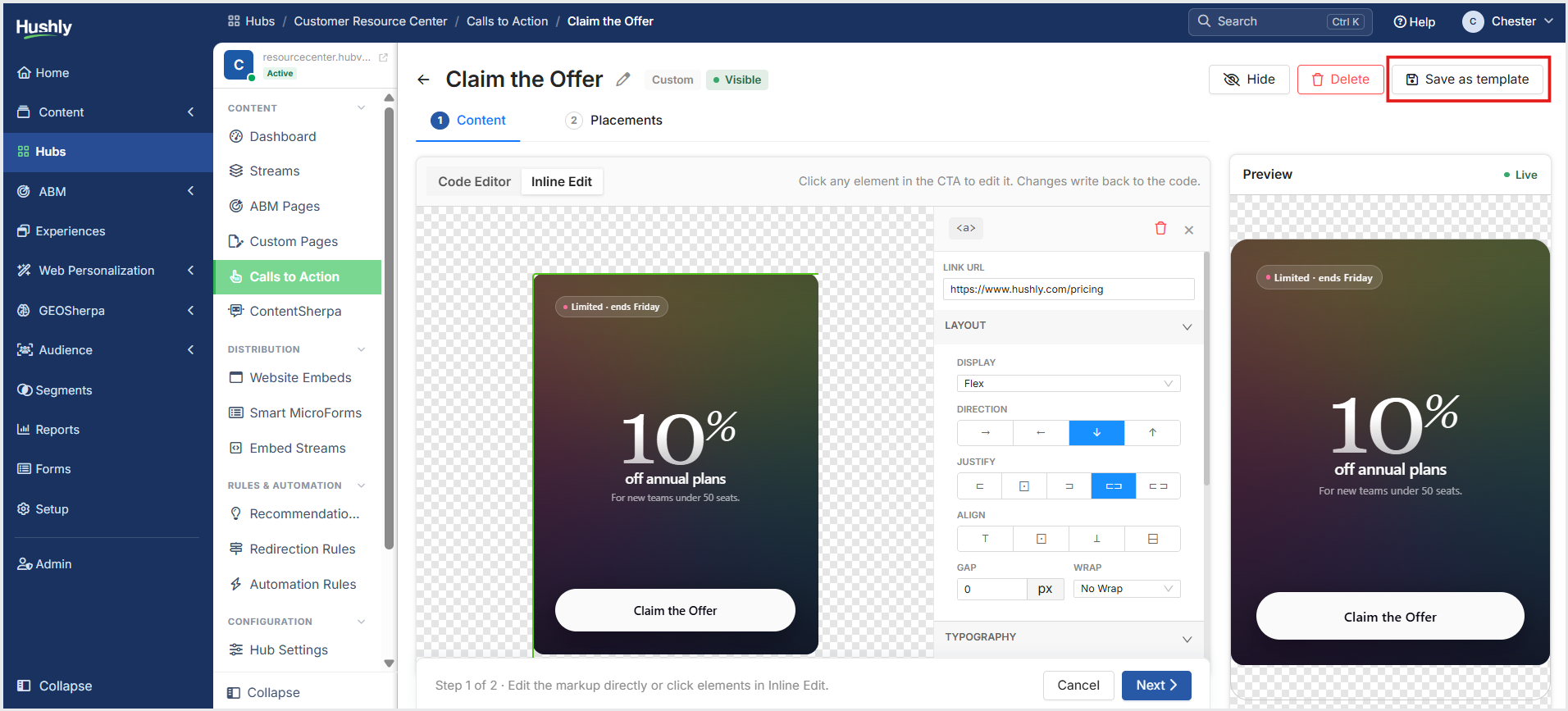
On the CTA Editor page, click Save as template in the upper-right corner.
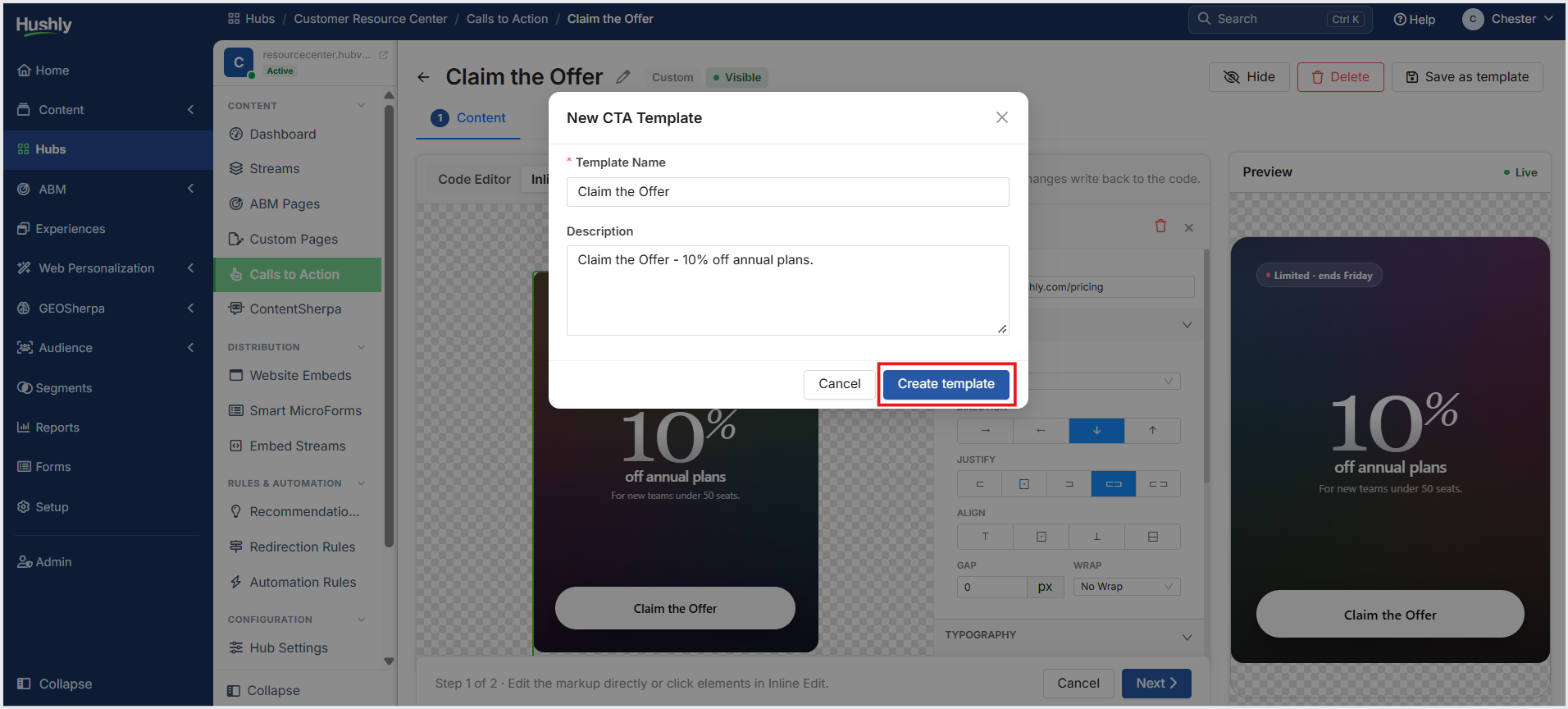
In the New CTA Template pop-up window, enter a Name and Description (optional), and click Create template.
Delete a Custom Template
To delete a Custom CTA Template, follow the steps below:
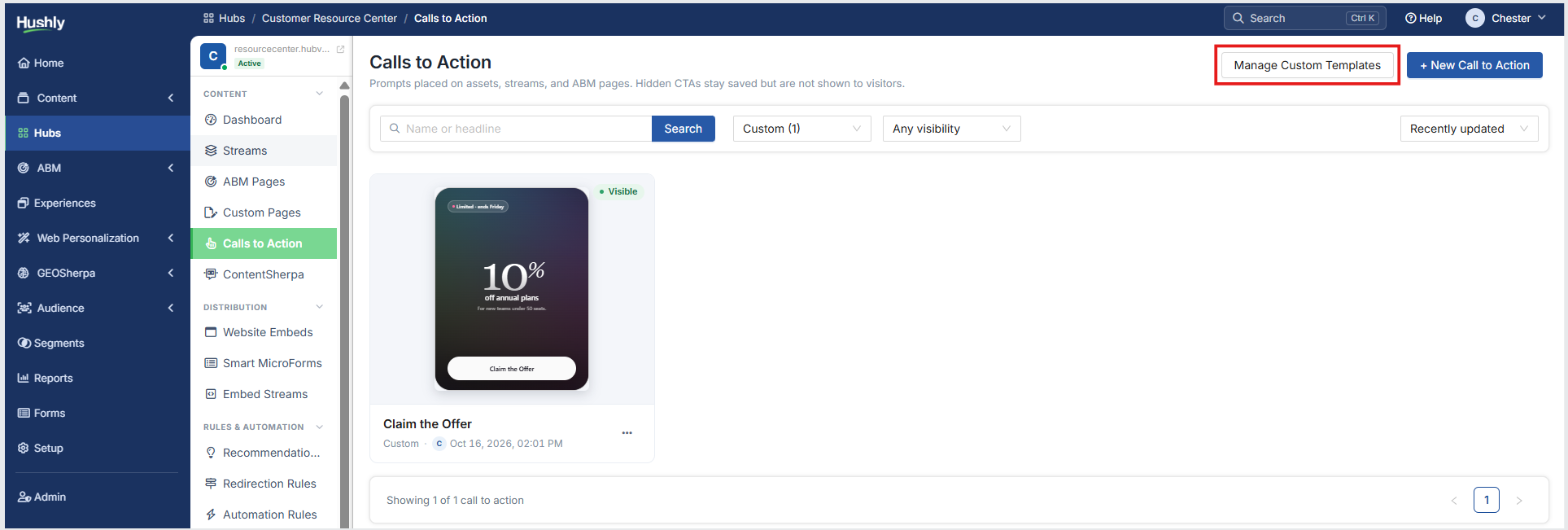
From the Left Navigation Menu, click Hubs. On the Hubs listing page, select the Hub you want to manage. From the Hub Menu, under CONTENT, click Calls to Action. On the Calls to Action listing page, click Manage Custom Templates.
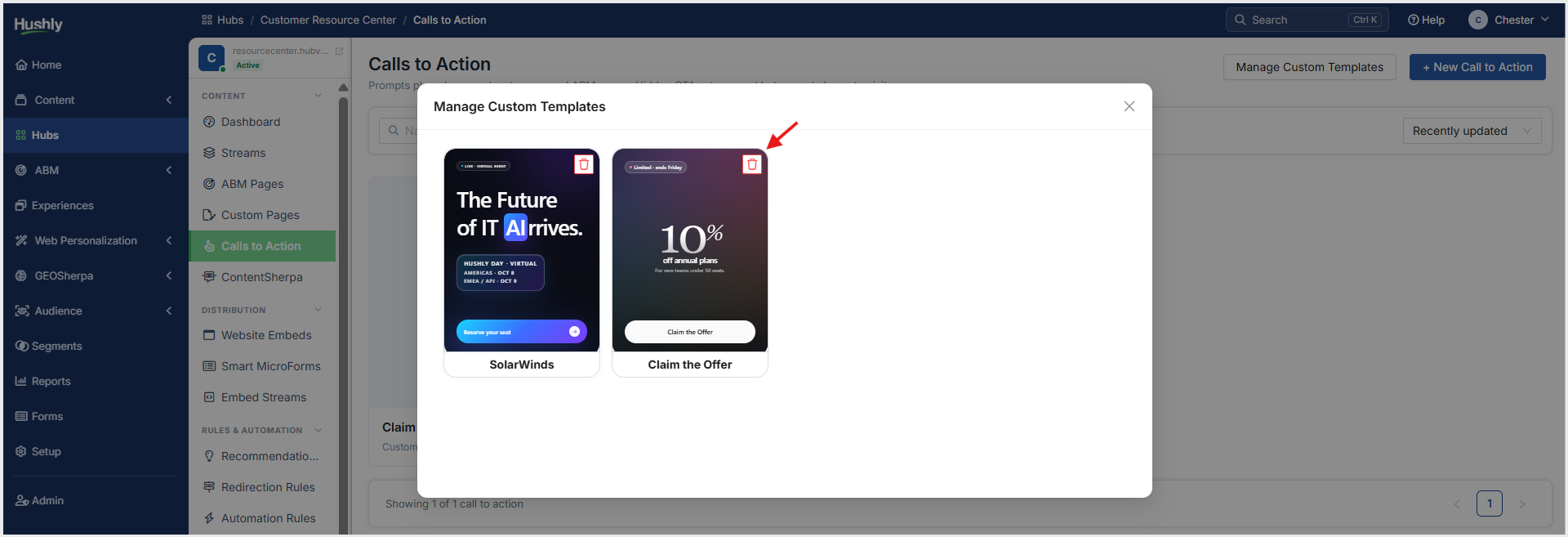
In the Manage Custom Templates listing pop-up window, click the Delete icon of the template you want to delete.
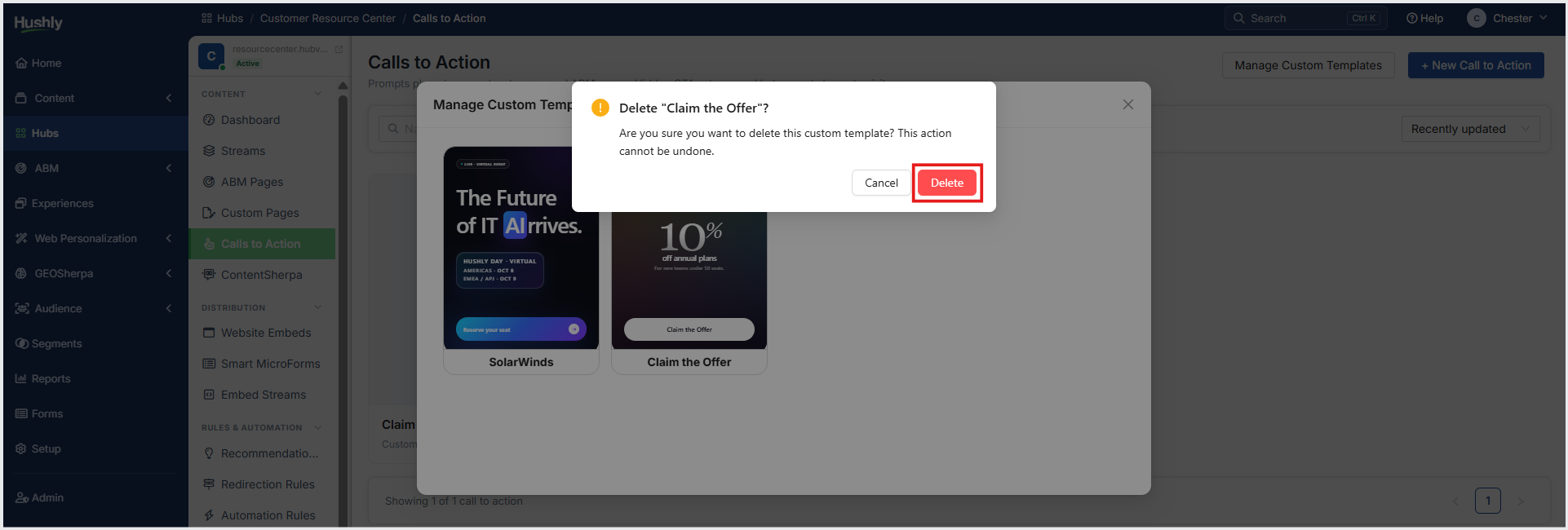
A confirmation message is displayed. Click Delete.
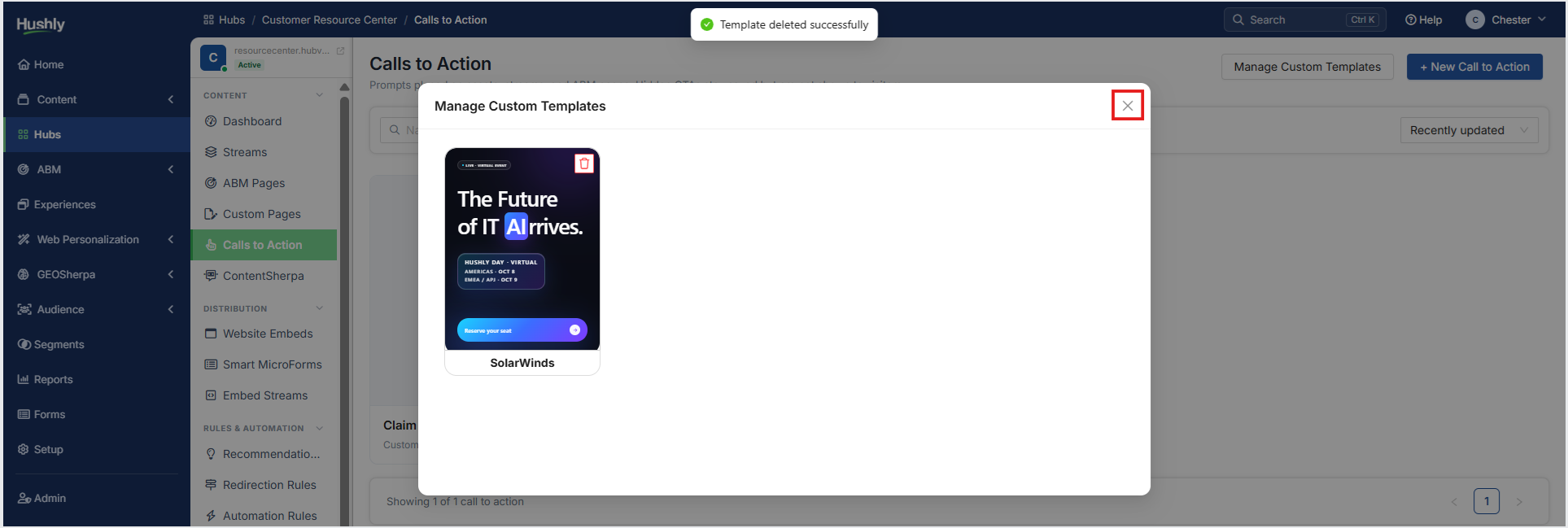
The template is deleted successfully. Click X (Close) in the upper-right corner of the popup-window.
Was this article helpful?
That’s Great!
Thank you for your feedback
Sorry! We couldn't be helpful
Thank you for your feedback
Feedback sent
We appreciate your effort and will try to fix the article