Creating a Custom CTA
Calls to Action, also known as CTAs, are informational or advertorial content that can be displayed in a Stream or many Streams. Seen on Assets at the Stream-level or on SNLPs, CTA can encourage the user to click and go to another web page of significance, a demo, an event registration, etc. They add visual interest and can easily be designed using the Hushly UI.
For example: A CTA may encourage a user to register for a webinar on account-based marketing and click through to the landing page where they can register.
To create a Custom CTA, follow the steps below:
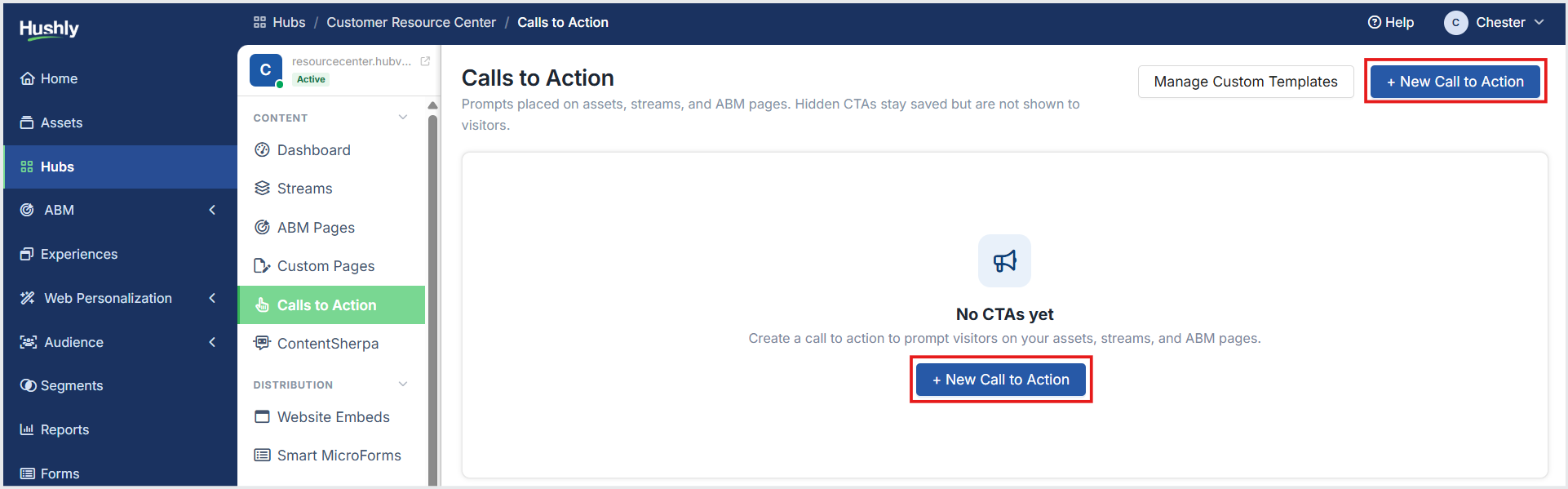
From the Left Navigation Menu, click Hubs. On the Hubs listing page, select the Hub you want to manage. From the Hub Menu, under CONTENT, click Calls to Action.
On the Calls to Action listing page, click + New Call to Action.
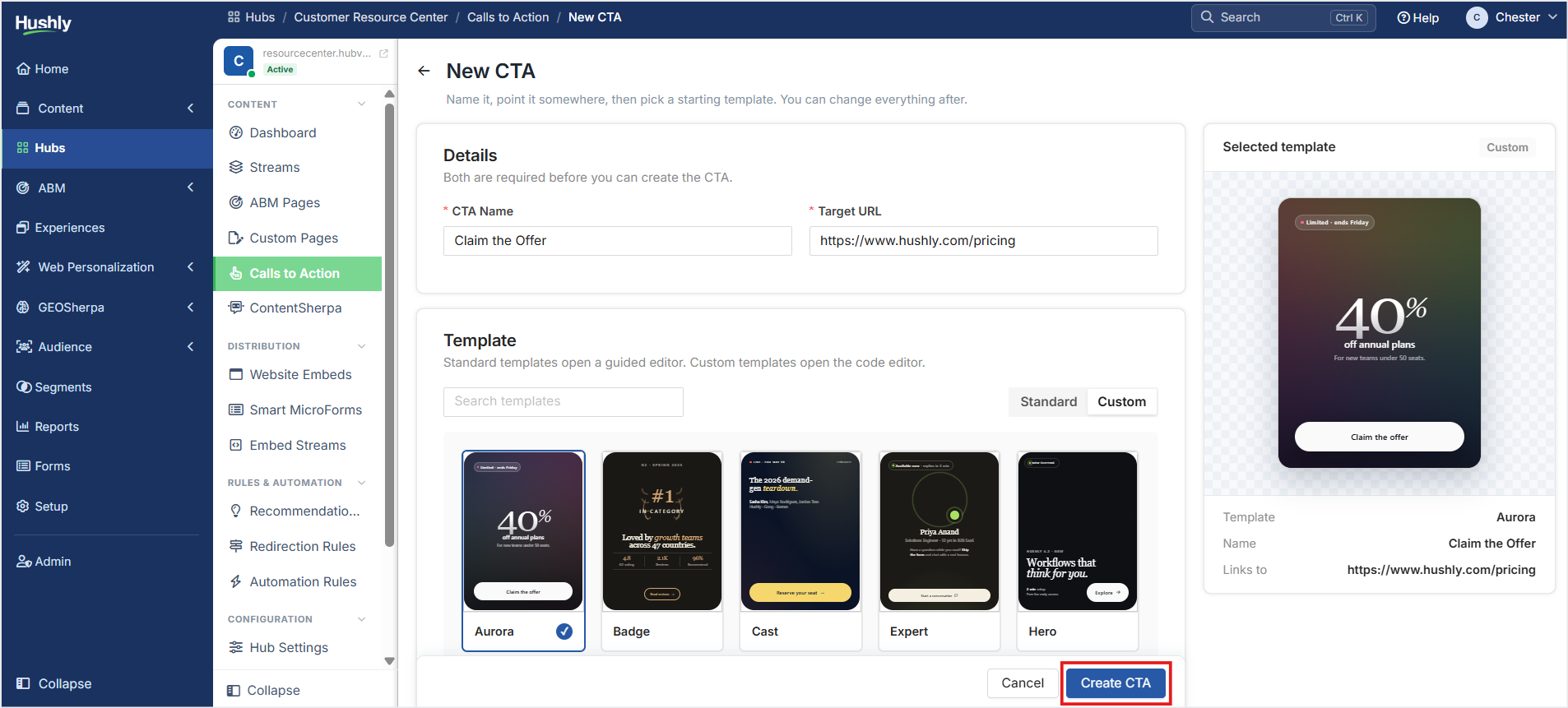
On the New CTA page, enter a CTA Name and Target URL. In the Template section, click the Custom tab and select a Template. Click Create CTA.
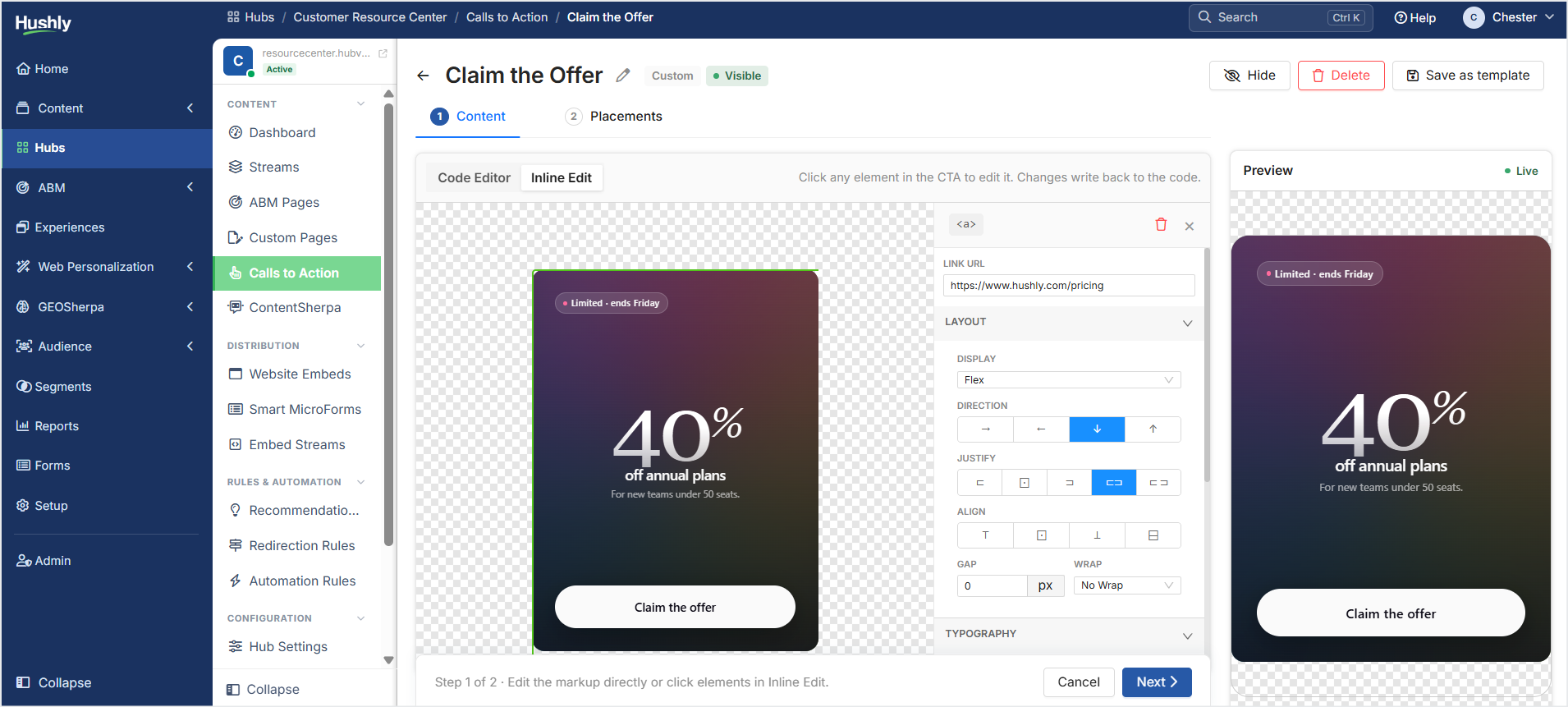
The CTA is successfully created, and the CTA editor page is displayed with the Content tab selected by default. Use the Content and Placements tabs to configure your CTA.
Designing and Styling the CTA
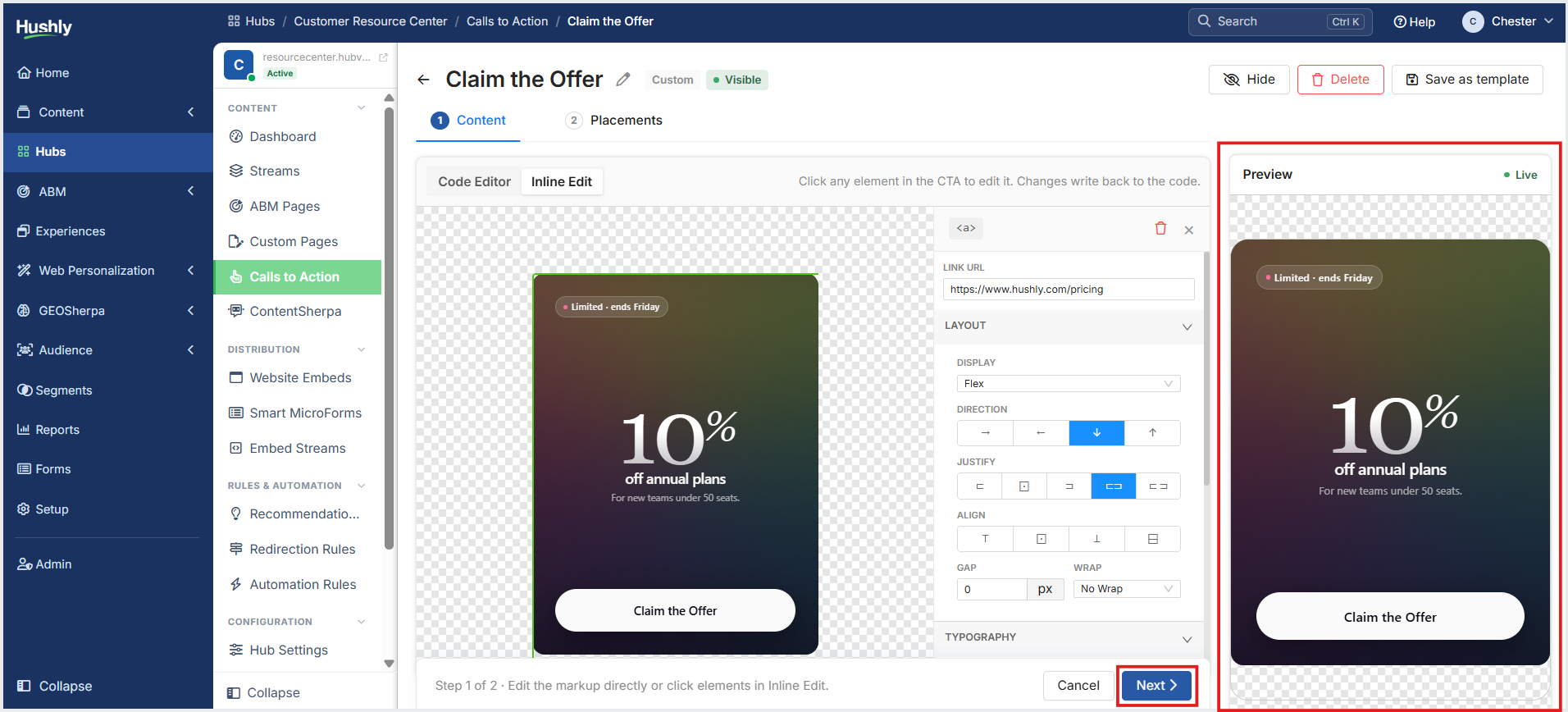
On the Content tab, use the Code Editor and Inline Edit tabs to design and style your CTA. All changes are reflected in the Preview section on the right side of the page. Click Next >. The Placements tab is displayed.
Displaying a CTA in a Stream
The Placements tab associates a CTA tile with a Stream and includes the destination web page.
Important: You can add a CTA tile to more than one Stream by clicking the + Add Placement button and selecting a different Stream.
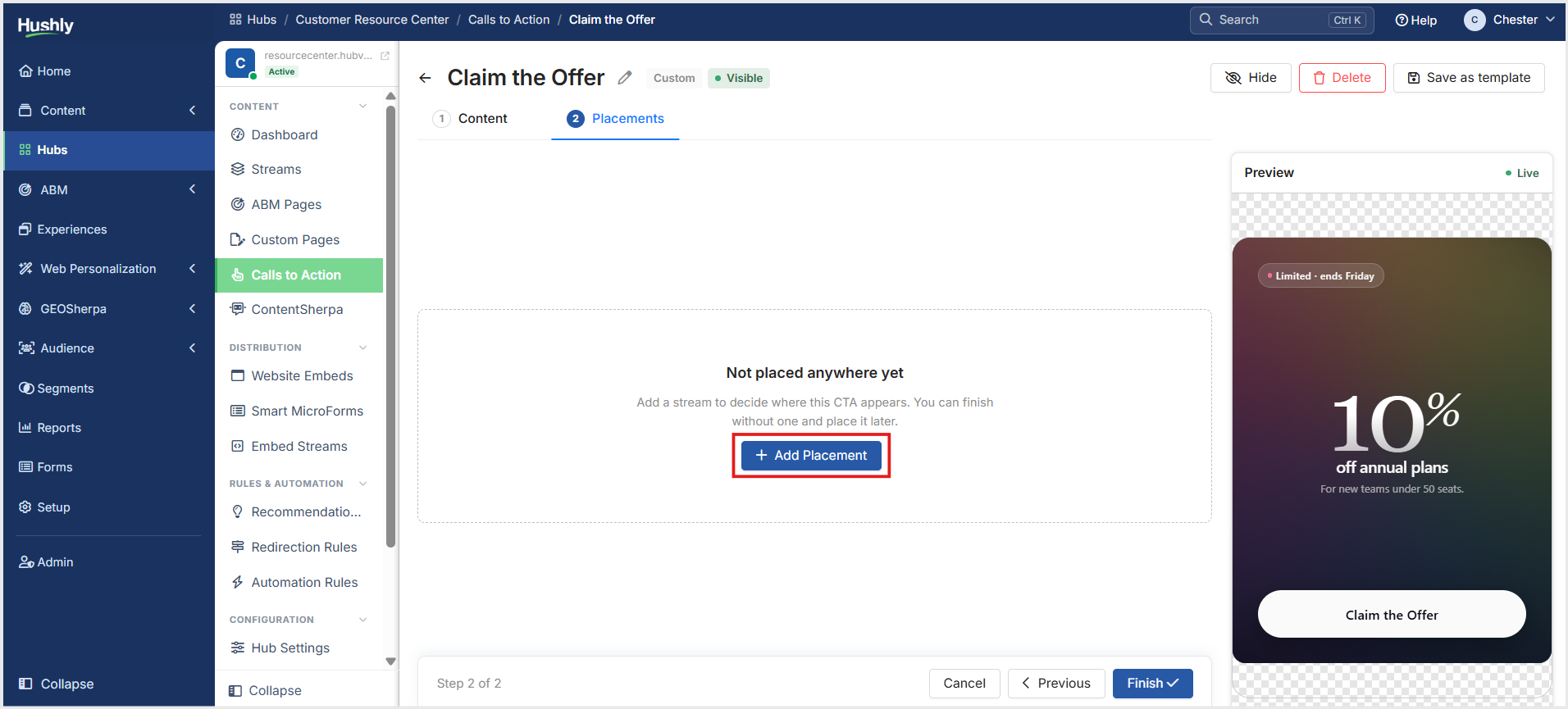
On the Placements tab, click + Add Placement.
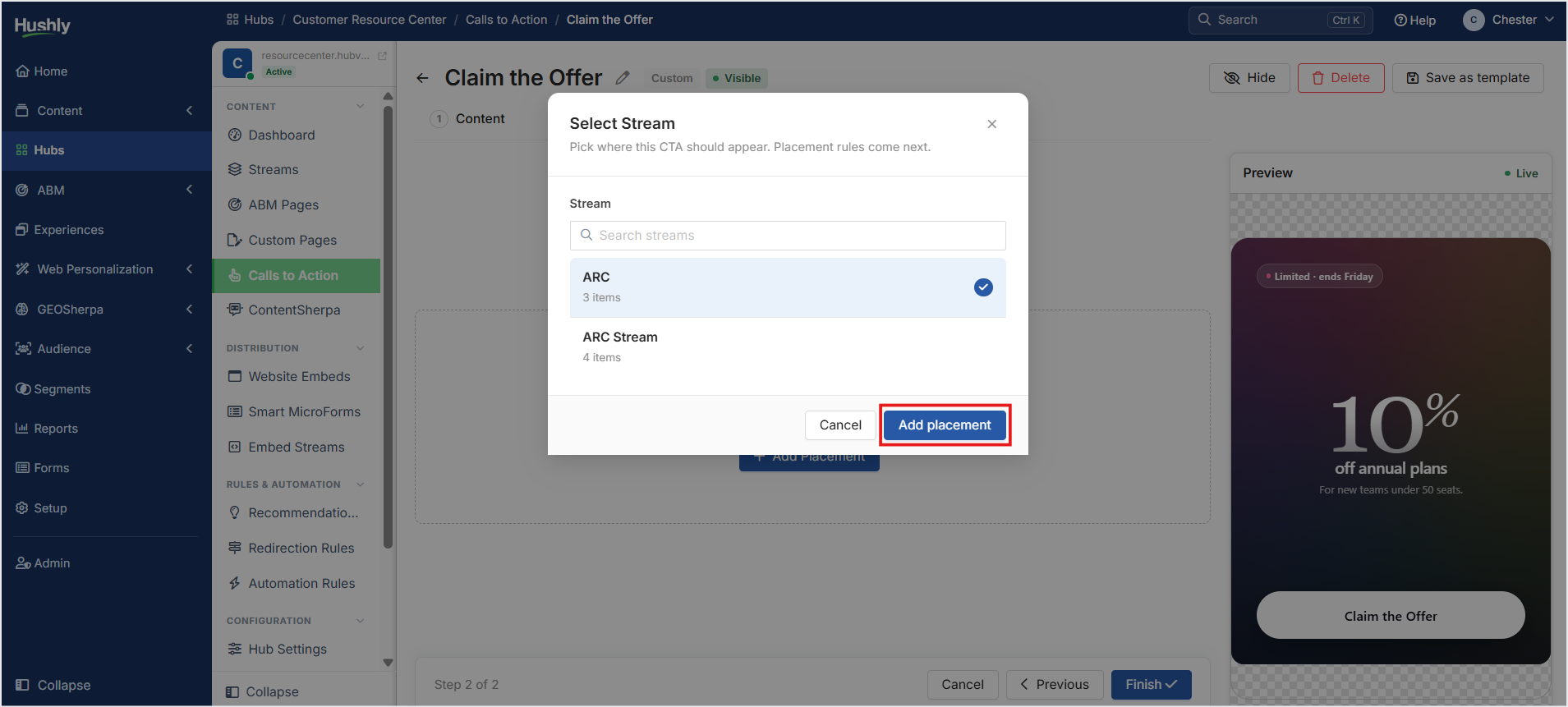
In the Select Stream pop-up window, select the Stream that should include the CTA tile. Click Add placement.
Select the placement levels from the following options: At Stream Level, At Item Level.
At Stream Level
Shown as its own tile between content items.
Will appear after item — Check the box and enter the number of Assets after which the CTA should appear for the first time in the Stream. ➜ Uncheck the box if you don't want the CTA to appear after a specific number.
Repeat every — Check the box and enter the number of Assets after which you want the CTA to appear again. ➜ Uncheck the box if you don't want the CTA to repeat.
Note: You should configure at least one of the two options for your CTA.
At Item Level
Whether the CTA sits beside an open content item.
Don't show — Choose this option not to show the CTA in the row of Assets.
Show beside — This is the default choice. Choose this option to showcase the CTA as the first item above the Recommendations for You section.
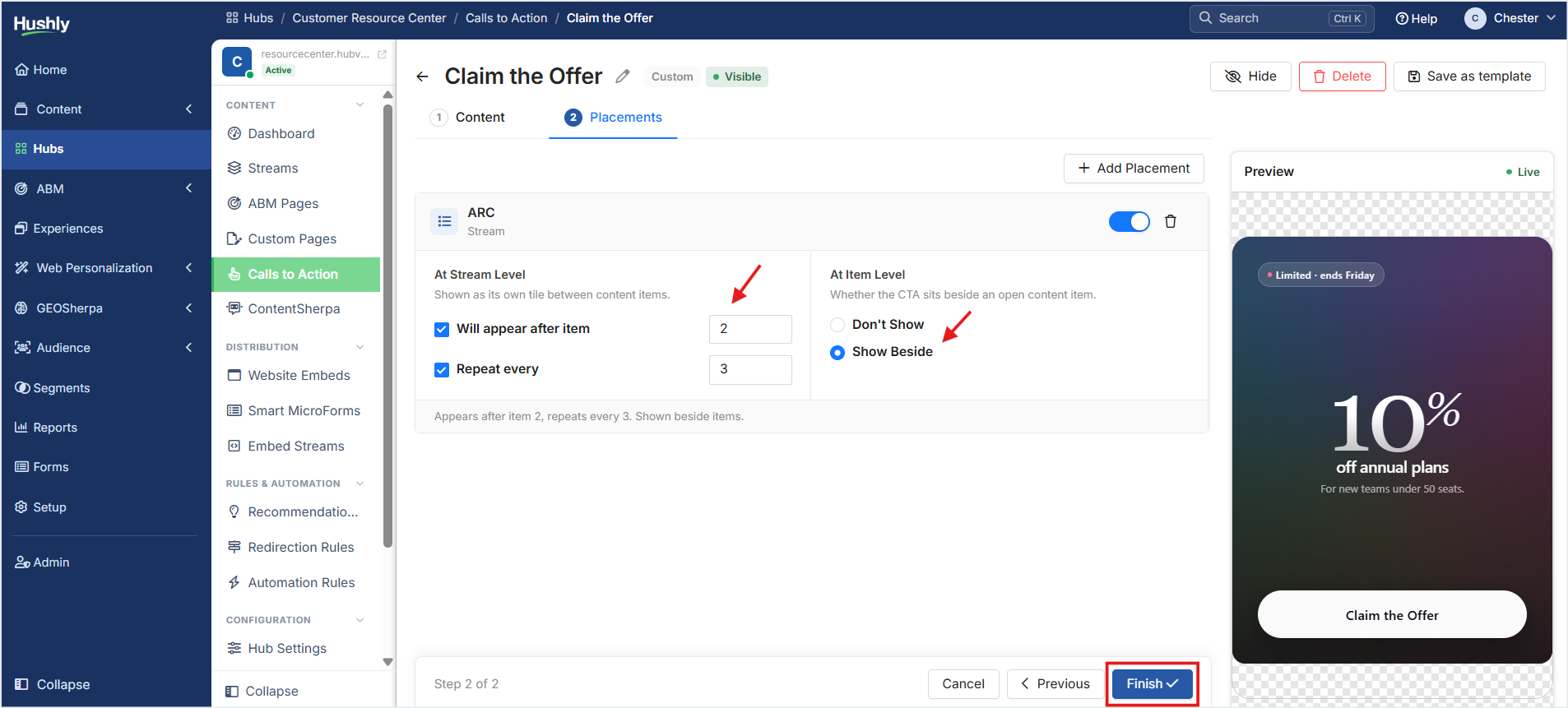
- Click Finish ✓.
User's View of the CTA
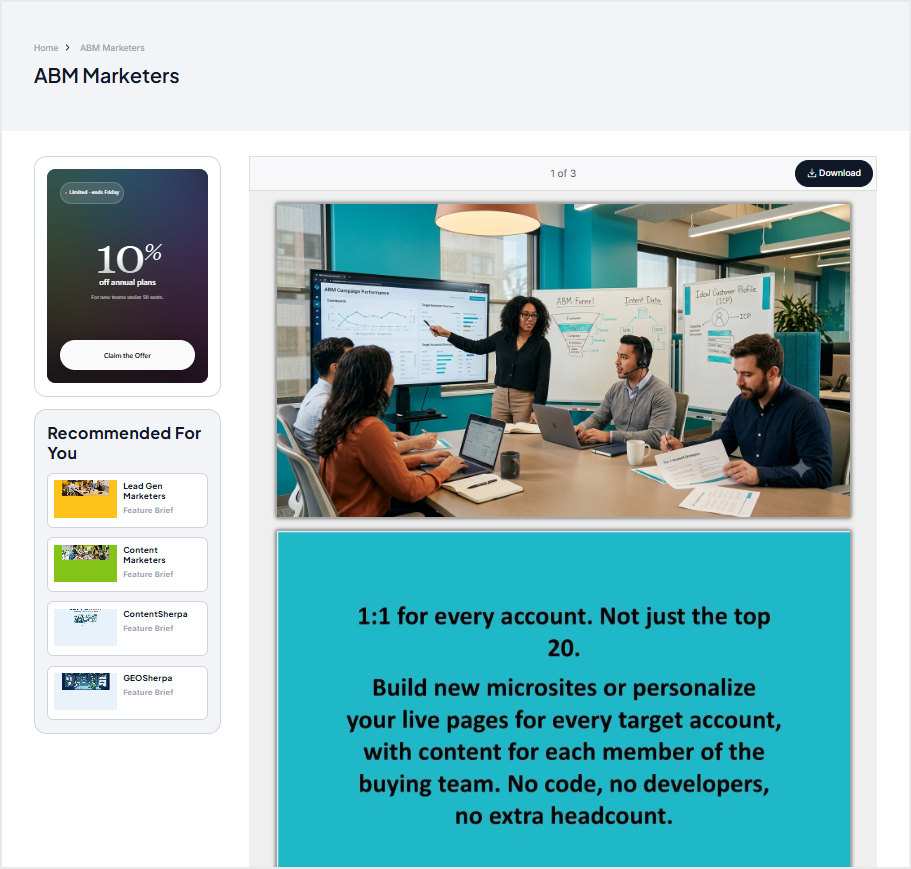
When the user accesses the Hub, the CTA is displayed as shown below:
At Stream Level
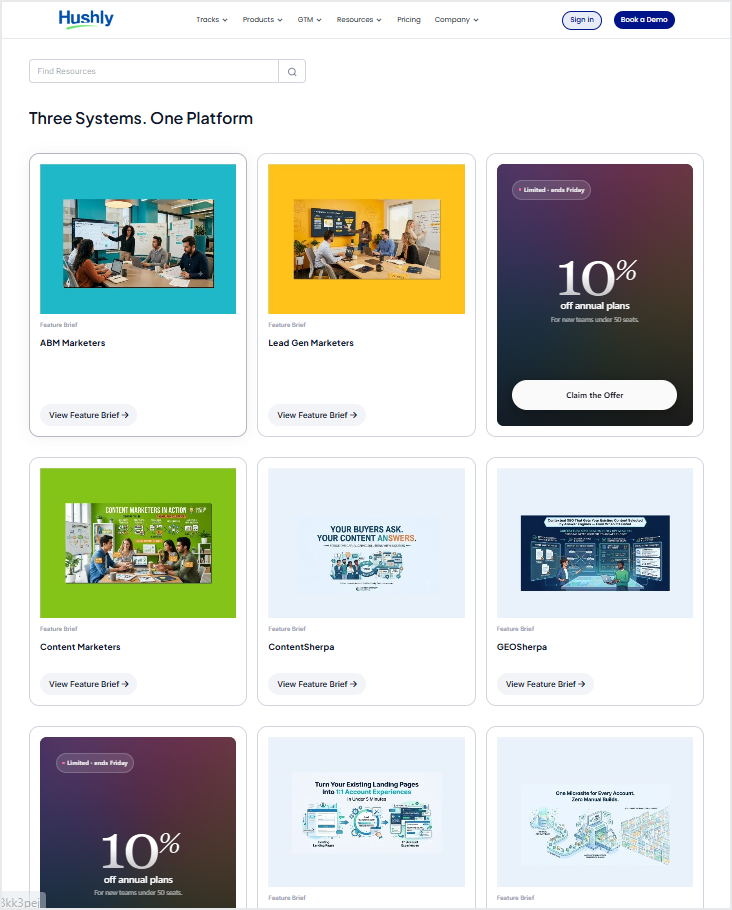
At Item Level
Was this article helpful?
That’s Great!
Thank you for your feedback
Sorry! We couldn't be helpful
Thank you for your feedback
Feedback sent
We appreciate your effort and will try to fix the article