Edit a Custom Page
To edit the content of a Custom Page, follow the steps below:
- From the Left Navigation Menu, click Hubs. On the Hubs listing page, select the Hub you want to manage. From the Hub Menu under CONTENT, click Custom Pages.
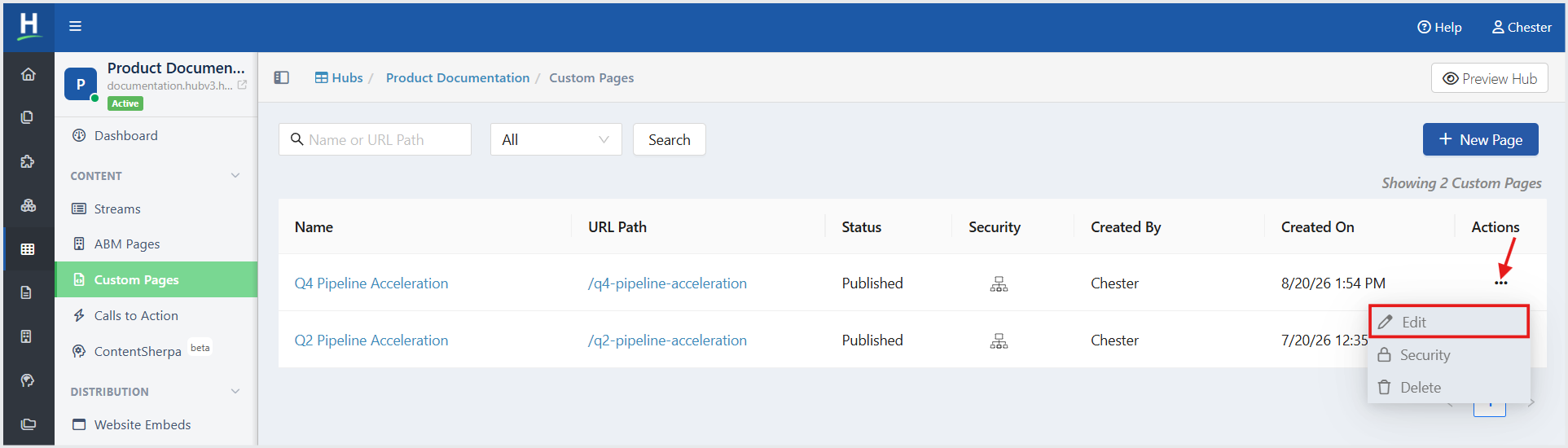
- On the Custom Pages listing page, click the ellipsis (three-dot) menu in the Actions column for the custom page you want to edit, and then select Edit.
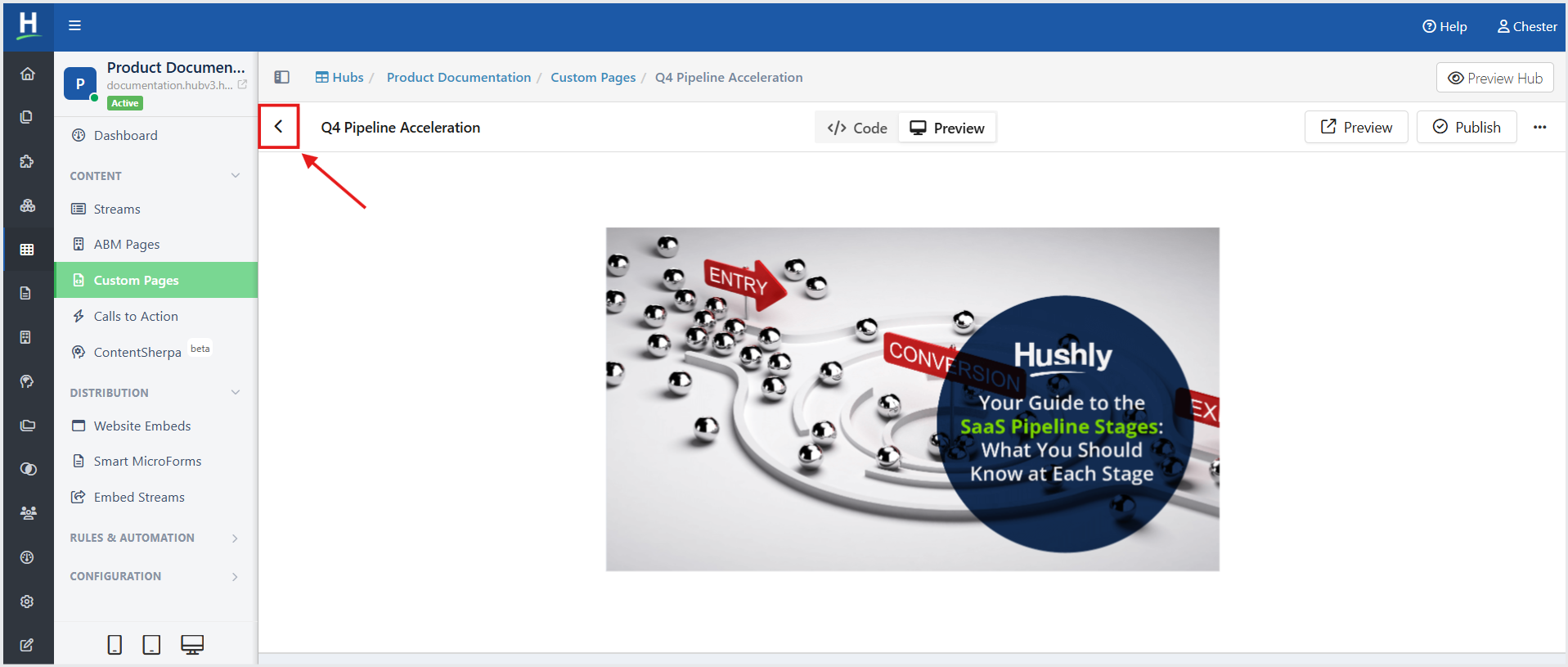
On the Page Editor page make the necessary changes to the content. Changes are automatically saved as you work. Click Back(<).
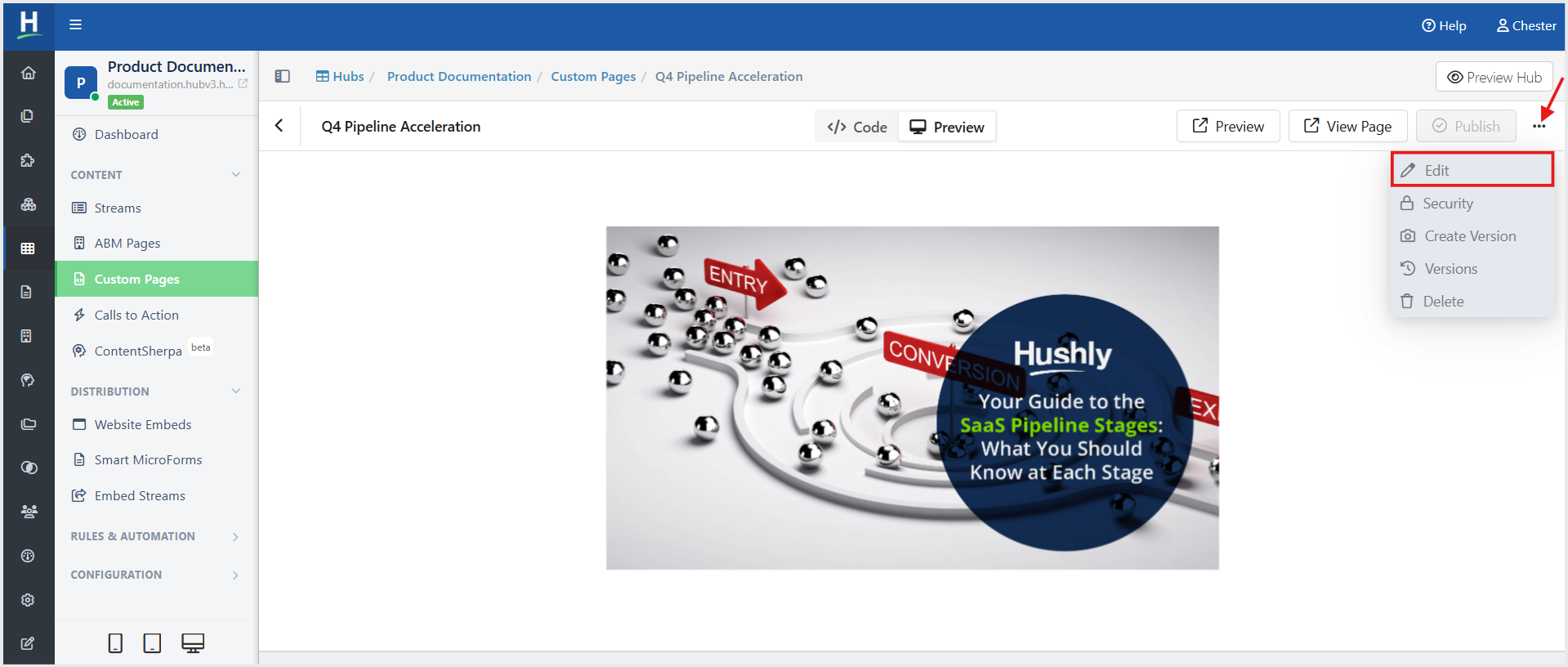
To edit the details (Name and URL Path) of a Custom Page, follow the steps below:
- On the Page Editor page, click the ellipsis (three-dot) menu in the upper-right corner of the Page Editor header, and then select Edit.
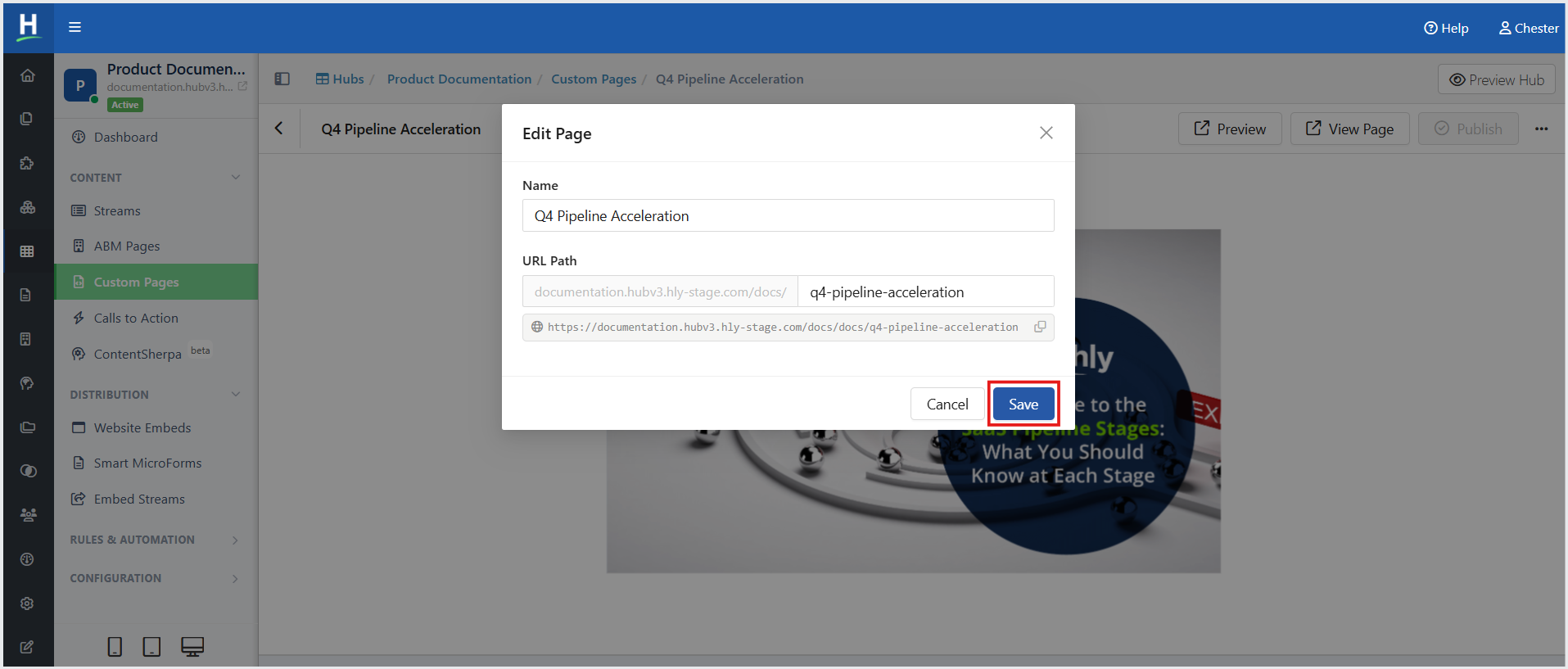
- The Edit Page dialog is displayed: Make necessary changes to the Name and URL Path, and then click Save.
Delete a Custom Page
To delete a Custom Page follow the steps below:
- From the Left Navigation Menu, click Hubs. On the Hubs listing page, select the Hub you want to manage. From the Hub Menu under CONTENT, click Custom Pages.
- On the Custom Pages listing page, click the ellipsis (three-dot) menu in the Actions column for the custom page you want to delete, and then select Delete.
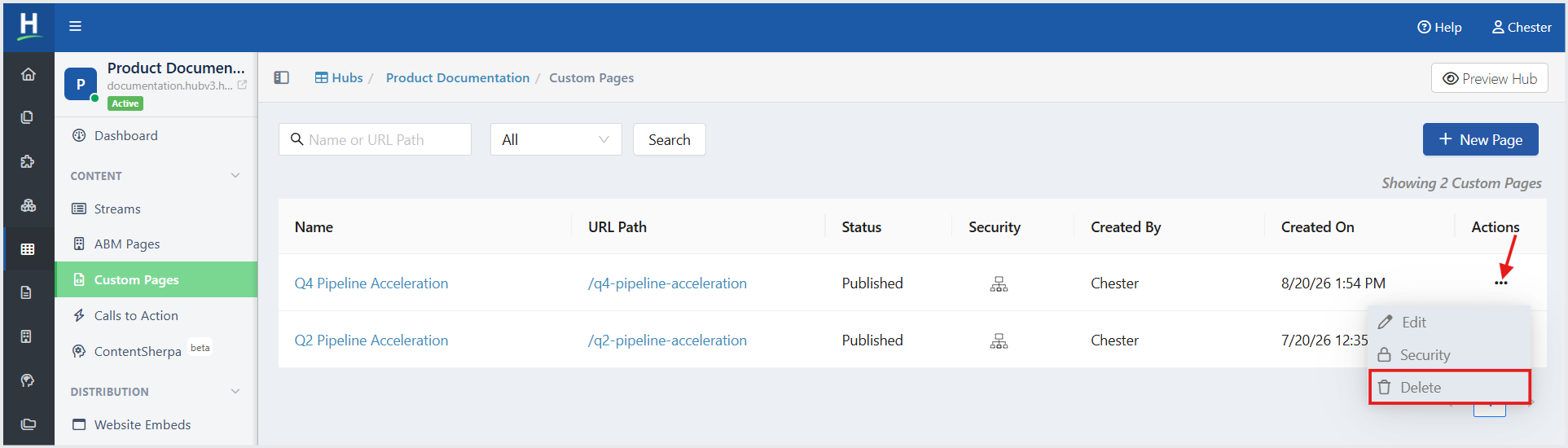
When you choose to delete a custom page, a confirmation dialog is displayed to prevent accidental deletion. You must confirm the action before the page is permanently removed. Click Delete.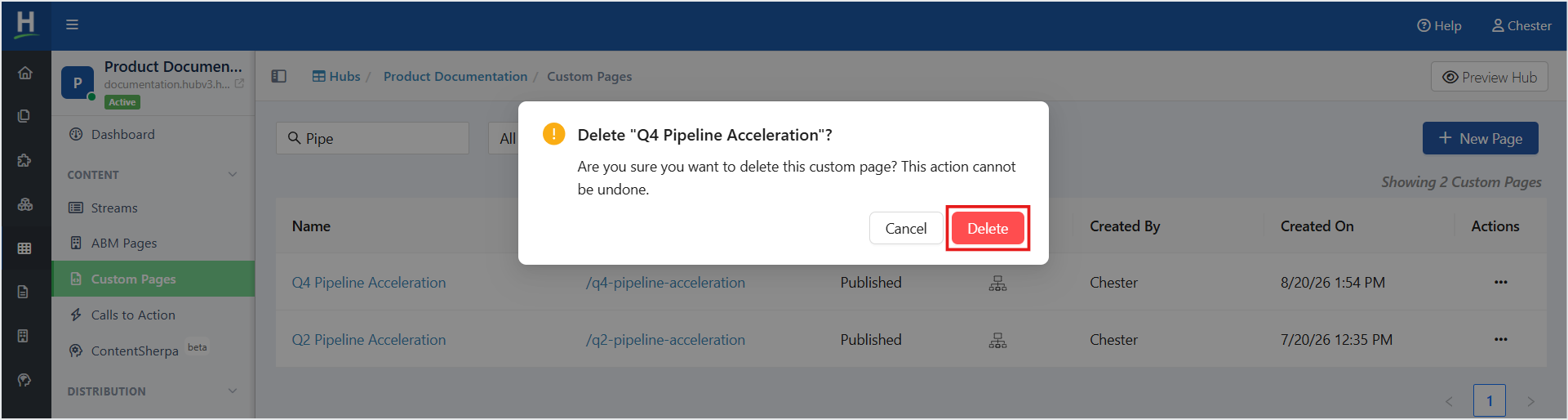
You can also delete a custom page from the Page Editor by clicking the ellipsis (three-dot) menu in the upper-right corner of the Page Editor header and then selecting Delete.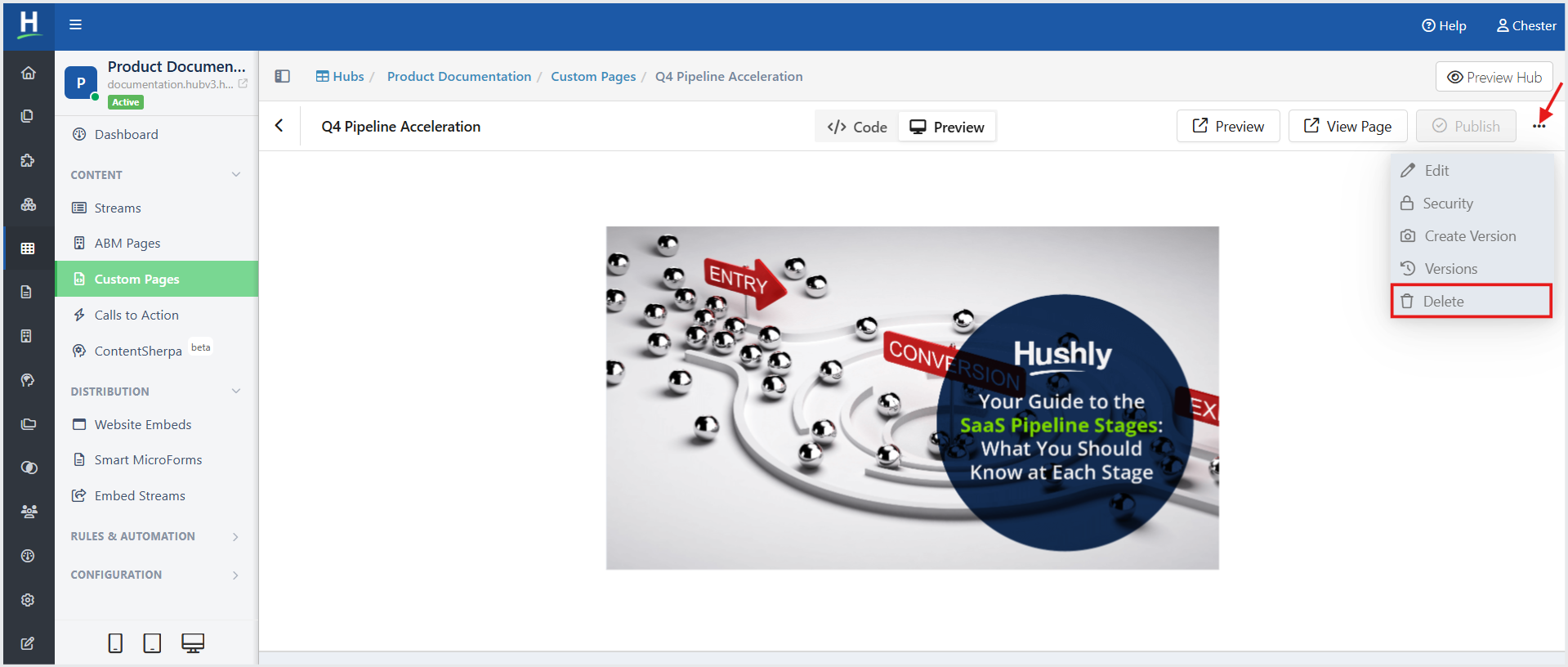
Related Topics:
Was this article helpful?
That’s Great!
Thank you for your feedback
Sorry! We couldn't be helpful
Thank you for your feedback
Feedback sent
We appreciate your effort and will try to fix the article