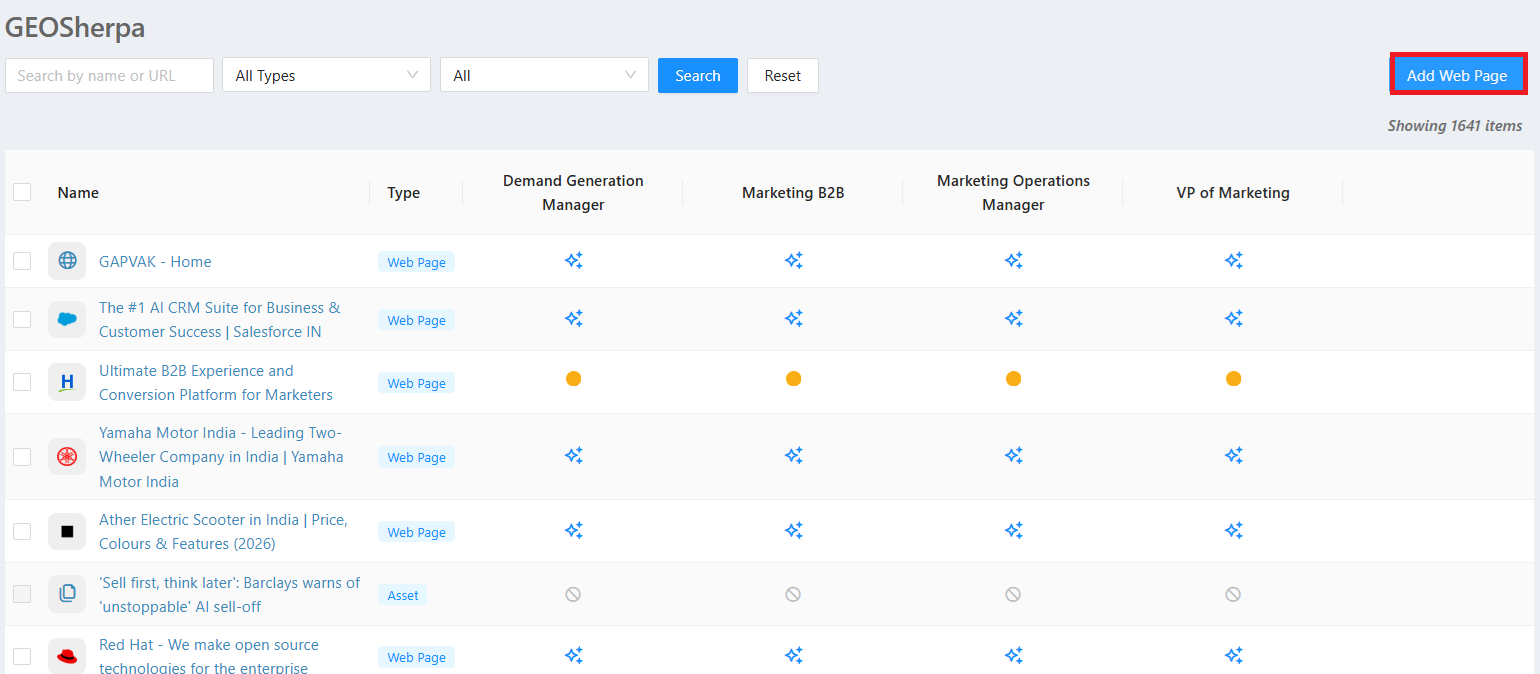
Add Web Page in the GEOSherpa dashboard allows users to include external web pages for AI-driven question generation and persona-based content analysis. By clicking the Add Web Page button, users can enter the URL of the desired web page, which is then indexed and added to the dashboard as a searchable item.
Once added, the web page appears in the listing with its type marked as Web Page and becomes available for AI processing. GEOSherpa analyzes the content and enables question generation across selected personas and journey stages. This helps teams identify content relevance, uncover gaps, and ensure the web page supports targeted audience engagement.
This feature ensures that both internal assets and external web content can be centrally managed, analyzed, and optimized within the GEOSherpa platform.
To add a Web Page to the GEOSherpa dashboard page, follow the steps below:
- From the Left Nav menu, click GEOSherpa.
- On the GEOSherpa dashboard page, click Add Web Page.
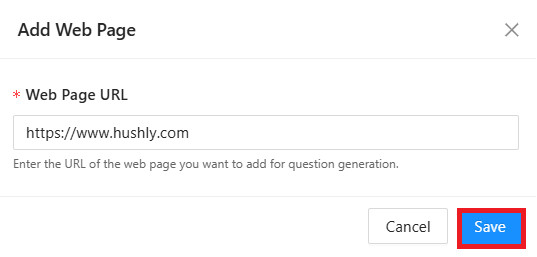
The Add Web Page dialog box displays a field to enter the Web Page URL, along with Cancel and Save buttons. Enter the website URL and click Save to add the web page.
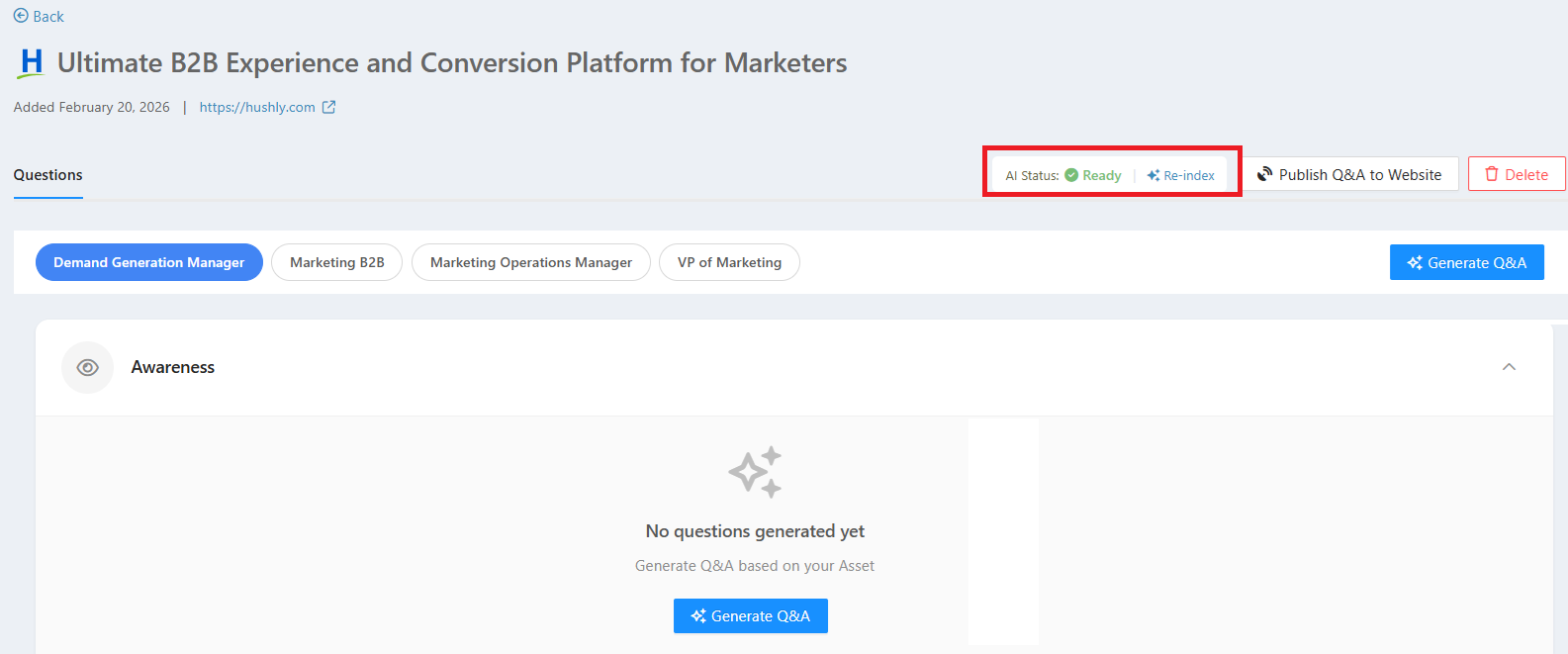
The Web Page is created successfully, and a confirmation message is displayed. The Web Page Details page opens, showing the AI Status as Loading while the page is being indexed and prepared for AI. Once the indexing process is complete, the status updates to AI Ready. A Questions tab is also available on the Details page, where generated questions can be viewed and managed.
The Questions tab displays the Q&A workspace for an asset, organized by buyer journey stages: Awareness, Consideration, Evaluation, and Decision. You can select Personas to tailor questions to specific audiences. If no Q&A exists, you can use Generate Q&A to create AI-driven questions and answers based on the asset content and selected Personas. This helps deliver relevant, stage-specific FAQs across the buyer journey.
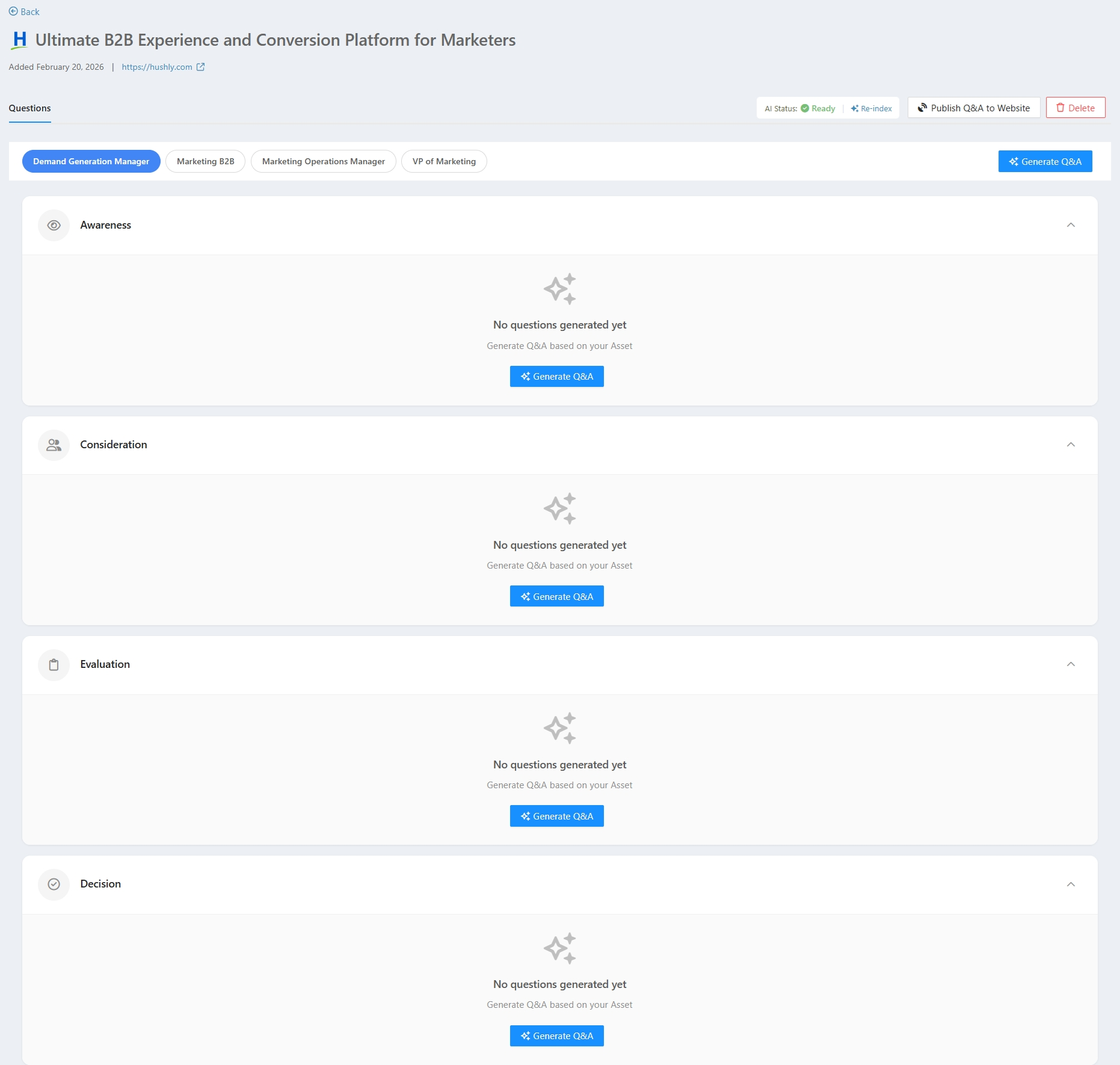
Select a Persona to generate Q&A, and then click the Generate Q&A.

The Generate All Questions pop-up window is displayed with options: Generate only for this Persona, Generate for all Personas, and Generate only for missing Personas & Stages.
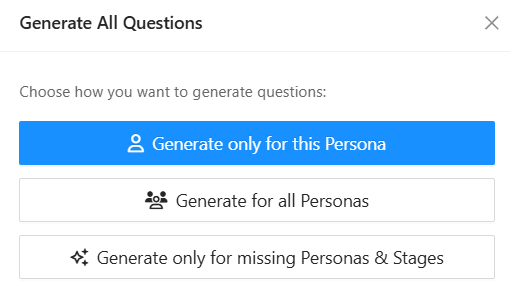
Select the Generate only for this Persona option: Creates questions and answers exclusively for the currently selected persona across relevant buying stages.
Select the Generate for all Personas option: Automatically generates questions and answers for every defined persona, covering all applicable buying stages.
Generate only for missing Personas & Stages: Generates questions and answers only for Personas and Stages that do not already have Q&A, without modifying or overwriting existing ones.
Selecting the Generate for all Personas option allows you to generate questions for all personas at once, instead of generating them individually.
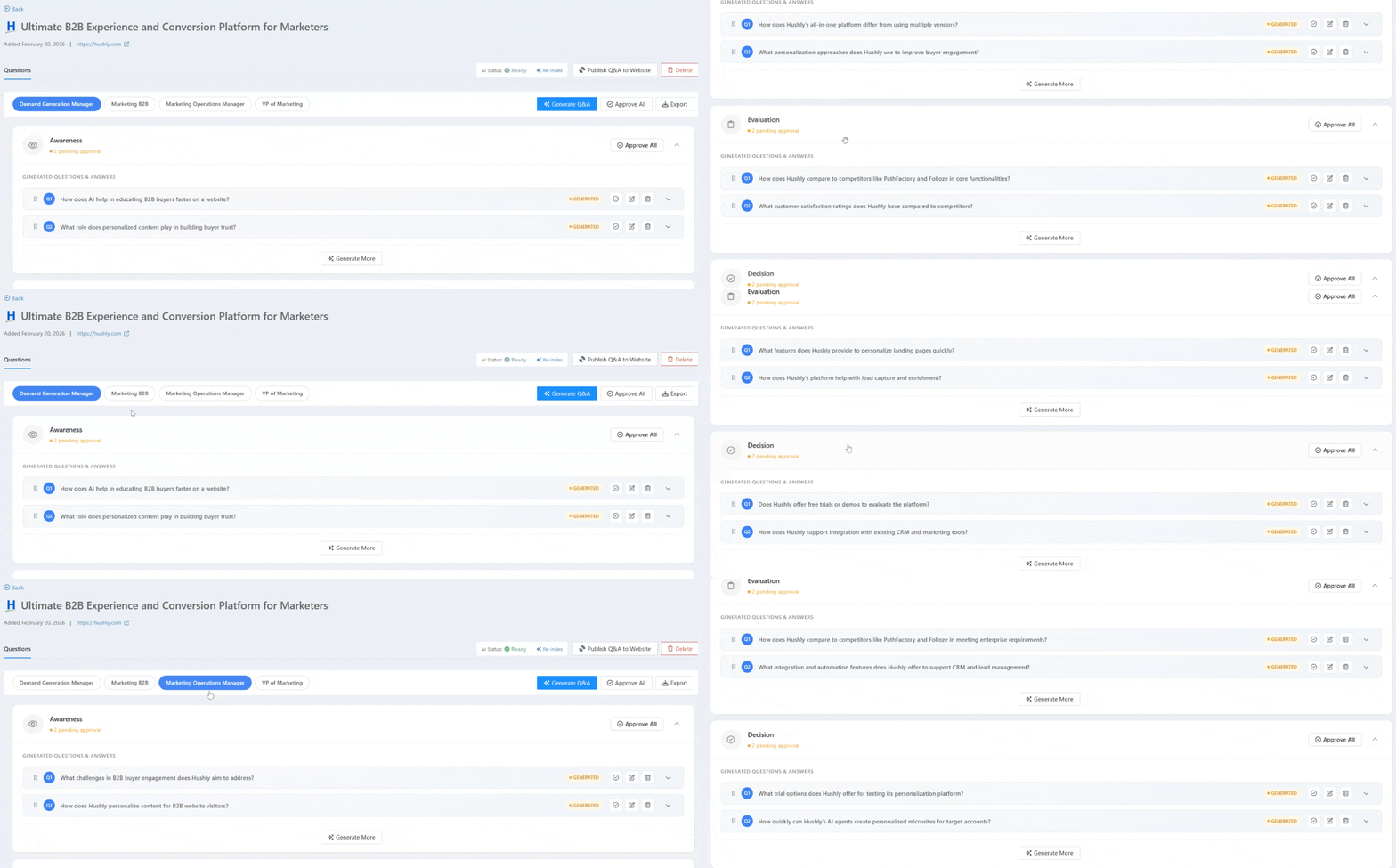
For Persona-Based Q&A: Button Action Descriptions and Buying Stages: Button and Icon Descriptions, please refer to points 6 and 7 in this document.
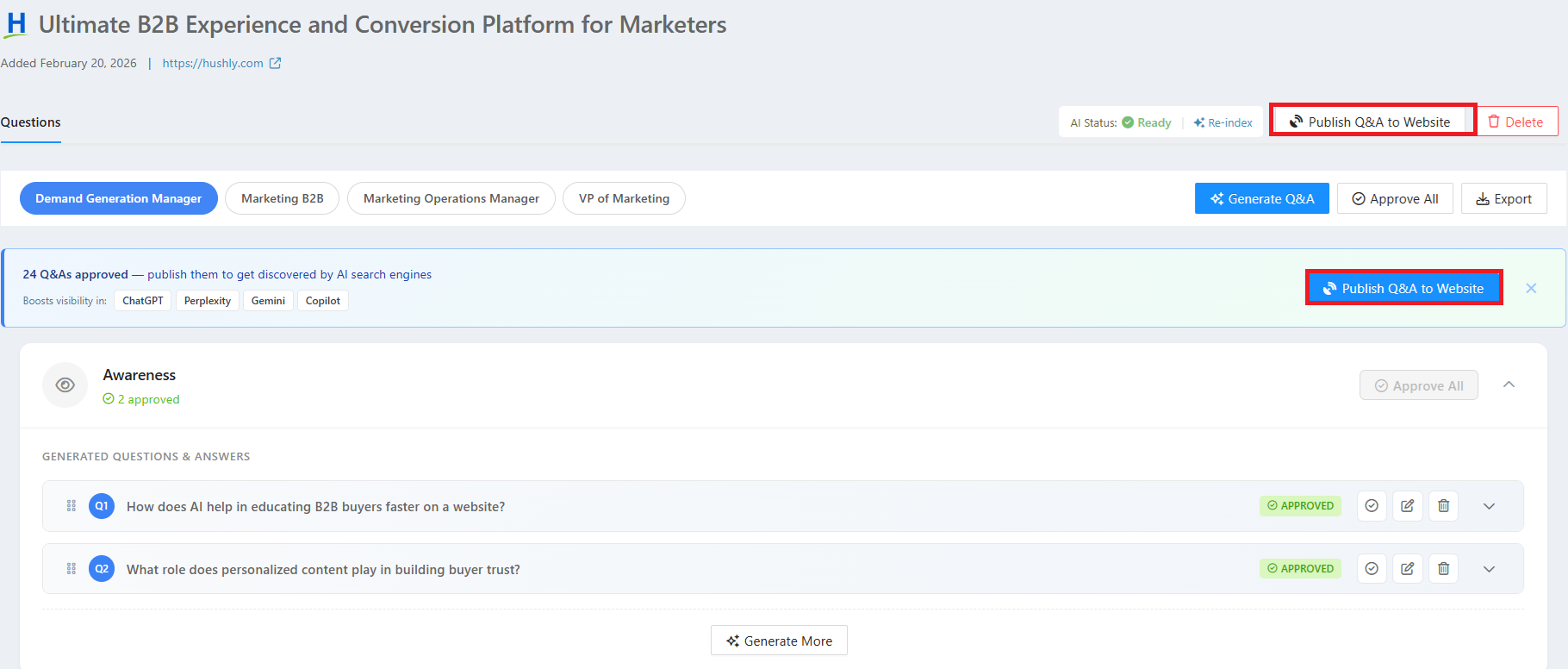
Once the Q&As are approved, the Publish Q&A to Website button becomes available. This button is also accessible from the Action Bar. Click Publish Q&A to Website.
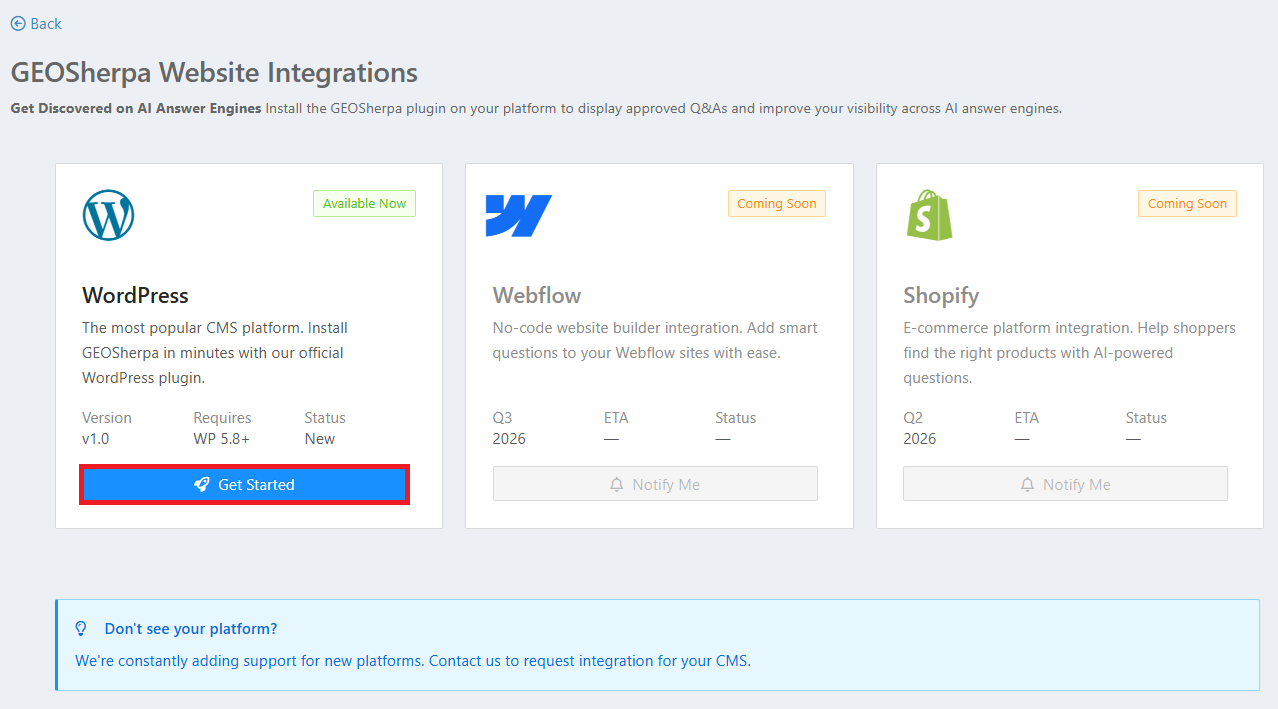
The GEOSherpa Website Integrations page is displayed. Click the Get Started button to integrate with WordPress. If your integration is not listed on the Integrations page, please contact your CSM for assistance.
The WordPress Plugin Installation dialog box is displayed, providing information about the installation process for the GEOSherpa plugin. Click the provided link to learn how to install the plugin.
Related Topics:
Was this article helpful?
That’s Great!
Thank you for your feedback
Sorry! We couldn't be helpful
Thank you for your feedback
Feedback sent
We appreciate your effort and will try to fix the article