The GeoSherpa plugin installation is the process of adding the GeoSherpa integration component to your WordPress website. Once installed and activated, the plugin enables seamless connectivity between your WordPress site and the GeoSherpa platform, allowing your website to communicate securely and support GeoSherpa features and services. This integration prepares your website for configuration and ensures it can interact properly with your GeoSherpa account.
These are the system requirements needed to install and run the WordPress plugin successfully.
- WordPress 5.8 or higher - This means your website must be running WordPress version 5.8 or any newer version (such as 5.9, 6.0, 6.1, etc.).
- PHP 7.4 or higher: PHP is the server-side programming language WordPress uses to function. This requirement means your web server must run PHP version 7.4 or newer (e.g., 8.0, 8.1, or higher).
The WordPress Plugin Installation dialog box provides instructions to integrate GEOSherpa with your WordPress website. Once activated, your WordPress site will be connected to GEOSherpa, allowing you to publish approved Q&As to your website.
To install the plugin, follow the steps below:
- In the WordPress Plugin Installation dialog box, click Download Plugin to download the GEOSherpa plugin file to your system.

- Log in to your WordPress Admin Dashboard. Go to Plugins → Add New, then click Upload Plugin.
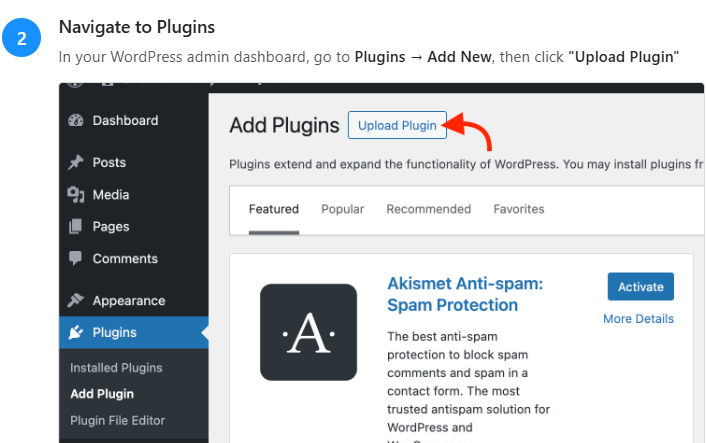
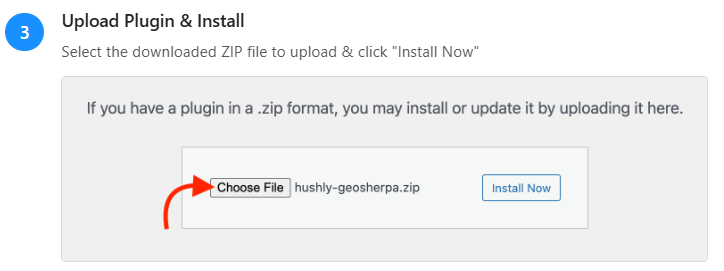
- Click Upload Plugin and select the downloaded GEOSherpa plugin file.
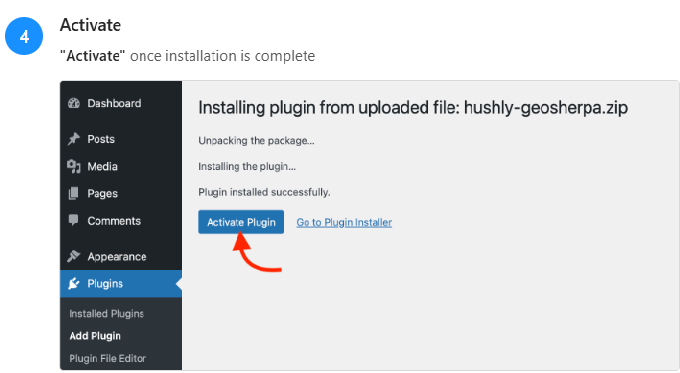
- Once the installation is complete, click ActivatePlugin to complete the integration.
- Go to Settings and configure your API credentials.
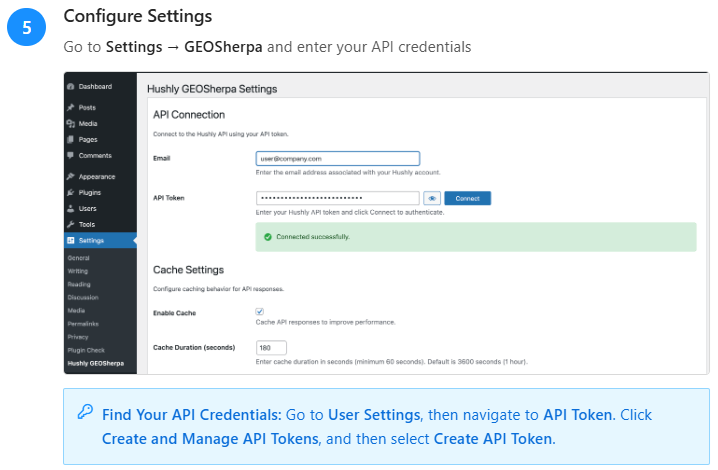 Note: To view your API token in Hushly, please refer to this document.
To use the Plugin to add FAQ blocks, click here.
Related Topics:
Was this article helpful?
That’s Great!
Thank you for your feedback
Sorry! We couldn't be helpful
Thank you for your feedback
Feedback sent
We appreciate your effort and will try to fix the article