This GEOSherpa Plugin allows you to easily insert a structured FAQ (Frequently Asked Questions) section into your website. The FAQ block helps organize common questions and answers in a clean, expandable format, improving user experience and making information easier to find. It can also enhance SEO by presenting content in a format that search engines can better understand and display in rich results.
- To add an FAQ block using the WordPress Editor, at the bottom of your WordPress page, go to the bottom of the page and click the + (Plus sign) to add a block.
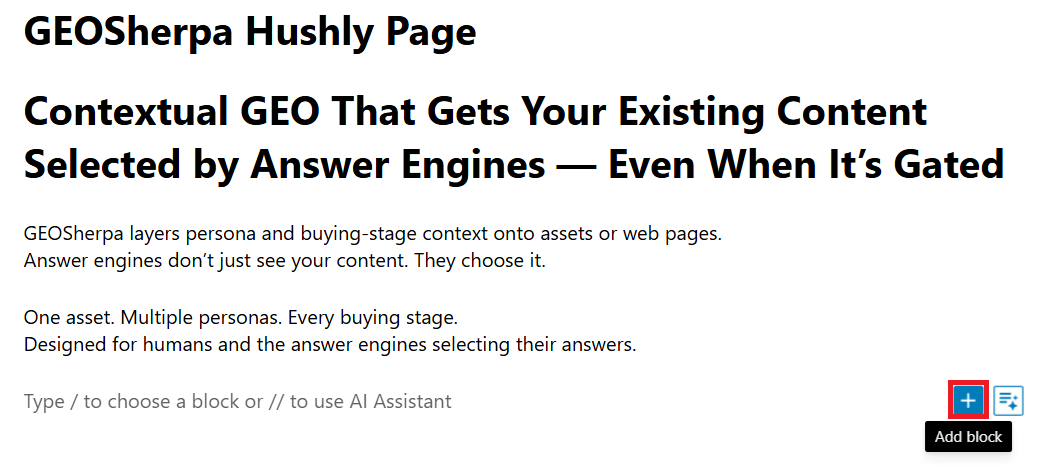
- Clicking Add Block opens the blocks list. From the list, select the Hushly GEOSherpa block, and the block will be inserted into the page.
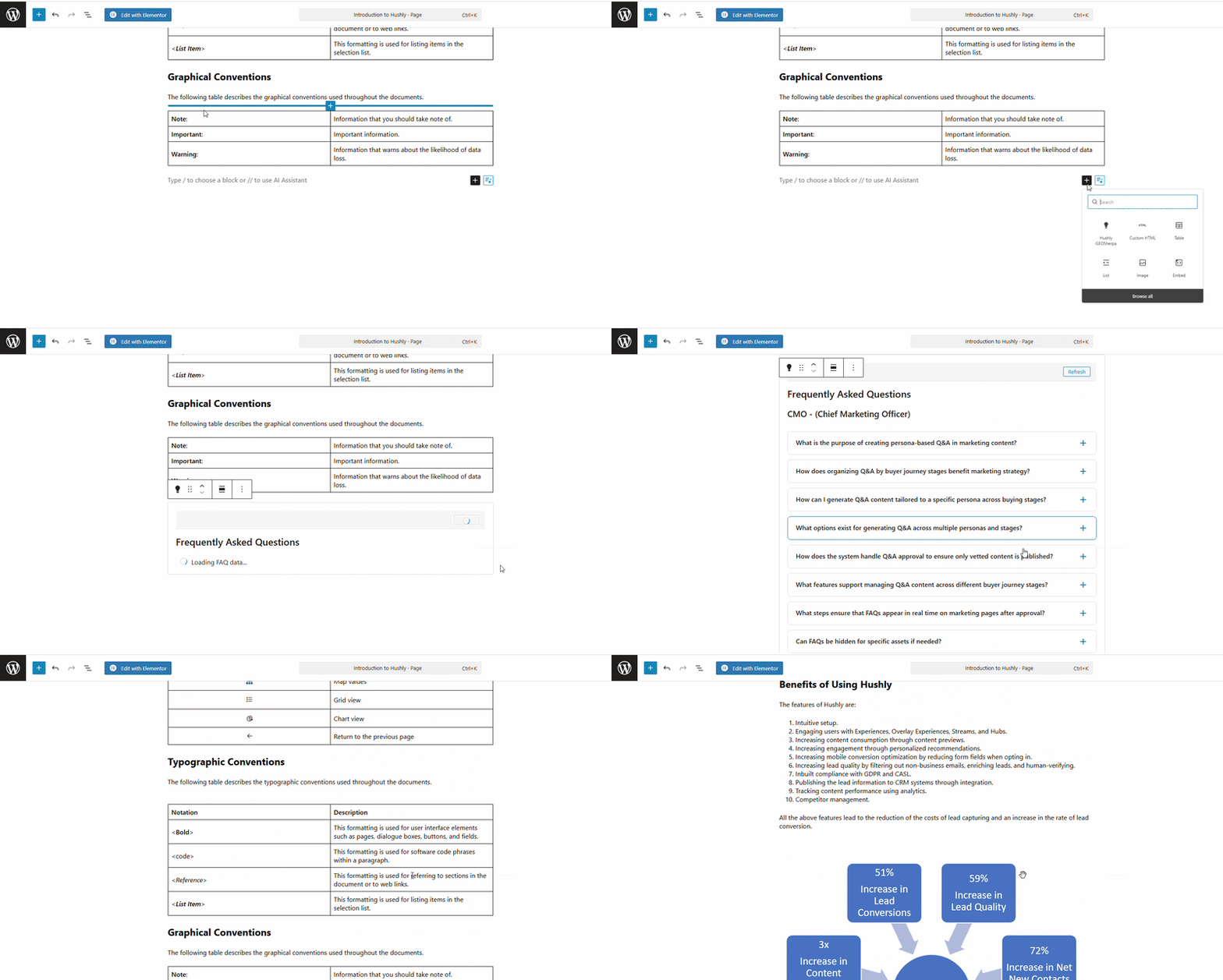
- Clicking Add Block opens the blocks list. From the list, select the Hushly GEOSherpa block, and the block will be inserted into the page.
- Adding the FAQ within Elementor: If you have videos or other content displayed on your website and would like to add an FAQ section below them, you can insert an Asset FAQ block.
For example, if you have a product demo or marketing video and want to provide additional information on FAQs beneath it, add the Asset FAQ block to the page.
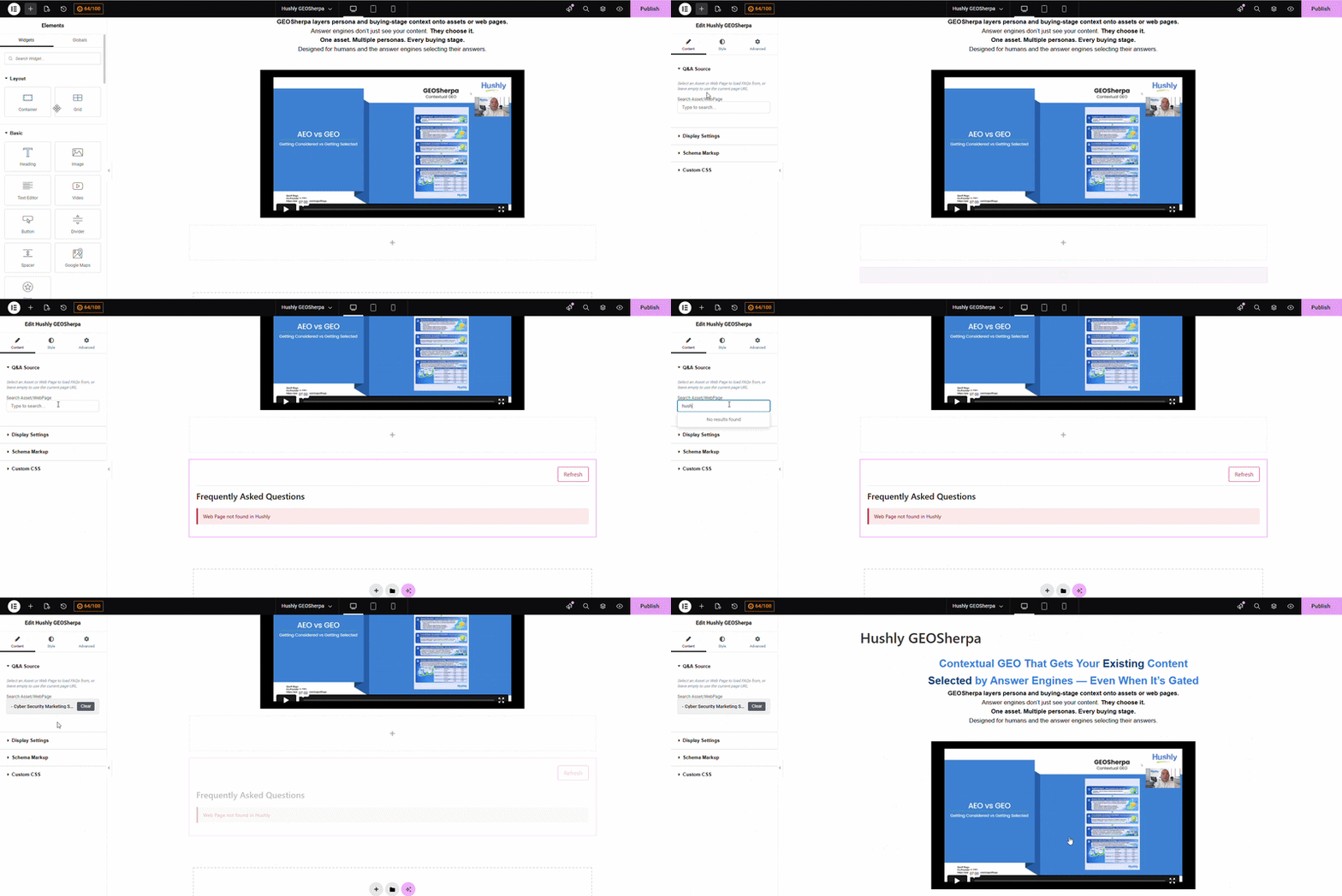
To add a Hushly GEOSherpa Block to the page using Elementor, follow the steps below:In the Elements section under the Widgets tab, search for Hushly GEOSherpa.
Click or drag-and-drop the Hushly GEOSherpa widget onto the page.
The FAQ block will be added to the Editor, and the Edit Hushly GEOSherpa panel will open on the left.
Under the Content tab, navigate to the Q&A Source section.
In the search field, enter the name of the Web Page or Asset you want to display.
Select the desired Asset or Web Page from the search results.
The FAQs associated with the selected Asset or Web Page will be automatically displayed in the block.
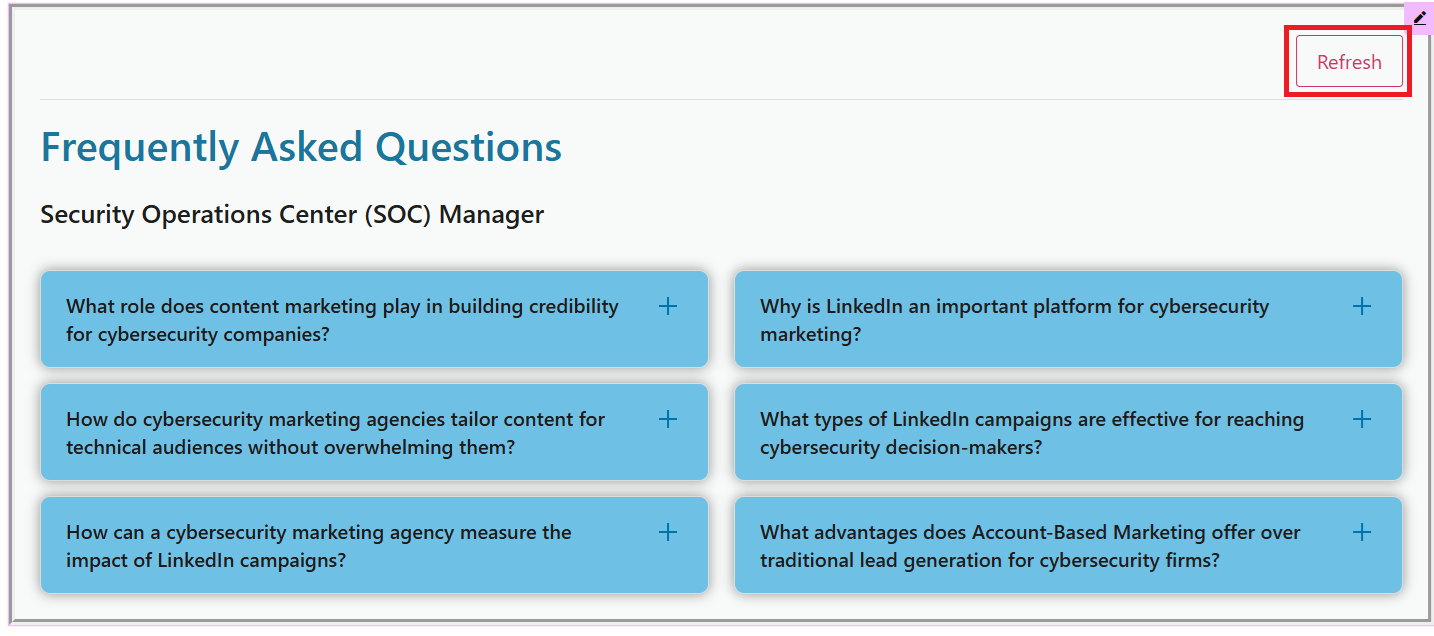
- If any changes are made in Hushly to the selected Asset or Web Page, such as adding, editing, or deleting Q&As, click the Refresh button to update the FAQ block. The block will reload and display the latest changes from Hushly.
Editing and Customizing the FAQ Block using Elementor
The Edit Hushly GEOSherpa panel provides full control over the content source, appearance, SEO schema, and styling of the FAQ section.
To customize the FAQ block using the Edit Hushly GEOSherpa panel, follow the steps below:
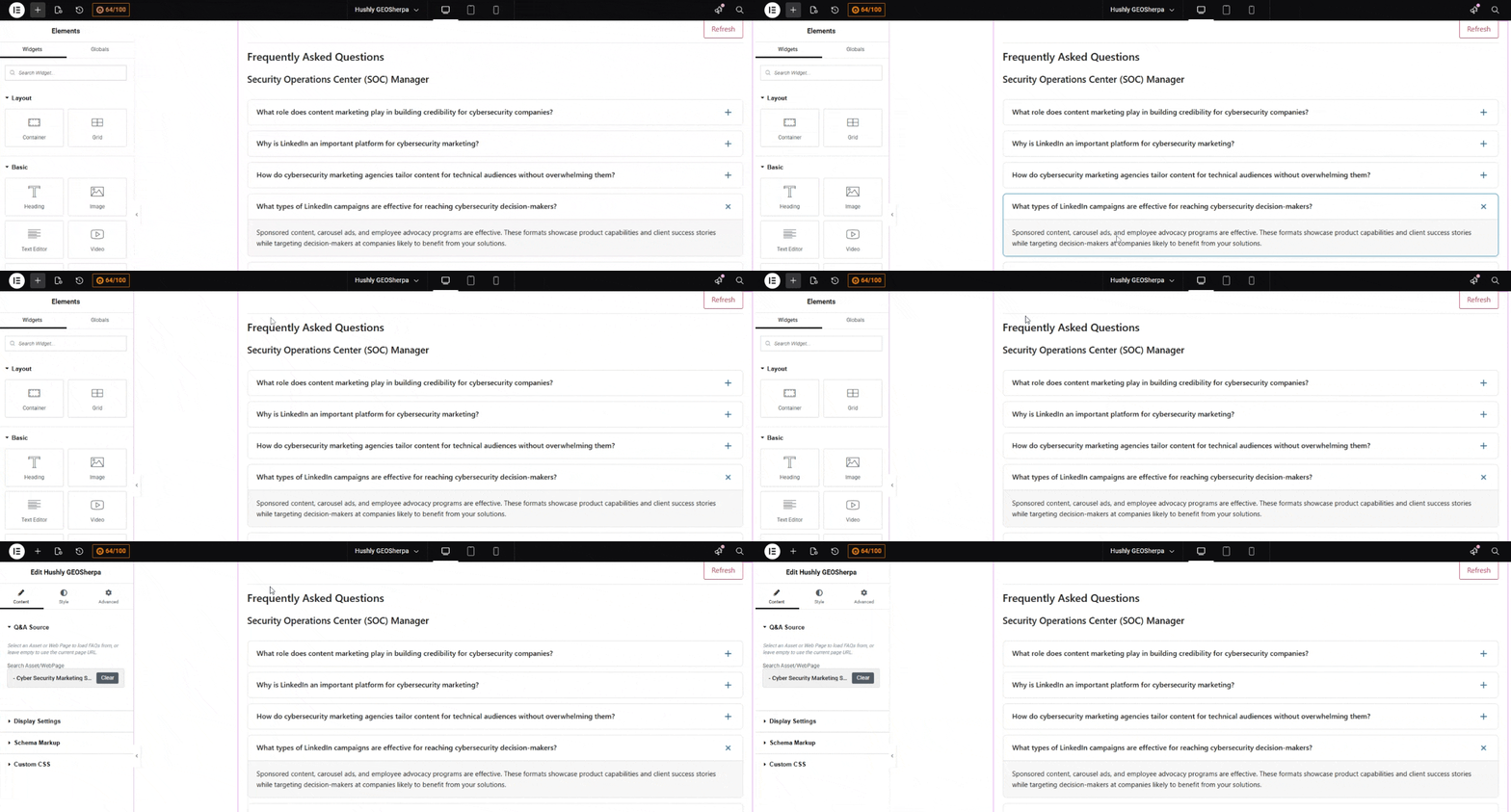
- Click anywhere in the FAQ block to open the Edit Hushly GEOSherpa panel.
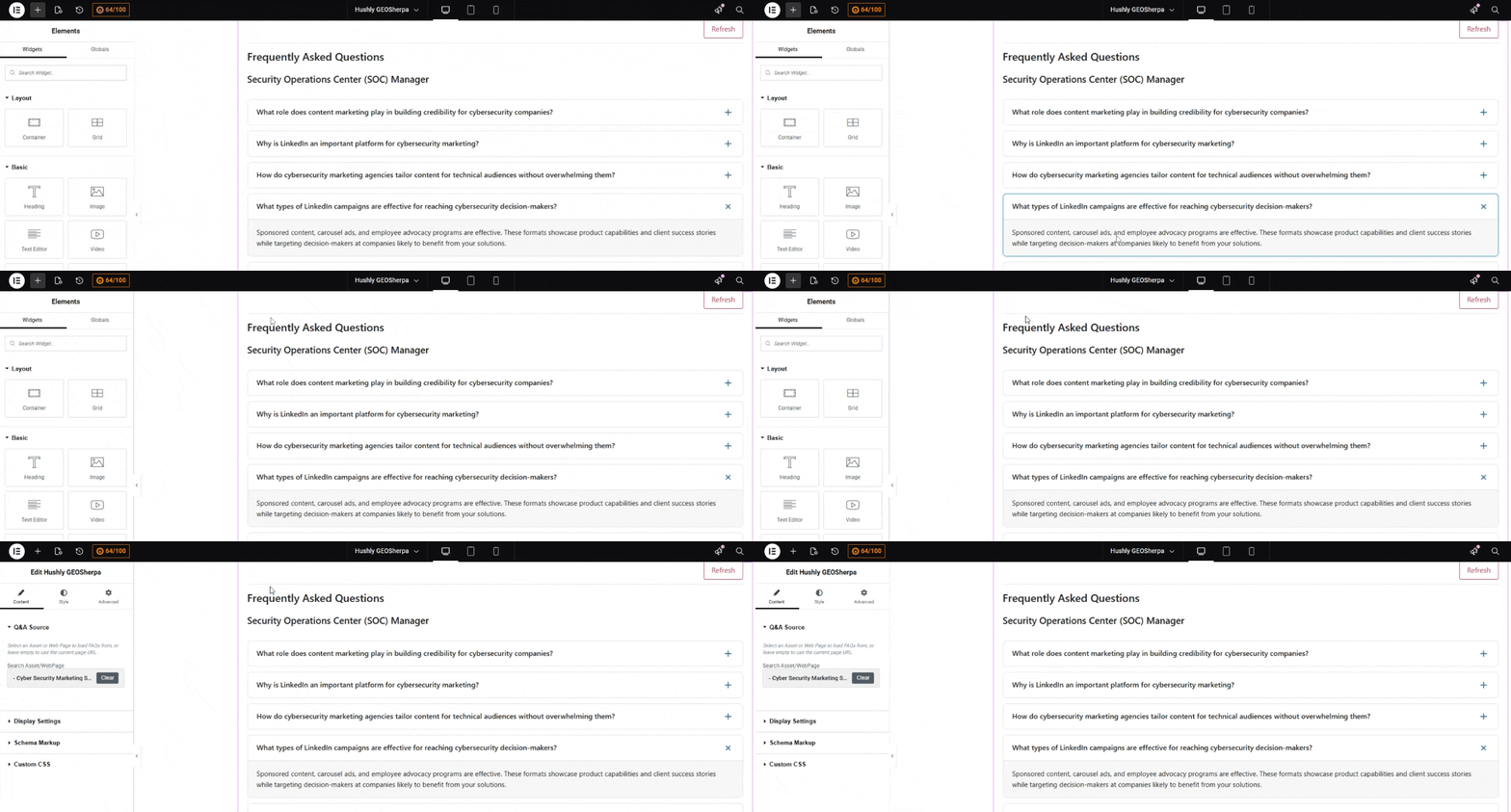
- The Edit Hushly GEOSherpa panel opens, displaying three tabs: Content, Style, and Advanced.
- Content Tab: Under the Content tab, the following sections are available:
- Q&A Source - Allows you to select an Asset or Web Page to load FAQs from, or leave it to use the current Asset/Web Page. A search field is provided to locate the desired Asset or Web Page.
- Display Settings – Used to control how the FAQ appears on the page.
- Schema Markup – Enables structured data settings to improve search engine visibility.
- Custom CSS – Allows advanced users to apply custom styling to the FAQ block.
- Q&A Source Section:
By default, the currently selected Asset or web page name is displayed. Click the Clear button to remove the existing selection. To choose a different source, enter the name of the Asset or web page in the search field, select it from the results, and the selected source will be displayed as the FAQ block.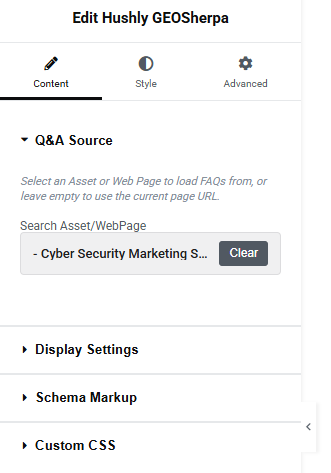
- Display Settings Section:
The Display Settings section provides flexibility to control the visual presentation and structure of the FAQ block, matching your page design and content layout.
Show Title: This toggle option allows you to enable or disable the display of the FAQ block title.
Block Title: This field allows you to customize the heading text of the FAQ block.
Enter the desired title (for example, Frequently Asked Questions). The entered text will appear as the main heading of the FAQ section when Show Title is enabled.
Number of Columns: This dropdown option allows you to select how the FAQs are displayed on the page.
Choose the number of columns (e.g., 1 Column, 2 Columns). Selecting multiple columns helps organize FAQs in a more compact layout, especially for pages with several questions.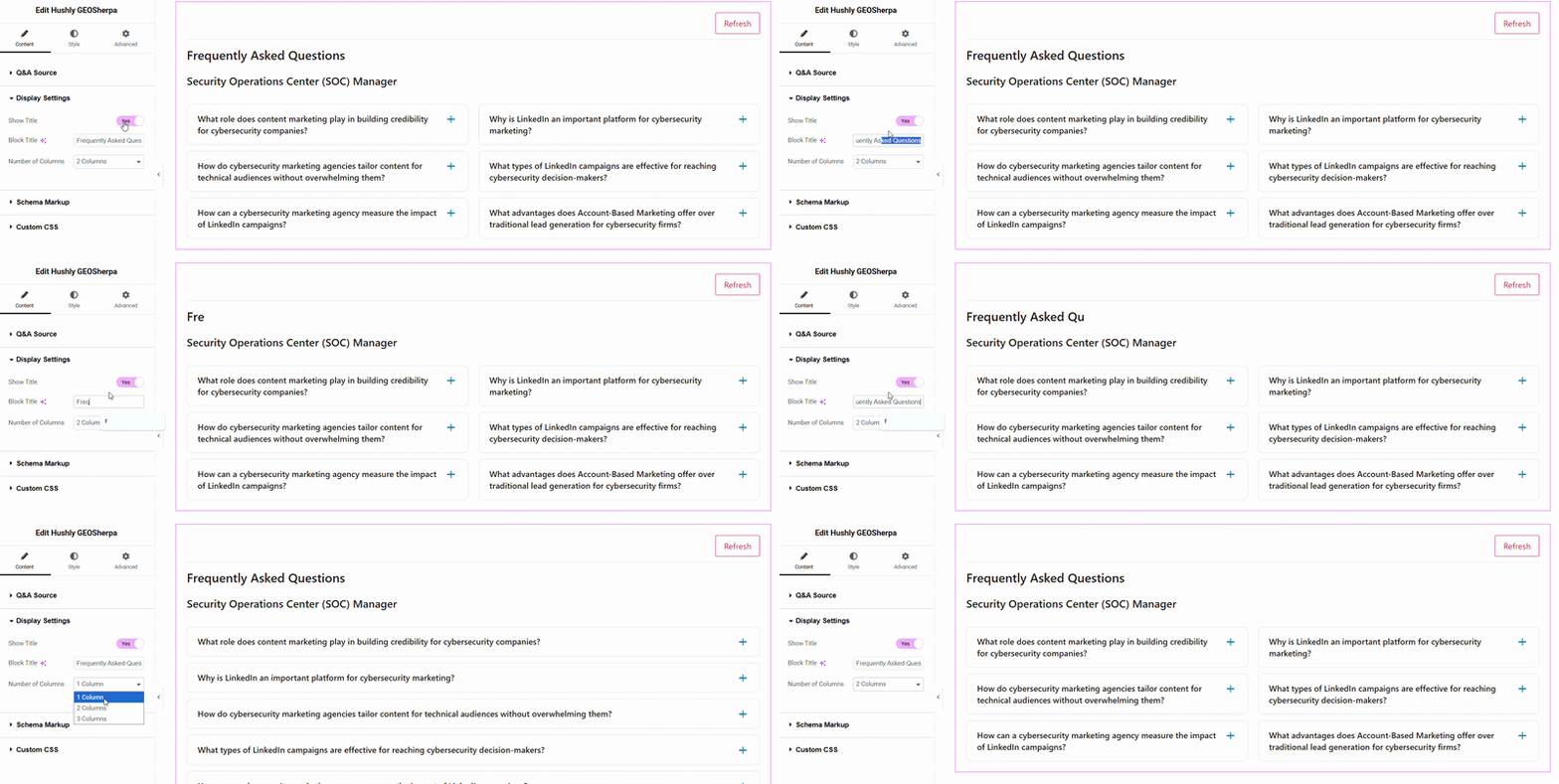
- Schema Markup Section:
The Schema Markup section allows you to enable structured data for the FAQ block to improve search engine visibility. The Schema Markup setting is recommended to be enabled for better SEO performance unless there is a specific reason to disable it.
This toggle option allows you to activate or deactivate JSON-LD FAQ schema markup.
Purpose of Schema Markup - When enabled, the plugin automatically generates structured FAQ data in JSON-LD format behind the scenes. This does not change the visual appearance of the FAQ block but enhances SEO by helping search engines interpret question-and-answer content correctly, increasing the chances of appearing in enhanced search results, and improving overall content discoverability.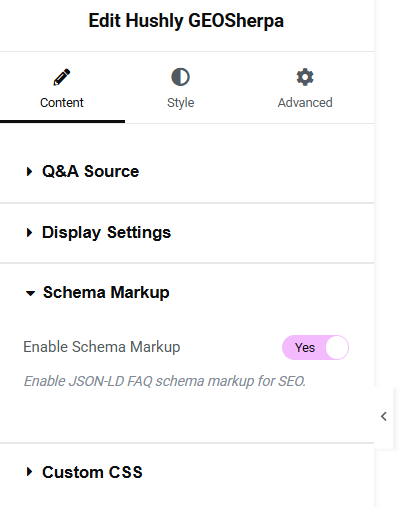
- Custom CSS Section:
The Custom CSS section allows you to apply additional styling to the FAQ block to match your website’s design requirements. The Custom CSS section is recommended for users who require advanced styling control and are familiar with CSS.
You can target specific elements of the FAQ block using predefined class selectors. These selectors allow you to customize elements like Font size and color, Background color, Spacing and padding, Borders, and hover effects.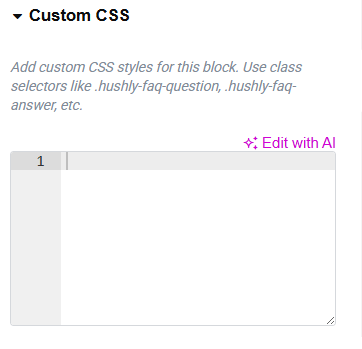
- Style Tab:
The Style tab allows you to customize the visual appearance of the Hushly GEOSherpa widget. It controls how the FAQ elements look, including text styling, spacing, icons, and container layout. It allows full design flexibility to match the widget with your website theme and branding.
Below are the available sections inside the Style tab:
1. Title
2. Question
3. Answer
4. FAQ Item
5. Icon
6. Container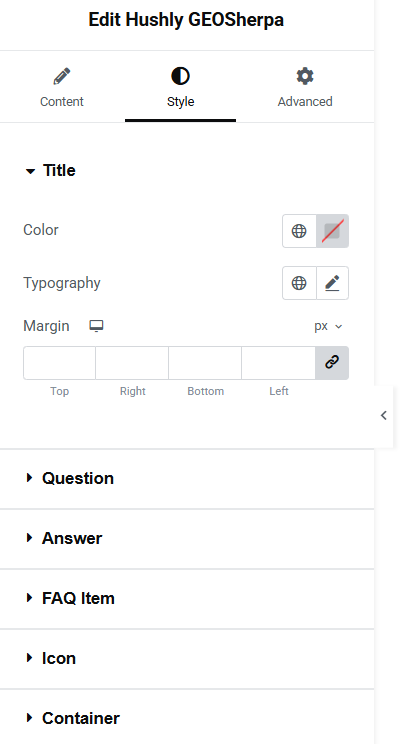
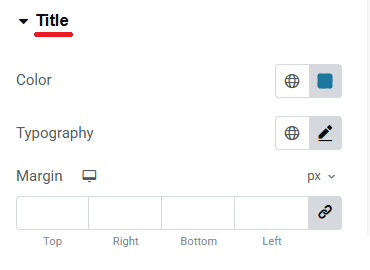
- Tile Section: This section controls the appearance of the FAQ Title.
• Color - Allows you to set the text color of the title.
You can: Choose a custom color, use a global color (theme-based), and reset to default if needed.
• Typography - Controls the font styling of the title, including: Font family,
Font size, Font weight, Line height, Letter spacing, Text transform (uppercase, lowercase, etc.)
• Margin - Allows you to adjust spacing around the title. You can set margin values for: Top, Right, Bottom, Left.
Question: The Question style settings panel allows you to customize the visual appearance and spacing of the question text element. These controls help ensure consistency with your design system and improve readability and user experience.
Color - Defines the text color of the question. Use this to match your theme or adjust contrast for better visibility.
Background - Sets the background color behind the question text. This can be used to highlight the question or visually separate it from other elements.
Hover Background - Specifies the background color that appears when the user hovers over the question. This is useful for interactive interfaces where questions are clickable or expandable.
Typography - Provides access to font-related settings such as font family, size, weight, line height, and letter spacing. This ensures the question text aligns with your overall typography standards.
Padding - Controls the internal spacing between the question text and its container borders. You can set padding values individually for: Top, Right, Bottom, Left.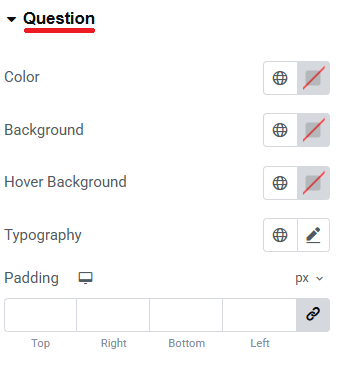
Answers: The Answer style settings panel allows you to control the visual presentation and spacing of the answer content within the component. These options help maintain consistency with your overall design and improve readability.
Color - Defines the text color of the answer content. Adjust this to ensure proper contrast and alignment with your theme.
Background - Sets the background color of the answer section. This can be used to distinguish answers from questions or other interface elements visually.
Typography - Provides access to font customization options such as font family, size, weight, line height, and letter spacing. These settings help ensure the answer text follows your typography guidelines.
Padding - Controls the internal spacing between the answer content and its container borders. You can define padding values individually for: Top, Right, Bottom, and Left.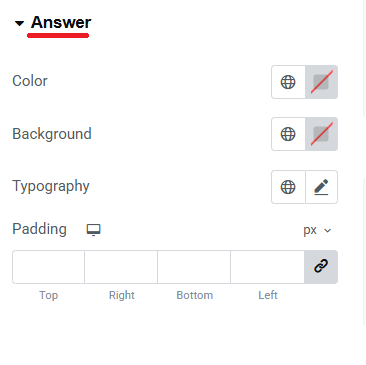
FAQ Item: The FAQ Item settings panel allows you to control the overall appearance and layout of each individual FAQ item (including both question and answer as a single container). These options help you visually structure the FAQ section and align it with your website’s design.
Background - Sets the background color of the entire FAQ item container. This can be used to separate items visually or match your theme styling.
Border Type - Allows you to define the border style for the FAQ item (e.g., default, solid, dashed, etc., depending on available options). This helps create visual separation between items.
Border Radius - Controls the roundness of the FAQ item corners. You can set individual values for: Top, Right, Bottom, and Left
Box Shadow - Adds a shadow effect around the FAQ item container. This can create depth and make the item stand out from the background.
Spacing - Defines the space between individual FAQ items. Increasing spacing improves readability and prevents the layout from appearing crowded.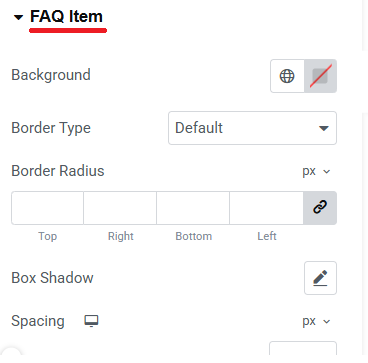
Icon: The Icon settings panel allows you to customize the appearance of icons used within the component. These controls help ensure the icon aligns visually with your overall design and enhances user interaction.
Color - Defines the color of the icon. You can select a custom color to match your brand guidelines or theme styling.
Size - Adjusts the overall size of the icon using the slider control. Increasing the size makes the icon more prominent, while decreasing it creates a more subtle appearance.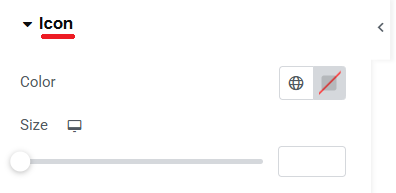
Container: The Container settings panel allows you to control the overall layout and visual appearance of the main wrapper element. The container acts as the structural foundation that holds and organizes the content inside it.
Background - Sets the background color of the container. This helps visually separate the section from other elements on the page and align it with your theme design.
Padding - Controls the internal spacing between the container’s content and its borders. You can set padding values individually for: Top. Right, Bottom, and Left
Border Type - Allows you to choose the border style for the container (e.g., default, solid, dashed, etc., depending on available options). Borders help define structure and separation.
Border Radius - Adjusts the roundness of the container’s corners. Individual values can be set for: Top. Right, Bottom, and Left.
Box Shadow - Adds a shadow effect around the container to create depth and visual emphasis.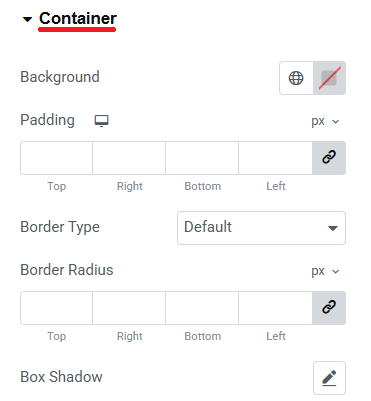
- Tile Section: This section controls the appearance of the FAQ Title.
- Advanced Tab:
The Advanced tab provides extended customization and technical configuration options for the Hushly GEOSherpa widget. It allows you to control layout behavior, animations, responsiveness, styling enhancements, and custom coding.
Below are the available sections inside the Advanced tab:
Layout - The Layout section controls the spacing and positioning of the widget. This section helps align the widget correctly within the page structure.
Motion Effects - The Motion Effects section allows you to apply animation and scrolling effects. These effects improve user engagement and visual interaction.
Transform - The Transform section allows advanced visual transformations such as:
Rotate, Scale, Skew, Translate (move horizontally or vertically). This is useful for creating dynamic design effects without custom coding.
Background - The Background section allows you to define the widget’s background styling. This helps visually differentiate the widget from surrounding content.
Border - The Border section allows customization of: Border type (solid, dashed, dotted, etc.), Border width, Border color, Border radius (rounded corners), and Box shadow. This section enhances visual framing and emphasis.
Mask - The Mask feature allows you to apply shape masks to the widget. This is mainly used for creative design effects.
Responsive - The Responsive section allows you to control how the widget behaves on different devices. Settings may include: Hide on Desktop, Hide on Tablet, and Hide on Mobile. This ensures the widget displays properly across all screen sizes.
Attributes - The Attributes section allows you to add custom HTML attributes to the widget.
This is useful for developers who need integration with scripts or analytics tools.
Custom CSS - The Custom CSS section allows you to add advanced styling using CSS code.
You can: Override default styles, Apply custom design rules, Add hover effects, and fine-tune layout behavior. This section is intended for users with CSS knowledge. Incorrect code may affect the widget display.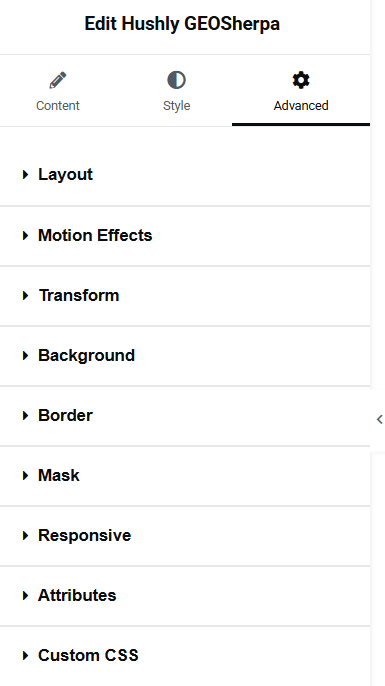
Related Topics:
GEOSherpa
Was this article helpful?
That’s Great!
Thank you for your feedback
Sorry! We couldn't be helpful
Thank you for your feedback
Feedback sent
We appreciate your effort and will try to fix the article