GEOSherpa serves as a centralized question generation management system, enabling teams to manage, generate, and govern AI-ready content at scale.
It provides a single platform to:
- Generate and store question–answer pairs for each piece of content.
- Maintain a centralized repository for all generated questions.
- Optimize content for Answer Engine Optimization (AEO) platforms such as ChatGPT and other AI assistants.
Business Value:
- Visibility - A single dashboard to track question generation status across all content.
- Efficiency - Bulk generation capabilities to streamline onboarding and ongoing maintenance.
- Quality Control - Quickly identify sources missing questions or requiring review.
- Scalability - Centralized management that grows seamlessly with your content library.
By acting as the authoritative source for AI-consumable Q&A, GEOSherpa ensures that content is consistently structured, enriched with context, and prepared for ingestion by modern answer engines.
To access GEOSherpa A, follow the steps below:
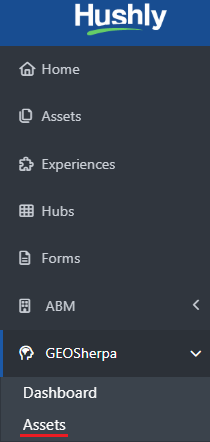
- From the Lef Nav Menu, expand GEOSherpa and click Assets.
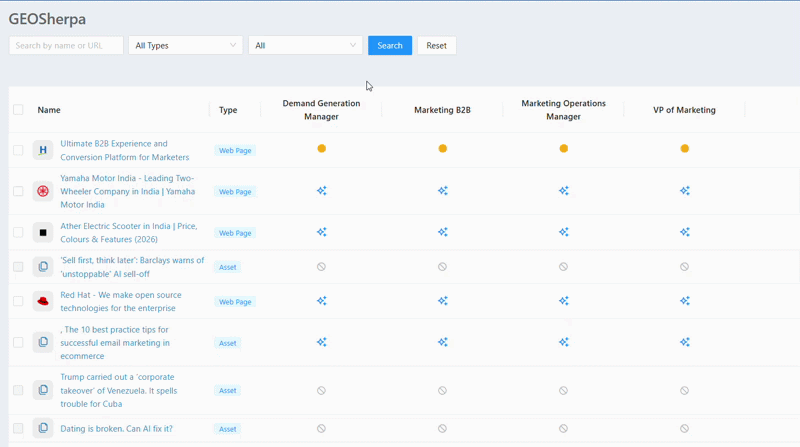
- The GEOSherpa Assets page displays a centralized list of all assets and web pages along with their associated personas. The persona columns indicate the status and relevance of each asset for different audiences.
This view helps teams quickly identify:
Which assets have generated questions.
Which assets are missing questions or require review?
- Where content gaps exist across different personas.
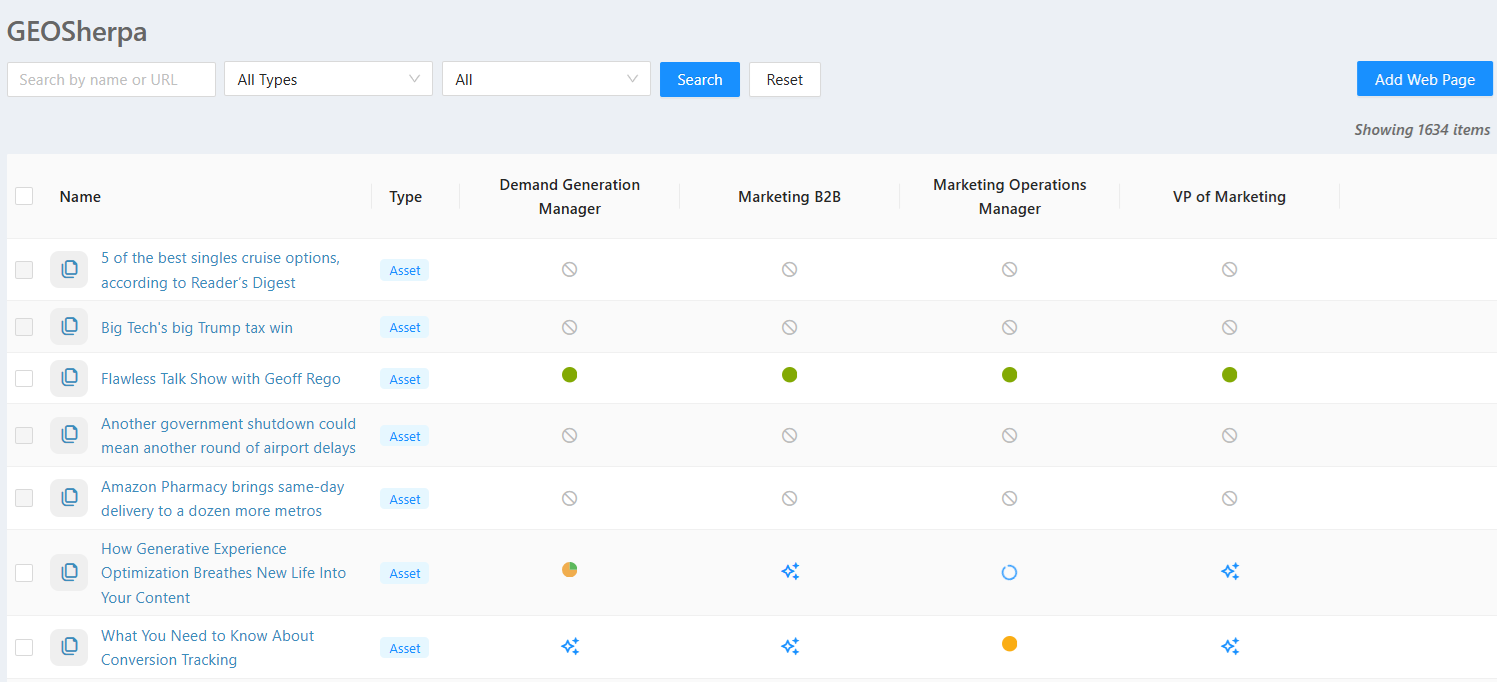
Each Persona column displays one of four statuses:
- Not Ready for AI
- No Questions - Click to Generate
- Generated
- Approved
- Not Ready for AI -This status indicates that the Web Page or Asset has not yet been indexed, and therefore is not available for AI-based question and answer generation.
Indexing happens automatically. If the content is not indexed, it could be because there is very little text; it contains mostly images or videos without text; it has duplicate content; or AI and search engines may not consider it valuable enough to index.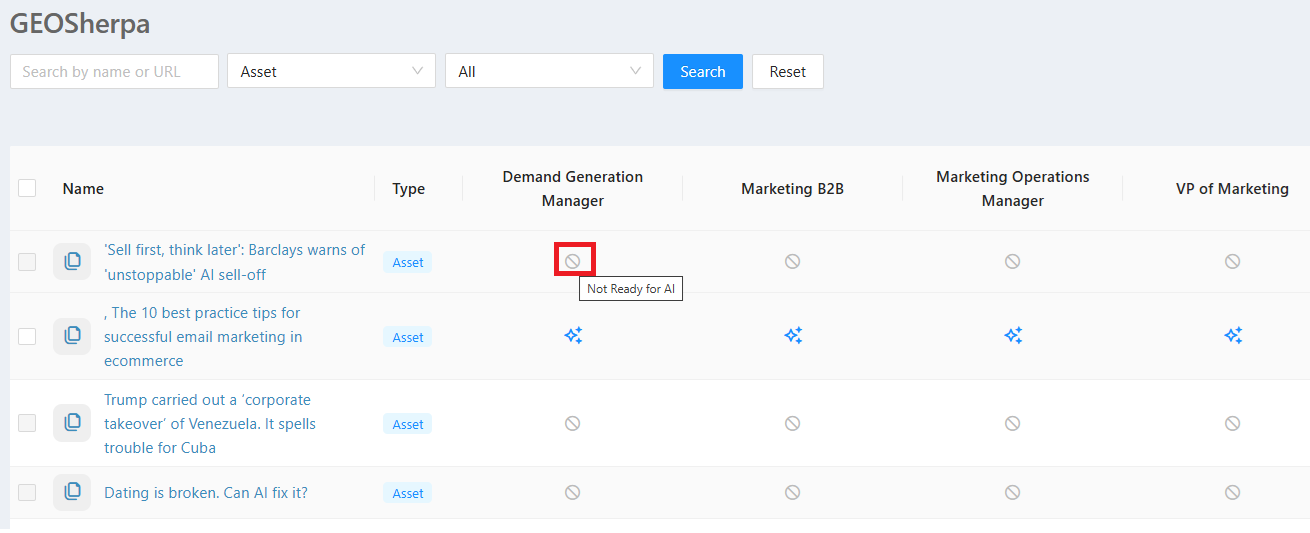
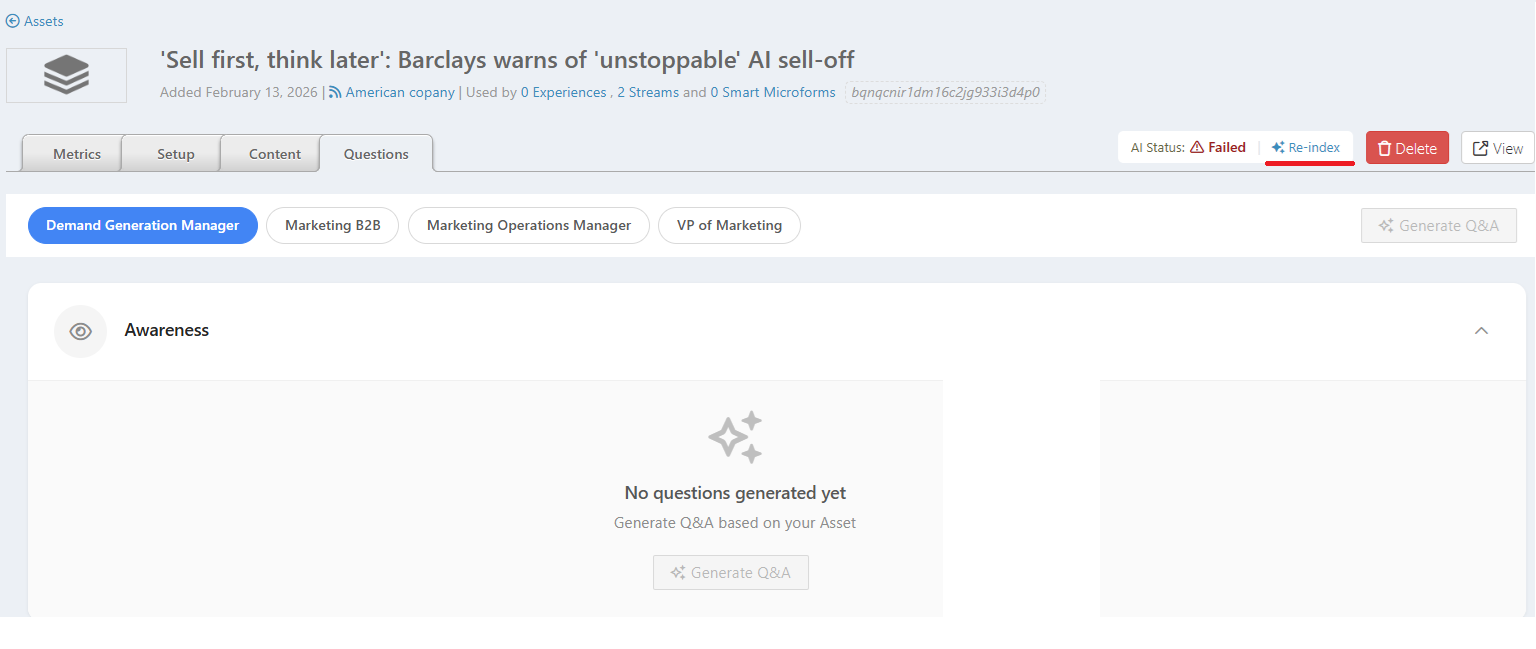
- To make the content ready for AI, click on the Asset/Web Page link. This opens the Asset page. Then click the Re-index link to prepare the content for AI processing.
- A confirmation dialog box is displayed with Yes and No options. Click Yes to proceed.
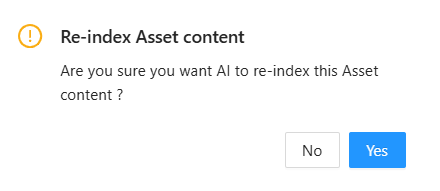 A success message will be displayed, indicating that the question generation process has started.
Once the generation process is done, the status changes to Ready, and the Generate Q&A button is enabled.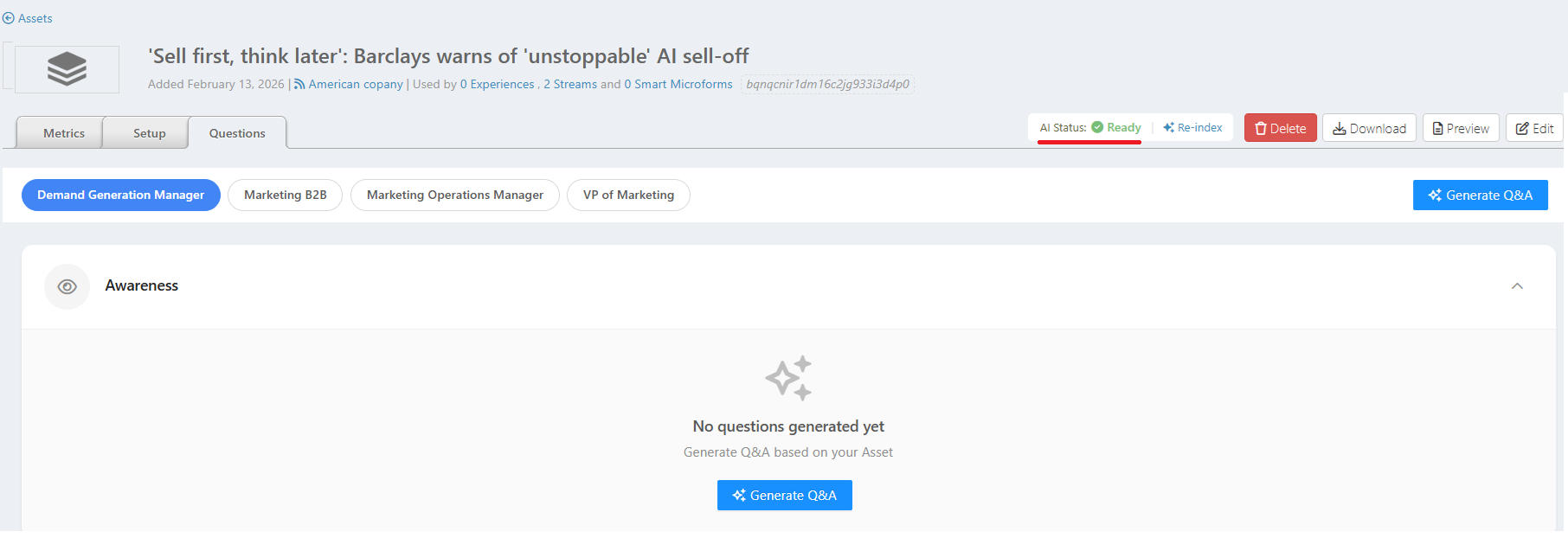
- To make the content ready for AI, click on the Asset/Web Page link. This opens the Asset page. Then click the Re-index link to prepare the content for AI processing.
- No Questions - Click to Generate - This status indicates that no questions have been generated yet for this Persona.
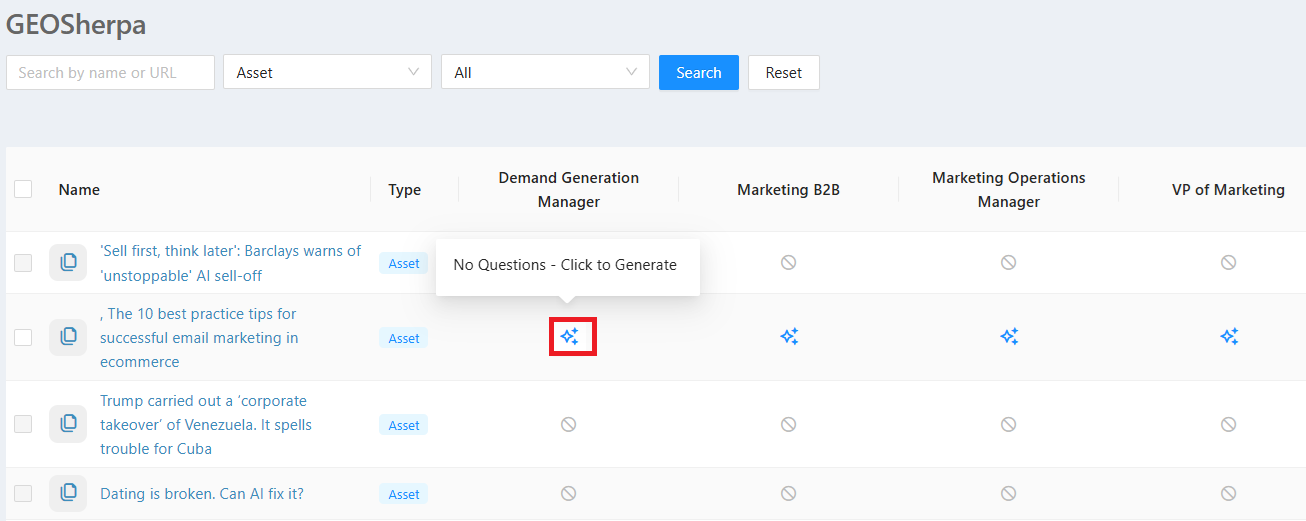
- Clicking the icon opens a pop-up where you can choose to skip content if questions are already generated (enabled by default). You can then generate questions for all personas or only the selected persona. Click Generate Q&A to proceed.
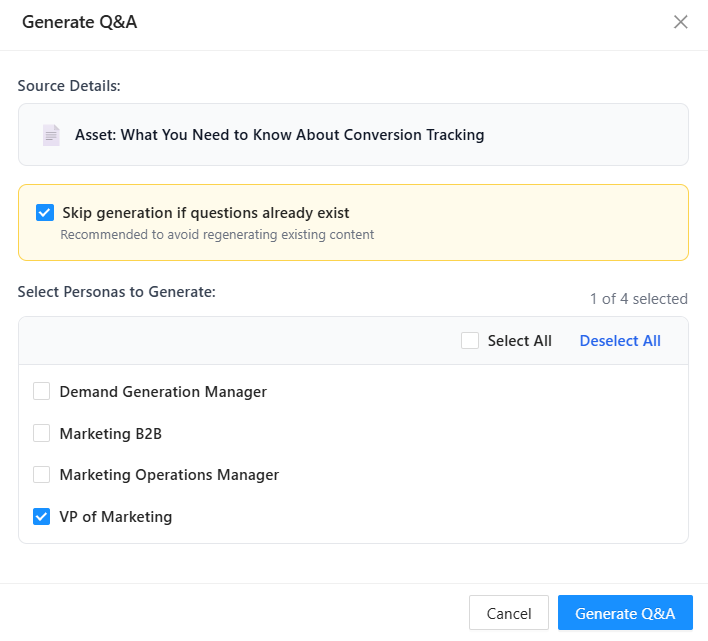
- A success message will be displayed, followed by a loading icon indicating that the question generation process has started. Once the process is complete, the icon will update to reflect the new status.

- Clicking the icon opens a pop-up where you can choose to skip content if questions are already generated (enabled by default). You can then generate questions for all personas or only the selected persona. Click Generate Q&A to proceed.
- Generated - This status indicator shows the number of questions that have been successfully generated for the selected Persona but have not been approved.
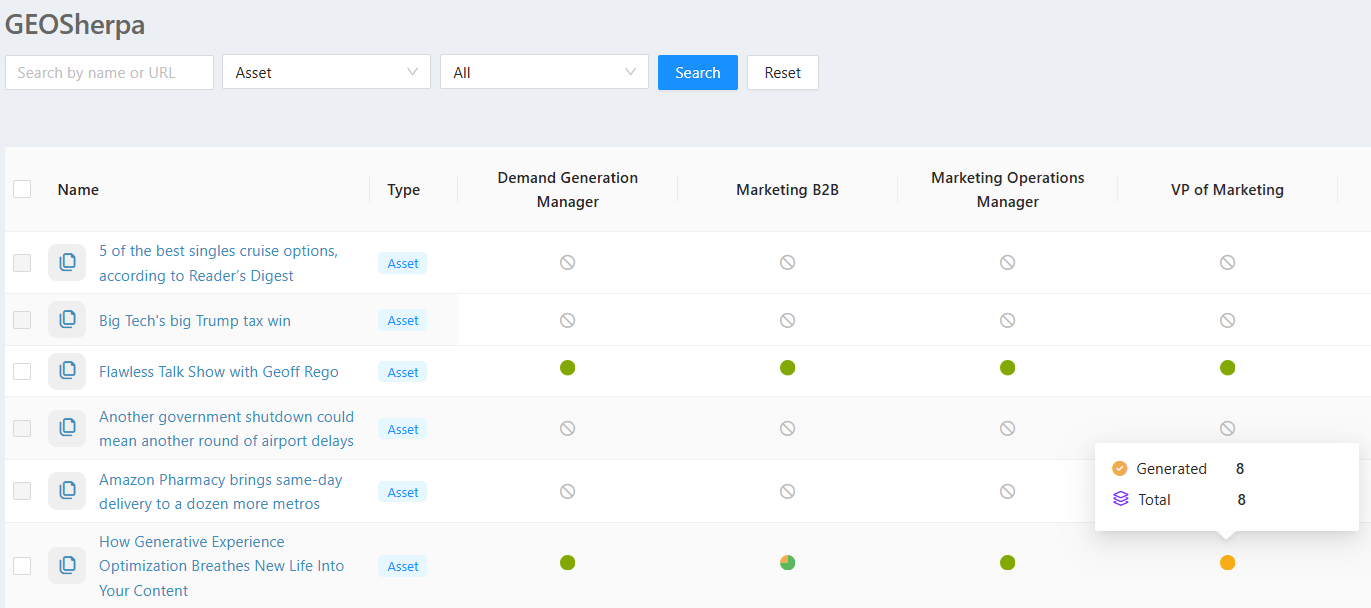
- Note: For a persona's journey stages, if some questions are approved and others are not, the status indicator will reflect a mixed state.
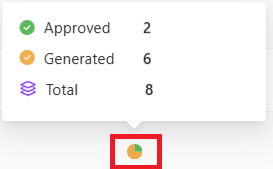
- Approved – Number of questions that have been reviewed and approved for use.
- Generated – Number of questions generated by AI but not yet approved.
- Total – Total number of questions available for that Persona.
- Note: For a persona's journey stages, if some questions are approved and others are not, the status indicator will reflect a mixed state.
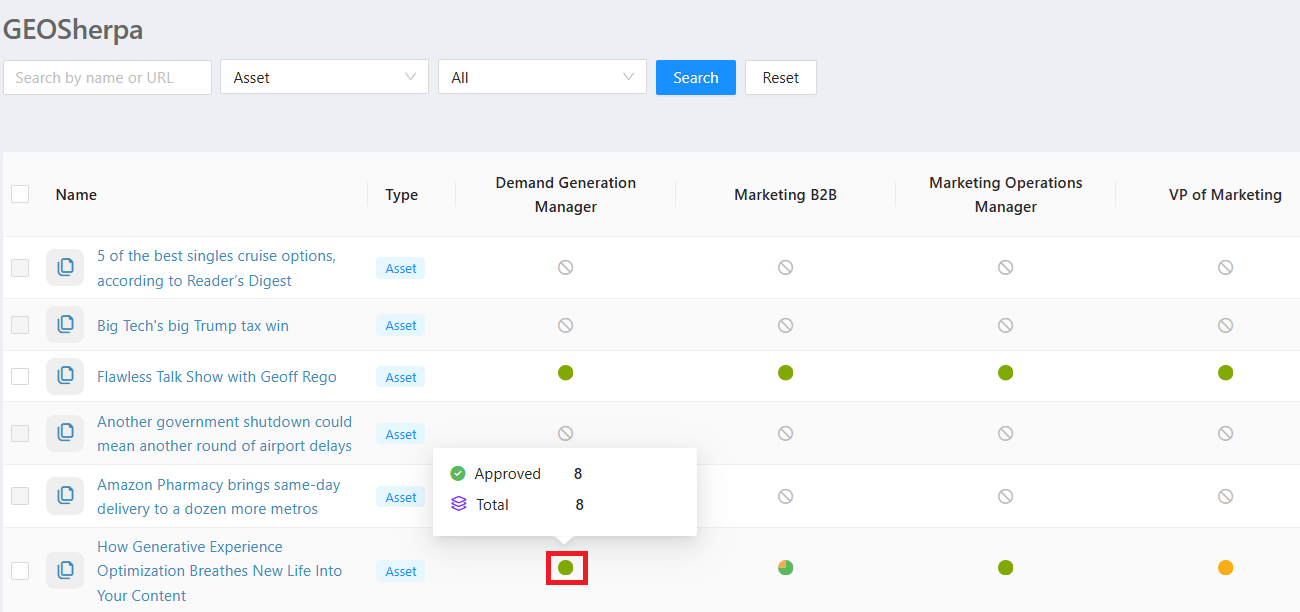
- Approved - This status indicates that all generated questions for the selected persona have been approved.
GEOSherpa Search Functionality
The GEOSherpa Search feature helps users quickly locate assets and web pages within the platform. Users can search by name or URL, and further refine results using available filters such as type and category. This makes it easy to navigate large content libraries and efficiently manage content for AI and question generation.
- In the search bar, search by Asset Name or URL.

- The search results page will display the Asset searched for.

- The search results page will display the Asset searched for.
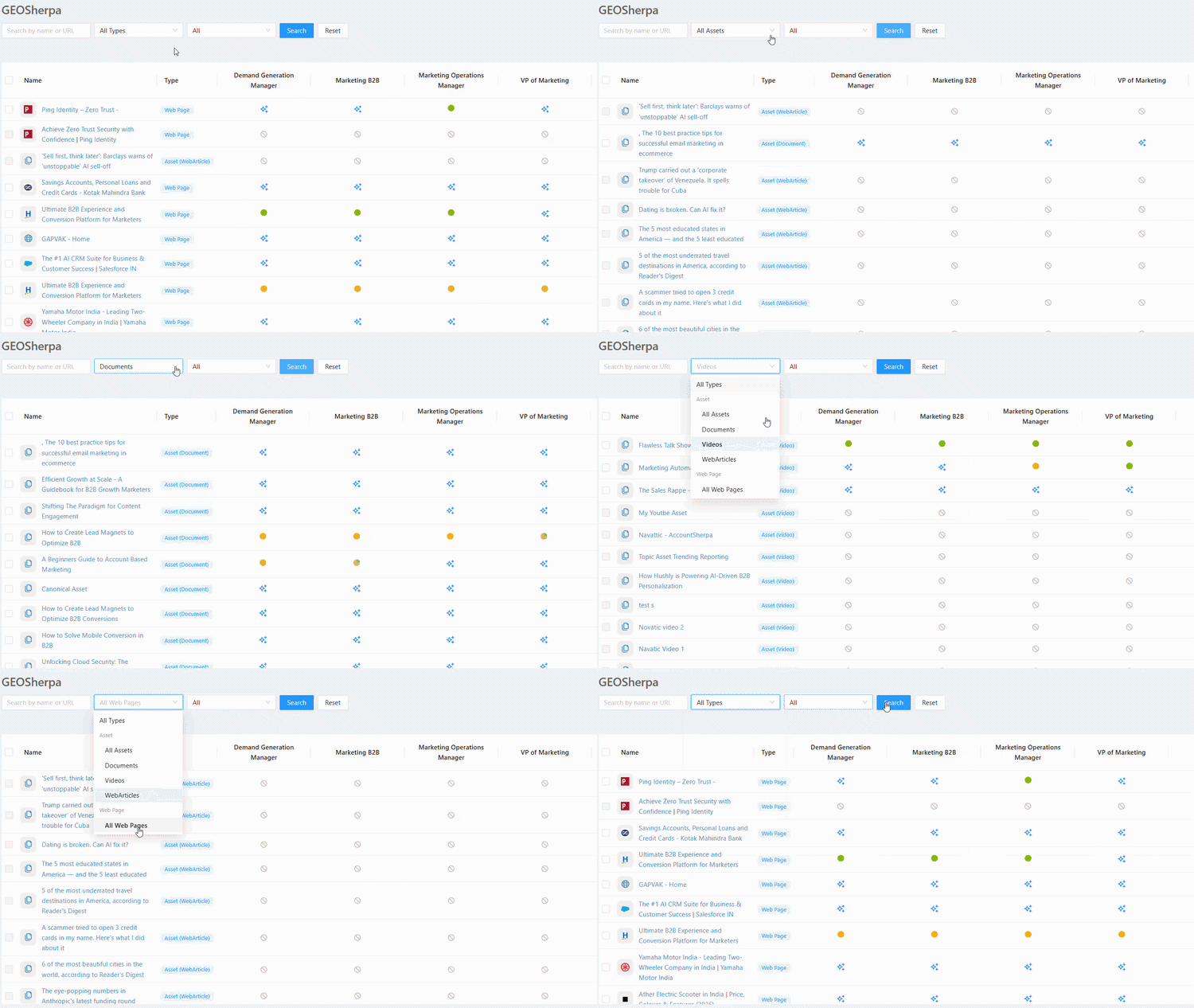
- Filter by Types:
- Displays search results based on the selected Types
- Filter by Status:
- Displays search results based on the selected Status.
Adding Web Pages
This feature allows you to add web pages you want to include for question generation. Once added, the system will index the page content and make it available for AI processing, enabling automatic generation of relevant question–answer pairs for that web page.
To know more about adding web pages, click here.
Related Topics:
Was this article helpful?
That’s Great!
Thank you for your feedback
Sorry! We couldn't be helpful
Thank you for your feedback
Feedback sent
We appreciate your effort and will try to fix the article