Hushly Hubs
A content hub is a centralized online destination where a collection of content is organized and presented to users in a cohesive and structured manner. It serves as a repository or focal point for various content related to a specific topic, brand, or audience.
Hubs are a custom functionality. To get started with Hubs, you need to contact your Customer Success Manager (CSM), and they will enable the Hub. Once the Hub is enabled, Hubs is displayed in the Left Navigation Menu.
To create a Hub, setting up a domain is mandatory. The objective of defining a domain or subdomain is to make it seem to users that your resource center is part of your website, even though it is hosted on Hushly’s servers. Learn more about managing and adding a Domain.
To create your Hub, follow the steps below:
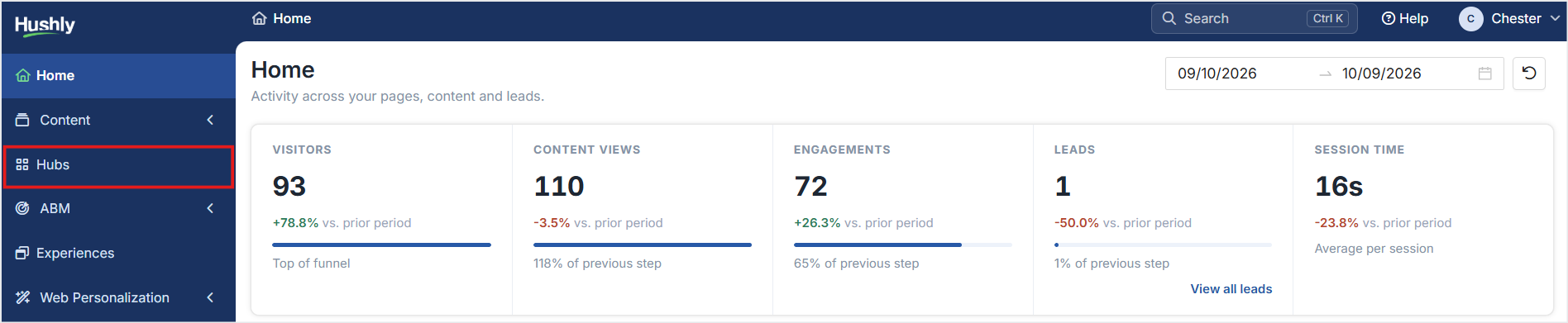
- From the Left Navigation Menu, click Hubs.
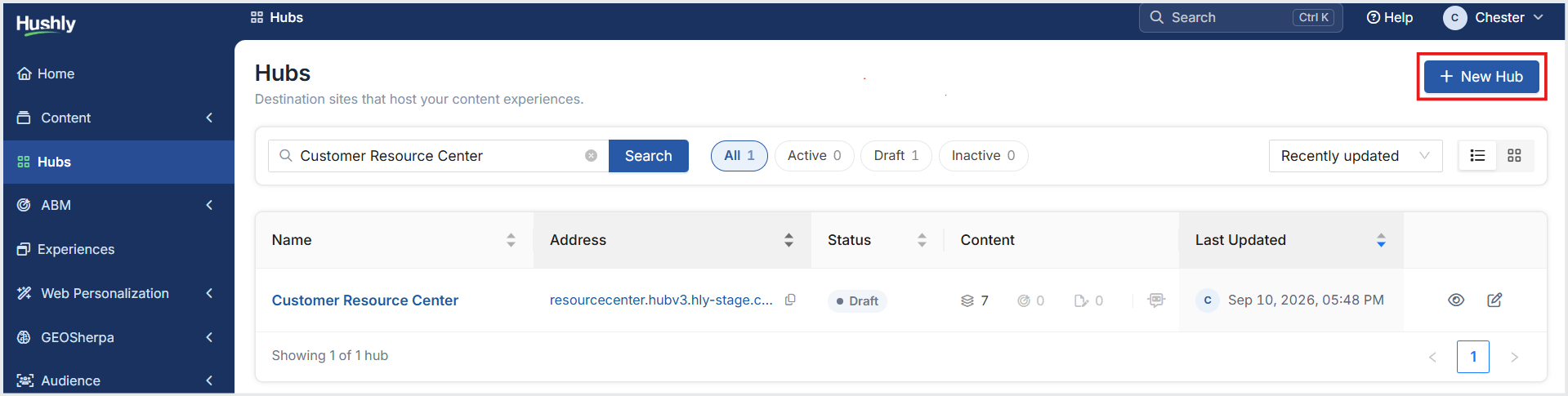
- On the Hubs listing page, click + New Hub.
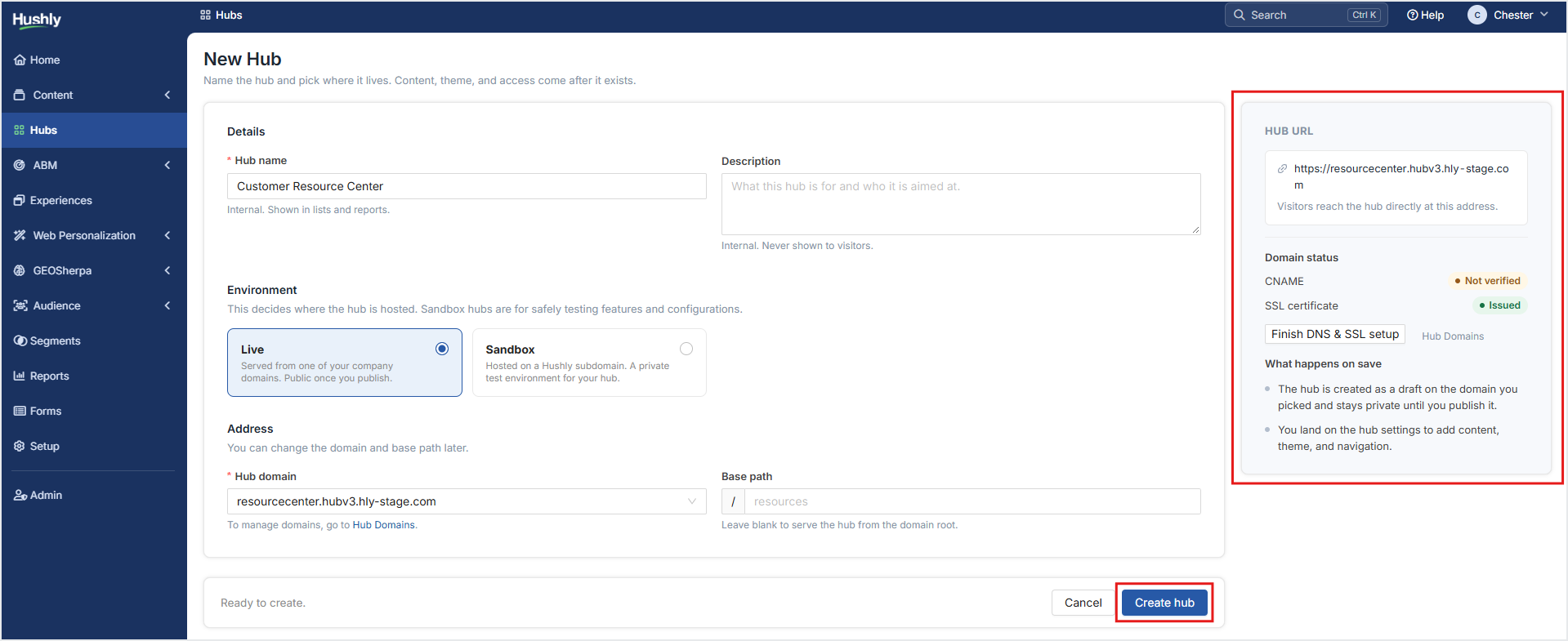
- In the New Hub page, enter the Hub’s Name and an optional Description (used internally).
- Choose one of the Environment options: Live or Sandbox.
- Live
Served from one of your company domains. Public once you publish.
- Sandbox
Sandbox hubs are for safely testing features and configurations. Hosted on a Hushly subdomain. A private test environment for your hub.
- Live
- Choose one of the Address options: Subdomain or Subdirectory.
- Using a Subdomain
From the Hub Domain drop-down list, select the subdomain (for example: resources.yourdomain.com) for the Hub.
Note: Once you associate a Hub with a subdomain, you cannot associate that subdomain with another Hub. Learn more about hosting a Hub on a Subdomain.
If you want to add a subfolder to the URL, enter the desired path in the Base Path field (for example: en in resources.yourdomain.com/en.
- Using a Subdirectory
From the Hub Domain drop-down list, select the domain (for example: yourdomain.com) for the Hub. In the Base Path field, optionally enter a path prefix to host the Hub under a subdirectory of the selected domain. Leave the Base Path field blank to host the Hub directly from the domain root.
Learn more about hosting a Hub on a Subdirectory.
- Using a Subdomain
- Click Create hub. You are redirected to the Hub Settings page, where you can begin configuring your Hub.
Was this article helpful?
That’s Great!
Thank you for your feedback
Sorry! We couldn't be helpful
Thank you for your feedback
Feedback sent
We appreciate your effort and will try to fix the article