Create a Custom Page
To create a Custom Page, follow the steps below:
- From the Left Navigation Menu, click Hubs. On the Hubs listing page, select the Hub you want to manage. From the Hub Menu, under CONTENT, click Custom Pages.
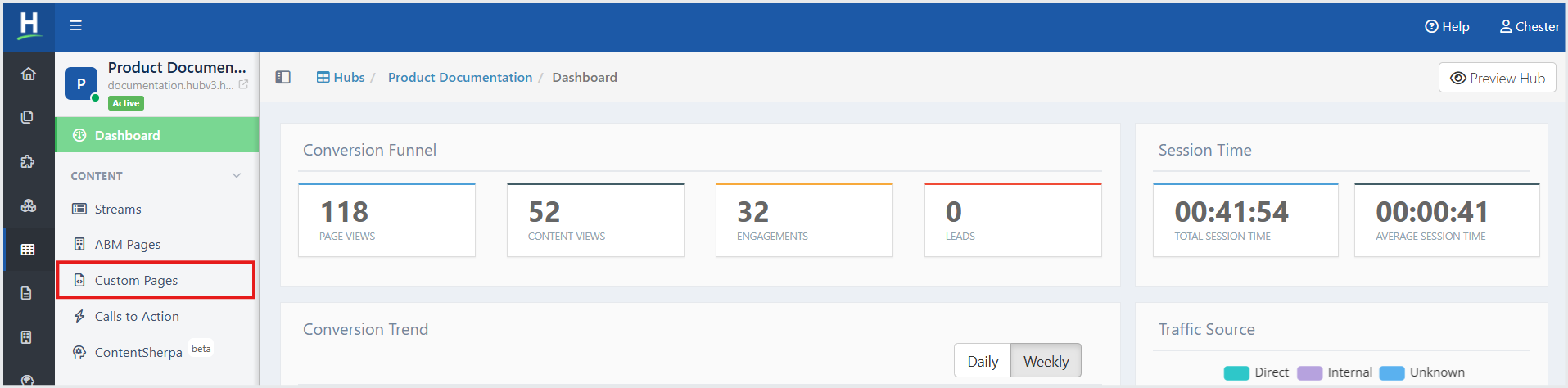
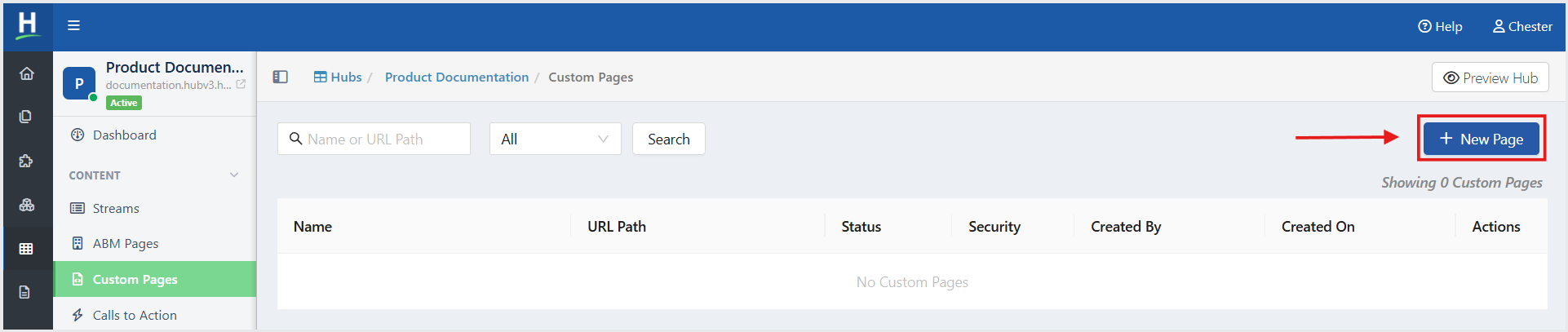
- On the Custom Pages listing page, click +New Page.
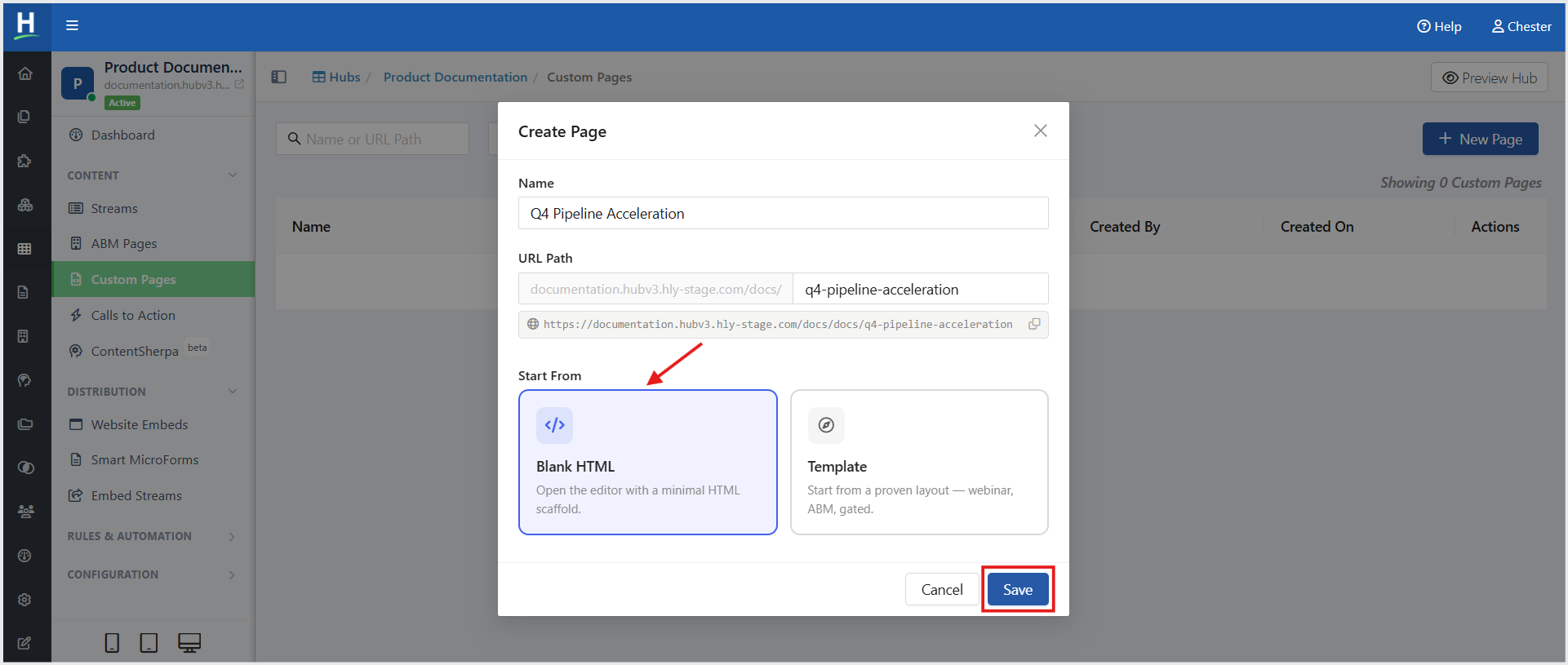
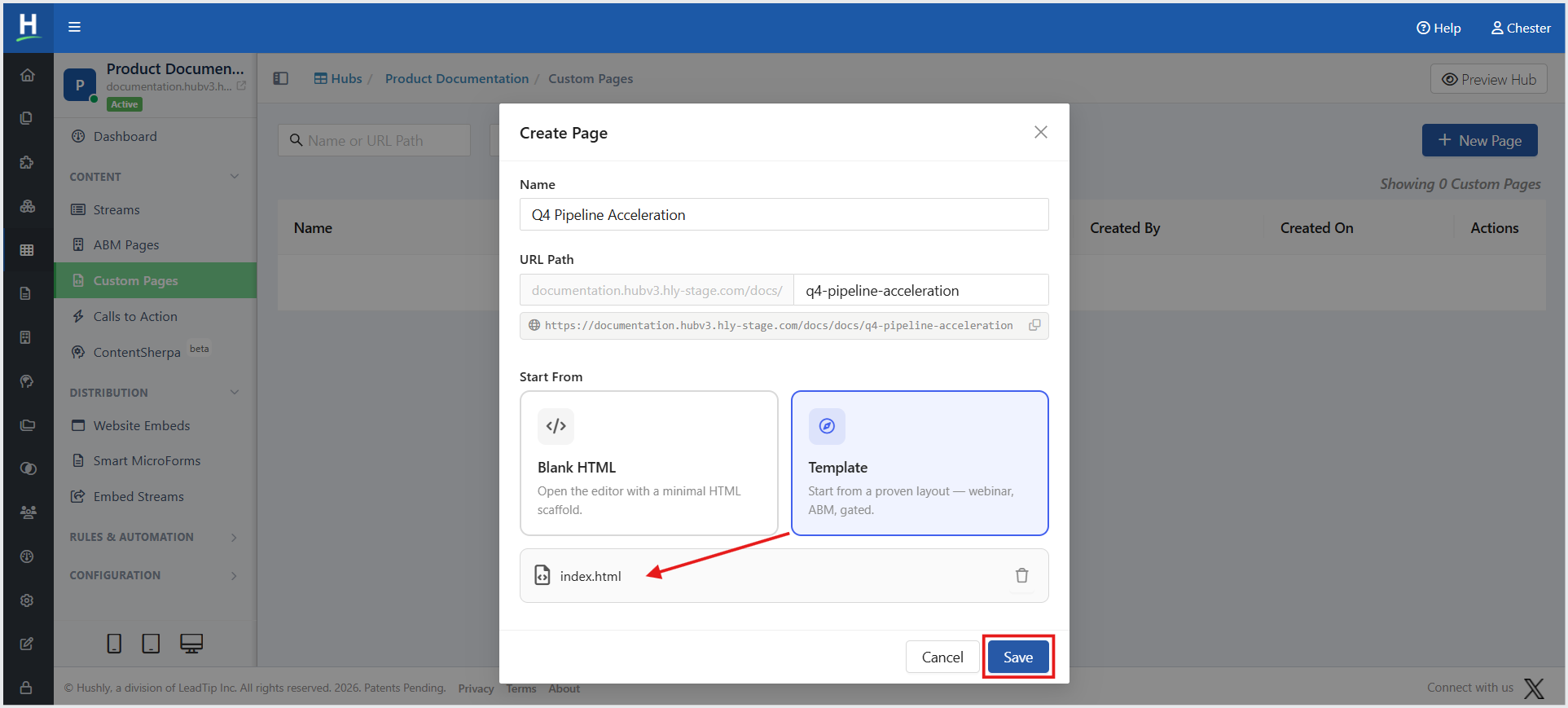
- In the Create Page pop-up window, you can create a page using either the Blank HTML option or a Template under Start From. By default, Blank HTML is selected. Enter the Page Name and URL Path. The URL Path is automatically populated based on the Page Name, but you can edit it as needed. Click Save. You are redirected to the Page Editor, where you can begin designing and configuring your custom page.
Creating a page using the Template option requires you to upload a file using the File Upload feature.
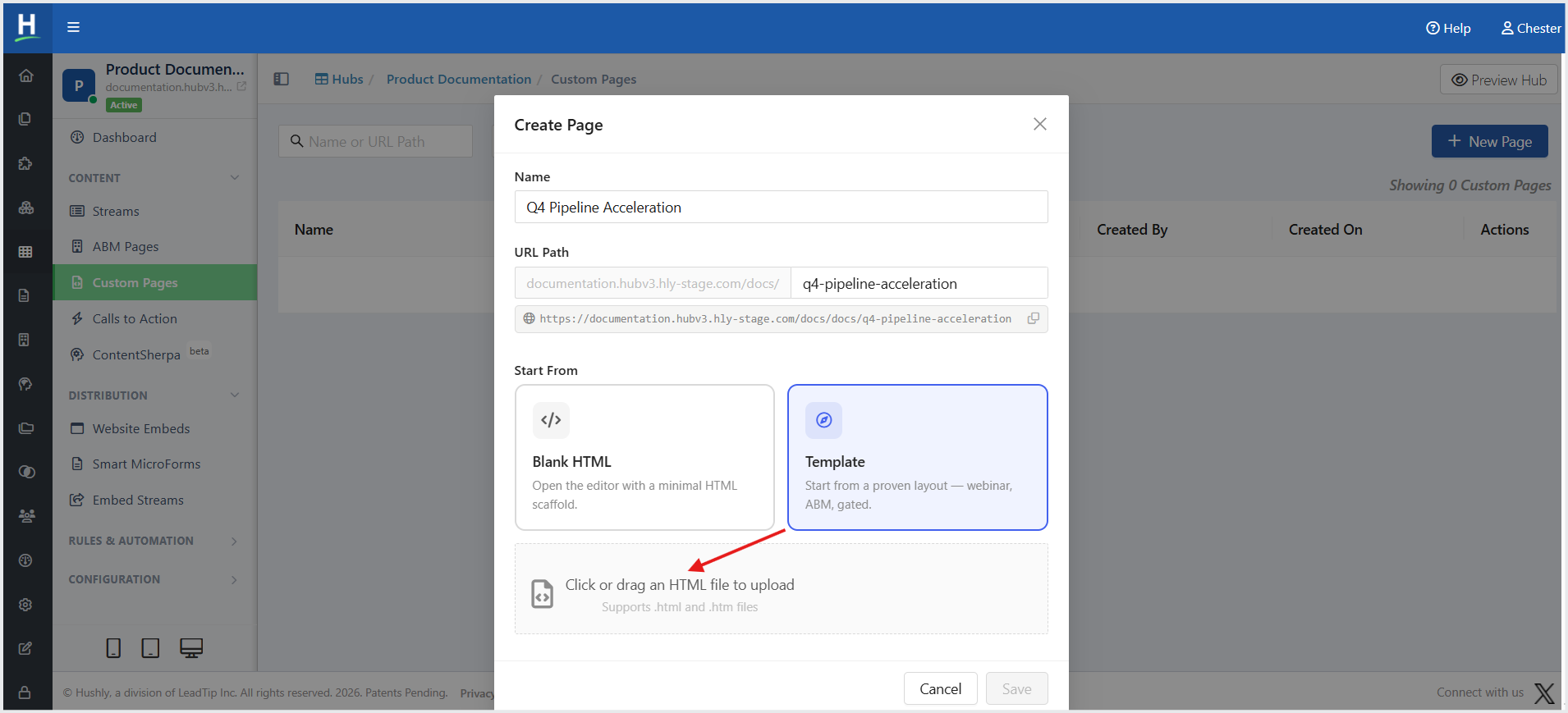
Click Save. You are redirected to the Page Editor, where you can begin designing and configuring your custom page.
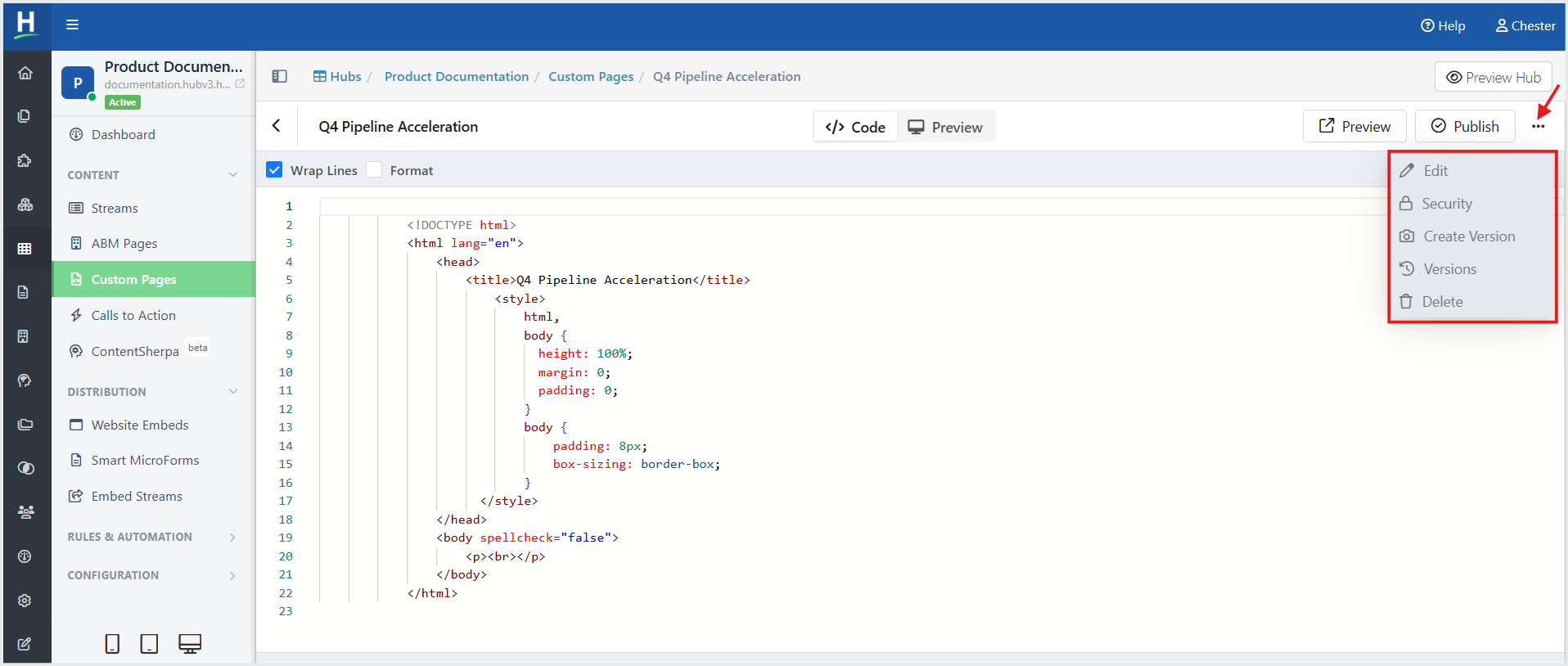
The Page Editor lets you create, edit, preview, and publish the content of a Hub Custom Page. It provides two modes—Code and Preview—along with formatting tools and publishing options. Use Code mode to edit the page's HTML directly. Changes are automatically saved as you work.
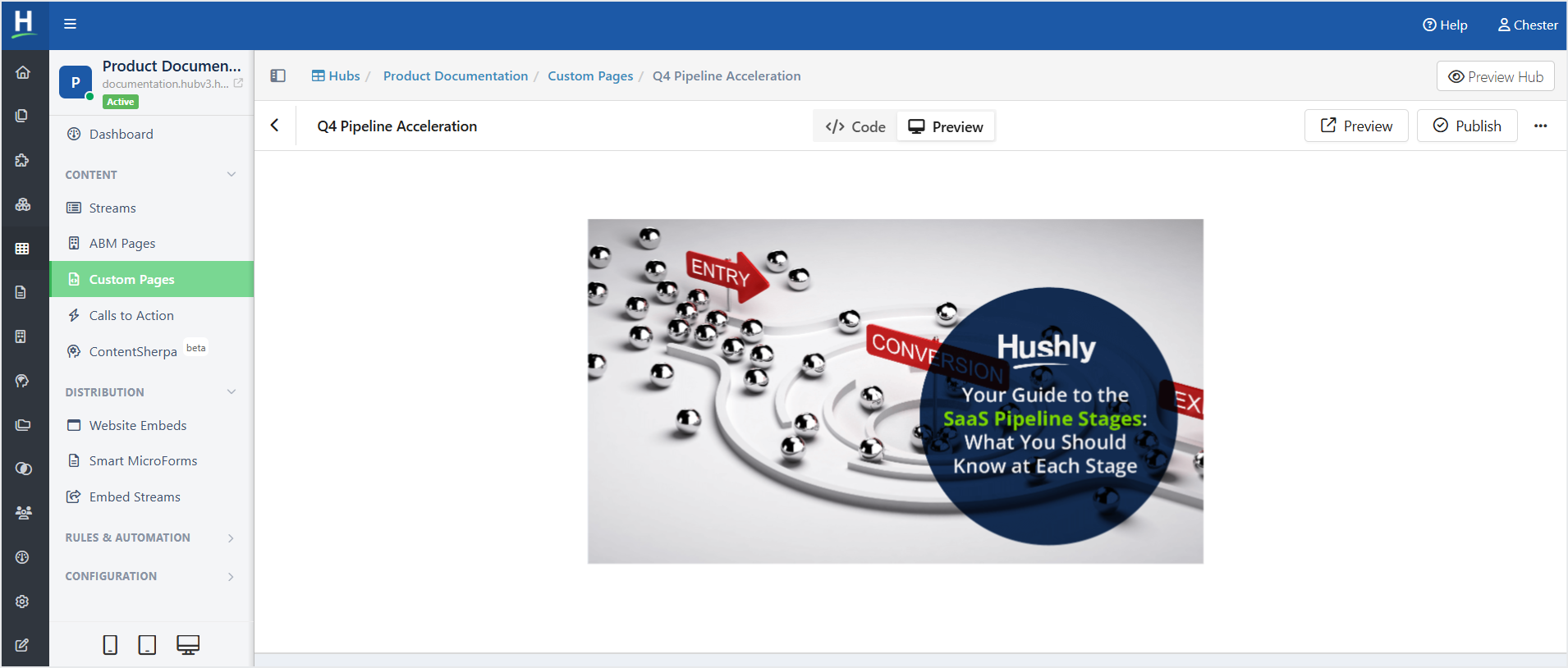
Always preview the page before publishing to verify that the formatting and layout appear as expected.
Publish a Custom Page
To publish a Custom Page, follow the steps below:
- In the Page Editor in the top-right corner, click Publish.
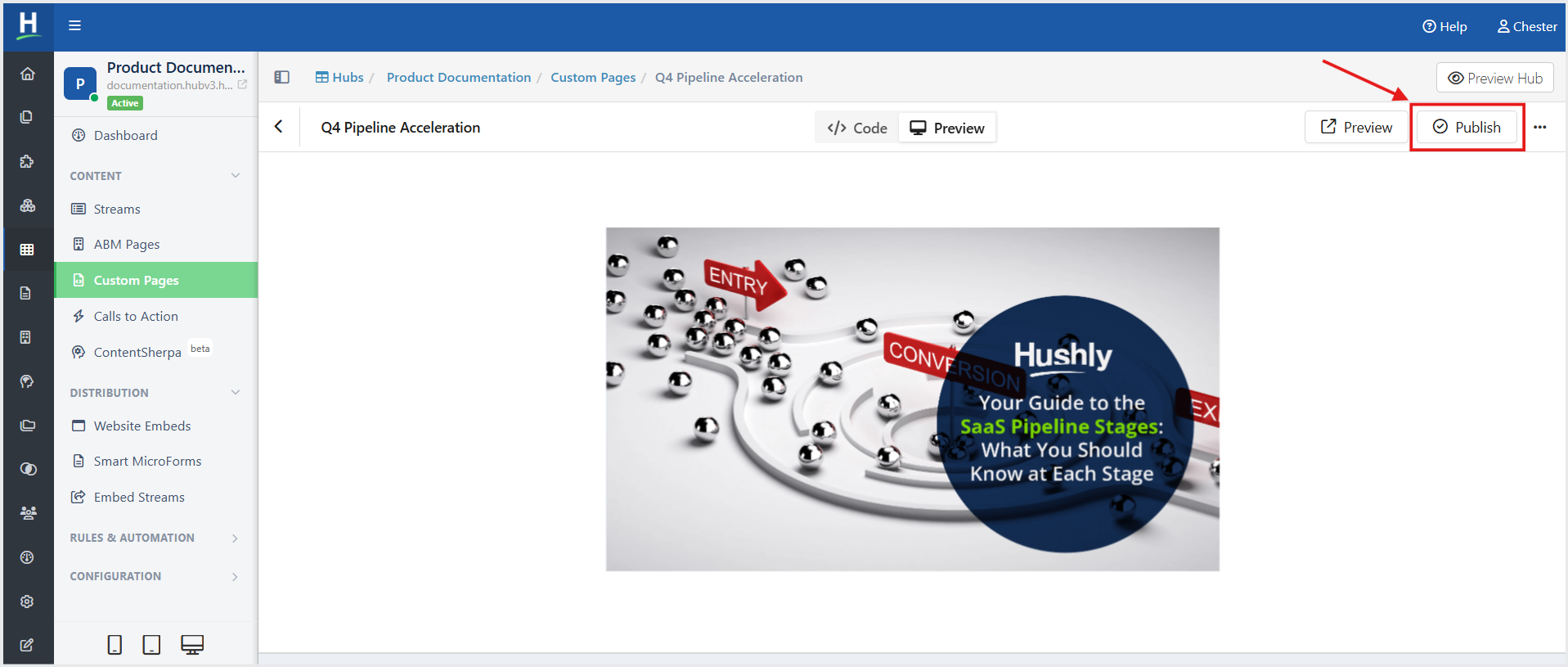
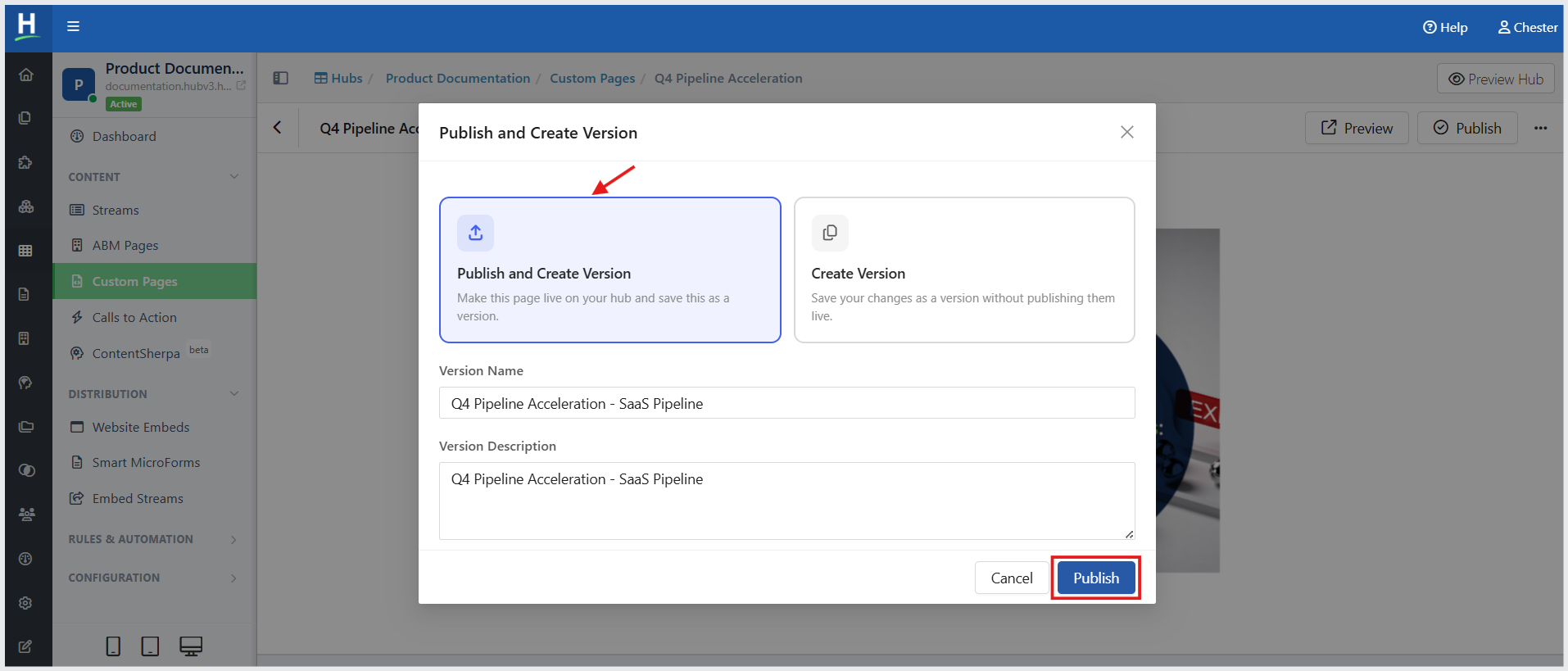
- A Publish and Create Version window is displayed. You can either publish your Custom Page and save it as a version (Publish and Create Version, selected by default) or save your changes as a version without publishing them (Create Version). Click Publish. You are redirected to the Page Editor.
When you select Create Version, you must enter a version name. Click Create.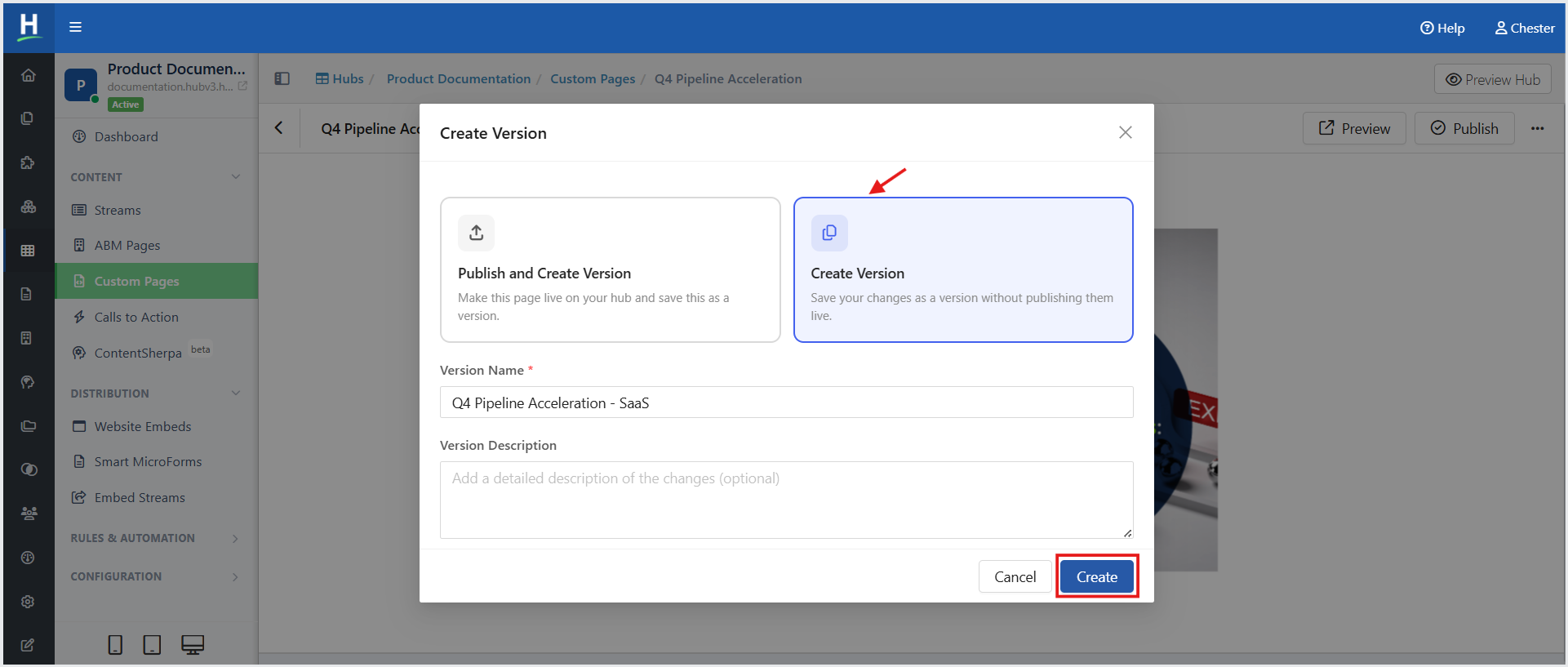
A Version History pop-up window is displayed with all available page versions.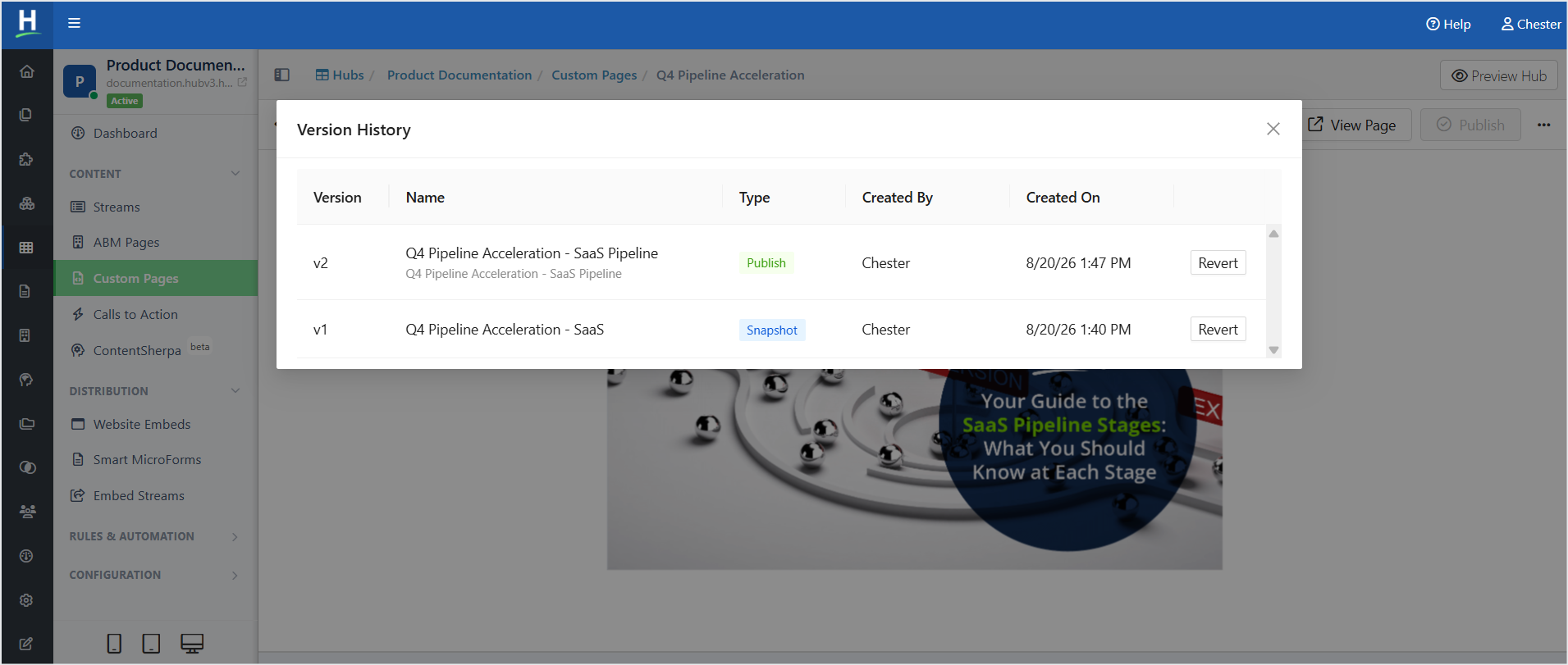
Related Topics:
Was this article helpful?
That’s Great!
Thank you for your feedback
Sorry! We couldn't be helpful
Thank you for your feedback
Feedback sent
We appreciate your effort and will try to fix the article