A Custom Page version is a saved copy of a Custom Page at a specific point in time. It captures the page's current content and configuration so that the page's state can be preserved for future reference.
To create a Custom Page version, follow the steps below:
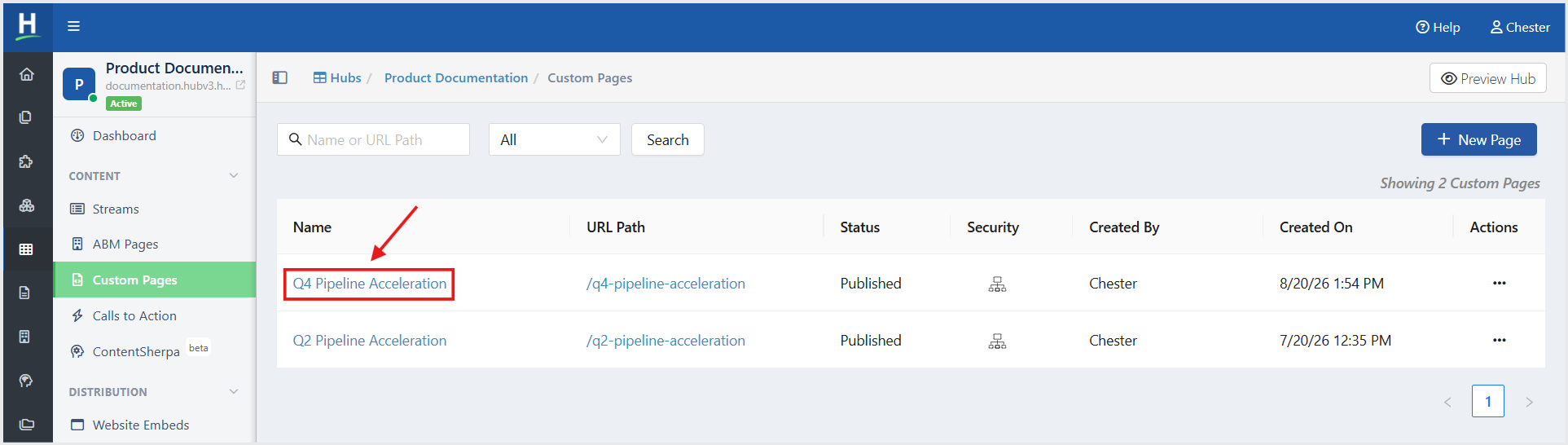
- From the Left Navigation Menu, click Hubs. On the Hubs listing page, select the Hub you want to manage. From the Hub menu, click Custom Pages. On the Custom Pages listing page, select the Custom Page for which you want to create a version.
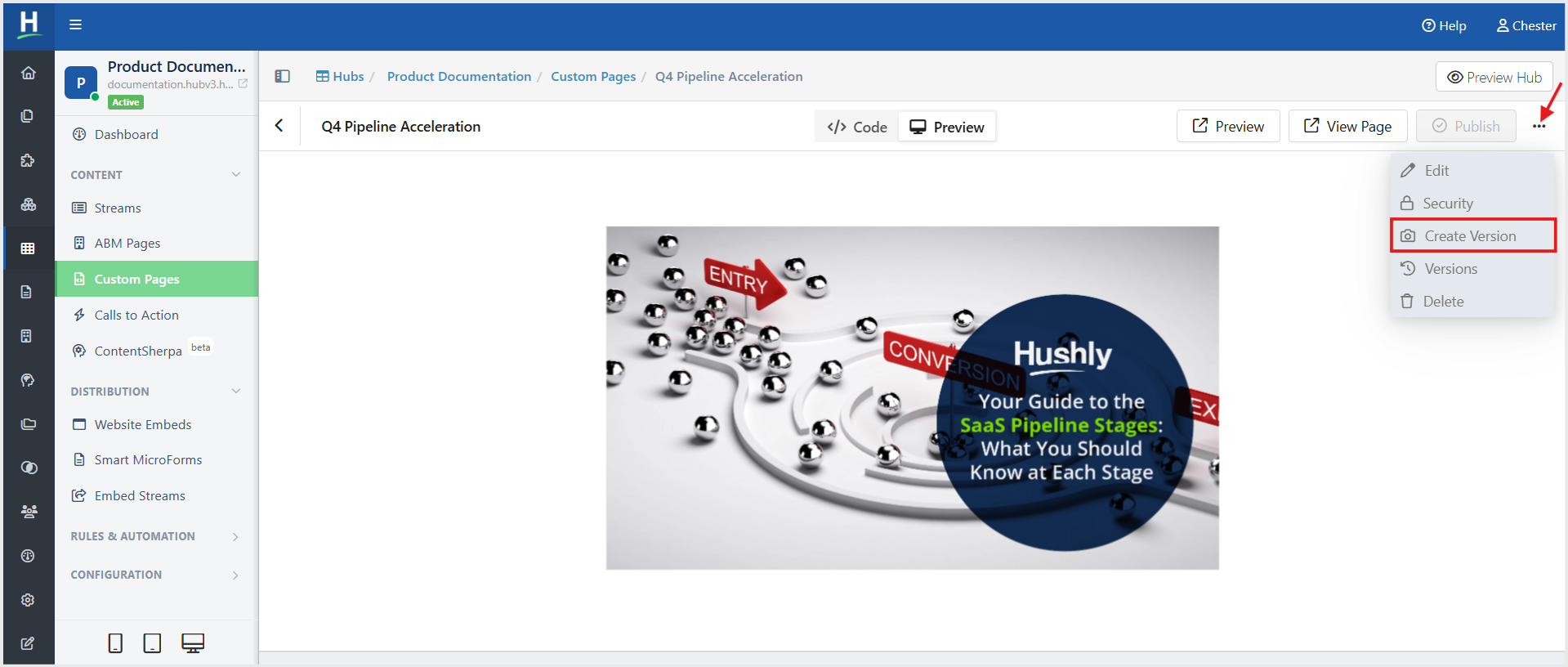
- On the Page Editor page, click the ellipsis (three-dot) menu in the upper-right corner of the page header, and then select Create Version.
- A pop-up window is displayed with two options:
- Publish and Create Version – Publishes the current page and saves it as a new version.
- Create Version (selected by default) –Saves the current page as a new version without publishing it.
Enter the Version Name and an optional Version Description, then click Create.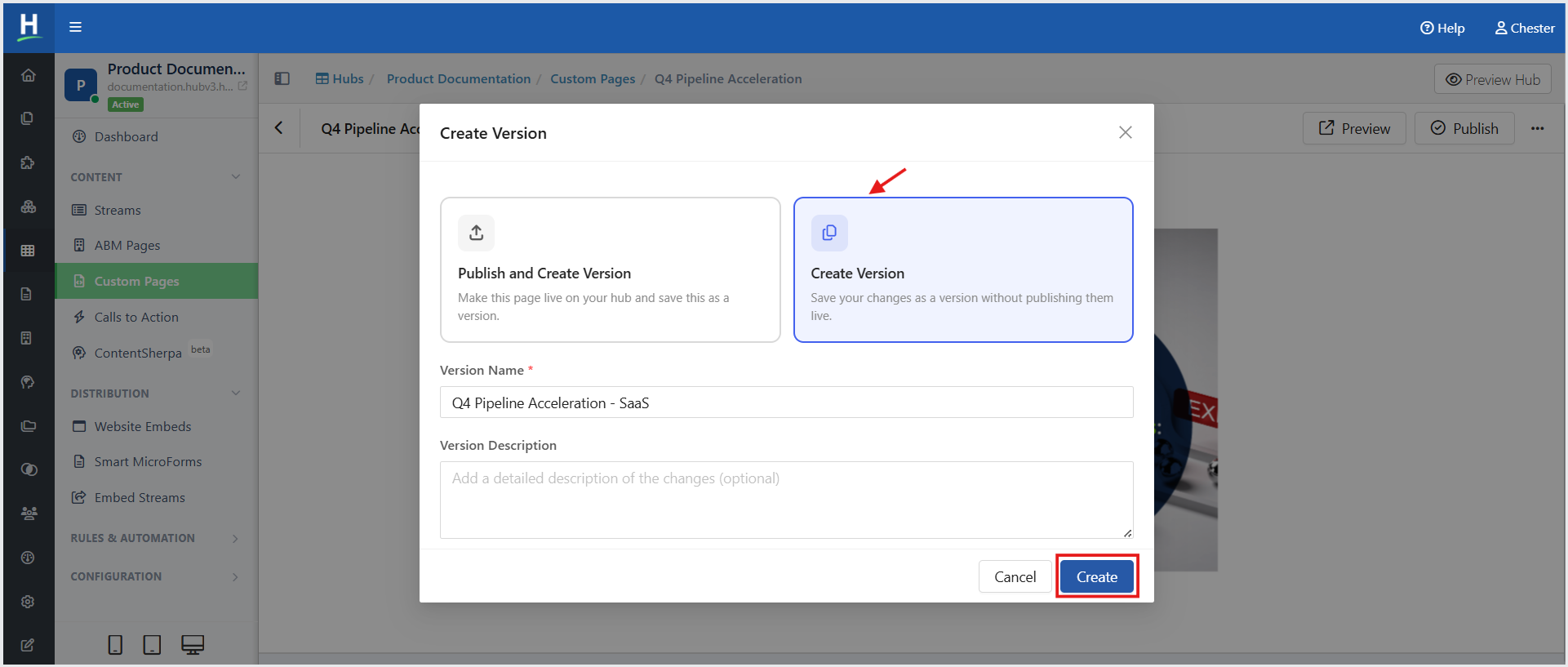
The Version History pop-window opens, displaying a list of all versions of the the Custom Page.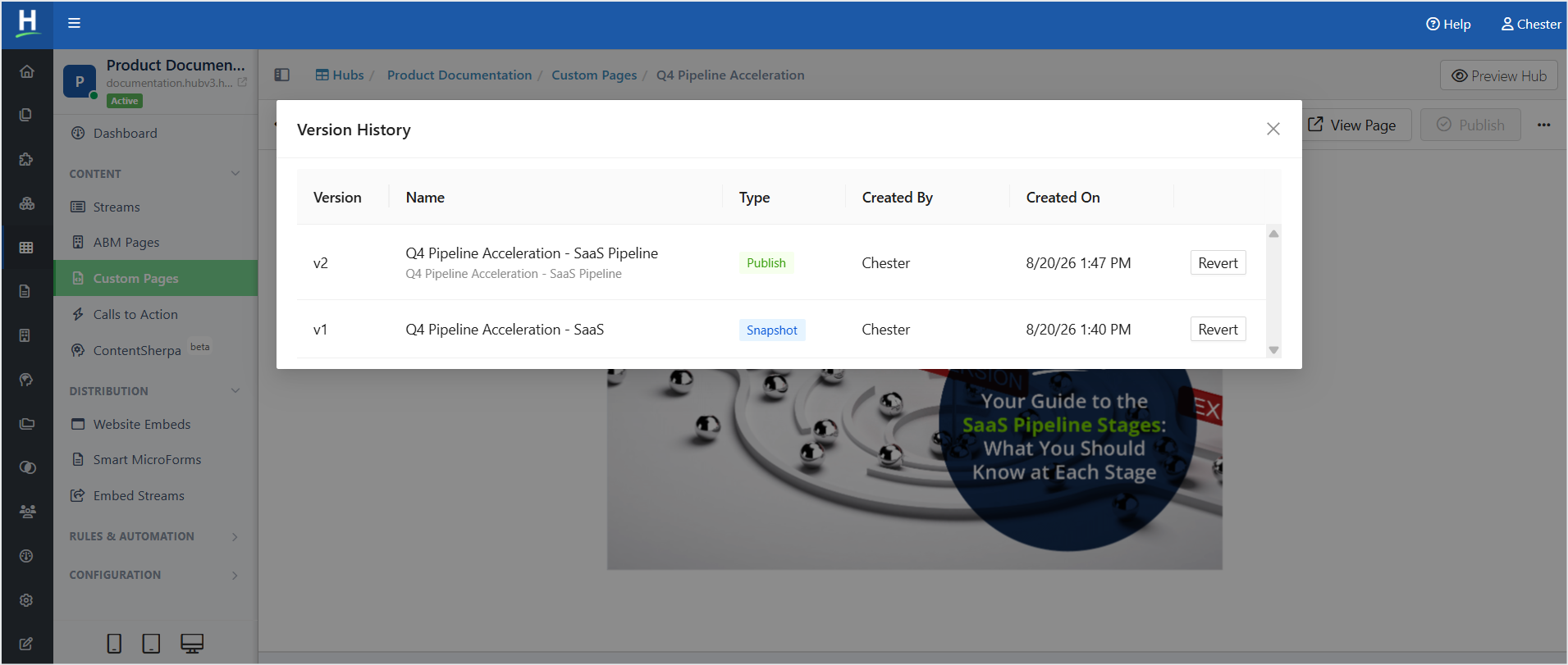
To view a Custom Page version, follow the steps below:
- On the Page Editor page, click the ellipsis (three-dot) menu in the upper-right corner of the page header, and then select Versions.
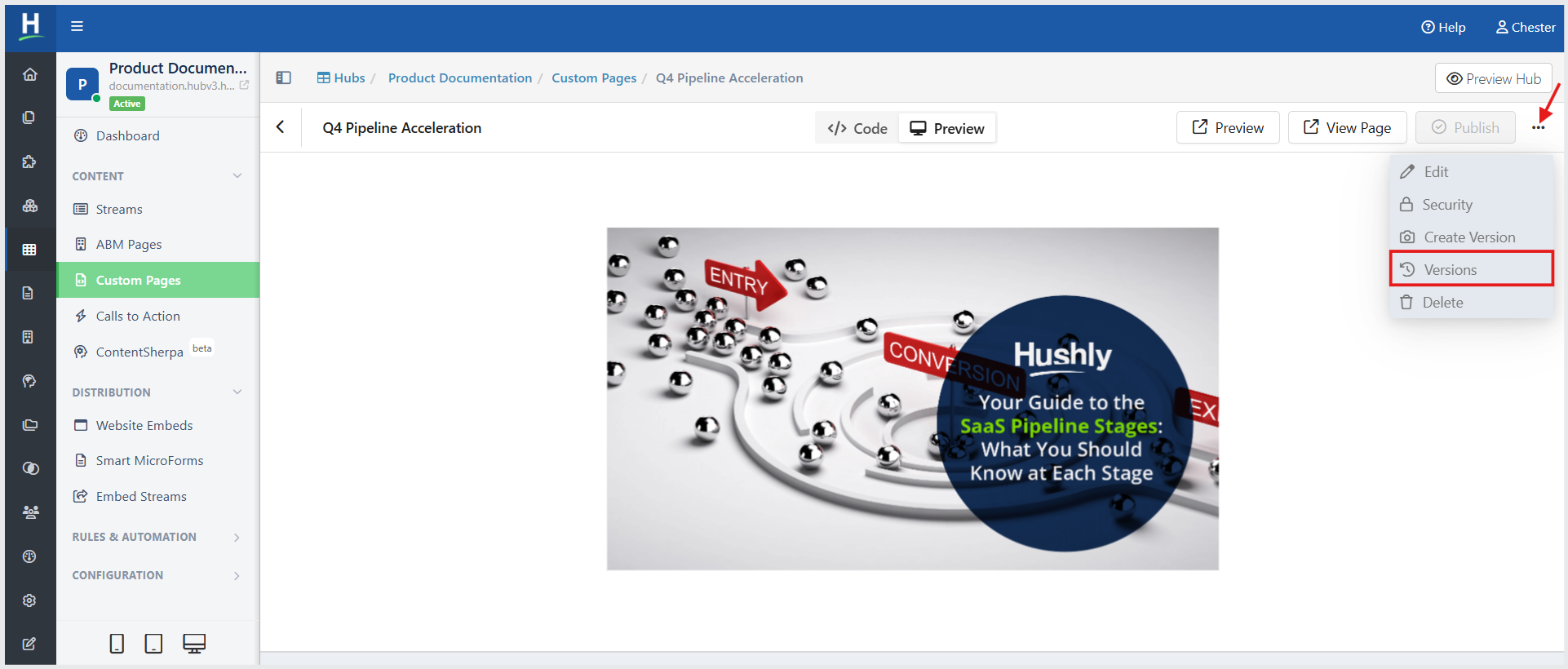
The Version History pop-window opens, displaying a list of all versions of the the Custom Page. From this dialog, you can review version details and restore a previous version when needed. To restore a Custom Page version, click Revert next to the version you want to restore.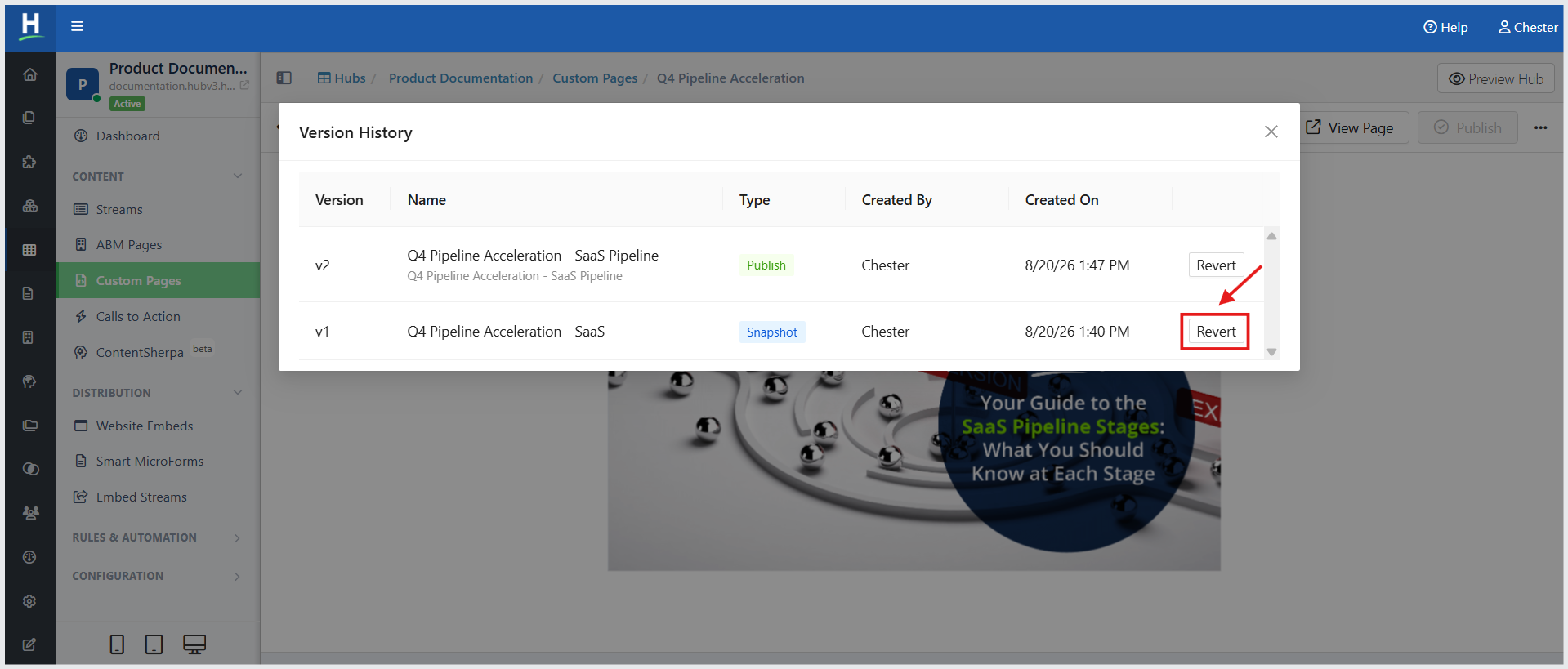
When you choose to restore a previous version of a Custom Page. Reverting replaces the current draft with the selected version. The restored version remains a draft until it is published.
The Revert Confirmation dialog is displayed with a message indicating that the current draft will be replaced with the selected version. Click Revert.
Related Topics:
Was this article helpful?
That’s Great!
Thank you for your feedback
Sorry! We couldn't be helpful
Thank you for your feedback
Feedback sent
We appreciate your effort and will try to fix the article