Secure a Custom Page
You may want to limit access to your Custom page to a specific audience. Hushly allows you to secure your Custom Pages by limiting access to them, thus keeping the content safe from prying eyes.
Hushly gives you four options to secure your Custom Page:
- Inherit – Inherits security configuration from the hub.
- Public – Anyone with the proper URL can access this Custom Page.
- By Password – Only people with designated password can access this Custom Page.
- By Email – Requires two-factor authentication. Only people whose emails or email domains you approve.
To secure your Custom Page, follow the steps below:
- From the Left Navigation Menu, click Hubs. On the Hubs page, select the Hub you want to manage. From the Hub Menu, click Custom Pages.
- On the Custom Pages listing page, click the ellipsis (three-dot) menu in the Actions column, and then select Security.
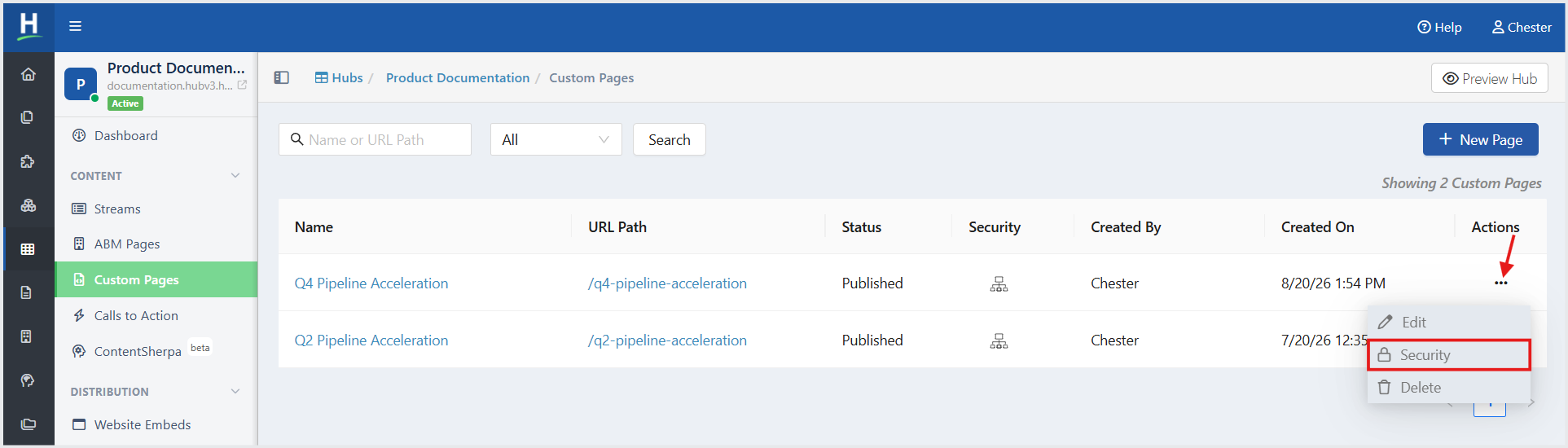
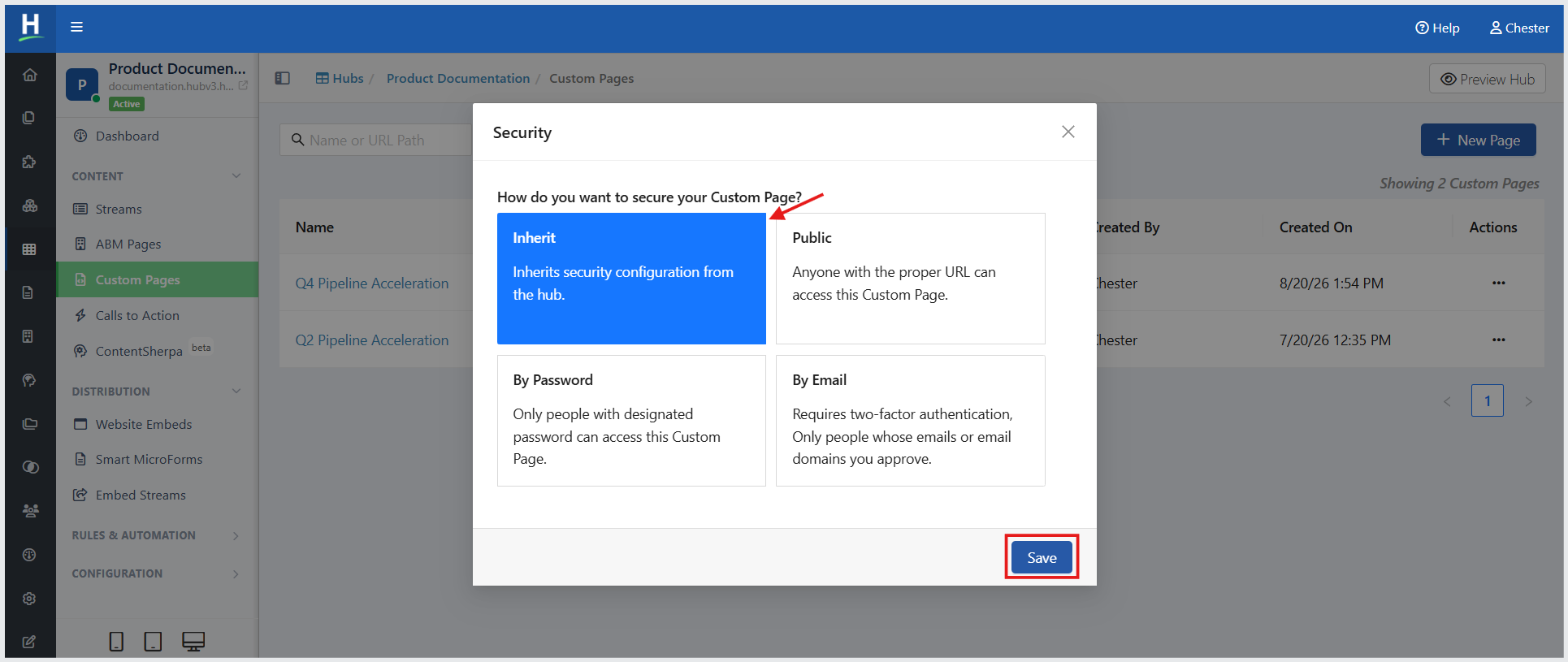
The Security dialog is displayed. The Security dialog allows you to define who can access a Hub Custom Page. Choose the security option that best fits your audience, then click Save to apply the changes.
How do you want to secure your Custom Page?
Inherit (selected by default): Inherits the security configuration from the hub. To use the hub's security configuration, leave Inherit selected and click Save.
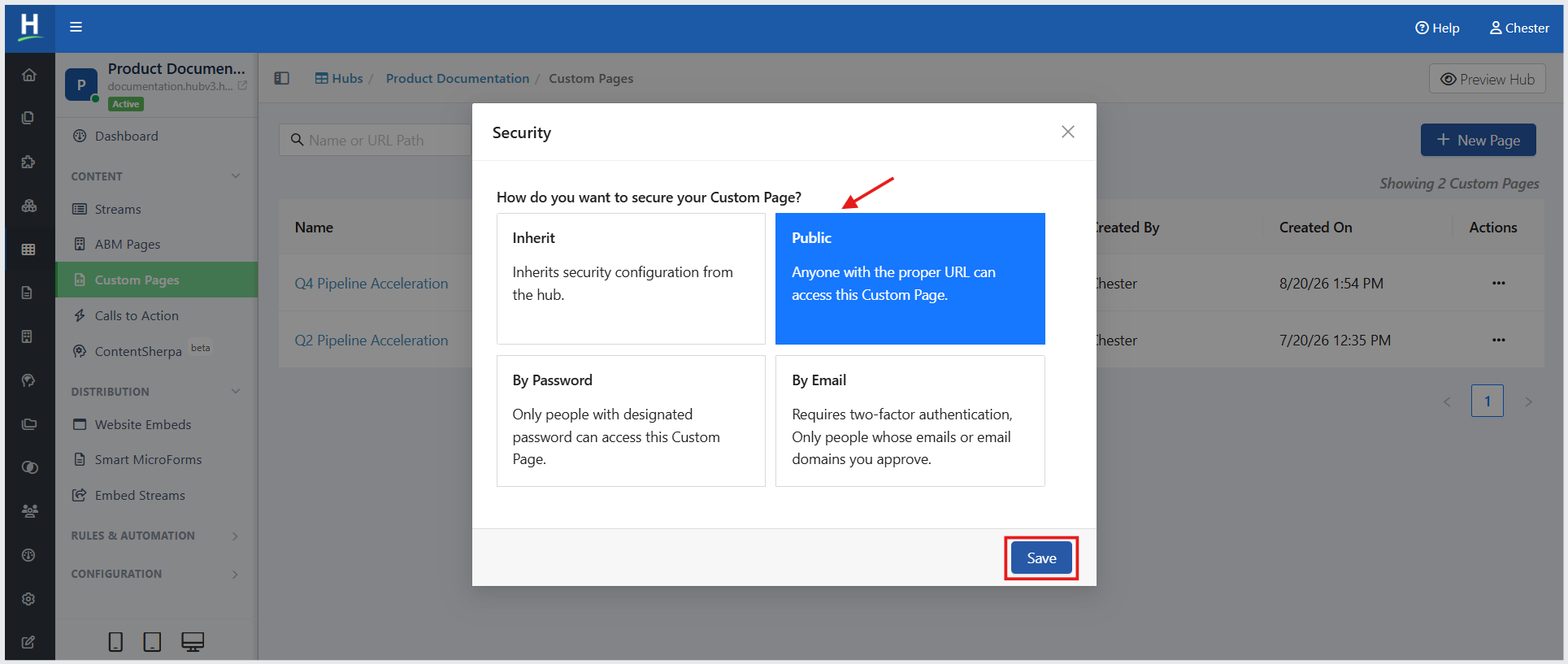
Public – Anyone with the proper URL can access this Custom Page. Select Public, then click Save.
By Password– Only people with a designated password can access this Custom Page. Select By Password, specify the Require re-authentication after period, enter a password, click Add, and then click Save.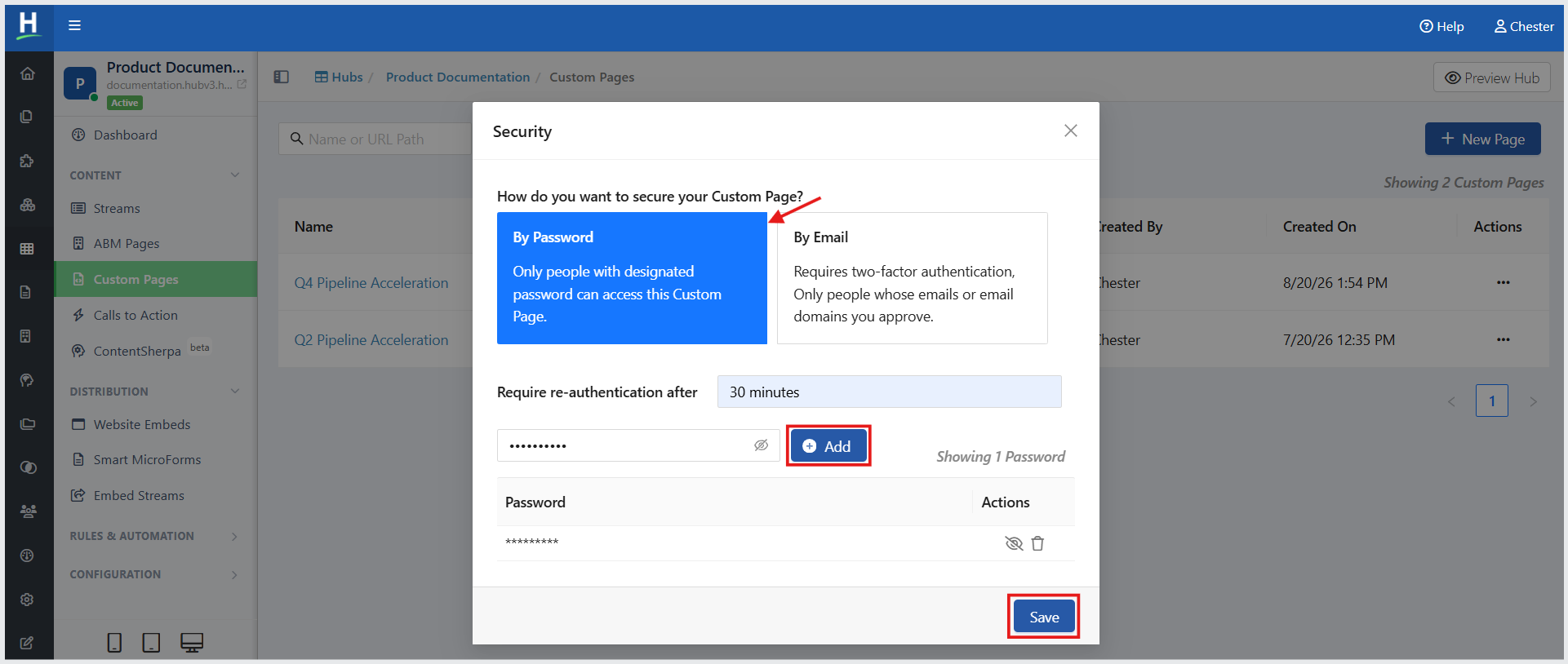
Note: A Custom Page can have multiple passwords. Any configured password can be used to access the page.
By Email – Only people with designated email addresses or company domains can access this Custom Page using two-factor authentication. Select By Email, specify the Require re-authentication after period, enter an email address or company domain, click Add, and then click Save.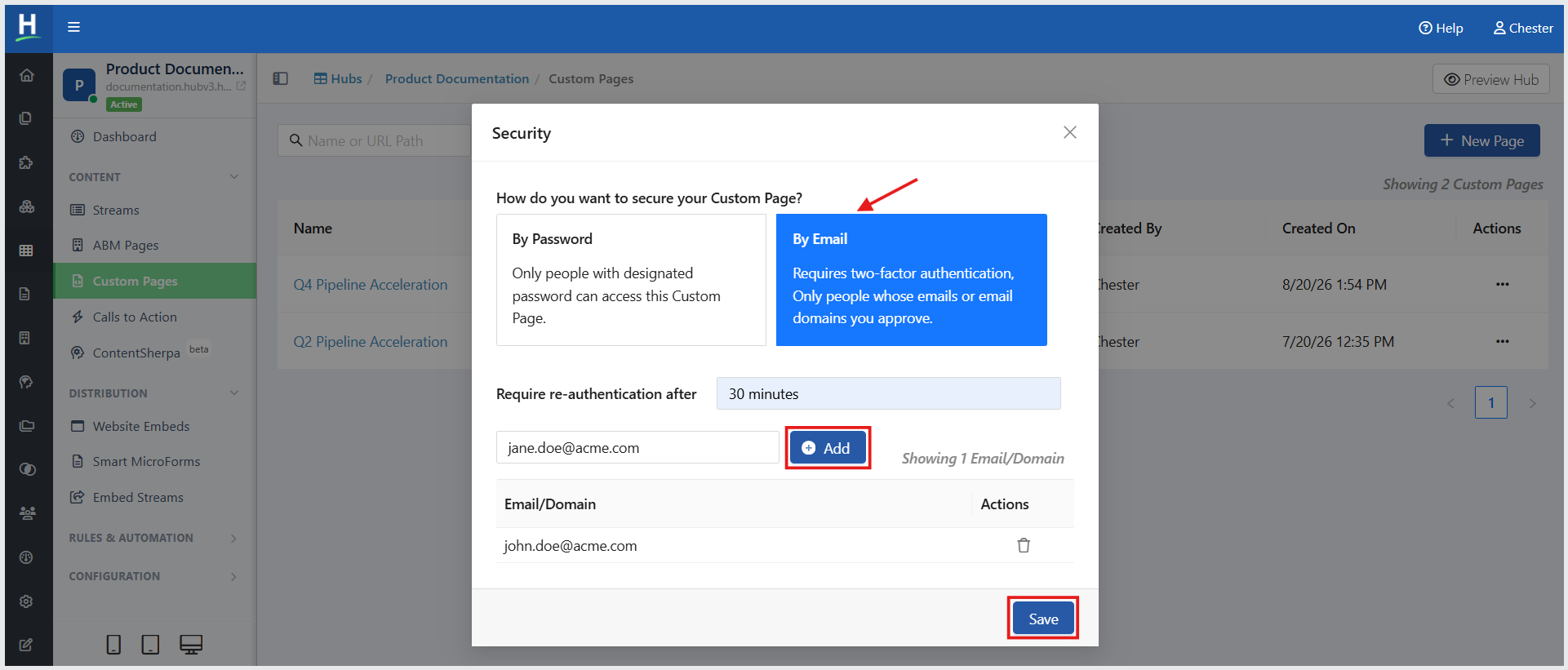
Related Topics:
How to Edit and Delete a Custom Page
Was this article helpful?
That’s Great!
Thank you for your feedback
Sorry! We couldn't be helpful
Thank you for your feedback
Feedback sent
We appreciate your effort and will try to fix the article