What is a Persona?
A persona is a semi-fictional representation of your ideal audience, based on real roles, goals, challenges, and behaviors. In a B2B context, personas typically represent different stakeholders involved in the buying journey, such as marketers, sales leaders, or executives.
Personas help you understand who you are speaking to, what matters to them, and how they make decisions.
Why Do We Need to Configure Personas?
Configuring personas allows you to deliver relevant, targeted, and personalized experiences. Each persona has different priorities, pain points, and success metrics, and configuring them ensures your content speaks directly to those needs.
Key reasons to configure personas:
- Personalized Messaging
- Better Content Alignment
- Improved Engagement
- Stronger Conversions
- Supports GEO & AI Optimization
In Simple terms, Personas help you speak to people, not just visitors. By configuring personas, you ensure your messaging resonates with the right audience and drives better outcomes.
To use this functionality, first you need to:
- Enable GEOSherpa
- Generate Persona
- Configure Questions and Answers (FAQ)
- Enable GEOSherpa: The Personas tab is available only when the option is turned on for the customer. To enable, please get in touch with your CSM (Customer Success Manager). Once this option is enabled, you will be able to see Personas in the Setup menu.
- Generate Personas: Set up Personas with descriptions to better segment users and deliver relevant, personalized experiences.
To set up Personas, you need to follow the steps below:- From the Left Nav Menu, under Setup >click Personas.
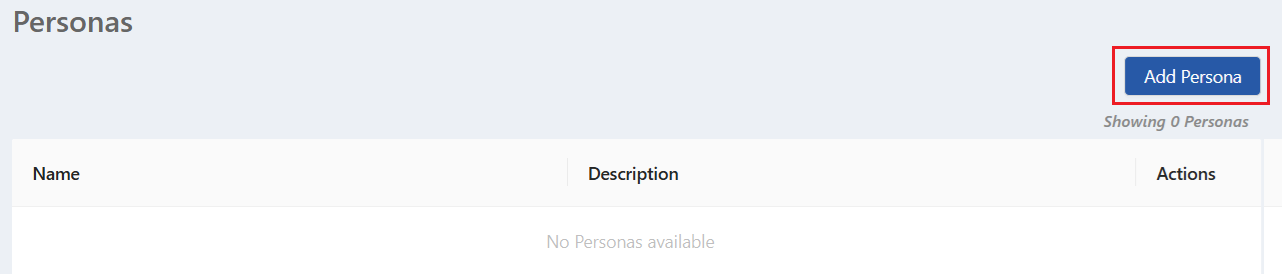
- The Personas page is displayed with an Add Persona button to create and manage personas. Click Add Persona.
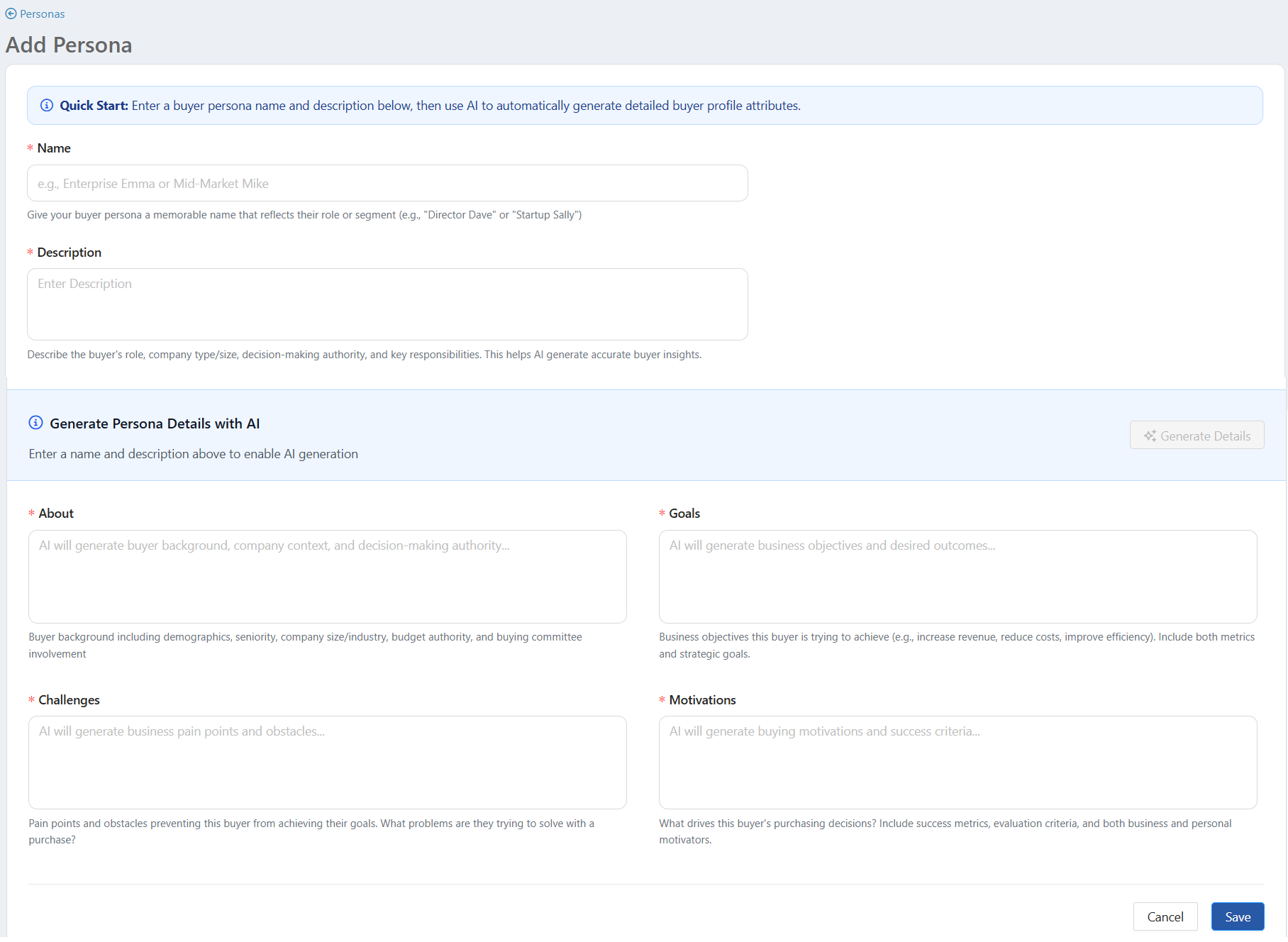
- The Add Persona page is displayed. Use this page to add a new persona by providing a Name and Description.
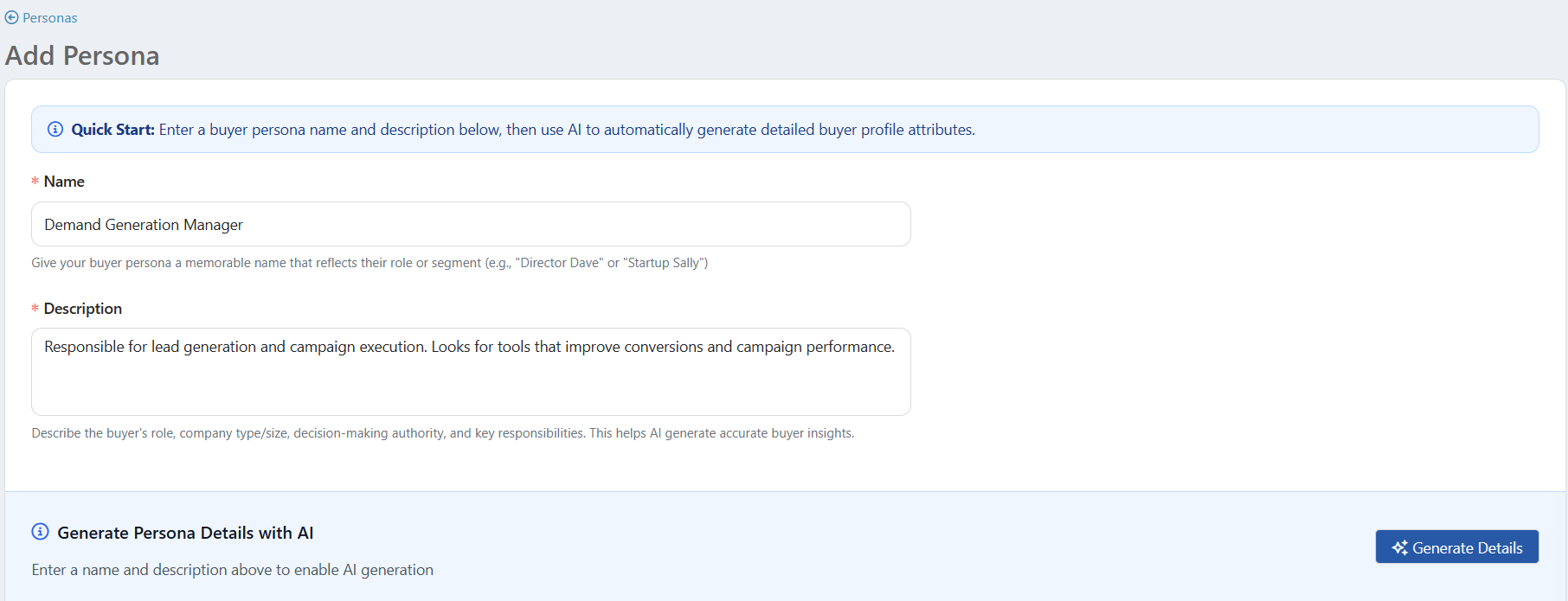
- Entering the name and description activates the Generate Details button. Click Generate Details. You can use AI to automatically generate detailed persona insights, such as About, Goals, Challenges, and Motivations.
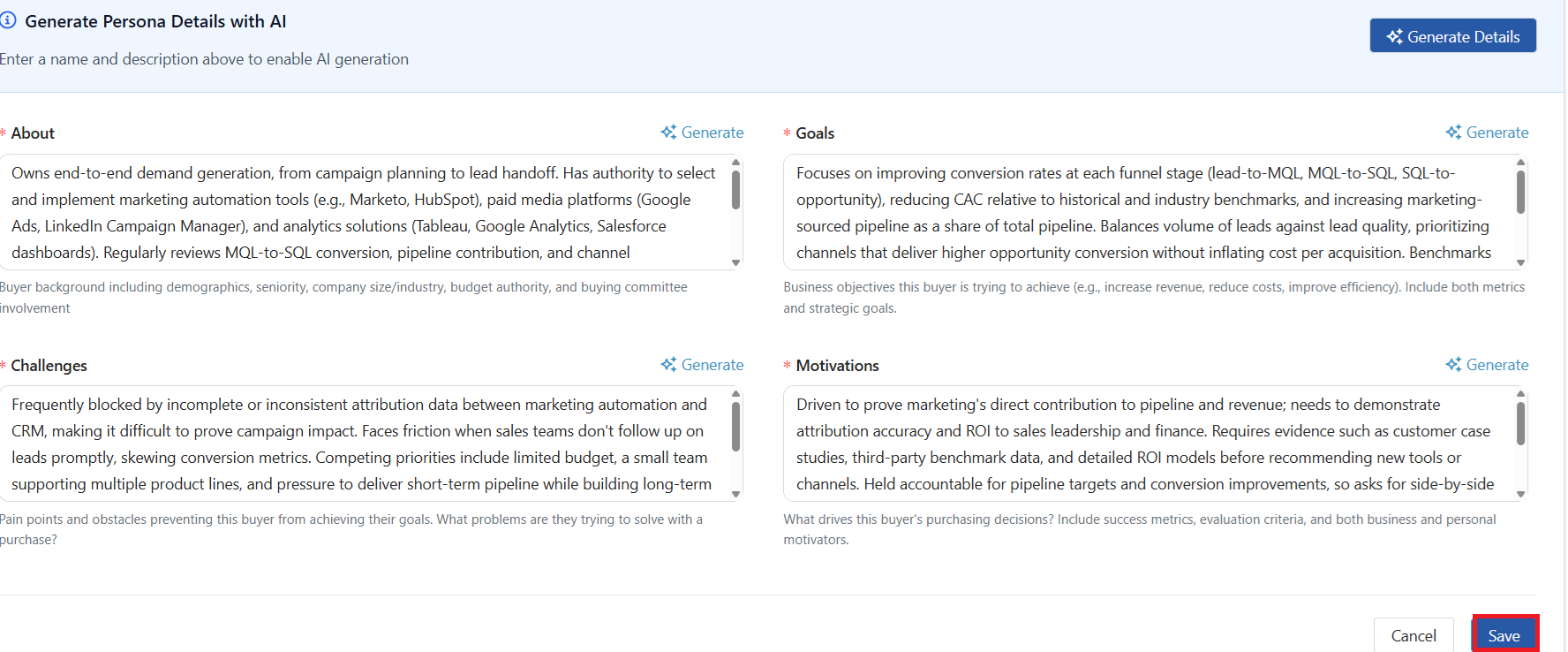
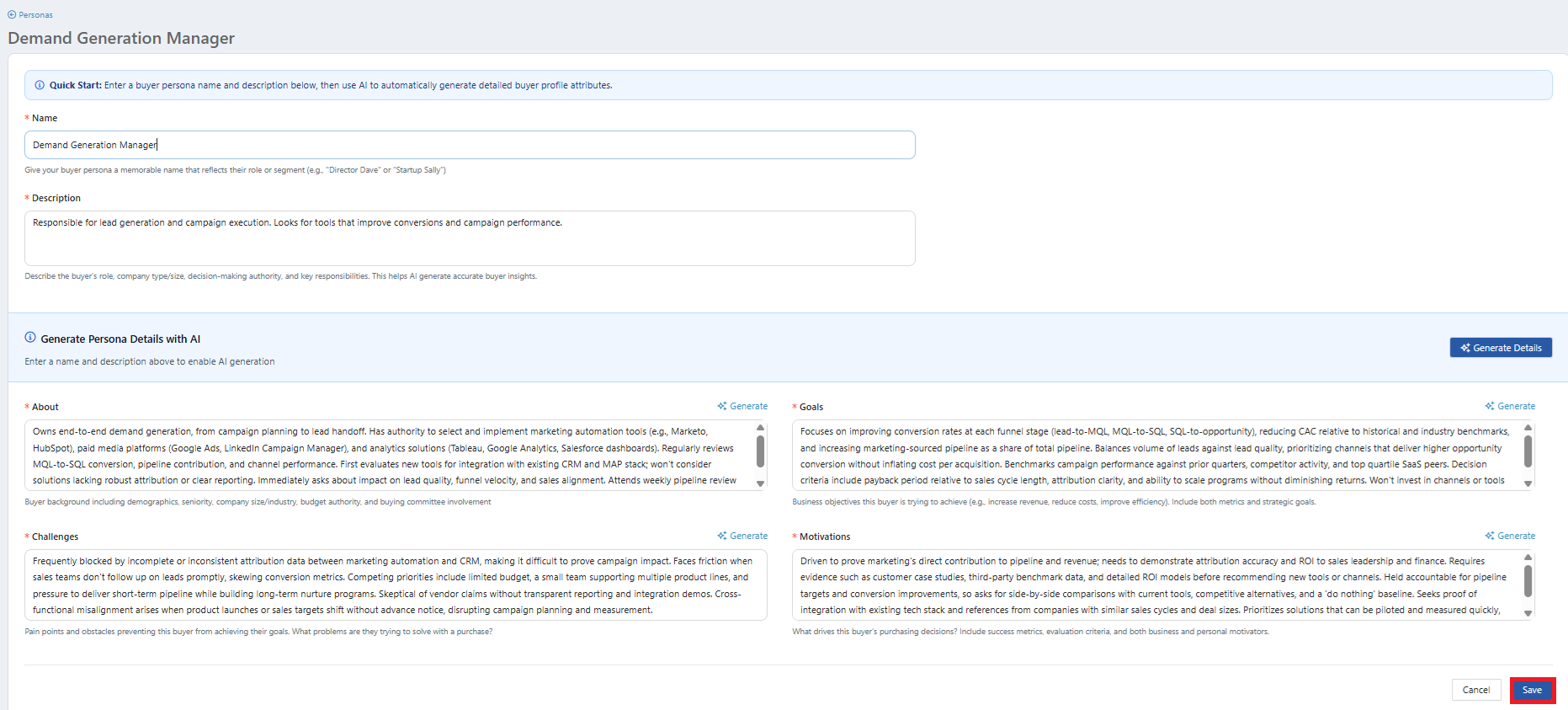
- The persona details generated by AI are displayed in the respective fields. Review the information, make edits as necessary, and click Save to create the persona.
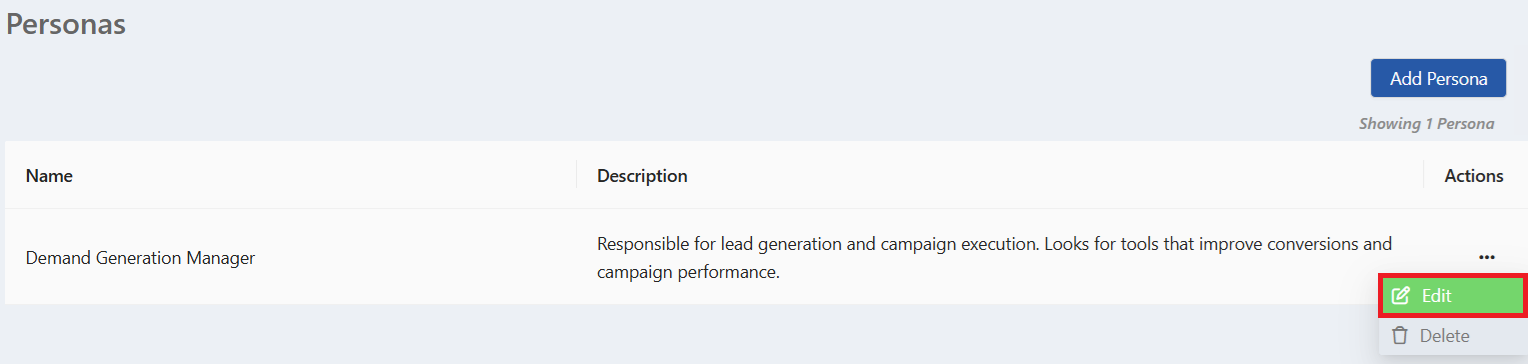
- The saved persona appears on the Personas page. You can edit or delete the persona using the three-dot menu.

- Click the Edit button to make any necessary changes.
- The Persona edit page is displayed. Make necessary changes and click Save.
- The persona is saved successfully, and a confirmation message is displayed.

- Click the Delete to remove the persona.
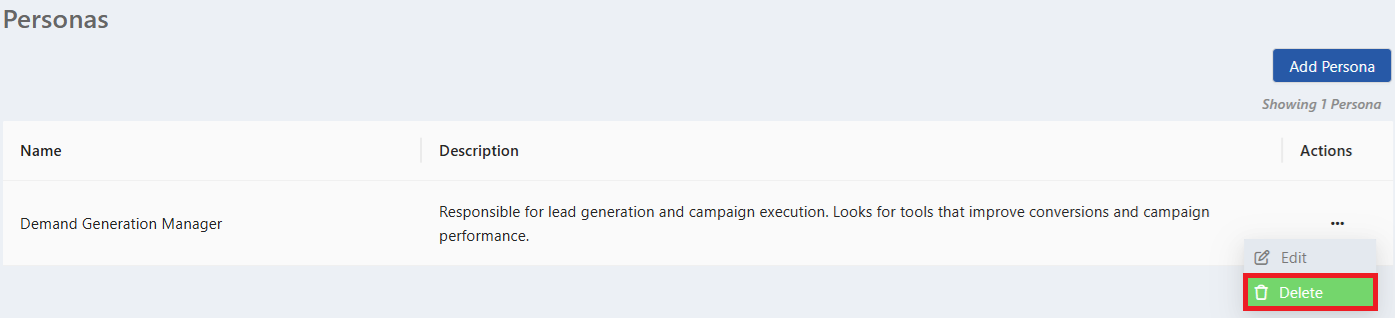 Note: If a Persona is deleted, the related Question & Answers will be removed from the Assets > Questions section.
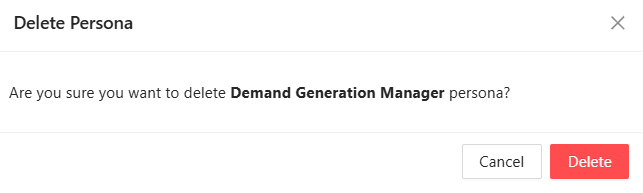
 - A confirmation dialog prompts you to confirm or cancel the deletion of the selected persona. Click Delete.
- The Persona is deleted and removed from the Personas listing page.

- Click the Edit button to make any necessary changes.
- Configure Questions and Answers (FAQ) for the Personas: Once Personas are created here, they appear in the Questions tab under each Asset. You can now generate questions and answers using AI. To learn how to generate Questions and Answers for a Persona, click here.
Related Topics:
Was this article helpful?
That’s Great!
Thank you for your feedback
Sorry! We couldn't be helpful
Thank you for your feedback
Feedback sent
We appreciate your effort and will try to fix the article