Hushly supports the integration and playback of Navattic demo videos within the Experience Runtime, enabling users to view guided product demos directly as part of the experience flow.
Hushly supports Navattic Demo Assets at the Experience level ONLY. There is no option to add a Navattic Demo Asset at the Stream level, including Embed
Establishing a connection between Hushly and Navattic:
To connect Hushly with Navattic, you can follow the steps below.
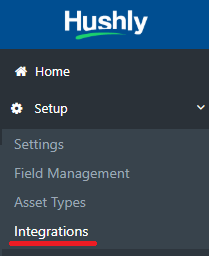
- From the Left Nav Menu, click Setup > Integrations.
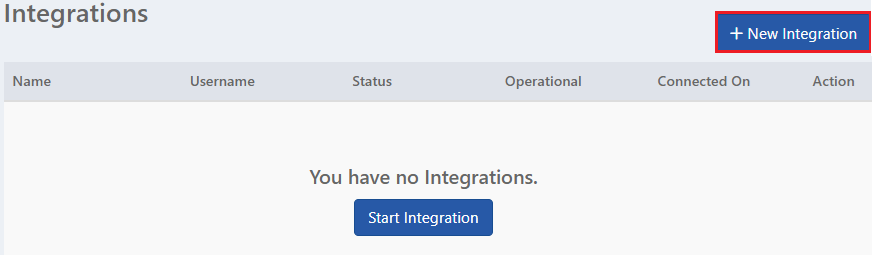
- On the Integrations page, click +New Integration.
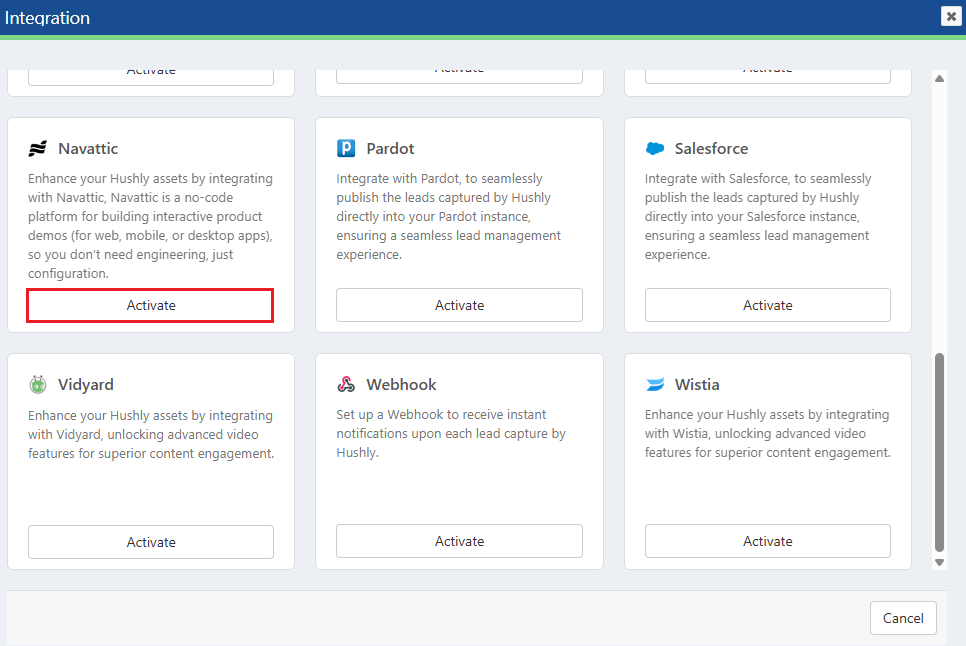
- From the Integration pop-up window, select Navatic and click Activate.
- Navattic is successfully connected to Hushly, and a confirmation message is displayed. A green Indicator is displayed under "Operational," confirming that the connection is active.

- Once the Navattic Integration steps are complete, you can proceed to set up a Navattic video asset within the Hushly platform. To know more about Setting Up a Navattic Video Asset, click here.
Disconnecting Navattic Integration
- In the Integrations page, against the Navattic integration, click Edit.

- The Navattic pop-up appears with the Disconnect button; click Disconnect.
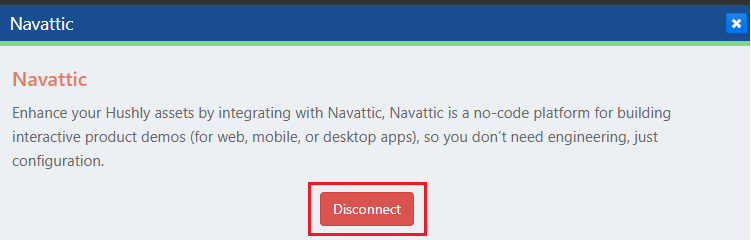 Note: You can disconnect the integration only if there are no Navattic videos available in Hushly.
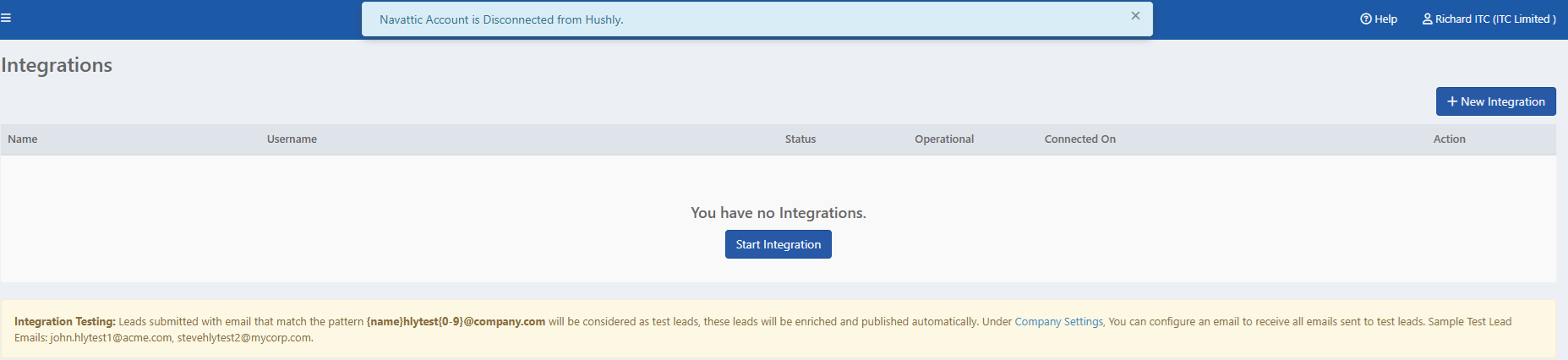
 - A confirmation pop-up appears with OK and Cancel buttons. Click OK to proceed. A success message is then displayed confirming that the Navattic account has been disconnected from Hushly.
- If there are any Navattic Video Assets setup in Hushly and on clicking the Disconnect button, an error message will be displayed.

Was this article helpful?
That’s Great!
Thank you for your feedback
Sorry! We couldn't be helpful
Thank you for your feedback
Feedback sent
We appreciate your effort and will try to fix the article