Manage your subscription plan and billing details in the Plan & Billing section. The current plan is displayed, along with its status (Free Plan, Starter, or Explorer), and the Change Plan button is available to upgrade or modify the plan.
This section includes the following:
- How to access Plan & Billing
- Available Plans: Free and Subscriptions
- Subscribing
- UnSubscribing
Access Plan & Billing
To access Plan & Billing, follow the steps below:
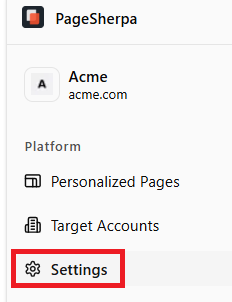
- From the Left Menu > click Settings.
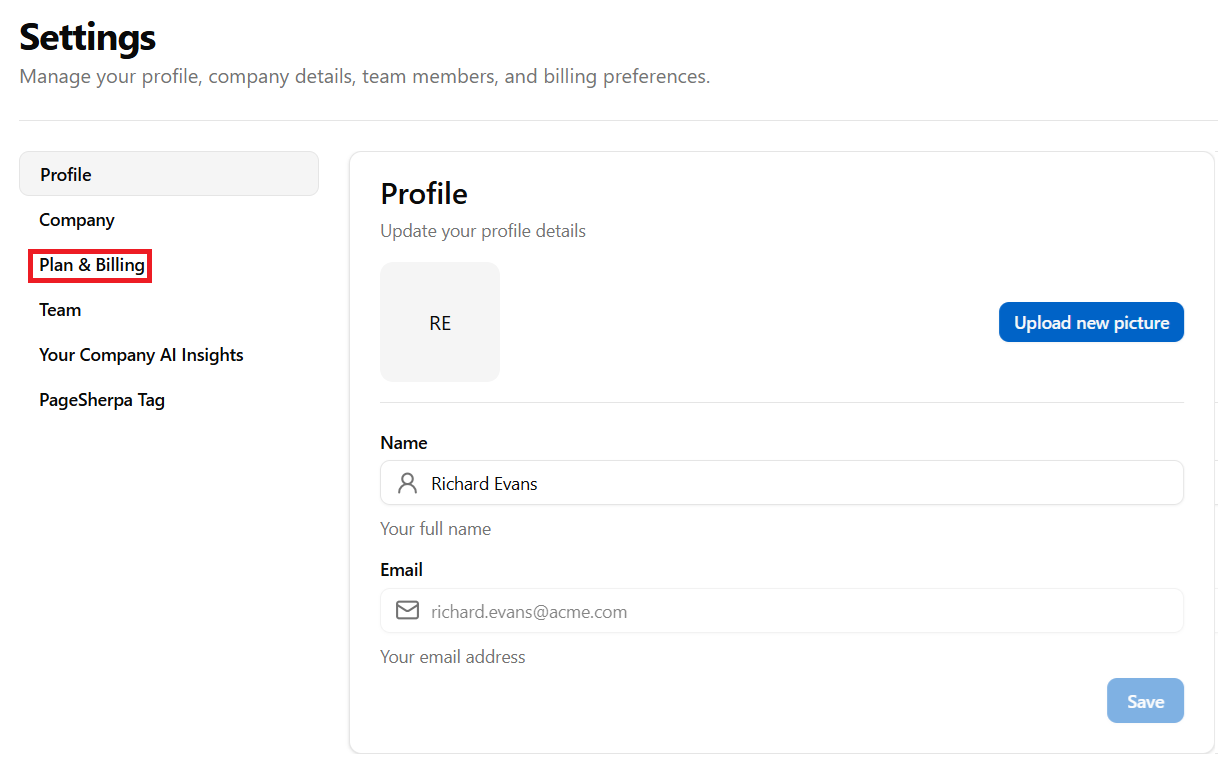
- The Settings page opens to the Profile tab, displayed by default. Click Plan & Billing from the Settings menu.
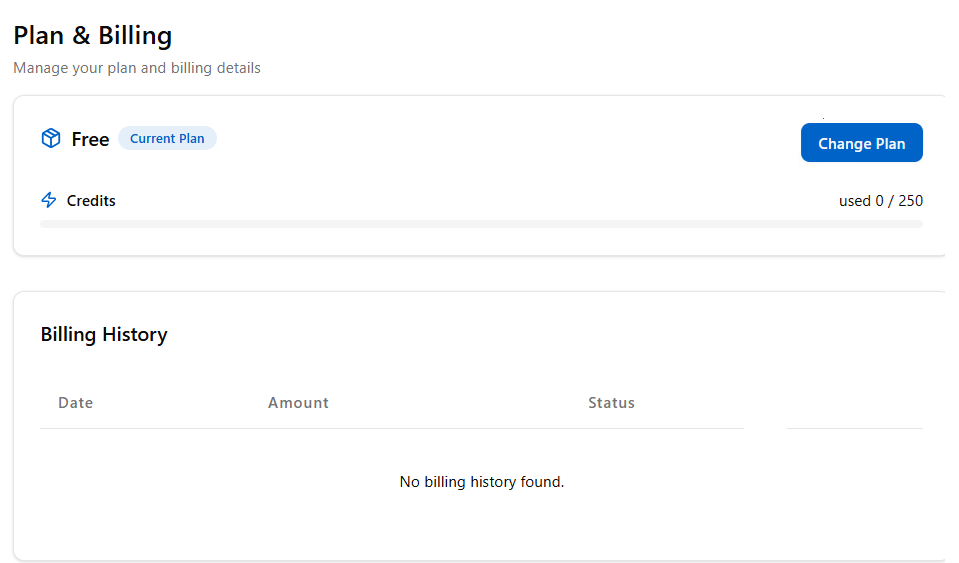
- The Plan & Billing section displays your current plan, the total number of credits versus used versus total credits, and your billing history details. To change your plan, click the Change Plan button.
Available Plans
When you subscribe to PageSherpa, the Free Plan is assigned by default. You can choose to upgrade to the Starter or Explorer plans for additional features, or contact the Sales team for a Custom Enterprise Plan, tailored to your organization’s needs.
- Free Plan: This plan is ideal for trying out PageSherpa’s features with no upfront cost.
- Credits: 250
- Upload any customer segment
- Personalize landing pages
- Publish to landing pages
Note: Once your 250 credits are used, you’ll need to upgrade to a paid plan to continue using PageSherpa without interruption.
Subscription Plans
- Starter Plan: The Starter Plan is ideal for small teams that require additional monthly credits and flexibility. It is billed annually at $89/month for continual access or $99/month, monthly.
- Monthly Credits: 250
- Upload any customer segment
- Personalize landing pages
- Publish to landing pages
- Any unused credits at the end of the month do not carry over to the next month.
- Explorer Plan: The Explorer Plan is best for growing businesses with higher usage needs. It is billed annually at $224/month or $249/month, monthly.
- Monthly Credits: 1000
- Upload any customer segment
- Personalize your landing pages
- Publish to your landing page
- Any unused credits at the end of the month will not carry over to the next month.
- Enterprise Plan: Custom Pricing for organizations needing a fully tailored solution.
- Available Credits: Custom
- Contact sales for a custom quote.
- Upload any customer segment
- Personalize your landing pages
- Publish to your landing pages
- Any unused credits at the end of the month will not carry over to the next month.
If you use all your allocated monthly credits and require additional credits, you can request an upgrade by contacting the Support team.
Subscribing to a Plan
Subscribe to a paid plan to access additional credits. Paid plans are designed to support growing teams and advanced customization needs. Upgrade from your existing plan at any time.
To subscribe, follow the steps below.
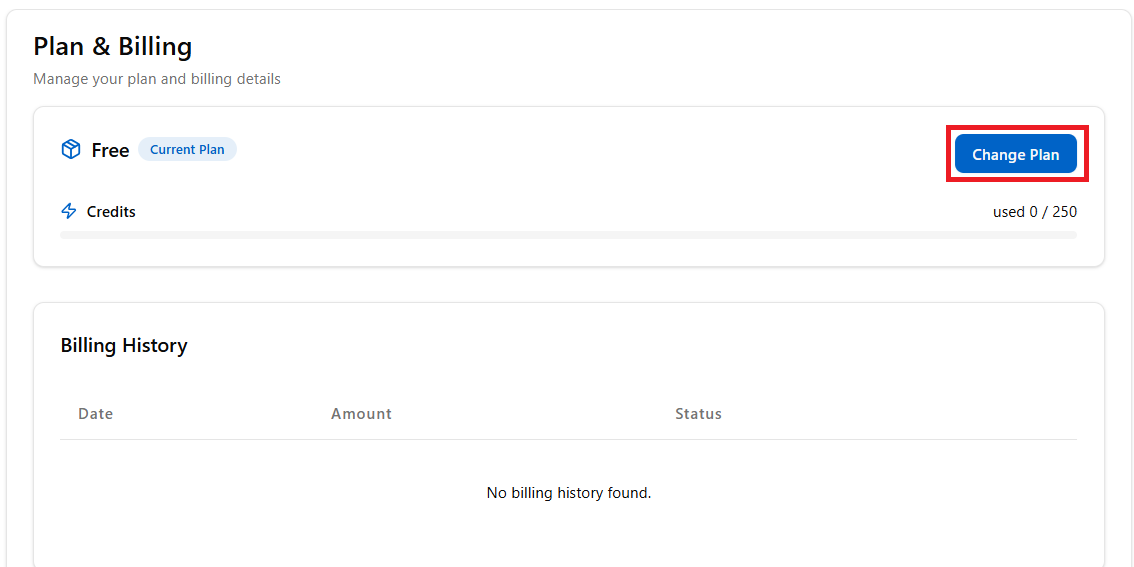
- In the Plan and Billing section, click the Change Plan button.
- The Change Plan page allows you to select the subscription plan that best fits your team’s needs. PageSherpa offers a Free Plan plus three paid plans designed to support your growth. You can choose between monthly and yearly billing options. The yearly option offers a 10% discount compared to the monthly rate.
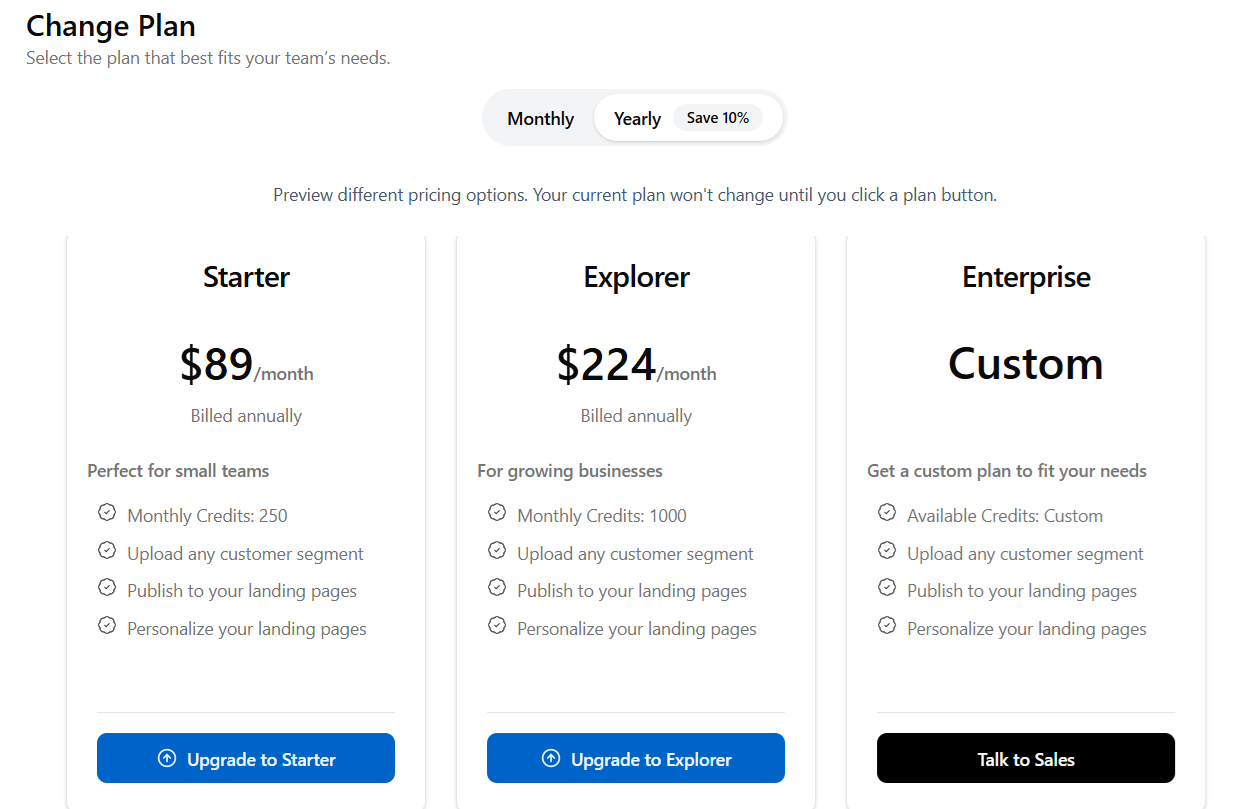
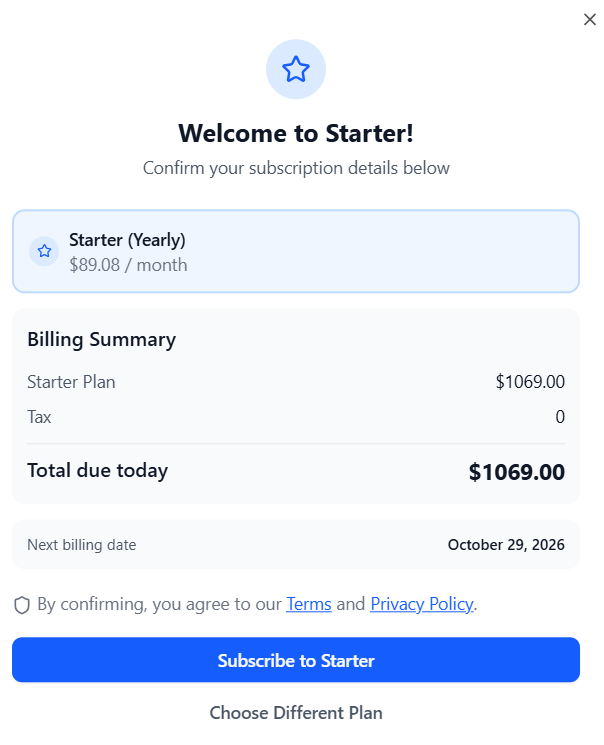
- The Billing Summary pop-up displays the billing details, the next billing date, and the Subscribe to Starter button. Click Subscribe to Starter.
- The Subscription page appears. Choose your preferred payment method to proceed.
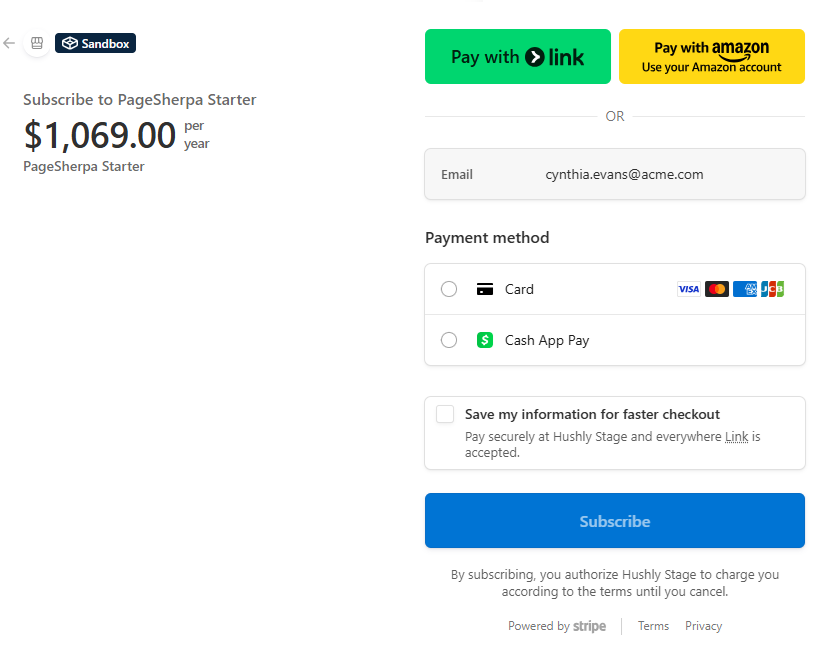
Four different payment options are available, as outlined below.- Pay with Link - This option lets users complete their payment quickly using Link, Stripe's secure one-click checkout service. If the user has previously saved their payment details with Link, they can pay instantly without re-entering their information.
- Amazon Pay - Amazon Pay enables users to make payments using their Amazon account. It securely uses the payment methods and shipping details already saved in Amazon, providing a fast, trusted checkout experience.
- Card Payment - This method allows users to pay using their debit or credit cards, such as Visa, MasterCard, American Express, or other supported cards. Users must enter their card number, expiry date, and CVV to complete the transaction securely.
- Cash App Pay - Cash App Pay allows users to pay directly through their Cash App account. After selecting this option, the user is prompted to authorise the payment via the Cash App on their mobile device.
- Pay with Link - This option lets users complete their payment quickly using Link, Stripe's secure one-click checkout service. If the user has previously saved their payment details with Link, they can pay instantly without re-entering their information.
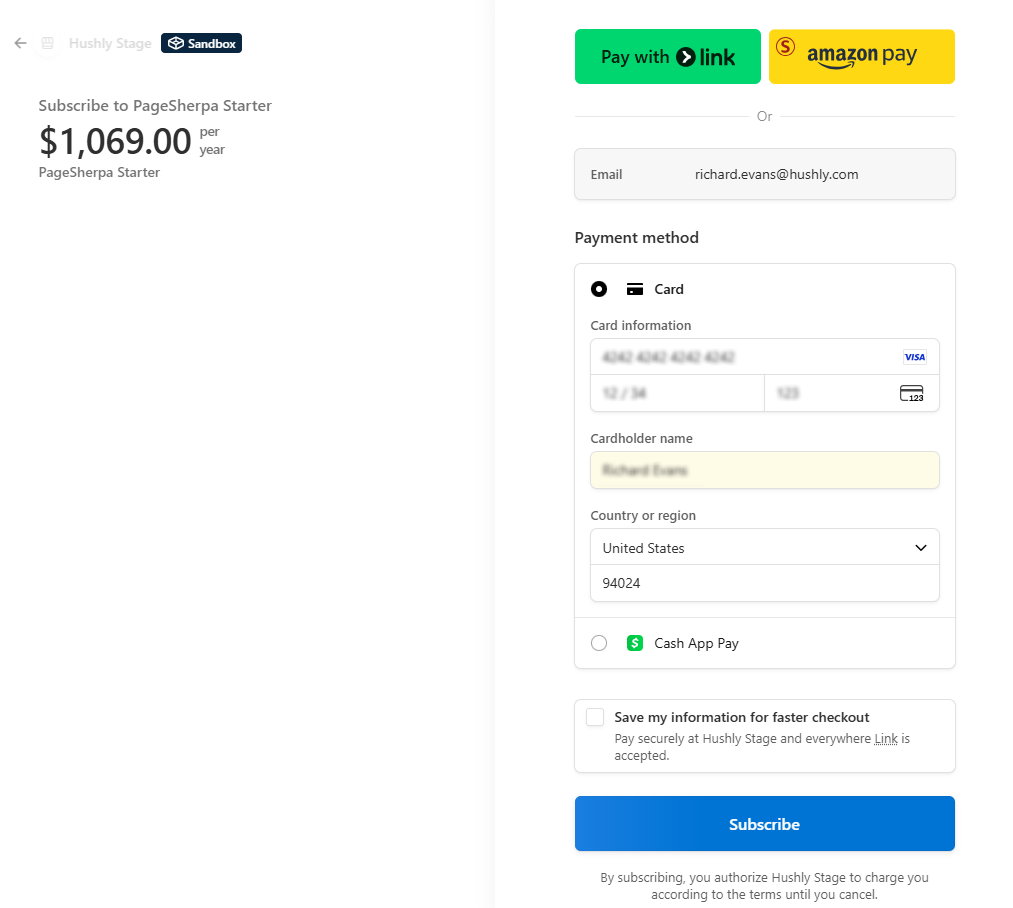
- In case you want to make a Card Payment. Enter your card and required details, and click Subscribe.
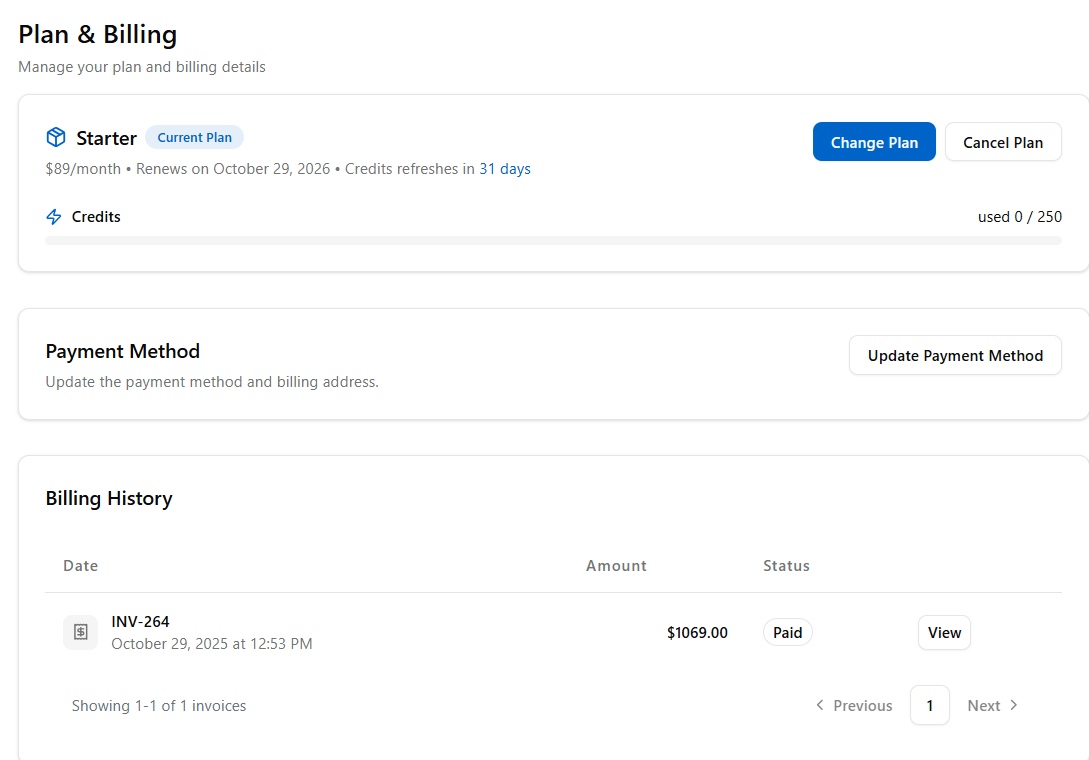
- The Plan & Billing section is displayed, showing details of your current upgraded plan, including the plan name, renewal date, and the number of used versus total credits available.
In the Payment Method section, use the "Update Payment Method" button to change your billing details.
The Billing History section displays your past invoices, including the Invoice Number, Date, Amount, Status, and a View button to access detailed invoice information.
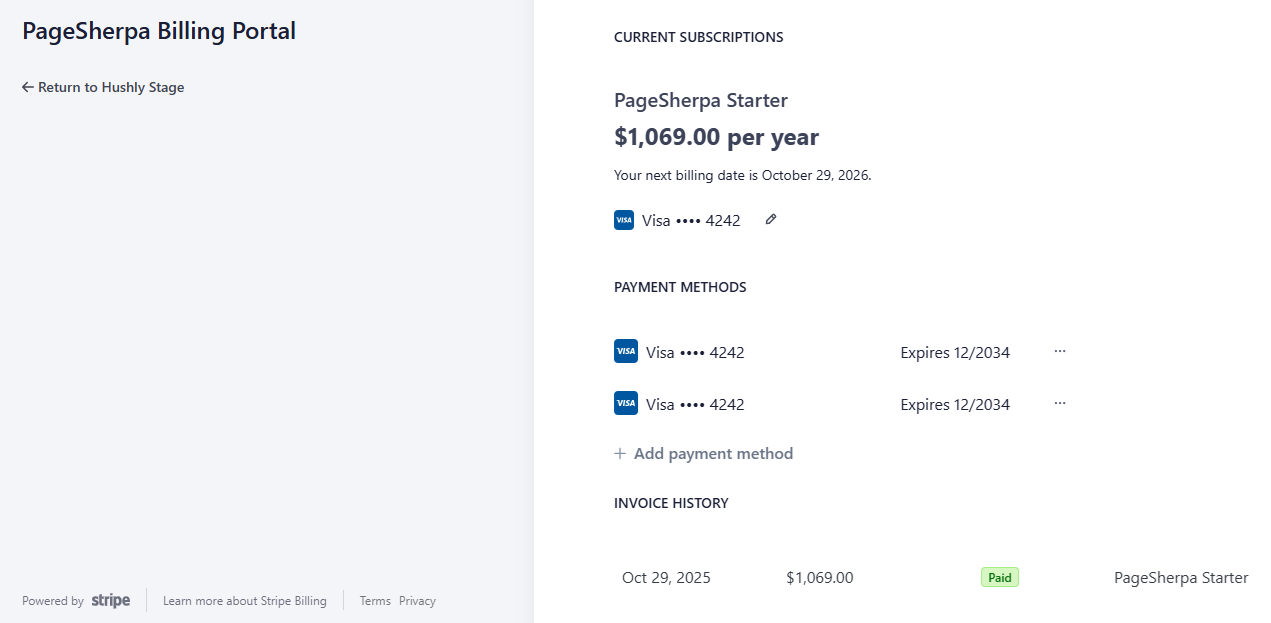
- Click the Update Payment Method button in the Payment Method section. The Manage Your Payment Methods screen is displayed, and you can make changes, or you can click the Return to Hushly Stage.
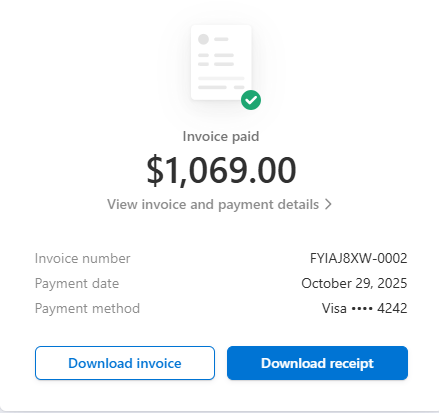
- Click the View button in the Billing History section. The Payment Confirmation pop-up is displayed, showing the Invoice number, Payment Date, and Payment Method. It also provides Download Invoice and Download Receipt buttons for saving payment records.
- Click the Update Payment Method button in the Payment Method section. The Manage Your Payment Methods screen is displayed, and you can make changes, or you can click the Return to Hushly Stage.
Unsubscribe from a Plan
To discontinue your current subscription, you can unsubscribe from your plan at any time. Unsubscribed accounts transition to the Free Plan once the plan expires. In the meantime, you can continue using your monthly credits as usual.
To cancel your subscription, follow the steps below:
- On the Plan and Billing page, click the Cancel Plan button.
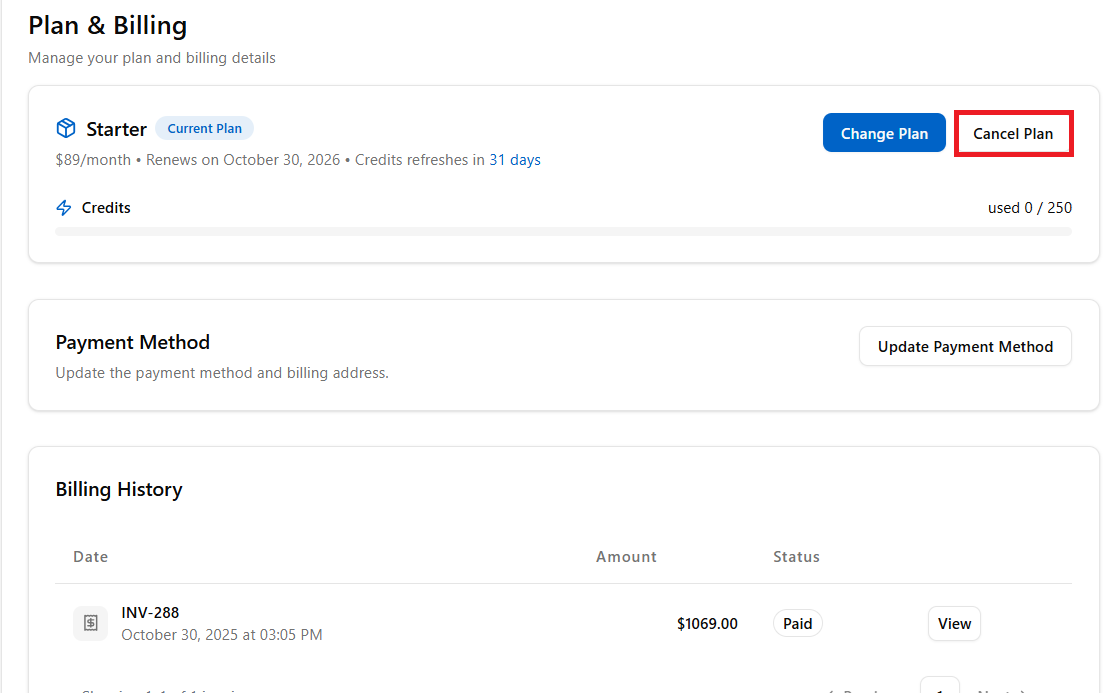
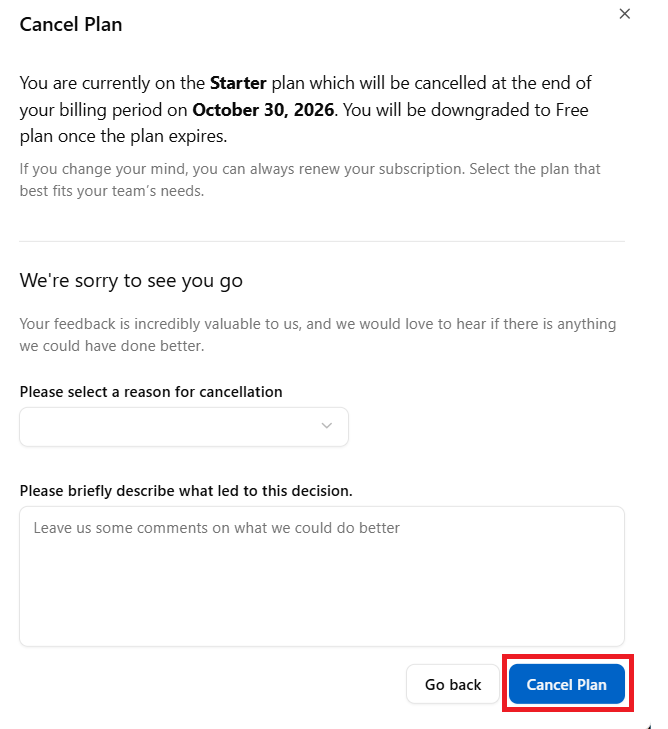
- The Cancel Plan page is displayed with the following.
- This page provides the details of your current plan and the date when the cancellation will take effect. The plan will remain active until the end of your current billing cycle, after which your account will automatically be downgraded to the Free Plan.
- Reason for Cancellation - Select a reason from the dropdown.
Comments - Please describe what led to the decision or how the experience can be improved.
Click Cancel Plan to proceed with the cancellation.
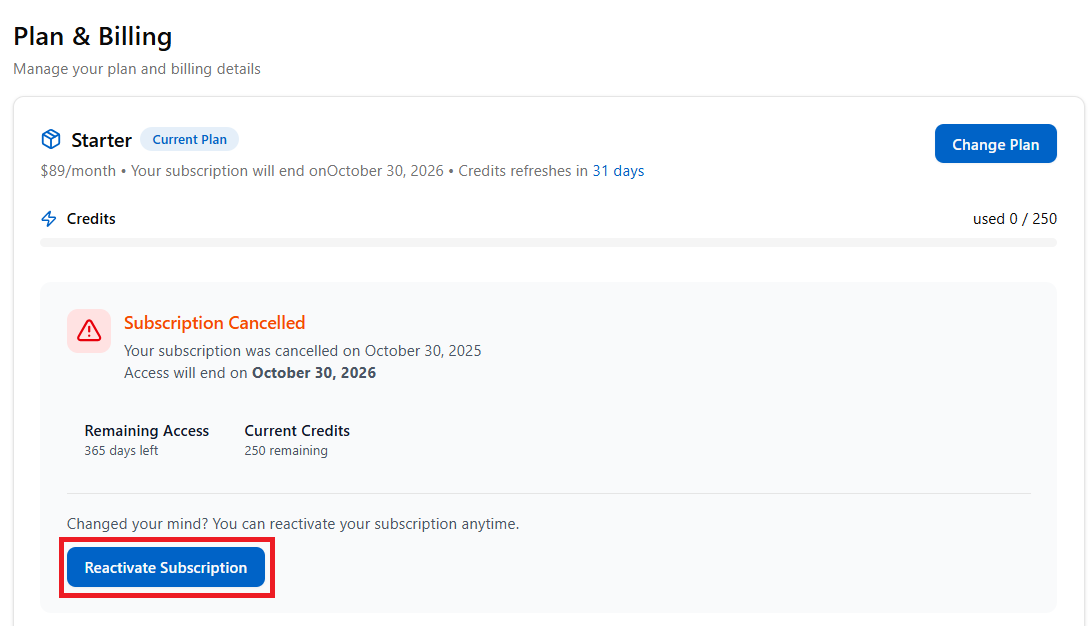
- On the Plan & Billing page, a Subscription Cancelled message is displayed along with the number of Remaining Access days, the Credits remaining, and the Reactivate Subscription button. To resume your plan, click Reactivate Subscription.
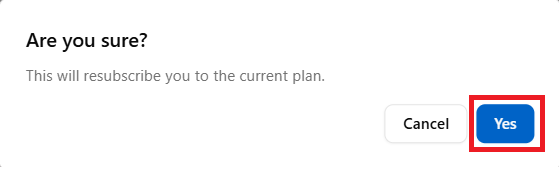
- A confirmation message is displayed with the Cancel and Yes buttons. Click Yes.
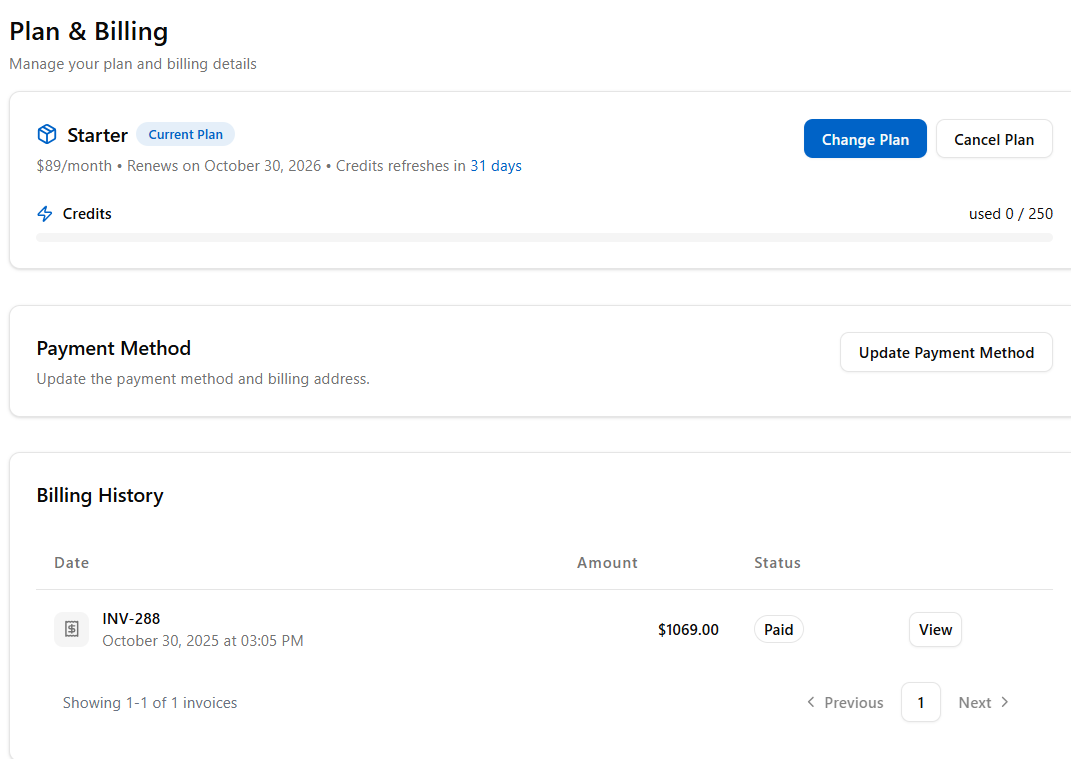
- Once the subscription is reactivated, the Subscription Cancelled message is removed from the page, confirming that your plan is active again.
Related Topics:
Personalizing Pages using PageSherpa Extension
Was this article helpful?
That’s Great!
Thank you for your feedback
Sorry! We couldn't be helpful
Thank you for your feedback
Feedback sent
We appreciate your effort and will try to fix the article