Deleting Assets from a Stream
Assets can be deleted from a Stream in two ways: deleting a single asset or deleting multiple assets. Use the appropriate method depending on the number of assets you want to remove.
Deleting a Single Asset
To delete a single asset from a Stream, follow the steps below:
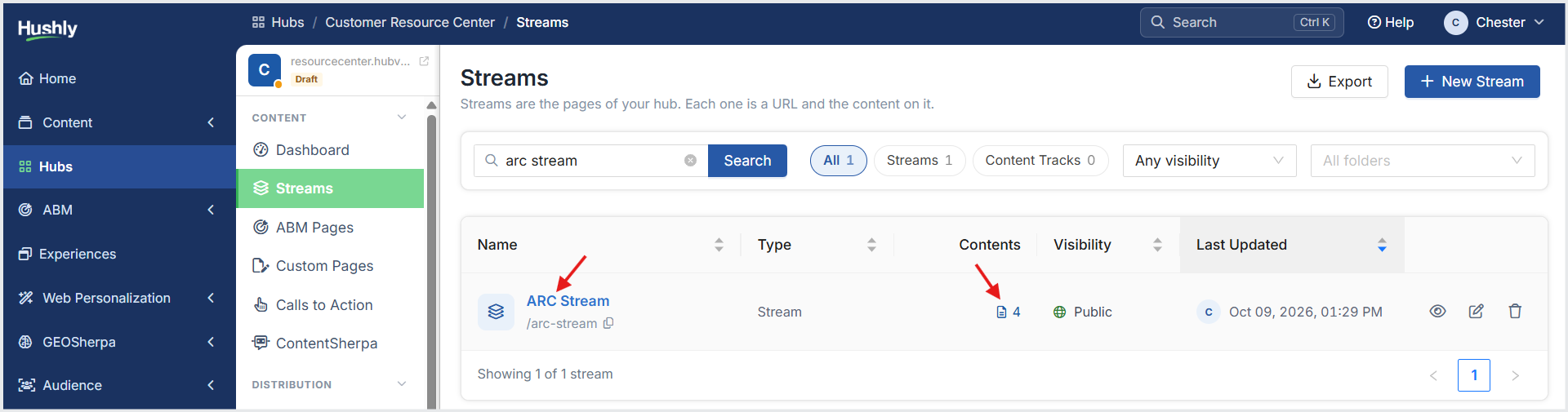
From the Left Navigation Menu, click Hubs. On the Hubs listing page, select the Hub you want to manage. In the Hub Menu, under CONTENT, click Streams. On the Stream listing page, click the desired stream name in the Name column or click the content icon in Contents column.
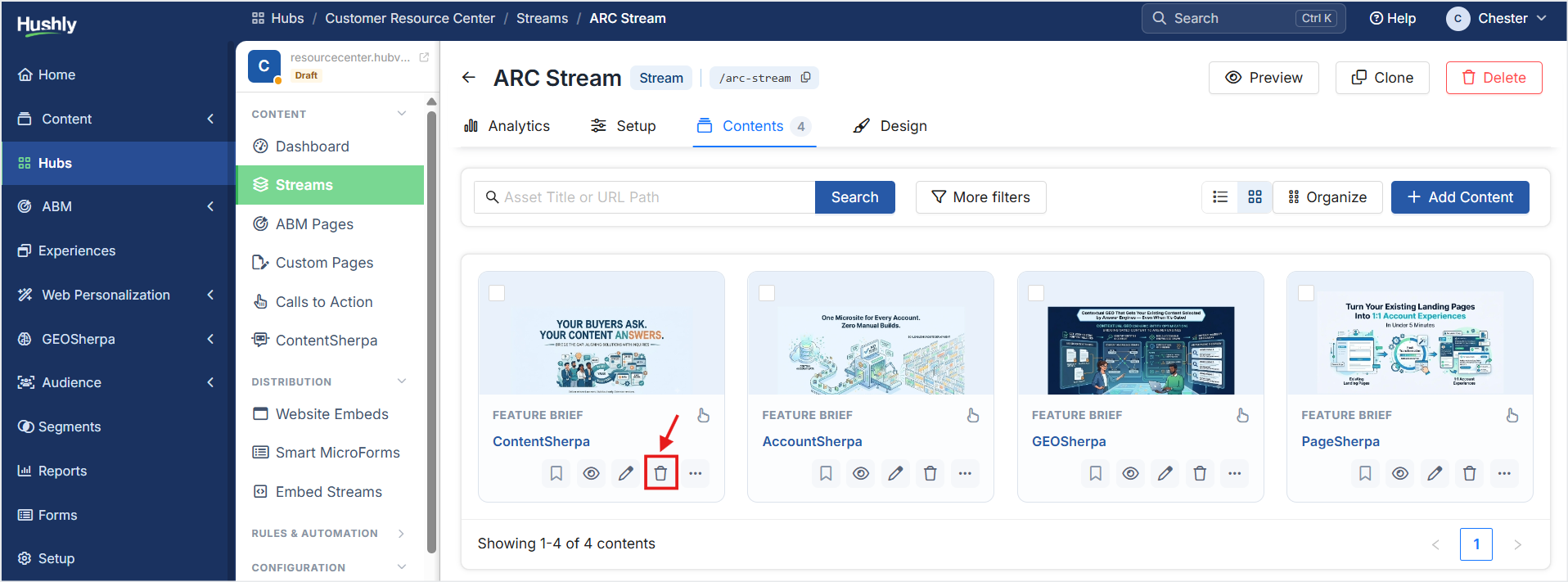
On the Stream details page under the Contents tab, locate the asset you want to delete, and click the Delete (trash) icon on the asset card.
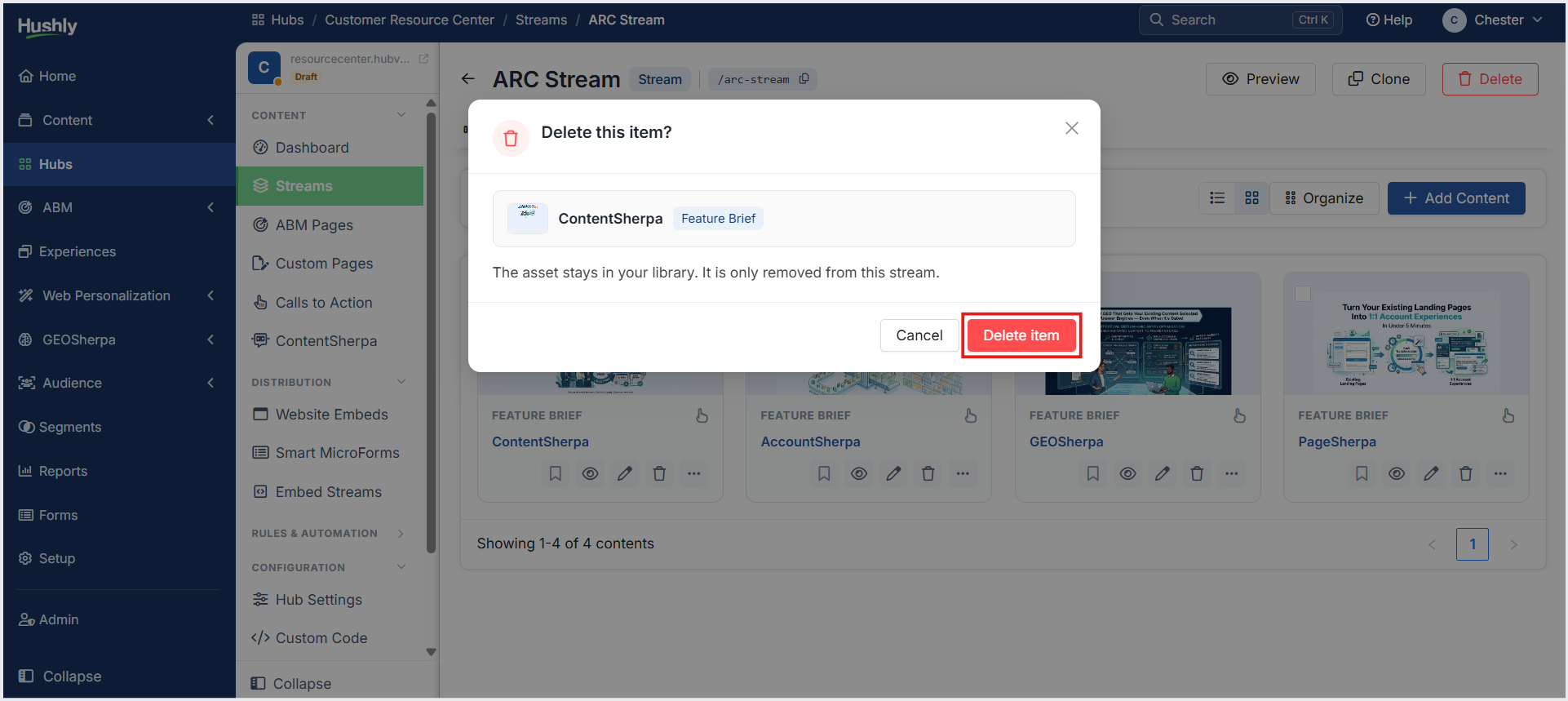
A confirmation message is displayed. Click Delete item.
Deleting Multiple Assets
To delete multiple assets from a Stream, follow the steps below:
From the Left Navigation Menu, click Hubs. On the Hubs listing page, select the Hub you want to manage. In the Hub Menu, under CONTENT, click Streams. On the Stream listing page, click the desired stream name in the Name column or click the content icon in Contents column.
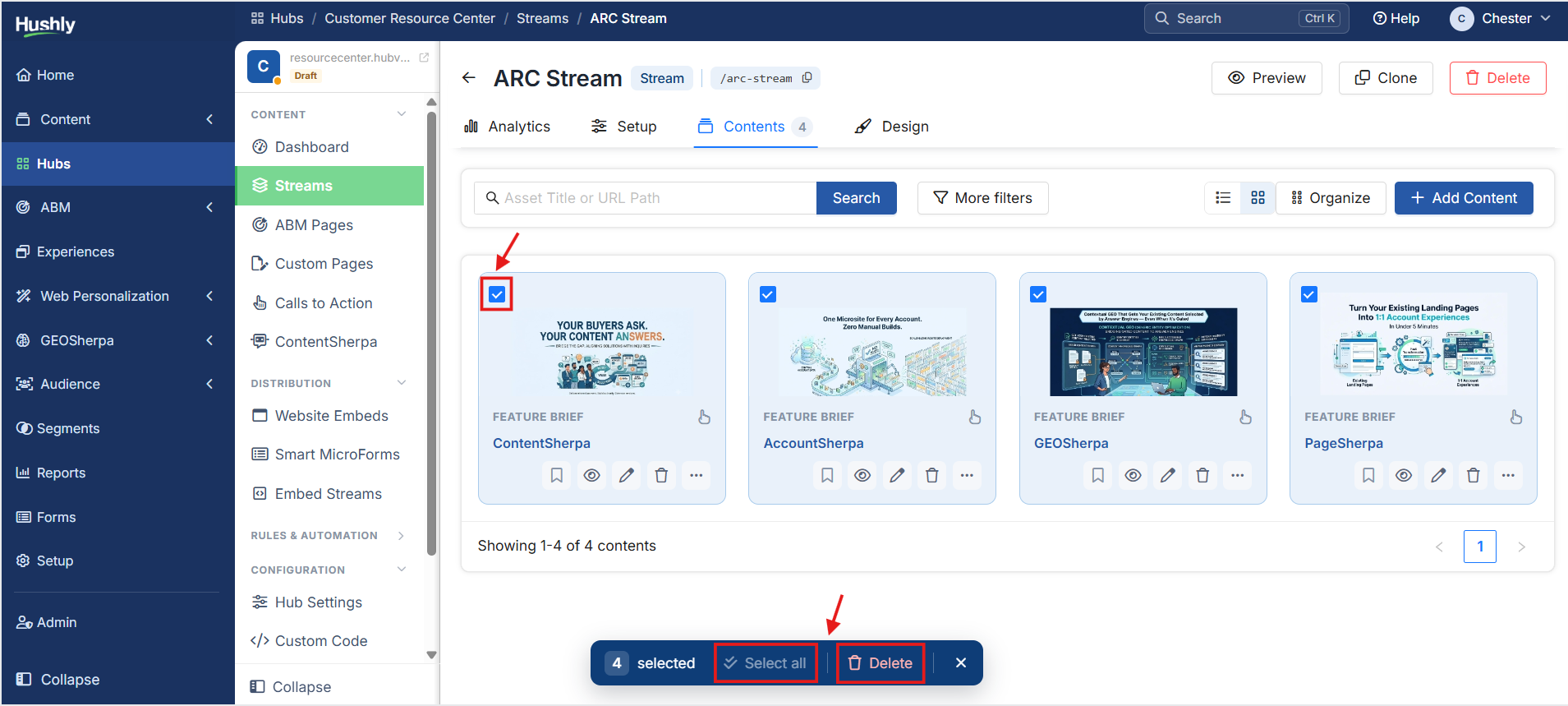
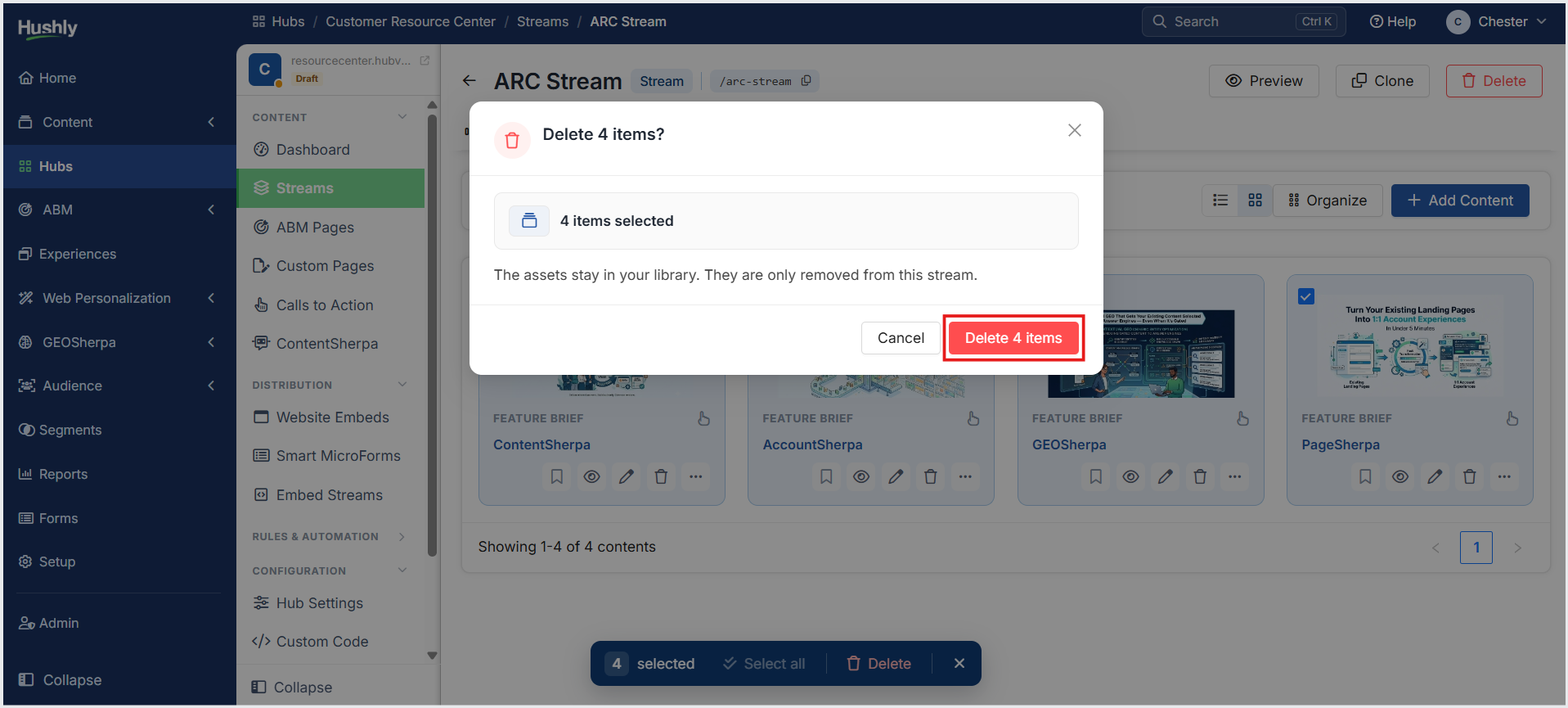
On the Stream details page under the Contents tab, locate the asset you want to delete, and select the checkbox in the upper-left corner of each asset card. The bulk action toolbar appears at the bottom of the page, displaying the number of selected assets. (Optional) Click Select all to select all assets on the page. Click Delete in the bulk action toolbar.
A confirmation message is displayed. Click Delete 4 items.
Was this article helpful?
That’s Great!
Thank you for your feedback
Sorry! We couldn't be helpful
Thank you for your feedback
Feedback sent
We appreciate your effort and will try to fix the article