Create a Content Track
A Content Track provides a guided sequence of content. Visitors move from one piece of content to the next in the order you define. This option is suitable for structured learning paths, onboarding journeys, or other sequential content experiences.
Note: The Stream type is set when the Stream is created and cannot be changed later. Other Stream settings can be modified after creation.
To create a Content Track, follow the steps below:
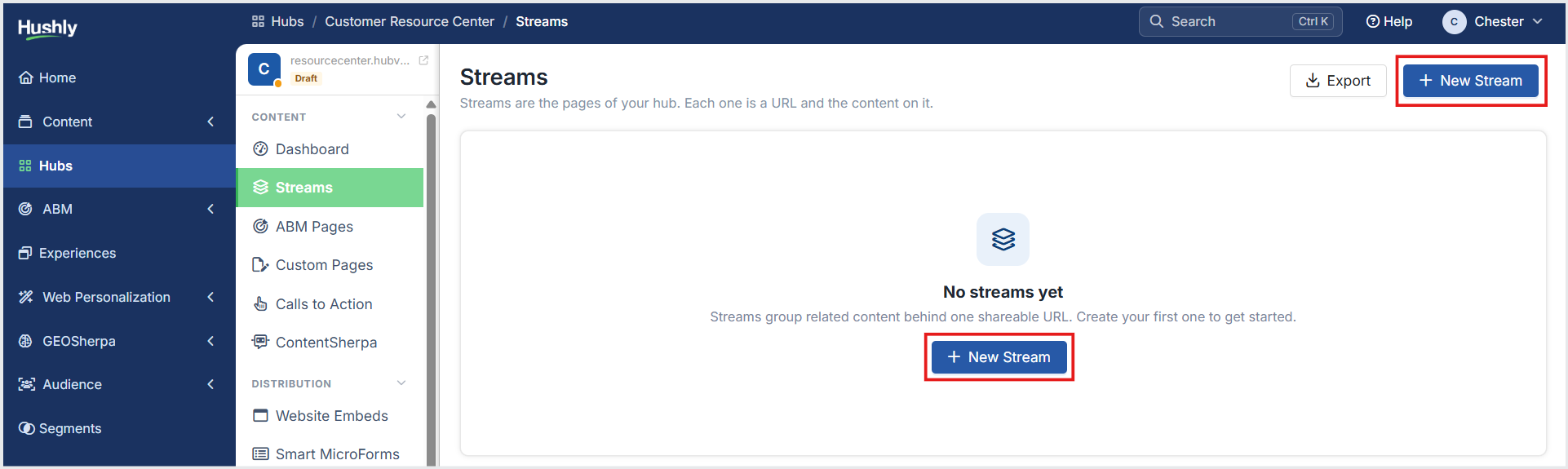
From the Left Navigation Menu, click Hubs. On the Hubs listing page, select the Hub you want to manage. From the Hub Menu, under CONTENT, click Streams.
On the Stream listing page, click + New Stream.
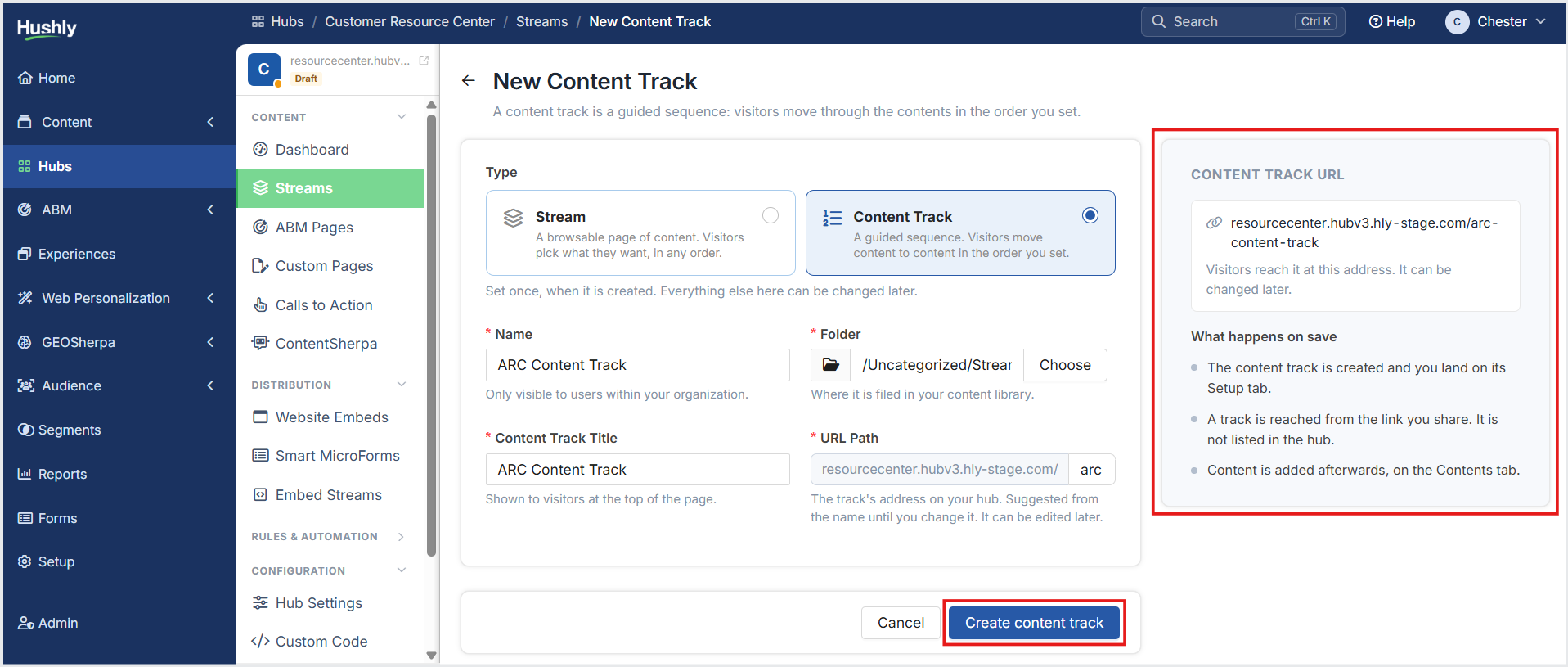
In the New Content Track page, under Type, choose Content Track.
Enter the Name, Content Track Title. The Content Track Title and URL Path are automatically populated based on the Name, but you can edit them as needed before clicking Create content track.
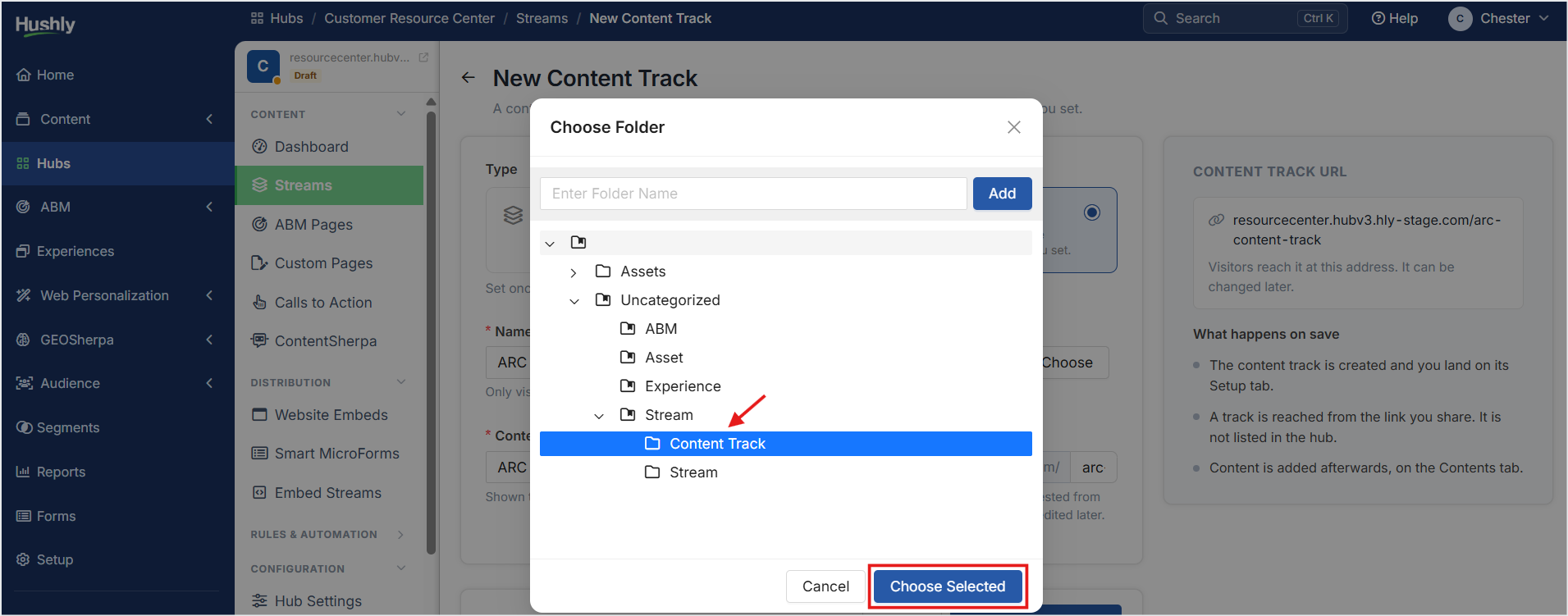
Under Folder, click Choose to select a different folder, or use the default folder.
From the Choose Folder window, select your desired folder and click Choose Selected. To create a new folder instead, type a name into the Enter Folder Name field and click Add. Learn more about how to use folders.
Click Create content track. The Content Track is successfully created, and the Content Track details page is displayed with the Setup tab selected by default.
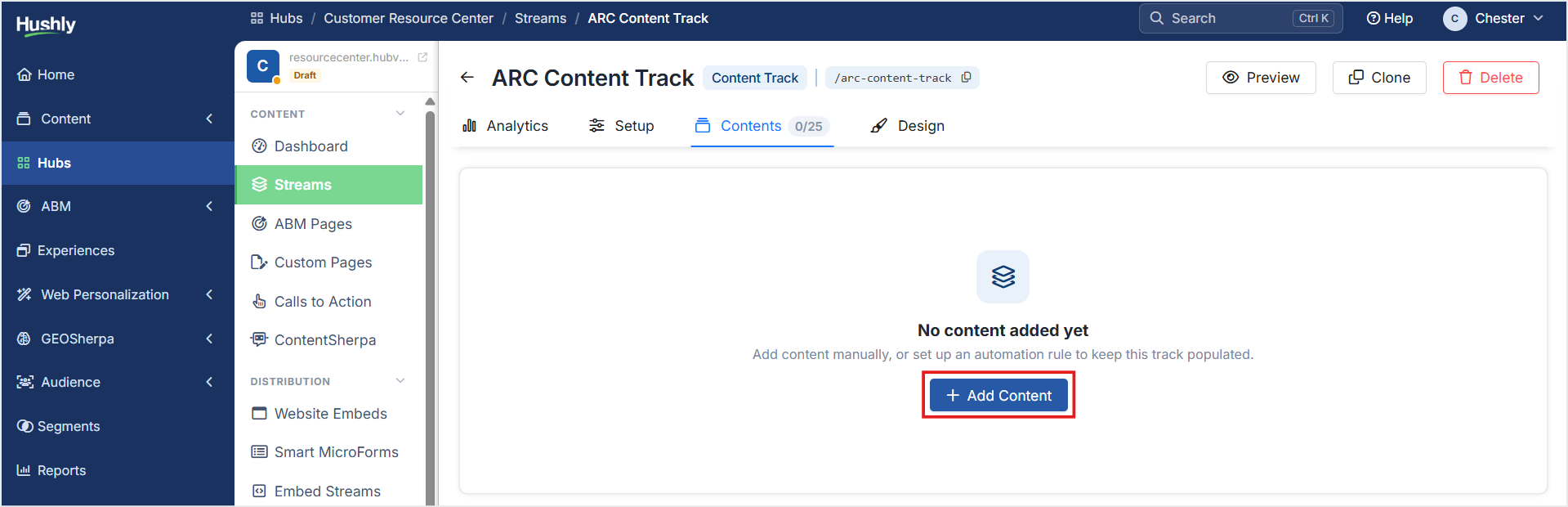
On the Content Track details page under the Contents tab, click + Add Content to add assets.
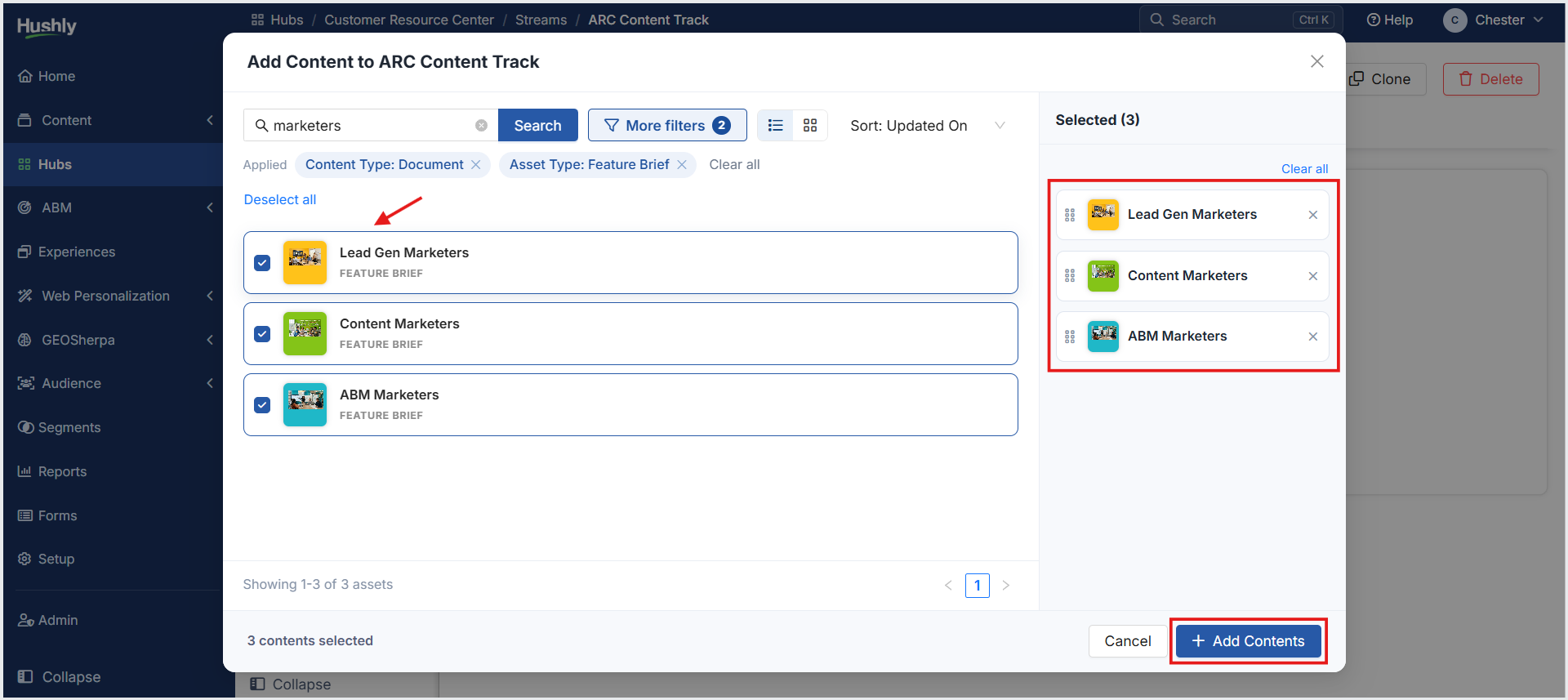
In the Add Content pop-up window, select the assets you want to add. When you select an asset, its checkbox is selected, and the asset is added to the Selected section on the right side of the window. A status message displaying the number of selected assets appears in the bottom-left corner. Click + Add Contents.
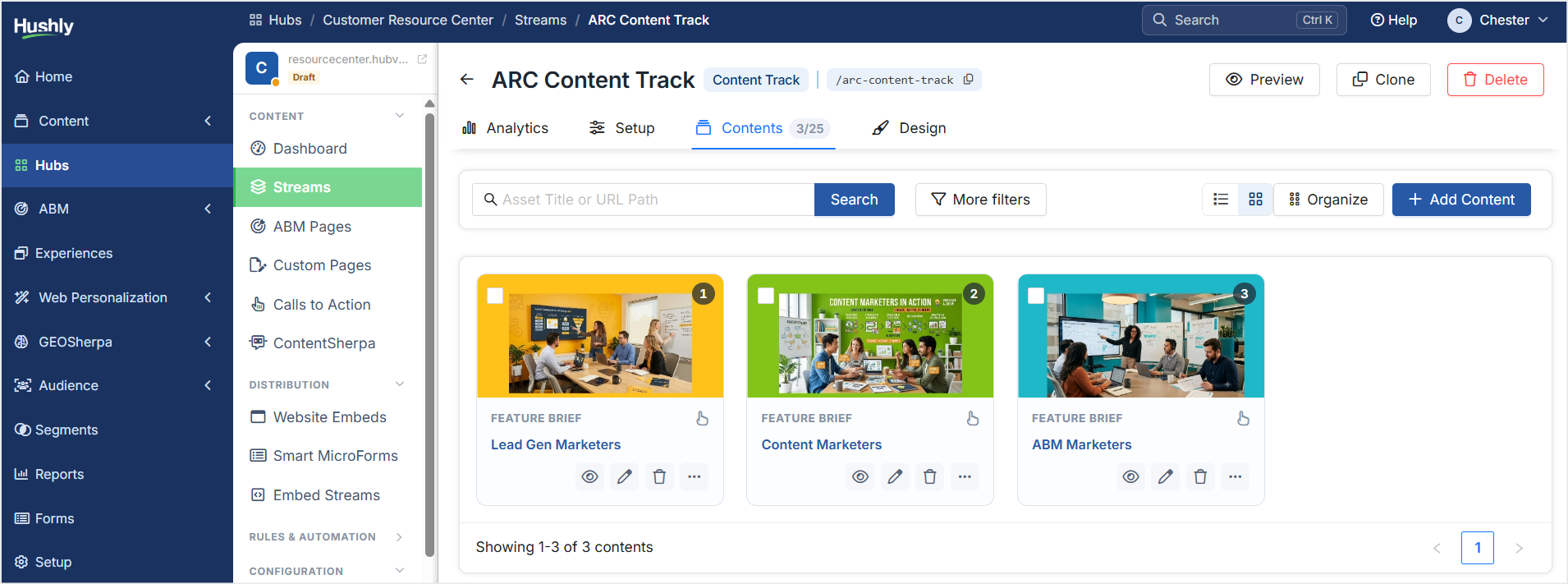
The added Content is listed under the Contents tab, where you can search, filter, view, edit, delete, and organize assets.
Related Articles:
Was this article helpful?
That’s Great!
Thank you for your feedback
Sorry! We couldn't be helpful
Thank you for your feedback
Feedback sent
We appreciate your effort and will try to fix the article