Editing an Automation Rule allows you to modify an existing rule to change how it behaves. You can update conditions, triggers, or actions to ensure the rule continues to meet your current requirements. Once the changes are saved, the updated rule will apply only when the Re-apply Rule button is clicked, ensuring the modifications are executed on existing relevant records.
Editing an Automation Rule
To edit an Automation Rule, follow the steps below:
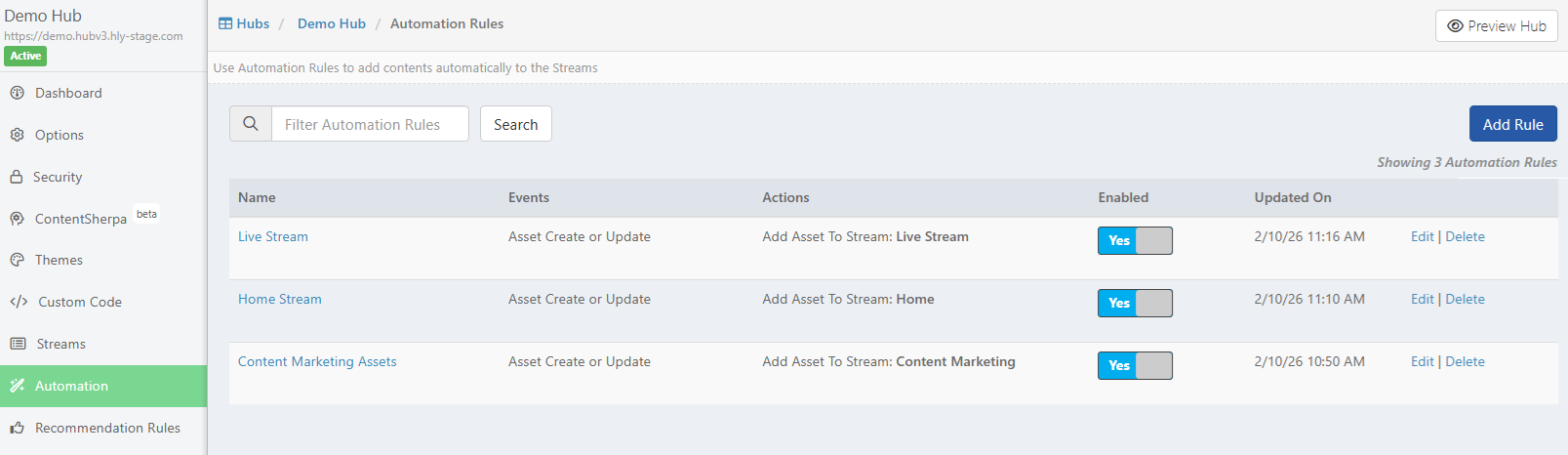
- From the Hubs menu, click Automation.
- Select the Automatin Rule from the listing page and click the Edit link.
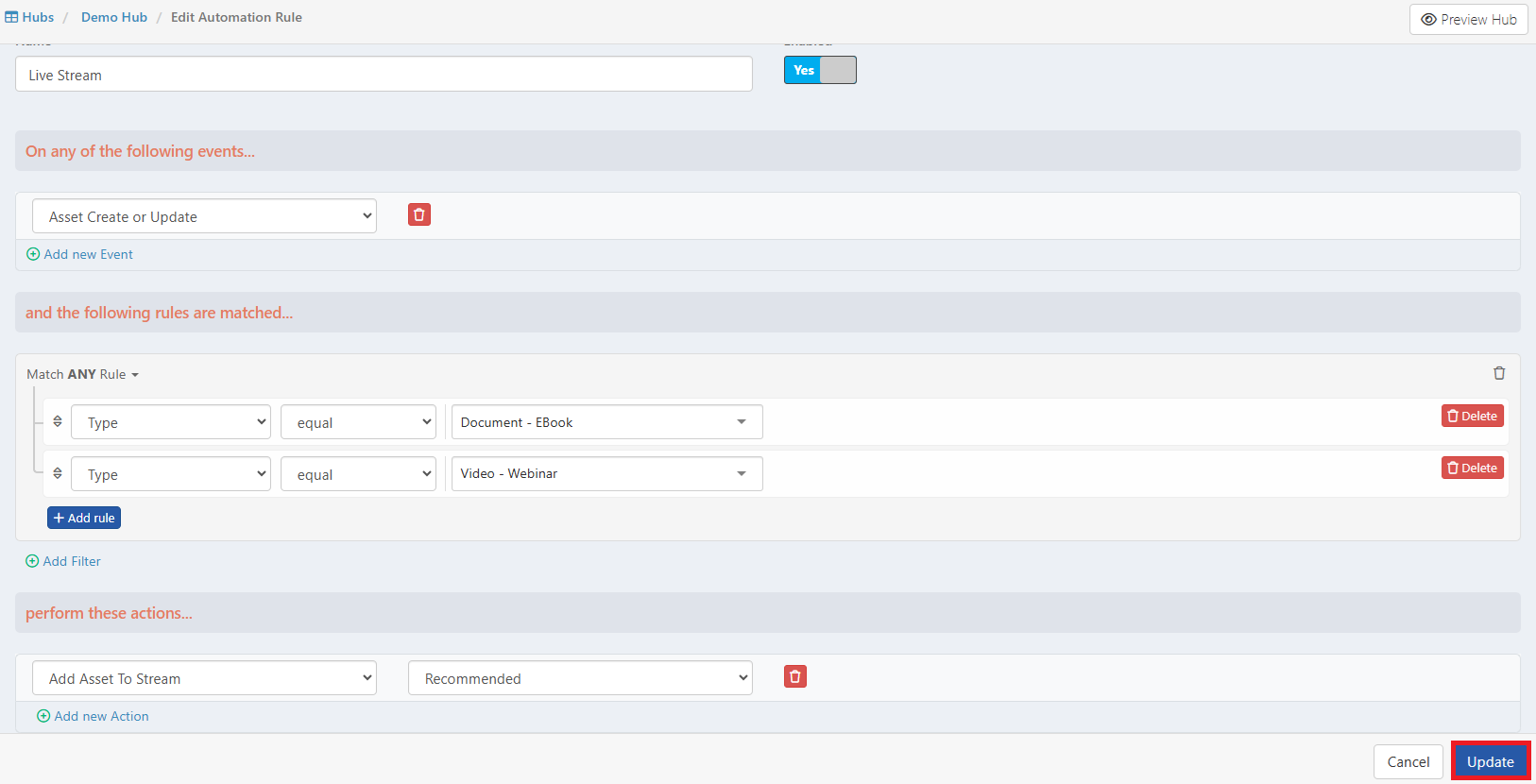
- The Automation Rule edit page is displayed. Make necessary changes and click the Update button.
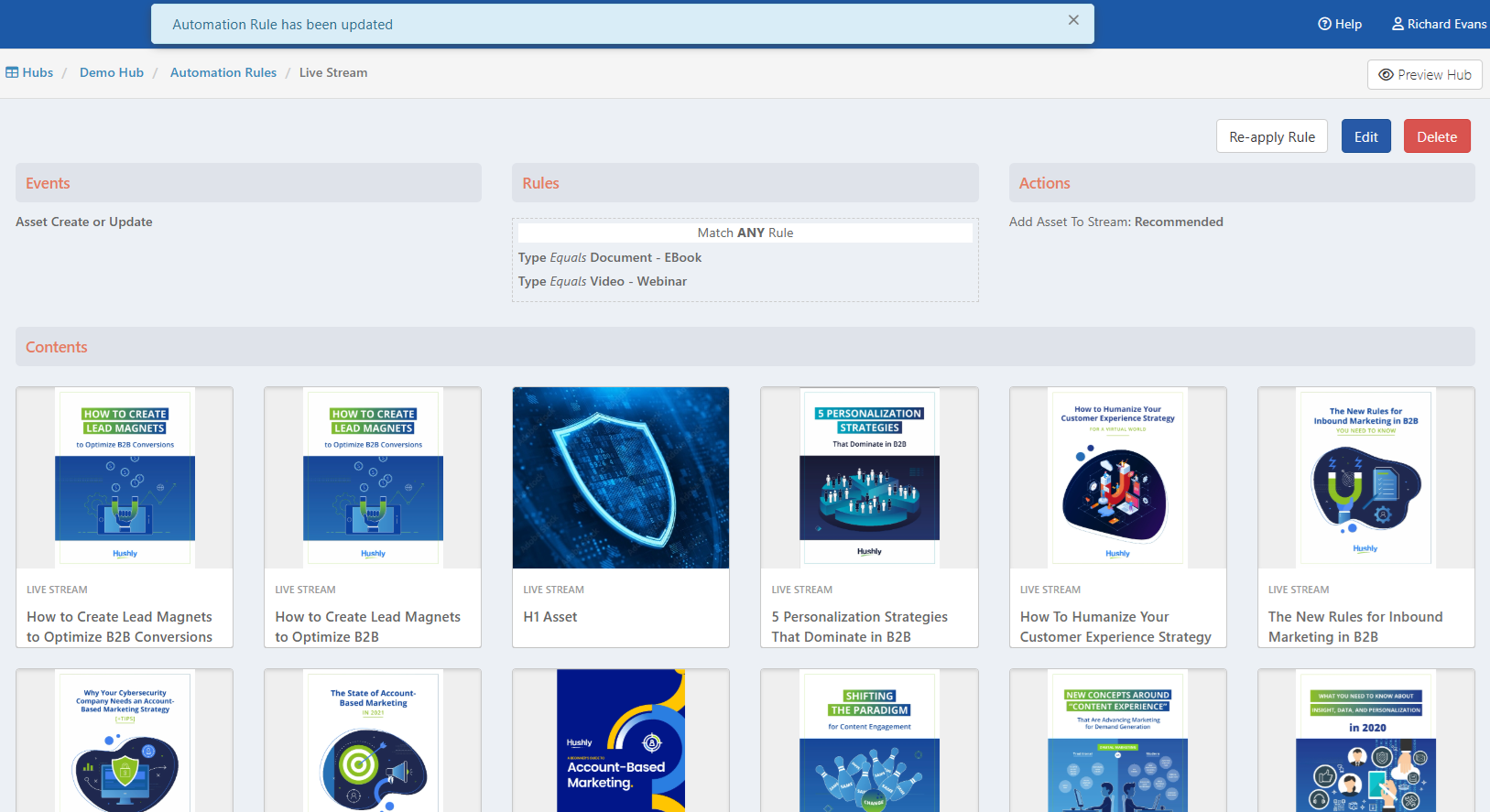
- The automation rule is updated successfully, a confirmation message is displayed, and the Rule Details page is shown.
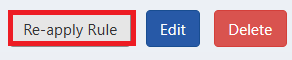
- Click the Re-apply Rule button to apply the updates.
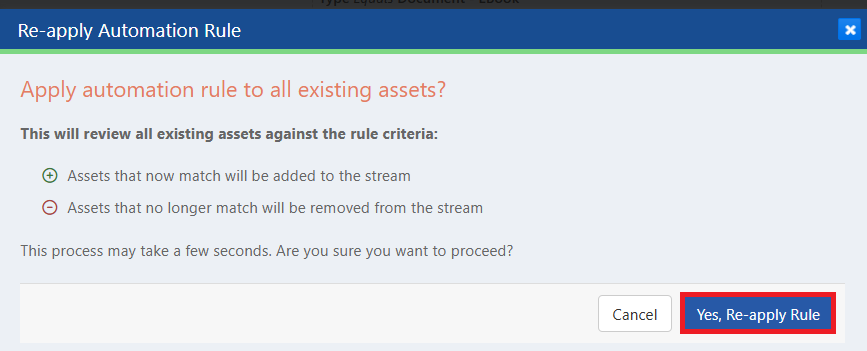
- The Re-Apply Automation Rule confirmation dialog is displayed with Cancel and Yes, Re-apply Rule buttons. Clicking the Yes, Re-apply Rule button adds assets that now match the rule to the stream and removes assets that no longer match the rule from the stream.
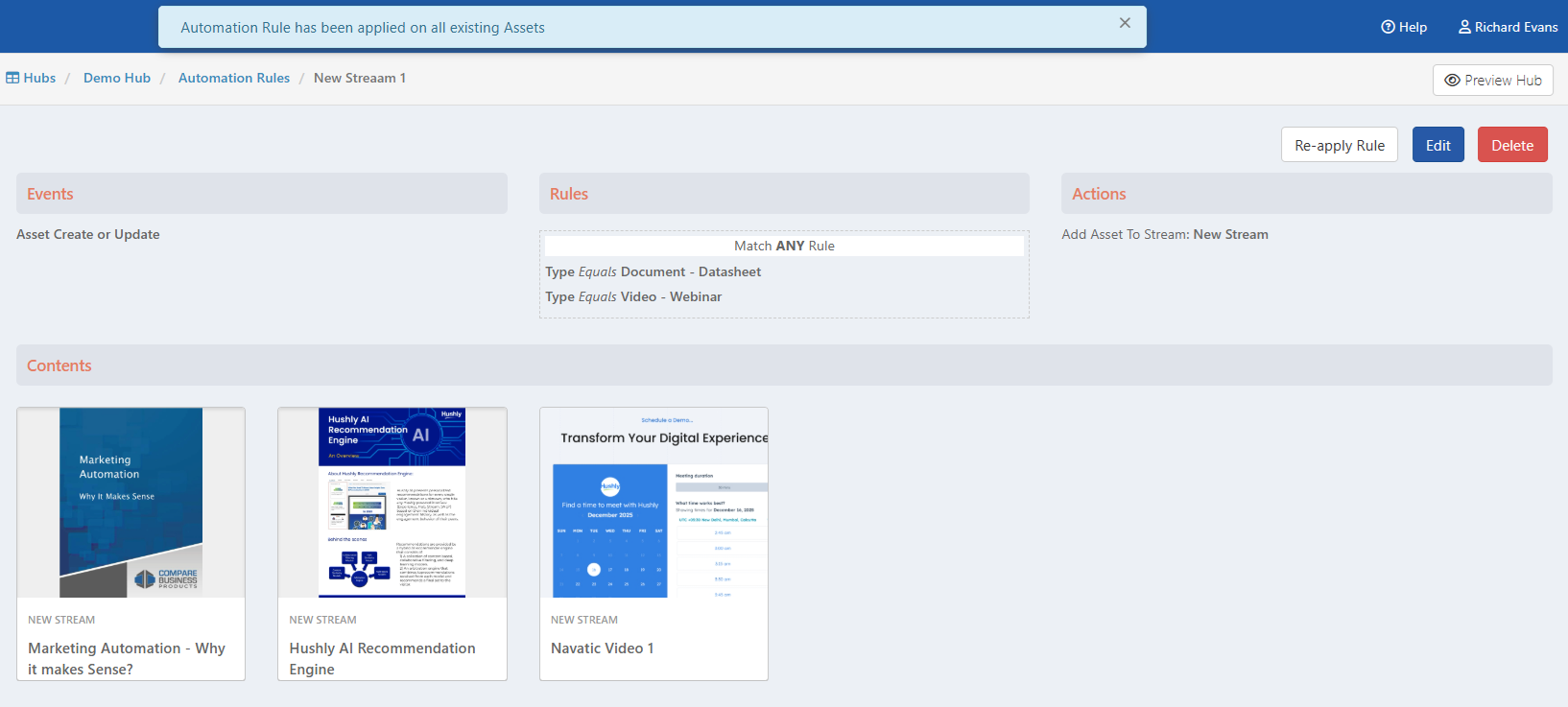
- The automation rule is applied to all existing Assets, and the assets are displayed in the content section.
Deleting an Automation Rule
Deleting an Automation Rule permanently removes the selected rule from the system. Once deleted, the rule will no longer run or be available for future use, so any automated actions associated with it will stop immediately.
To delete an automation rule, follow the steps below:
- From the Hubs menu, click Automation.
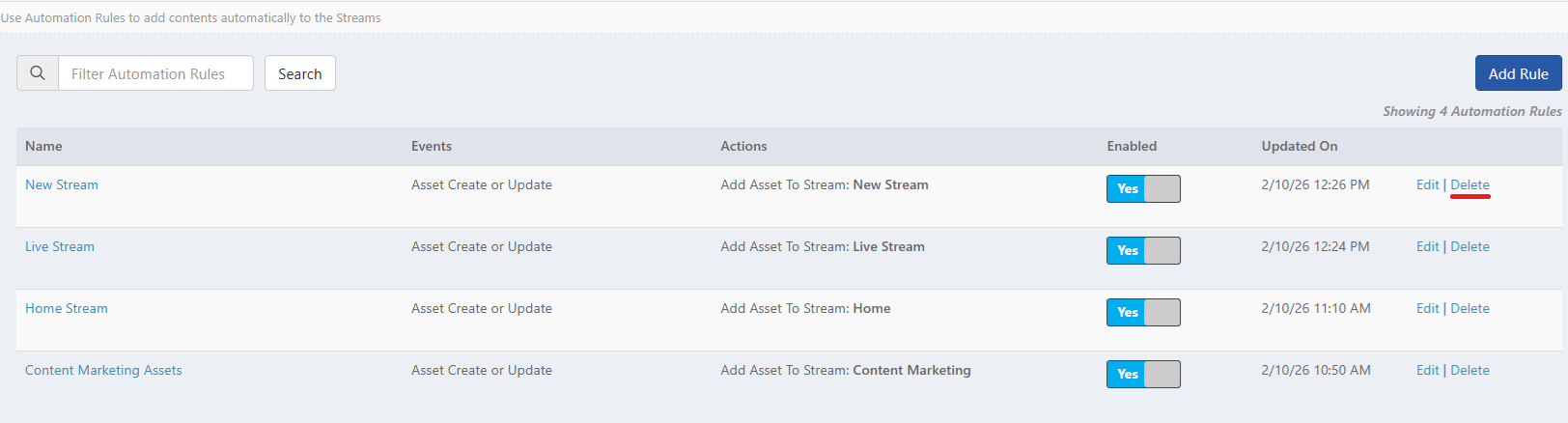
- Select the Automatin Rule from the listing page and click the Delete link.
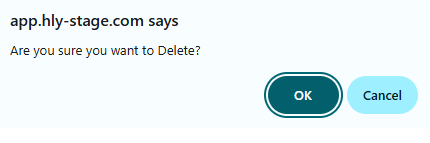
- A confirmation dialogue is displayed with Ok and Cancel buttons. Click Ok.
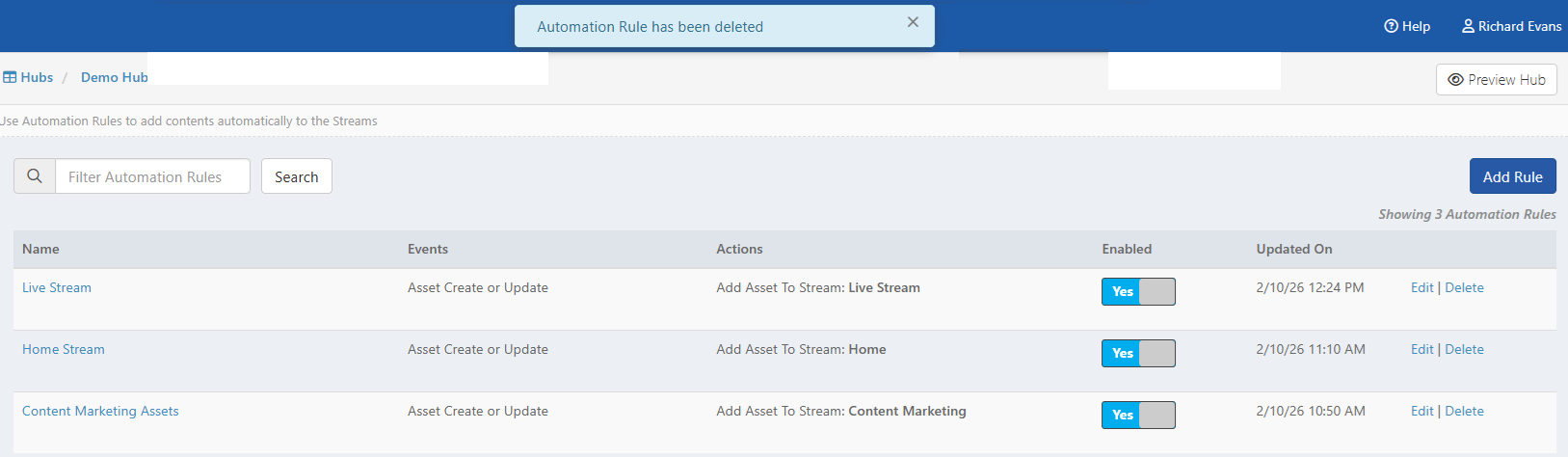
- The automation rule is deleted, removed from the listing page, and a success message is displayed.
Was this article helpful?
That’s Great!
Thank you for your feedback
Sorry! We couldn't be helpful
Thank you for your feedback
Feedback sent
We appreciate your effort and will try to fix the article