Automating the Addition of Assets to a Stream
You can automate the addition of Assets to a Stream using the automation rules. Rules watch for an event, check the conditions you set, then run the actions you choose. Fill the steps in any order.
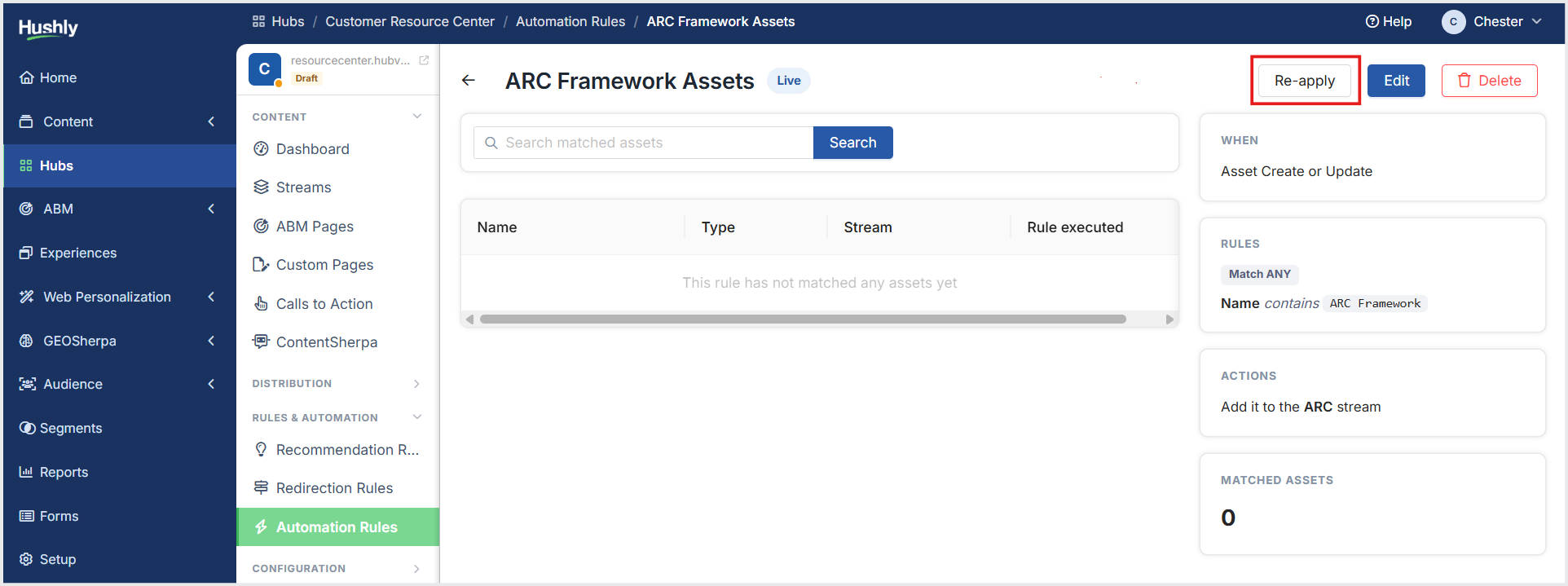
Important: When you create an automation rule, some Assets may already exist in the Assets section of Hushly. The automation rule is not applied retroactively to the existing Assets. Please apply the rule to the existing Assets by clicking on the Re-apply button.
To automate the addition of Assets to a Stream, follow the steps below:
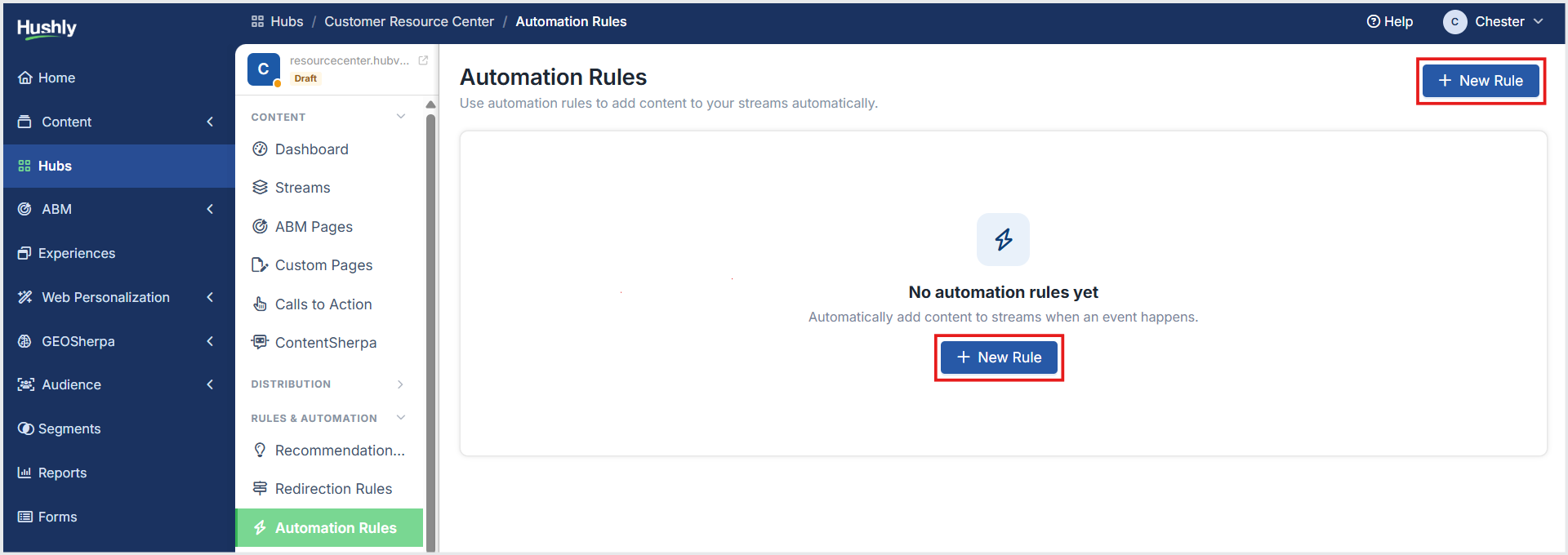
From the Left Navigation Menu, click Hubs. On the Hubs listing page, select the Hub you want to manage. From the Hub Menu, under RULES & AUTOMATION, click Automation Rules. On the Automation Rules listing page, click + New Rule.
The Automation Rule Creation page displays multiple configurable sections and fields that allow users to define events, conditions, and actions for an automation rule. After defining your rule, click Create rule at the bottom of the page.
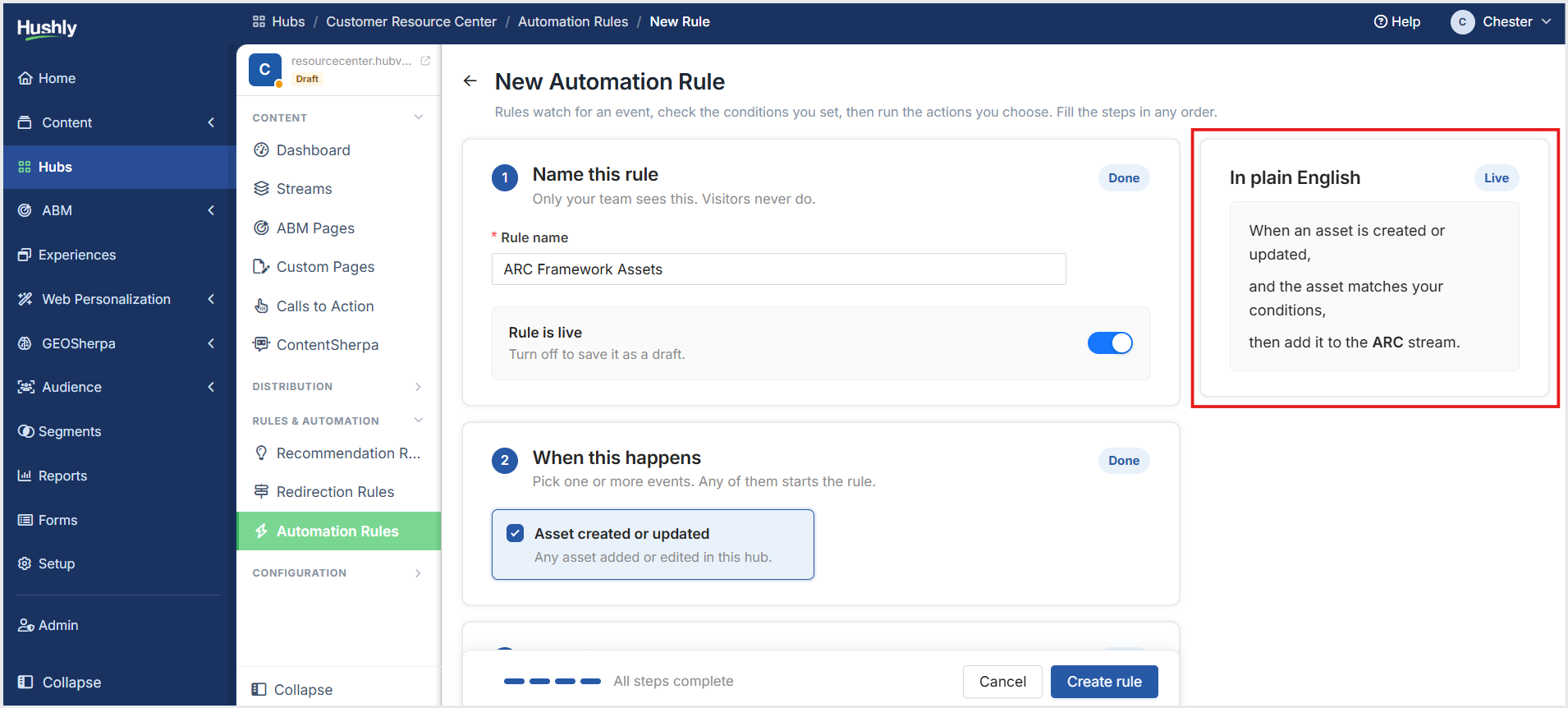
Automation Rule Step-By-Step
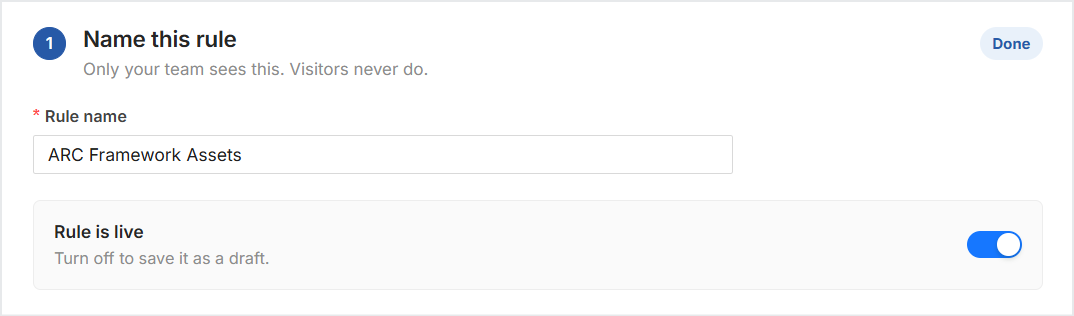
Enter a Rule name.
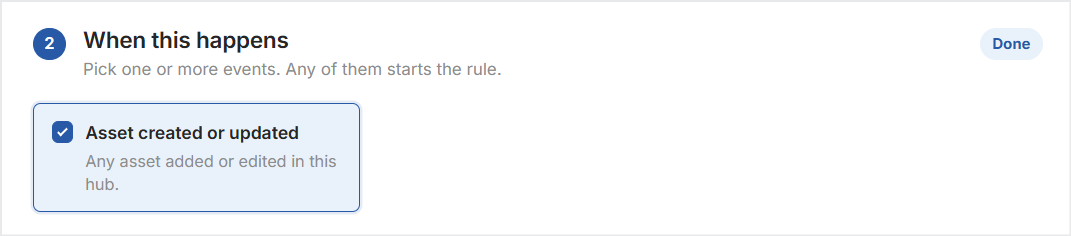
Pick one or more events.
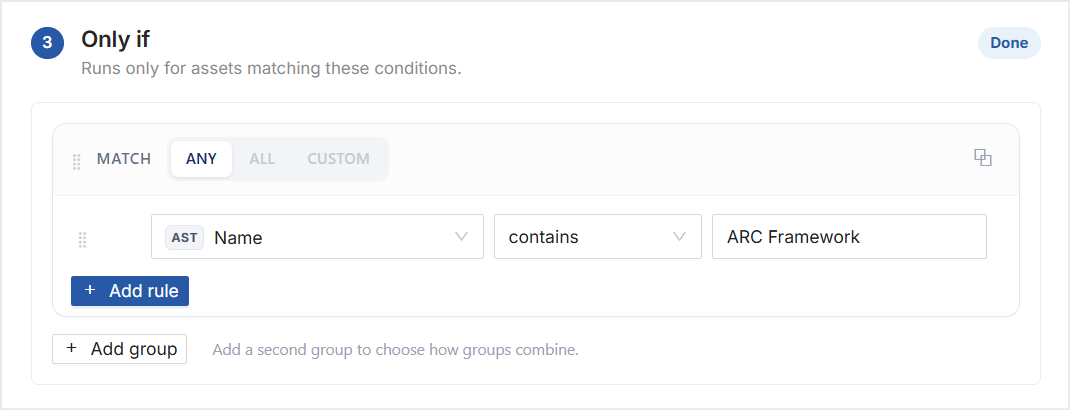
Define the conditions.
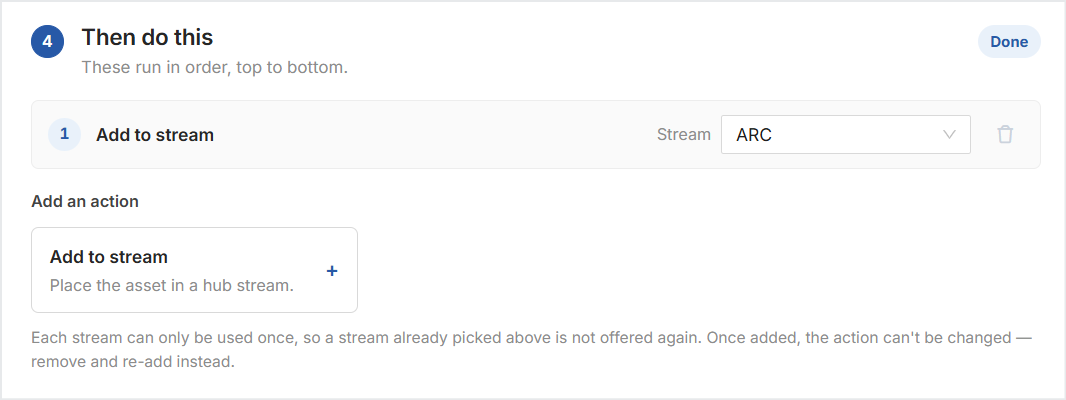
Add an action.
Click Create rule.

Re-applying Automation Rules
Apply rules retroactively to existing Assets.
On the Automation Rule details page, click Re-apply in the top-right corner of the page.
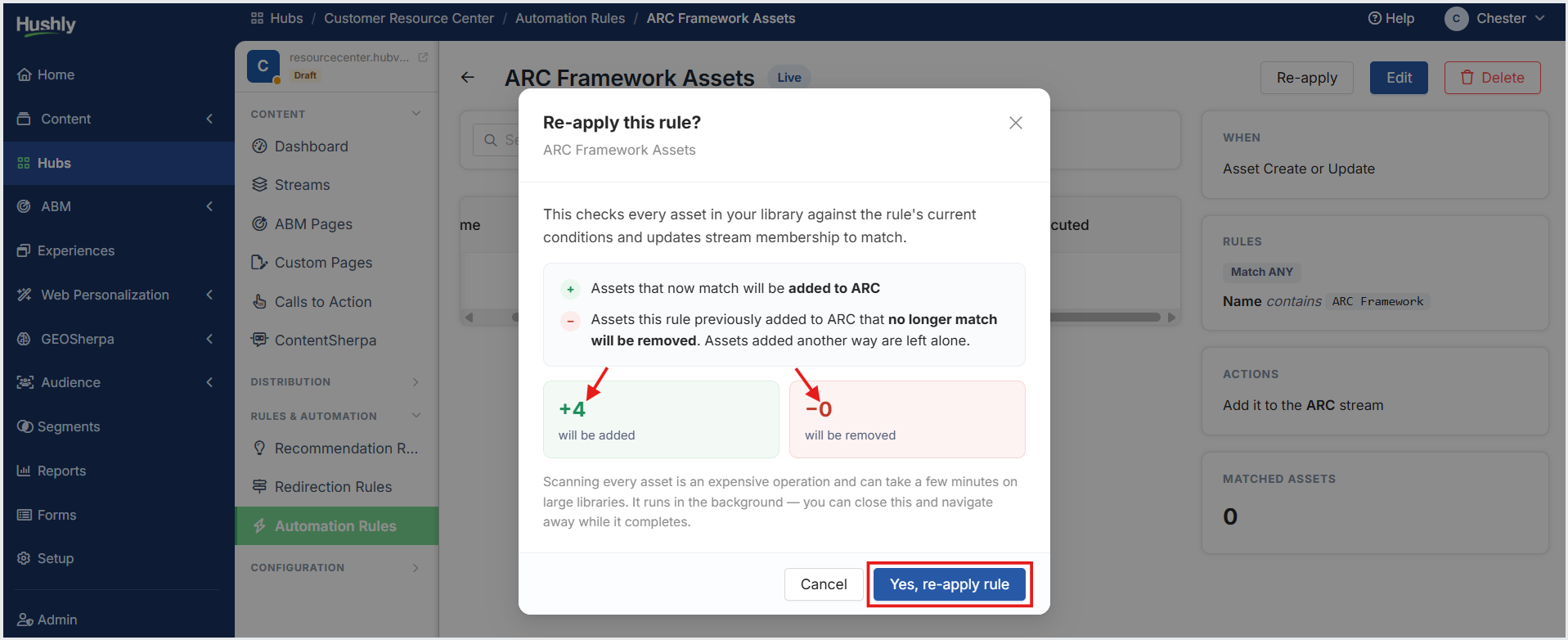
In the Re-apply Rule pop-up window, click Preview how many assets will be affected.
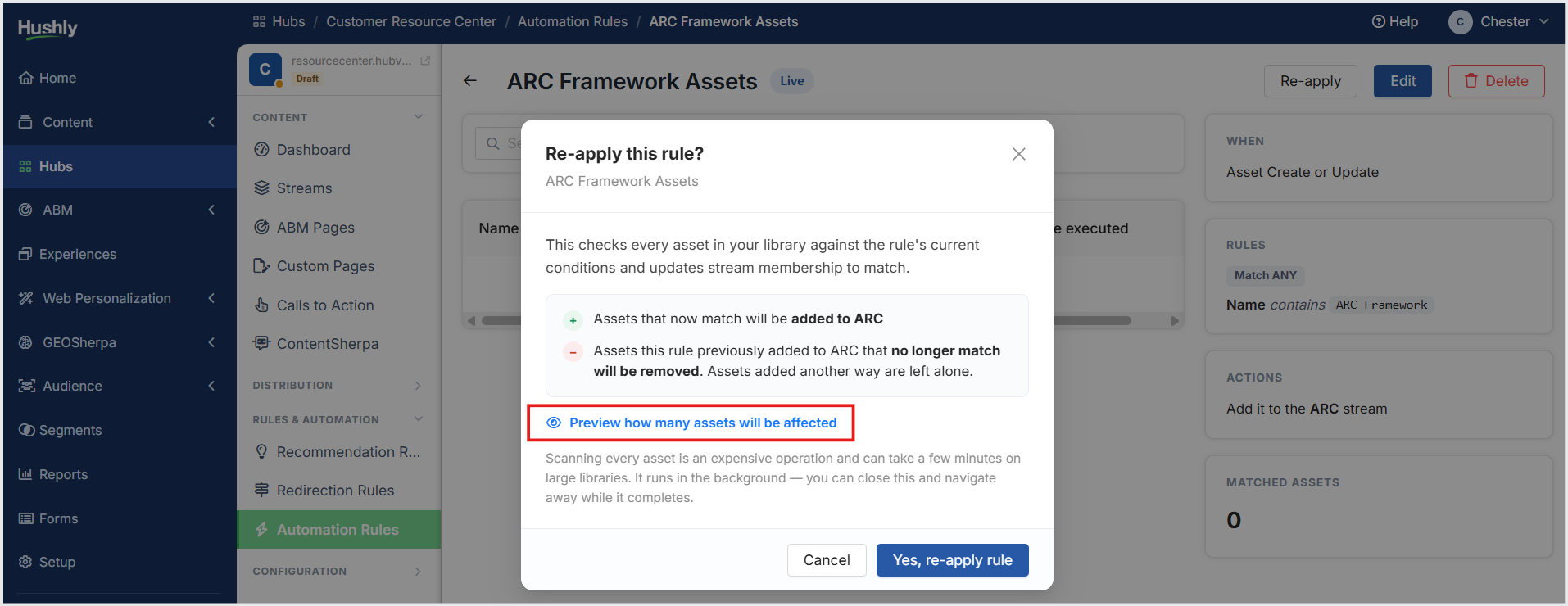
The statues of the assets that will be added or removed are displayed. Click Yes, re-apply rule.
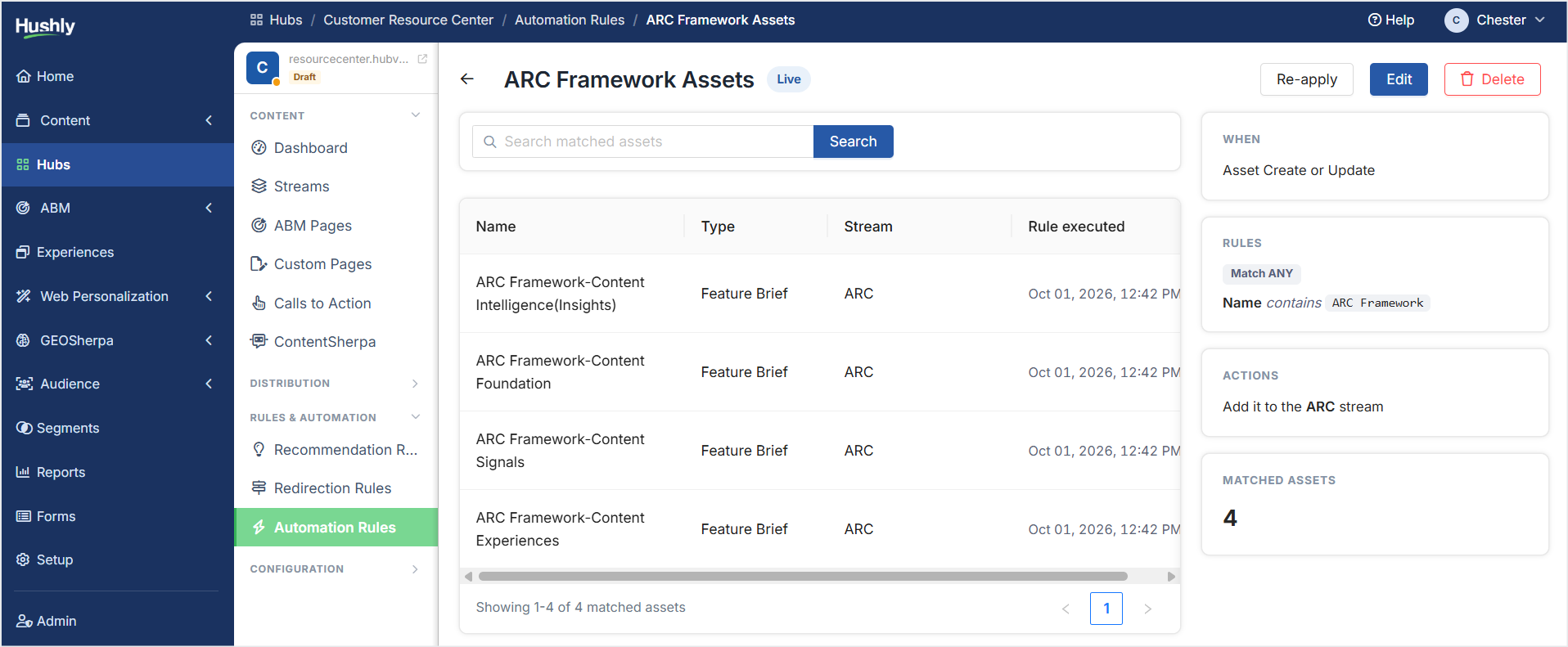
The Automation Rule details page is displayed with all matched assets.
Was this article helpful?
That’s Great!
Thank you for your feedback
Sorry! We couldn't be helpful
Thank you for your feedback
Feedback sent
We appreciate your effort and will try to fix the article