Assigning an Admin Role
Assigning an Admin Role grants the user access to all Hushly menu tabs, including Setup. Admins have complete control over the platform, including managing users. This role should only be assigned to users who require full administrative access.
To assign the admin role to a user, follow the steps below:
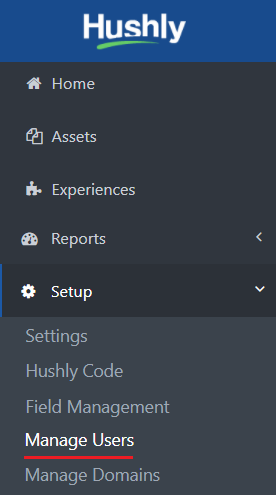
- From the Left Nav Menu, click Setup > Manage Users.
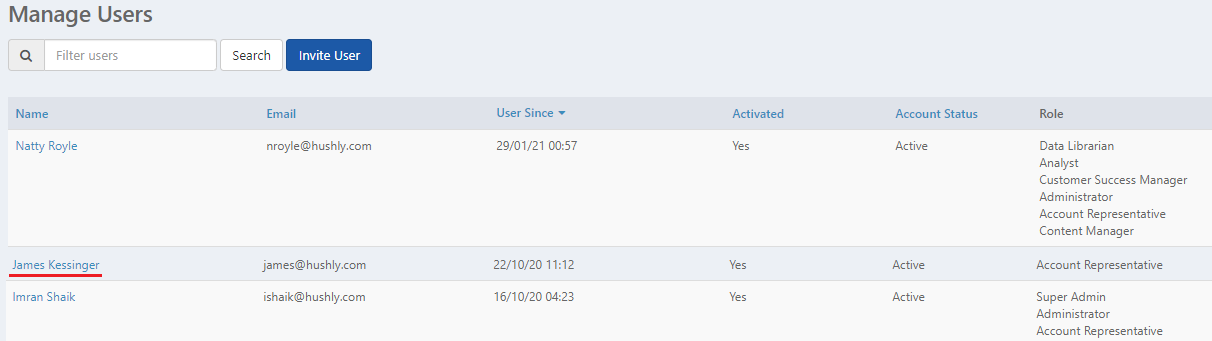
- From the Manage Users page, select the user.
- On the User Detail page, click Edit Roles.

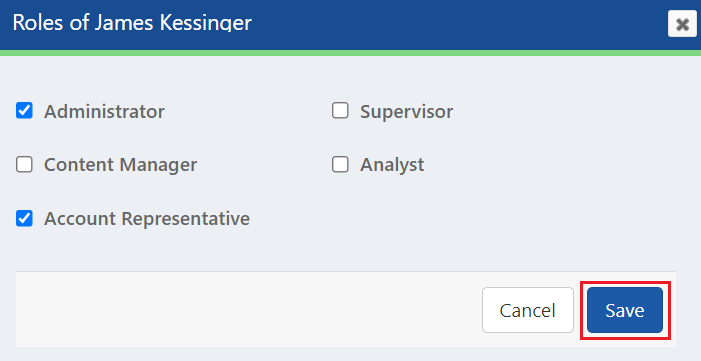
- On the Roles of the user pop-up window, check the Administrator box and click Save.
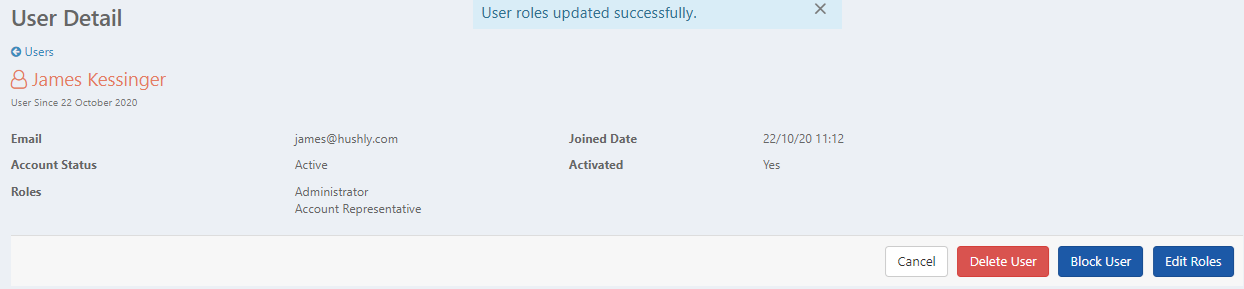
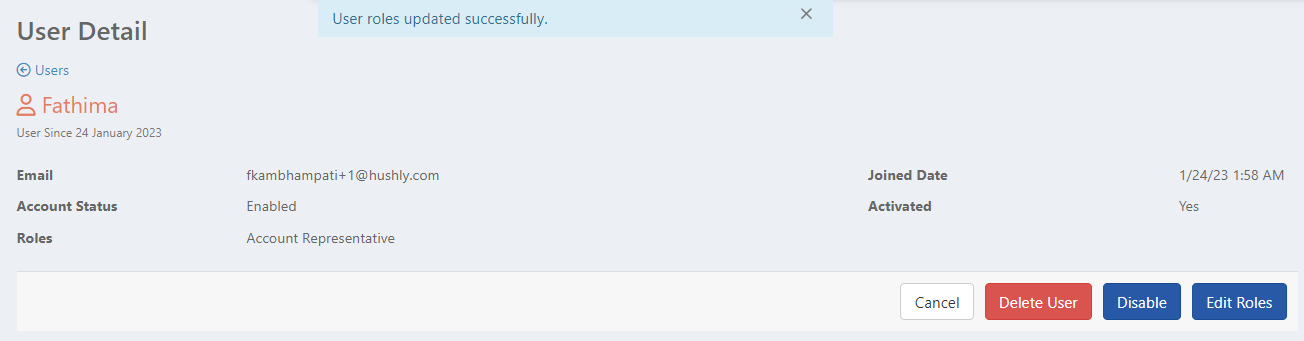
- A confirmation message is displayed, and the assigned role is updated on the User Detail page.
Removing an Admin Role
Removing the Admin role revokes the user’s full access to all Hushly menu tabs, including Setup. After removal, the user’s permissions are restricted to the role newly assigned to them, ensuring that only authorized users retain administrative control. By default, a new user is assigned both Admin and User roles. However, any user with the Admin role has the authority to remove the Admin role from another user.
To remove the Admin role of a user, follow the steps below:
- From the Left Nav Menu, click Setup > Manage Users.
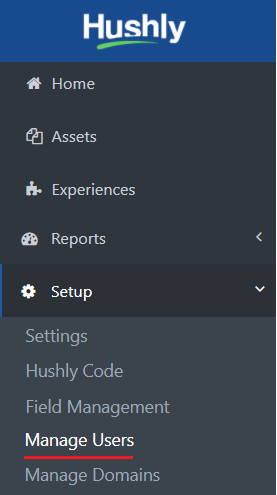
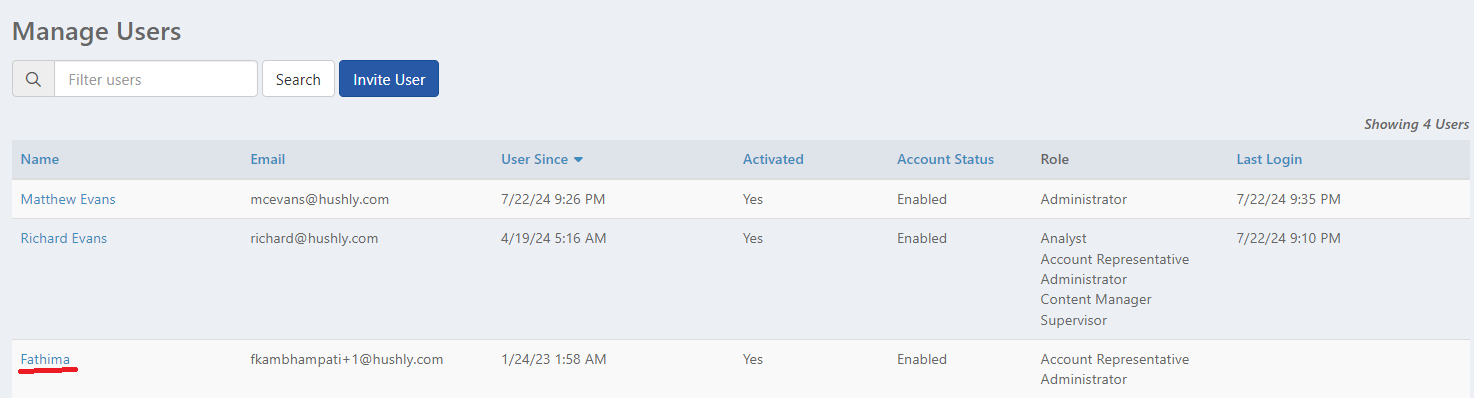
- From the Manage Users page, select the user.
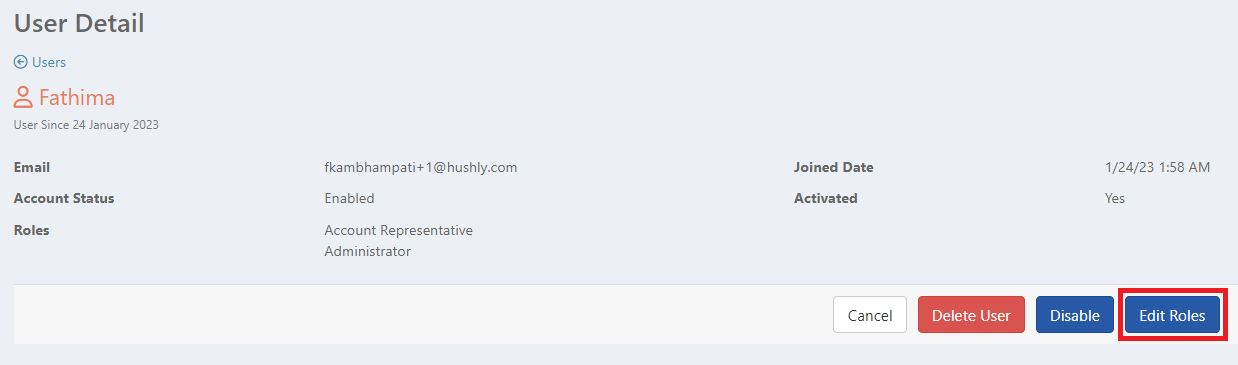
- On the User Detail page, click Edit Roles.
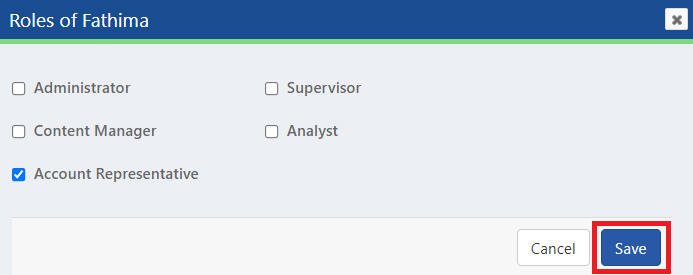
- On the Roles of the user pop-up window, uncheck the Administrator box and click Save.
- A confirmation message is displayed, and the Admin role is successfully removed from the User Detail page.
Related Topics:
Adding a Hushly User and Managing Roles
Was this article helpful?
That’s Great!
Thank you for your feedback
Sorry! We couldn't be helpful
Thank you for your feedback
Feedback sent
We appreciate your effort and will try to fix the article