Navigating the Platform
The popup is compact and consistent. Every screen has a header bar with a title and three icons on the right:
- Home: the dashboard with your stat cards.
- Settings (gear): your profile and Salesforce connection.
- Notifications (bell): your alerts, with a red count when there's something new.
That's the whole map. The rest of this guide walks through what you'll do from here.
Home
The Home dashboard serves as the starting point for monitoring account engagement and navigating the key features of Hushly Sales Assist.
Common Tasks
- View and search your assigned ABM accounts.
- Review the latest engagement activity for your accounts.
- Create personalized PURLs for targeted account outreach.
Settings
The Settings page lets you manage your user profile, connect your Salesforce account, configure your account view, and sign out of Sales Assist.
Common Tasks
- View your profile information, including your name, email address, and user role.
- Connect your Salesforce account to enable Hushly activity on Salesforce record pages.
- Verify your Salesforce connection status.
- Choose your account view (Admin users only):
- View My Accounts only to display only your assigned accounts.
- View All Accounts to display accounts assigned to all sales representatives.
- Sign out of Sales Assist using the Log out button.
These settings allow you to manage your account, integrate with Salesforce, and control which accounts are displayed throughout the application.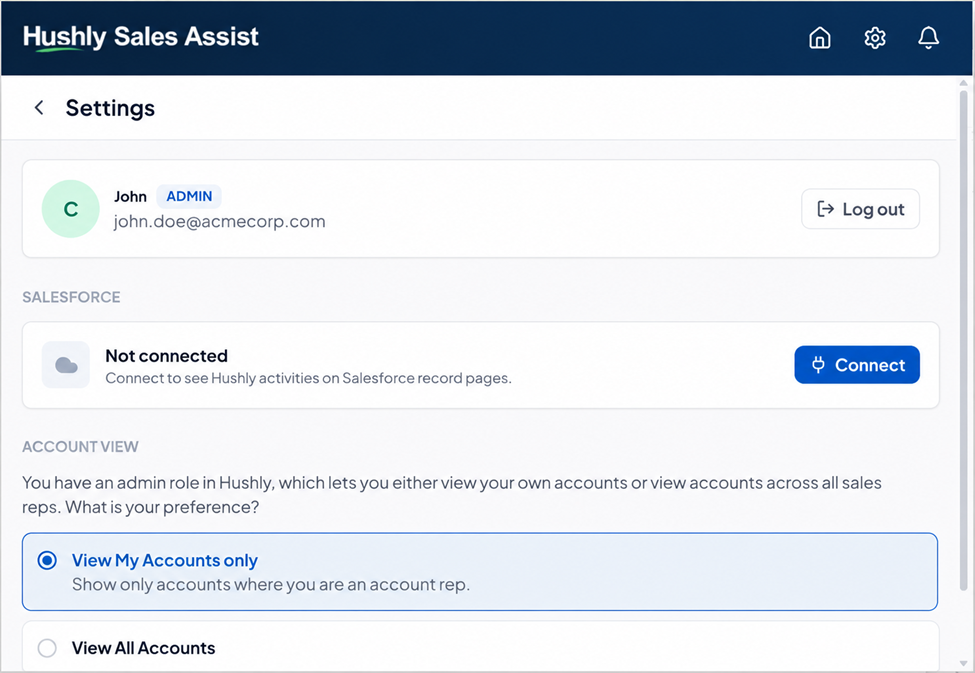
Notifications
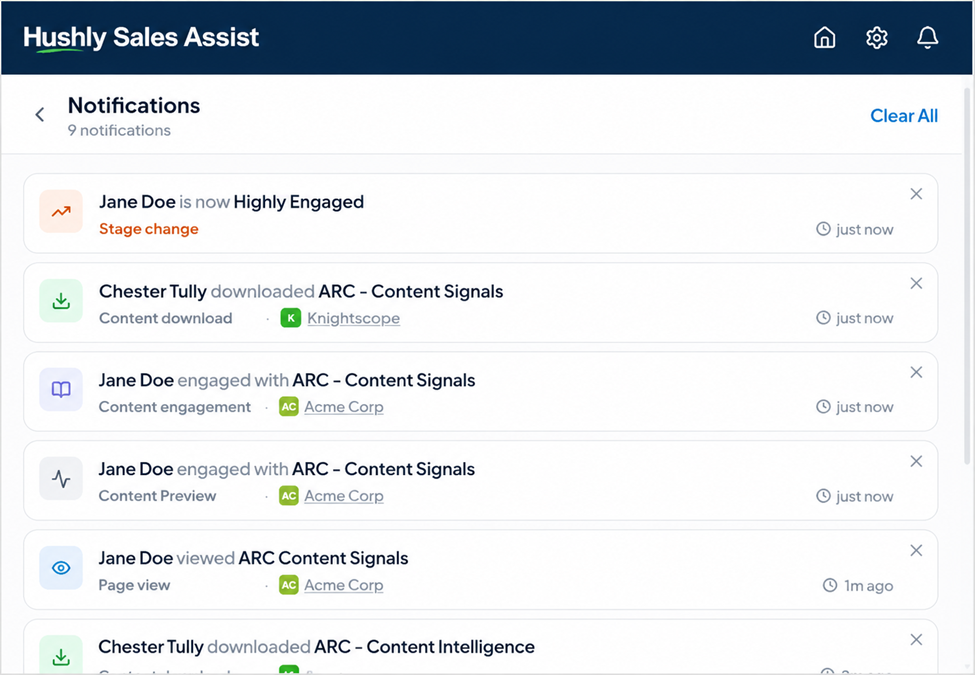
The Notifications page displays recent engagement events and account updates, helping you stay informed about activity across your ABM accounts.
Each notification includes the type of activity, the contact or account involved, and when the event occurred. Examples of activities include stage changes, content downloads, content engagement, content previews, and page views.
Common Tasks
- Review the latest engagement activity for your ABM accounts.
- Identify important events, such as stage changes and content interactions.
- See which contacts are engaging with your content.
- Check when each activity occurred.
- Dismiss individual notifications using the X icon.
- Clear all notifications by selecting Clear All.
- Return to the previous screen using the Back button.
Was this article helpful?
That’s Great!
Thank you for your feedback
Sorry! We couldn't be helpful
Thank you for your feedback
Feedback sent
We appreciate your effort and will try to fix the article