Install the extension
- Open the Hushly Sales Assist listing in the Chrome Web Store.
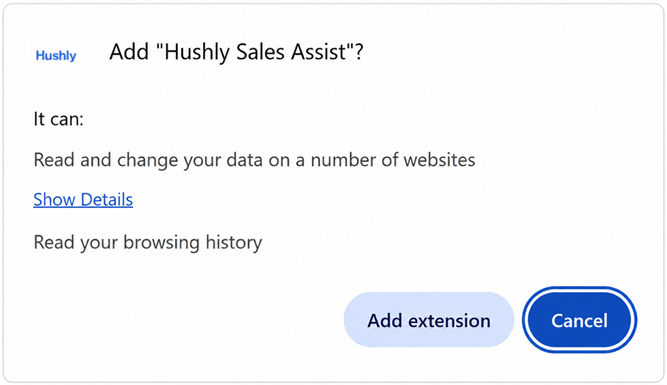
- Click Add to Chrome, then Add extension in the confirmation popup.
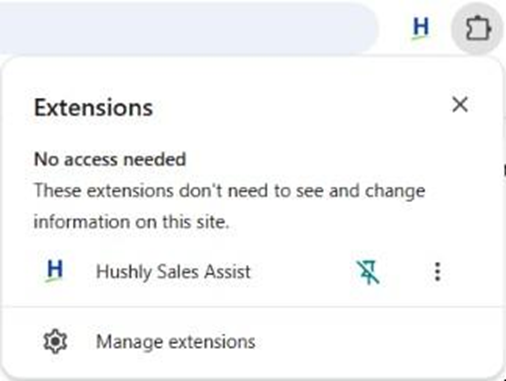
- Click the puzzle-piece Extensions icon in the browser toolbar, find Hushly Sales Assist, and click the pin so it's always visible in your browser.
Sign in
Click the Hushly icon in the browser toolbar to open the Extension. On the "Sign in to Sales Assist" screen, you’ll have two choices: Log in with Hushly and Log in with Salesforce.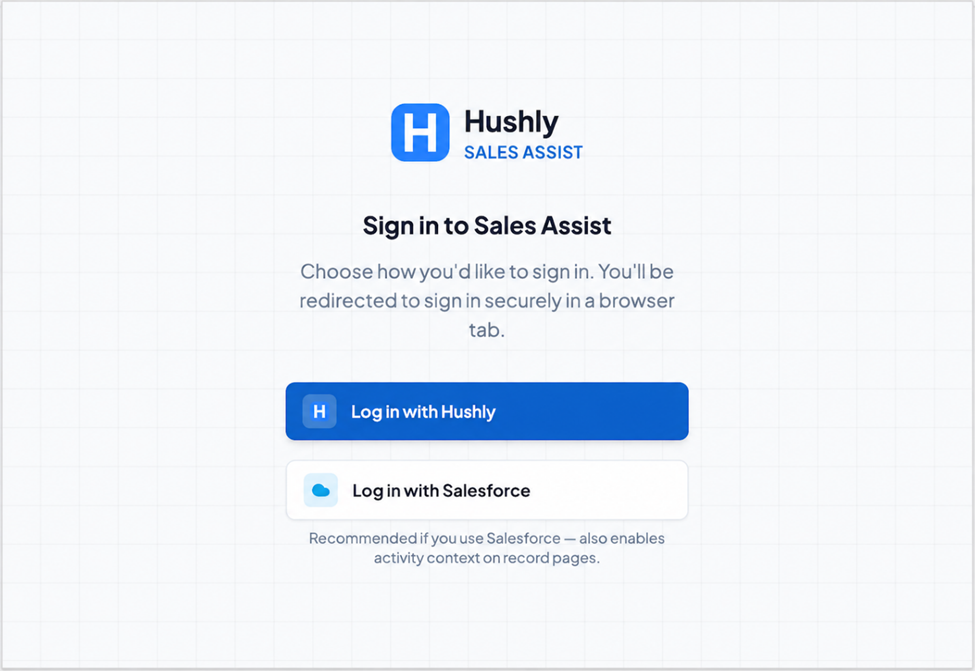
- Log in with Hushly: If you're already signed in to Hushly in your browser, you’ll be logged in automatically. Otherwise, it opens a new browser tab for you to sign in to Hushly.
- Log in with Salesforce: A federated login through Salesforce. You must have a Hushly account that uses the same email address as your Salesforce account. This is the recommended sign-in method for Salesforce users, as it connects to Salesforce during the same step and immediately provides activity context directly on Salesforce record pages.
When sign-in finishes, the popup shows your dashboard.
Tip: If you sign in with Hushly now, you can connect Salesforce later, see Manage your account and Salesforce connection.
Was this article helpful?
That’s Great!
Thank you for your feedback
Sorry! We couldn't be helpful
Thank you for your feedback
Feedback sent
We appreciate your effort and will try to fix the article