The FAQ ABM Page Block allows you to present clear, structured answers to commonly asked questions directly on your ABM page. This block helps address key concerns, reduce friction, and improve engagement by providing relevant information in an easy-to-scan format.
By adding an FAQ block, you can:
- Anticipate and answer common questions from your target accounts
- Improve content clarity and user experience
- Support informed decision-making without requiring additional navigation
The FAQ block is flexible and easy to configure, enabling you to tailor questions and answers to match your campaign goals and audience needs.
To add a FAQ Page Block to your ABM Page, follow the steps below:
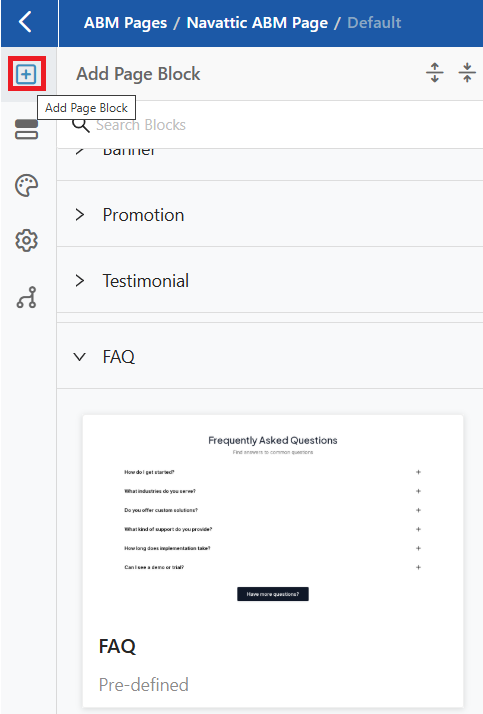
- From the Add Page Block menu, select FAQ. The FAQ block is then added to the list of Page Blocks.
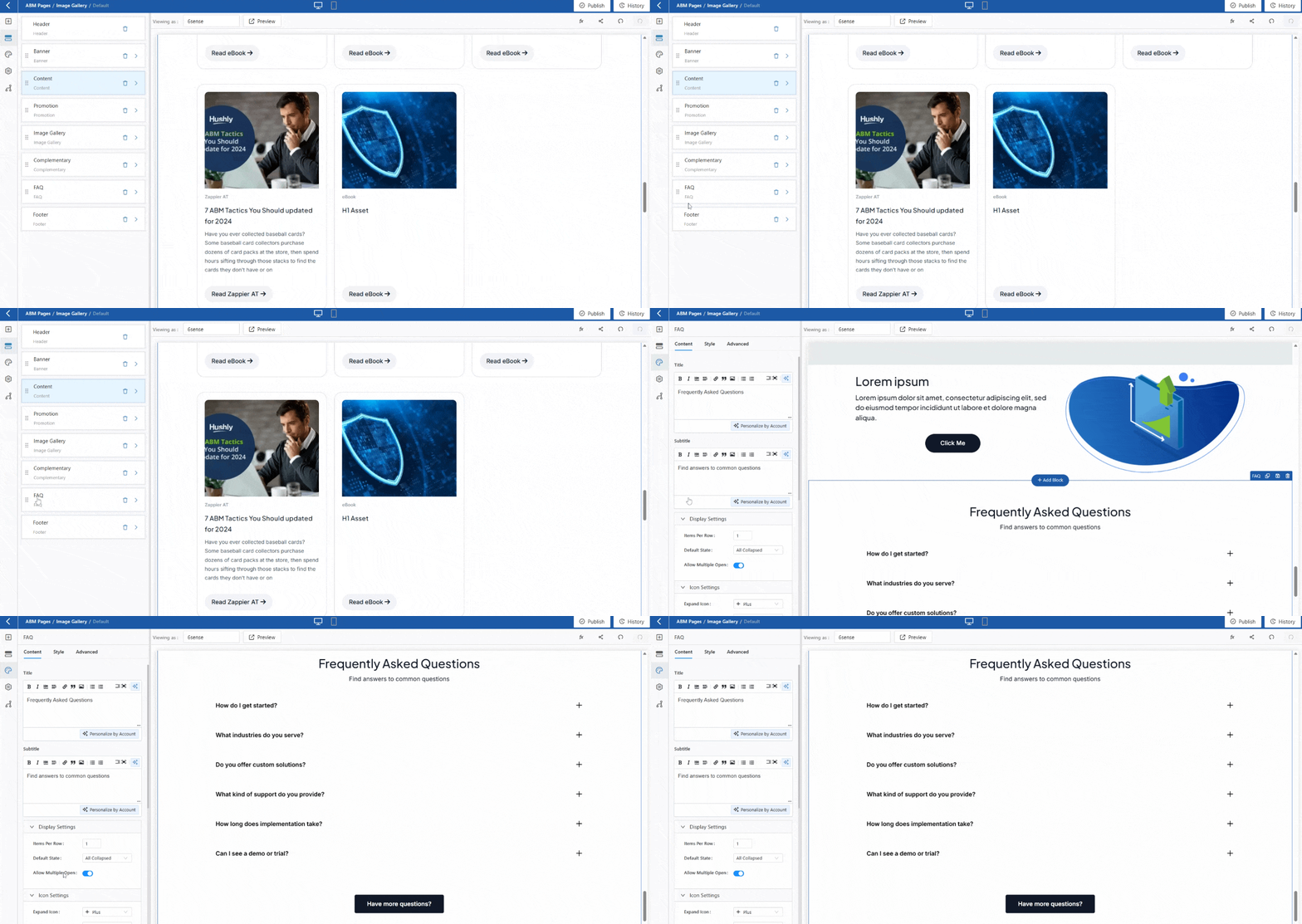
- From the Page Blocks, click FAQ, and the corresponding block in the preview section will be highlighted.
- The FAQ Page Block includes Content, Style, and Advanced tabs. Under the Content Tab, the following sections are displayed: Title, Subtitle, Display Settings, Icon Settings, FAQ Items, and CTA. In the Content section, you can make modifications.
- Title and Subtitle:
- The Title and Subtitle are displayed by default. You can modify them as needed.
- The Show Title toggle is enabled by default. You can turn it off if you do not want to display the title and subtitle.
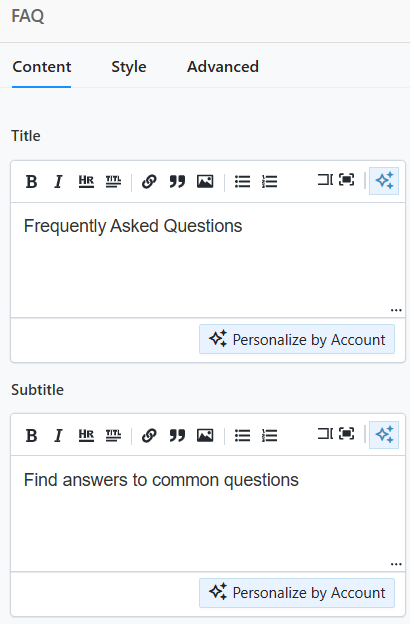 Note: To hide the FAQ Title and Subtitle, leave the fields empty.
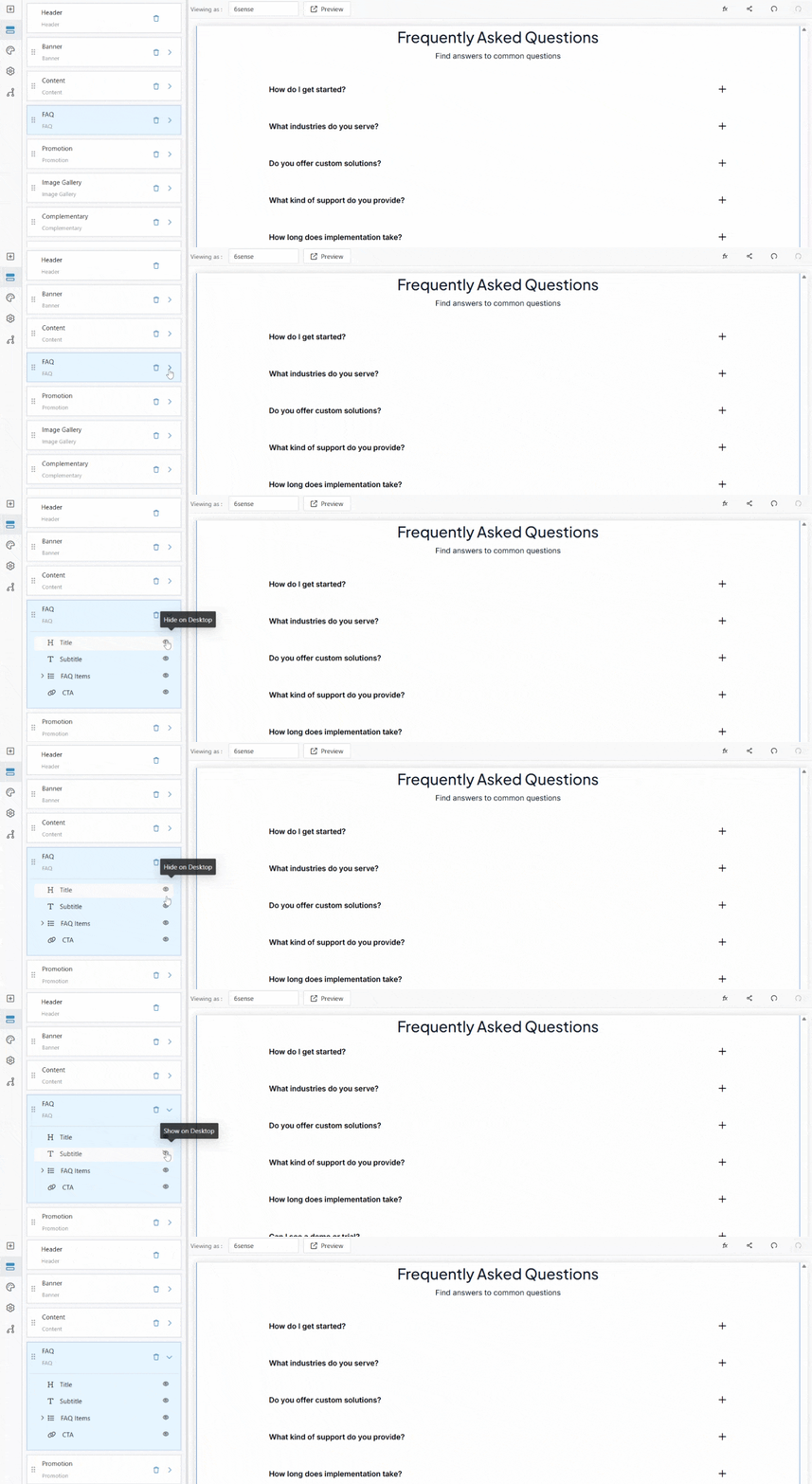
 - You can also expand the FAQ Section Configuration Panel and click the eye icon to hide the title and subtitle from the page while keeping the FAQ section intact.
- Display Settings: These control how the FAQ block appears and behaves on the page. These options allow you to customize the layout and interactions of the FAQs, including how many items are shown per row, their default open or collapsed state, and whether multiple items can be expanded at once, ensuring an optimal viewing experience for your audience.
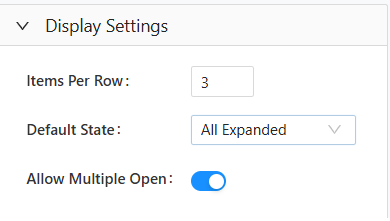
- Items Per Row: Defines the number of FAQ items displayed in each row.
Default State: Sets whether the FAQ items are expanded or collapsed when the page loads.
All Collapsed: All FAQ items remain closed when the page loads.
First Item Expanded: Only the first FAQ item is open by default.
All Expanded: All FAQ items are open when the page loads.
Allow Multiple Open: Enables multiple FAQ items to be opened simultaneously.
- Items Per Row: Defines the number of FAQ items displayed in each row.
- Icon Settings: Icon Settings let you control how icons appear and behave when content is expanded or collapsed, improving clarity and user interaction.
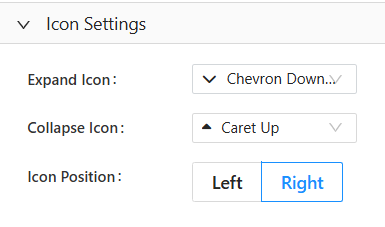
- Expand Icon: The Expand Icon appears when the content is collapsed and indicates that more information can be revealed when clicked. The Expand Icon has four options from which you can choose.
- Plus Icon - Clearly shows that more content can be added or expanded.
- Chevron Down Icon - A clean, modern arrow commonly used for dropdowns and accordions.
- Angle Down Icon - A sharper, downward minimalist arrow that gives a more structured appearance.
- Caret Down Icon - A small triangular icon that clearly signals expandable content.
- Collapse Icon: The Collapse Icon appears when the content is expanded, indicating that the section can be closed or hidden. The Collapse Icon has four options from which you can choose.
- Minus Icon- Clearly shows that the content can be reduced or collapsed.
- Chevron Up Icon- A clean, modern arrow pointing upward to indicate closing the section.
- Angle Up Icon - A sharper, minimalist upward arrow for a structured look.
- Caret Up Icon - A small triangular icon that clearly signals the content will collapse.
- Icon Position: The Icon Position determines where the expand or collapse icon appears in relation to the content, either on the left or right, helping to align the layout with your design and readability preferences.
- Expand Icon: The Expand Icon appears when the content is collapsed and indicates that more information can be revealed when clicked. The Expand Icon has four options from which you can choose.
- FAQ Items: FAQ Items allow you to add, organize, and manage individual frequently asked questions. Each item can be expanded to edit its question and answer, reordered as needed, or deleted, making it easy to keep your FAQ section clear and up-to-date.
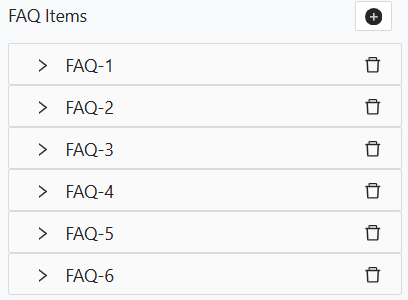
- Plus Icon: The Plus (+) Icon is used to add a new FAQ item. Clicking it creates a new question-and-answer entry in the list.
- Expand Icon: The Expand (>) Icon is used to expand the FAQ item to modify the question and answer.
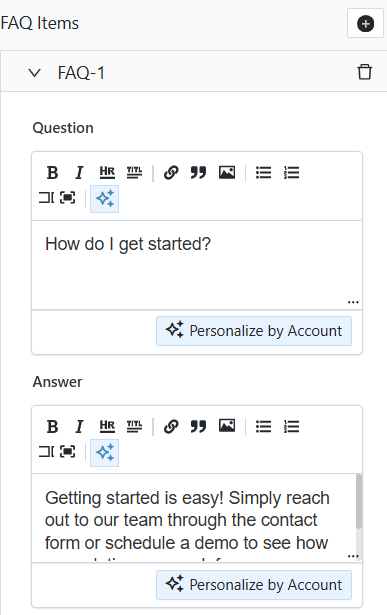
- Delete Icon: The Delete Icon is to remove the FAQ item completely from the list.
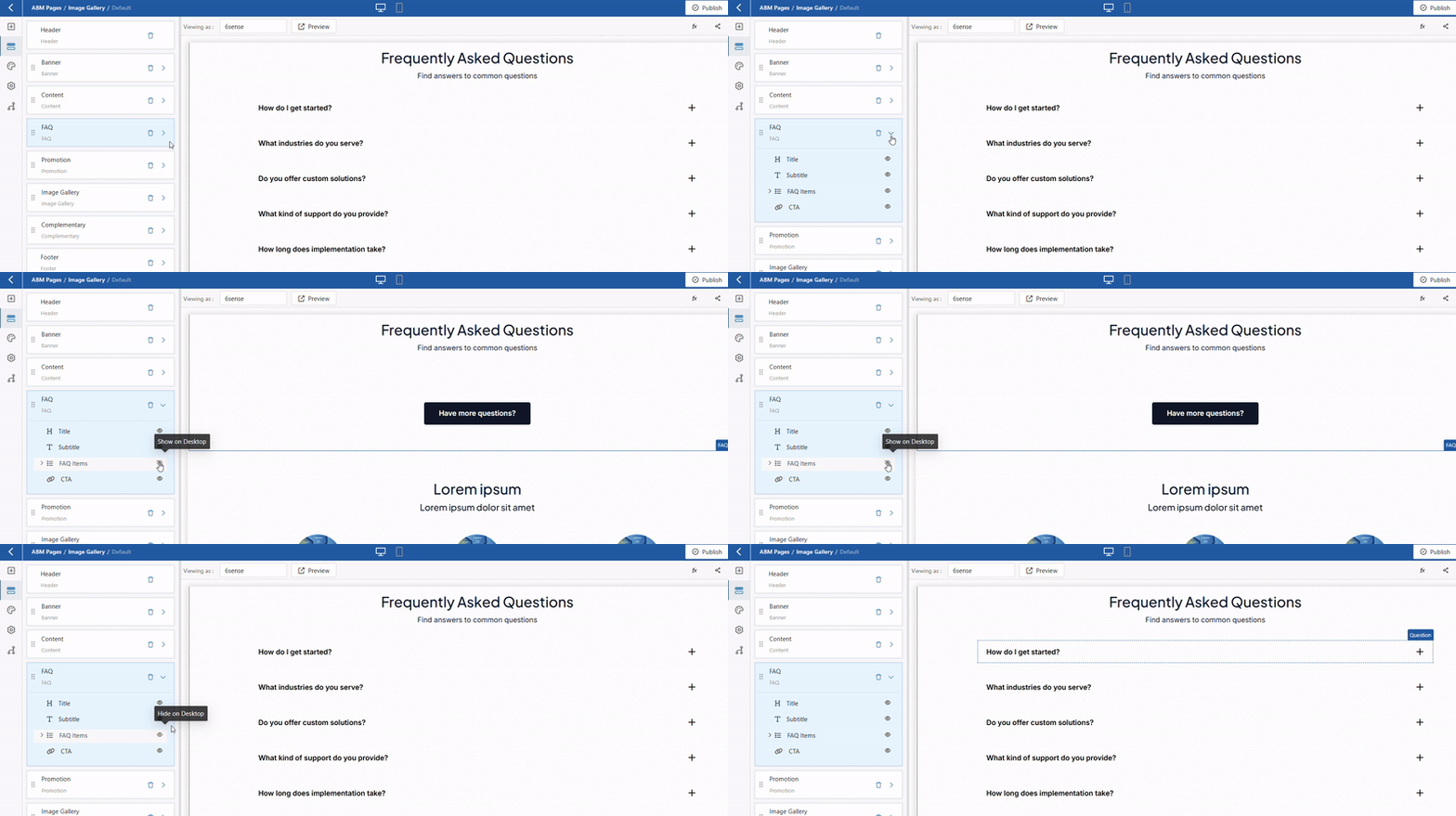
- You can also expand the FAQ Section Configuration Panel and click the eye icon to hide the FAQ Items.
- Plus Icon: The Plus (+) Icon is used to add a new FAQ item. Clicking it creates a new question-and-answer entry in the list.
- CTA: A CTA is a prompt that encourages users to take a specific action, such as contacting you, learning more, or signing up. It is usually displayed as a button or link.
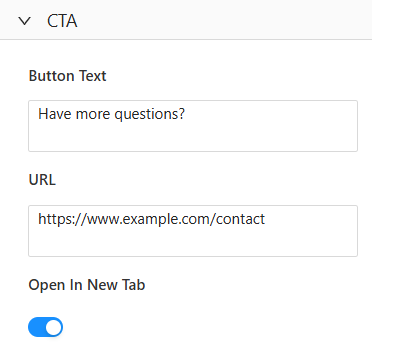
- Button Text: The label displayed on the CTA button. It should be concise, clear, and action-oriented, clearly stating what will happen when users click it (e.g., “Have more questions?”).
- URL: The URL is the web address the CTA button links to. When users click the button, they are taken to this page (such as a contact page, form, or support page).
- Open in a New Tab: When toggled on, clicking the CTA will open the destination in a new tab, keeping your current page active in the background.
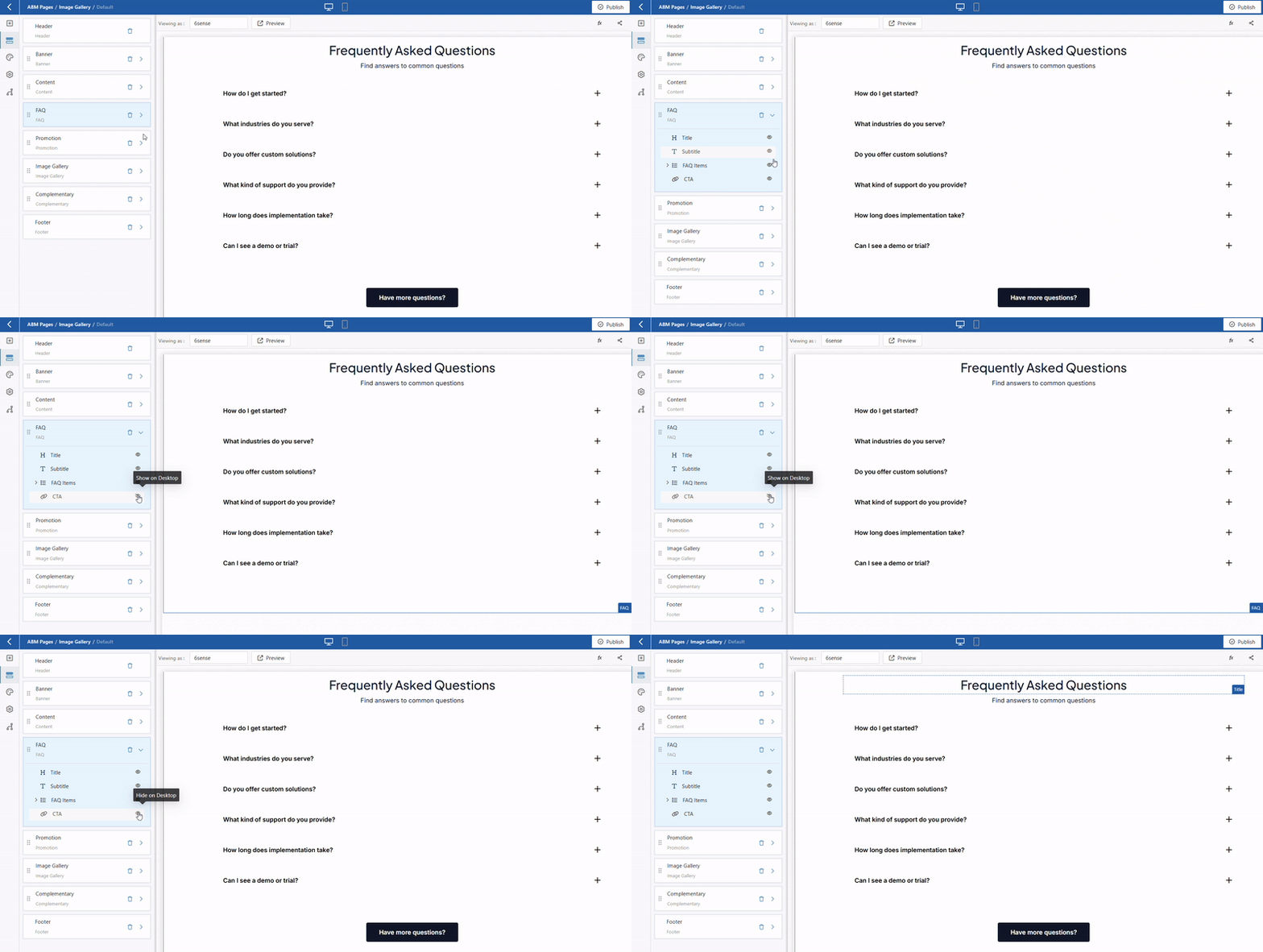
- You can also expand the FAQ Section Configuration Panel and click the eye icon to hide the CTA.
- Button Text: The label displayed on the CTA button. It should be concise, clear, and action-oriented, clearly stating what will happen when users click it (e.g., “Have more questions?”).
- Click on the Style and Advanced sections to add styles. To know more, click here.
- Click Save As Global Block to save the FAQ Page Block as a Global Page Block. Learn more about Global Page Blocks here.
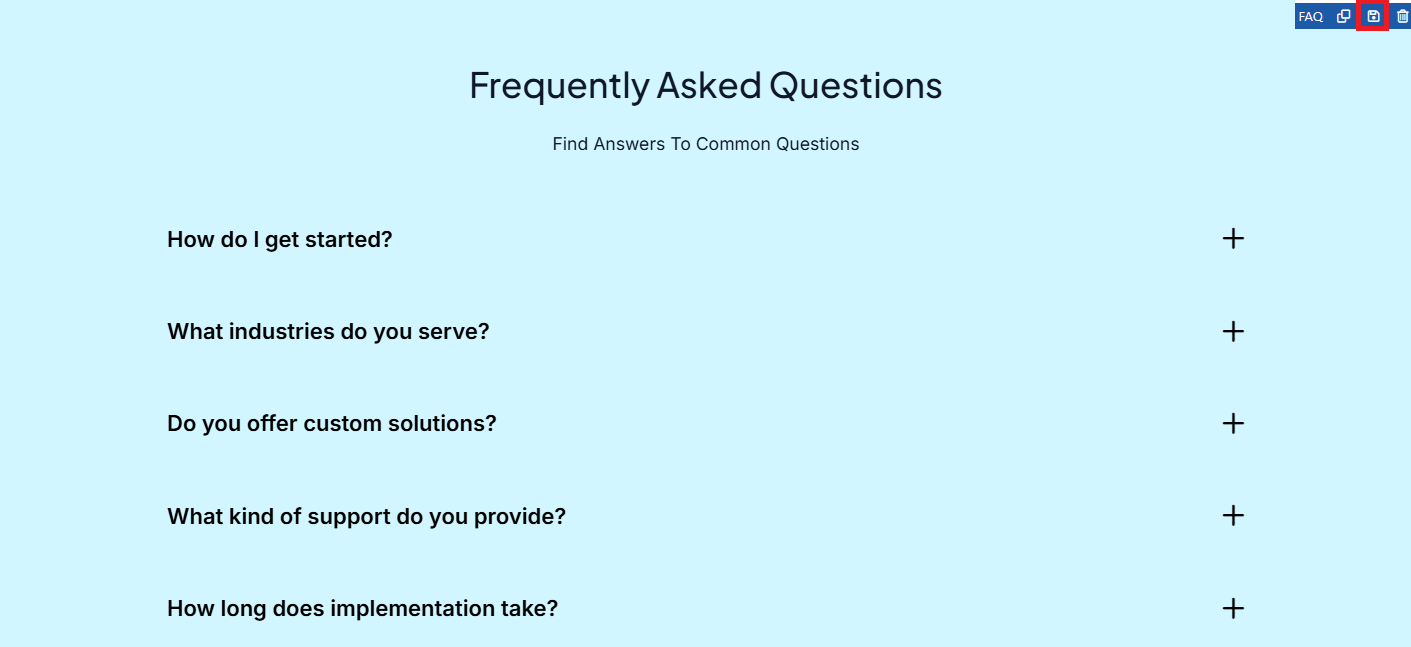
- This is how the FAQ Page Block is displayed in Realtime. Use the
 (plus icon) to expand and view the answer.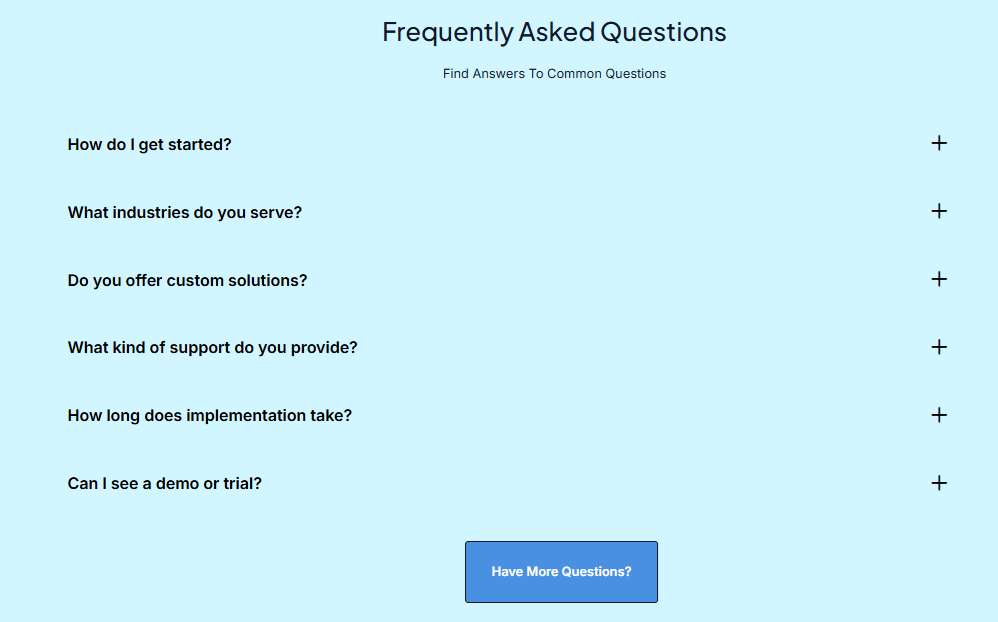
Was this article helpful?
That’s Great!
Thank you for your feedback
Sorry! We couldn't be helpful
Thank you for your feedback
Feedback sent
We appreciate your effort and will try to fix the article