A Global Page Block allows you to view and manage content that is shared across multiple pages. When viewing a Global Page Block, you can see how the block appears and functions wherever it has been applied.
You can also use the options in the top-right corner, such as Reference, Tokens, and Save, to review where the block is used, manage dynamic values, and save any changes made to the block.
To view a Global Page Block, follow the steps below:
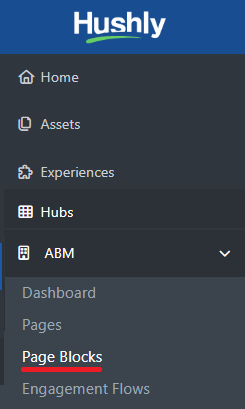
- From the Main Menu > click ABM > Select Page Blocks.
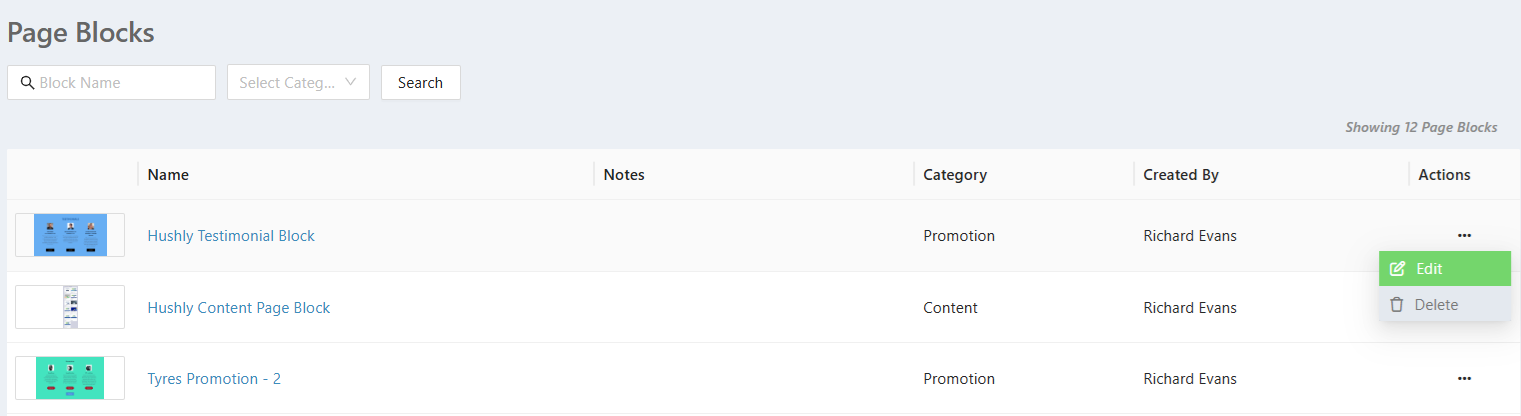
- On the listing page, click the Page Block link or select the Edit option from the three-dot menu.
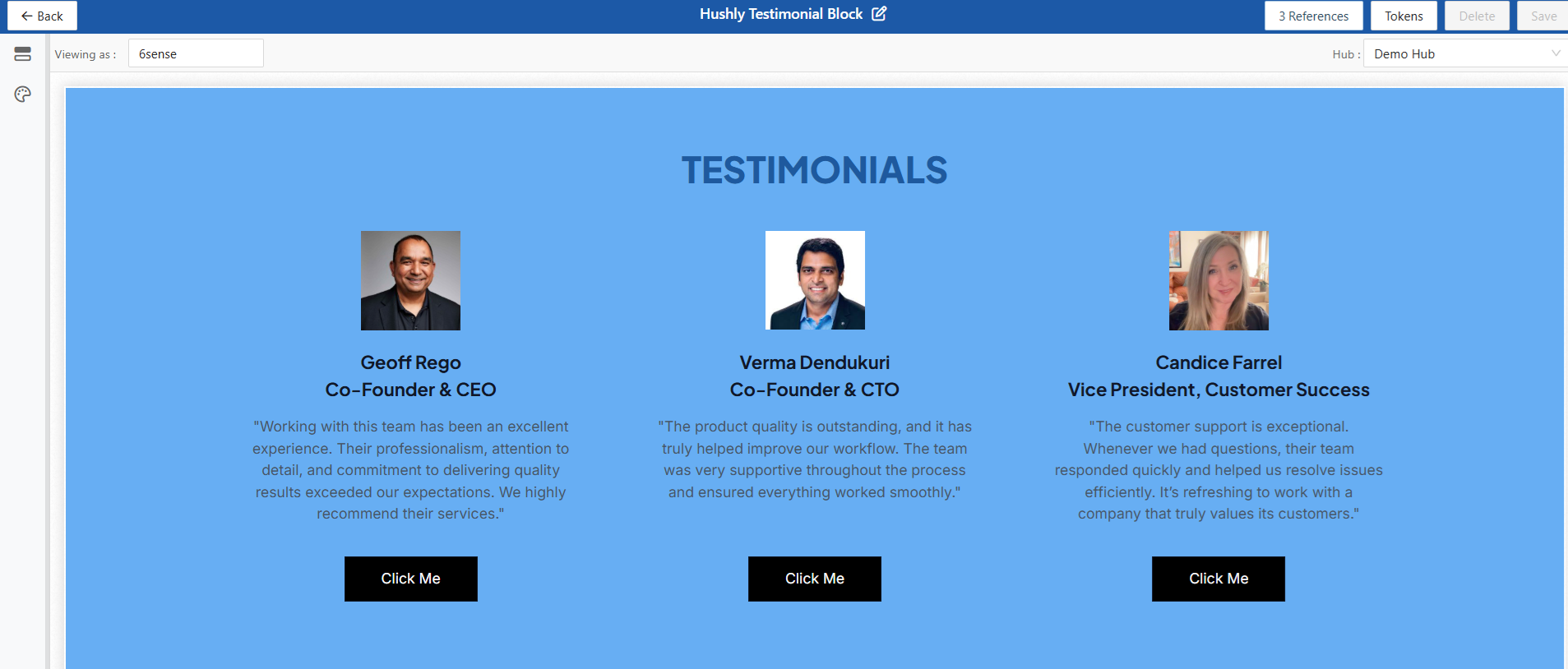
- The Page Block is displayed with the block name at the top, along with options such as References, Tokens, Delete (disabled), and Save.
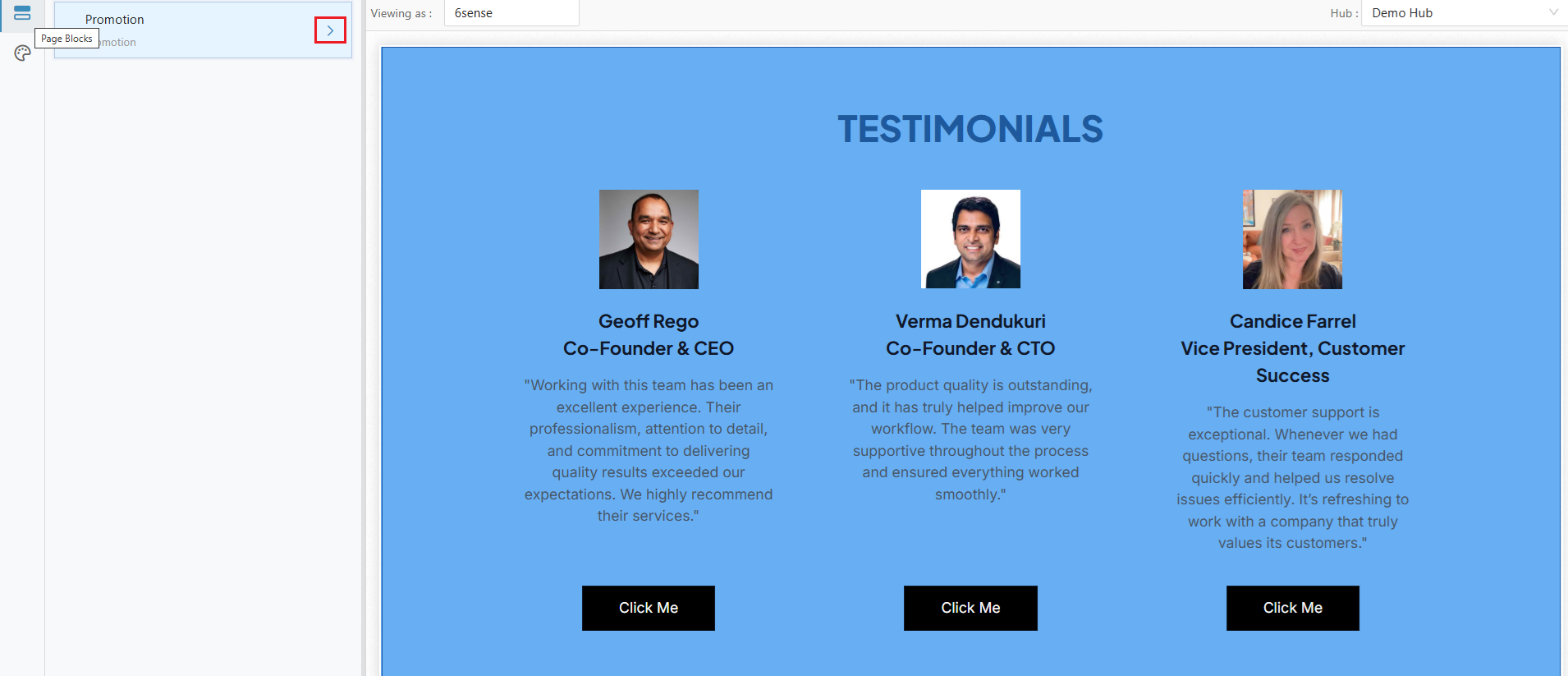
- Clicking Page Blocks in the left panel opens the section where the available block types are displayed. In this section, the Promotion block type includes a toggle that lets you expand or collapse the block to view its contents. Click the Toggle.
The Promotion toggle expands the block to display fields such as Title, Sub Title, and Tiles. Each field includes a visibility icon that allows you to show or hide the corresponding component in the page layout.
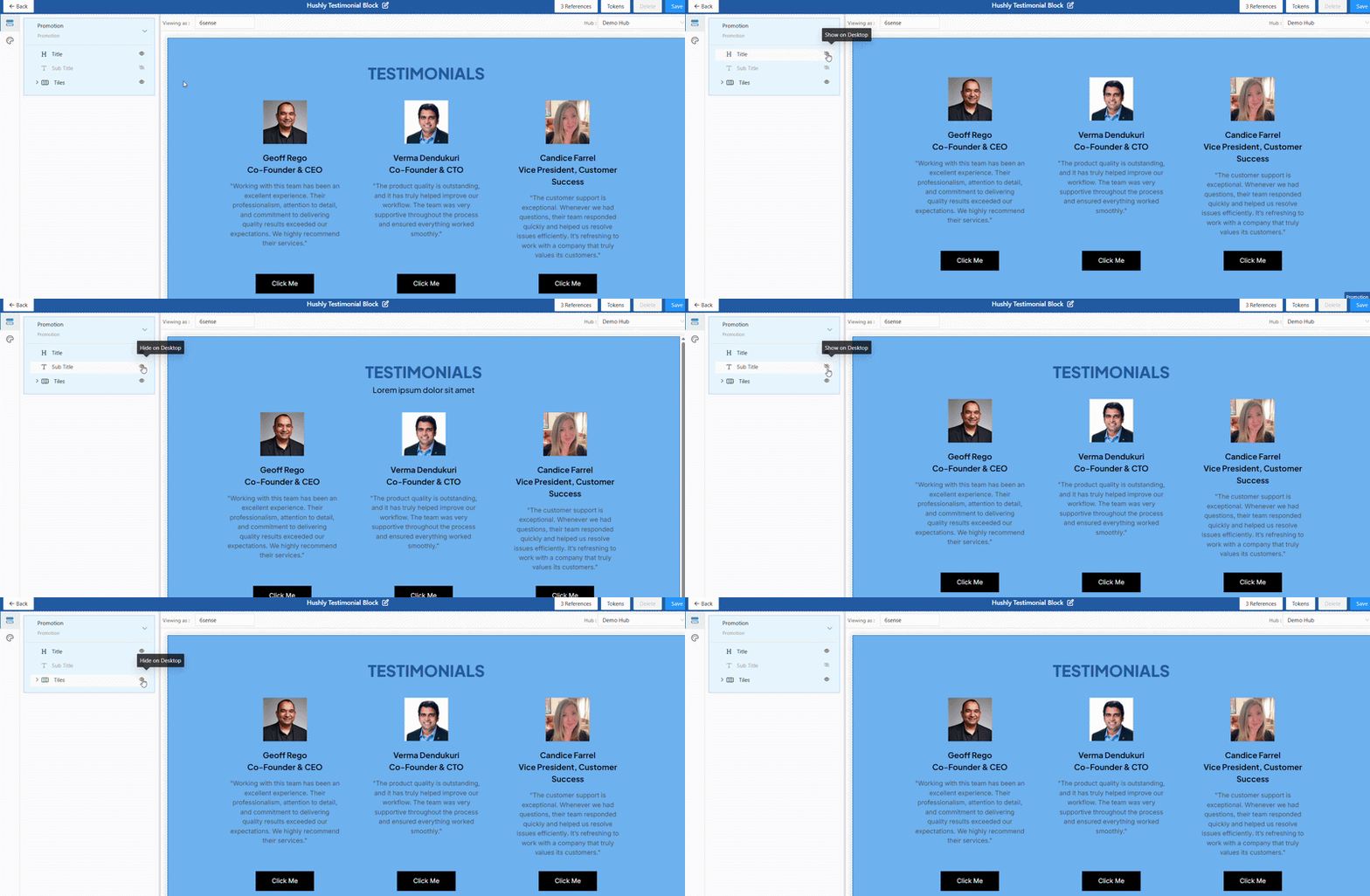
You can also use the options in the top-right corner, such as Reference, Tokens, Delete, and Save, to review where the block is used, manage dynamic values, and save any changes made to the block.

References button: The References button displays a list of all the pages where the selected Page Block is currently being used.
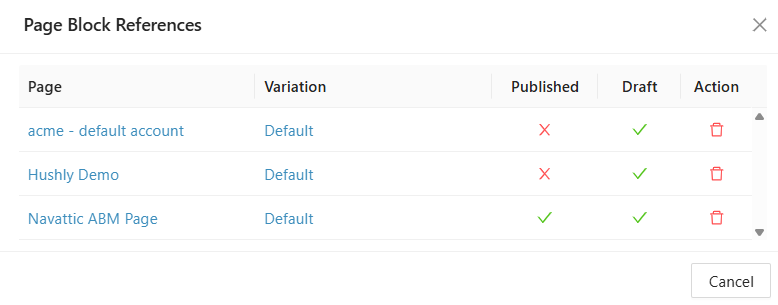
Page - Displays the name of the ABM page where the Page Block is currently referenced or used.
Variation - Indicates the specific variation of the page where the Page Block is applied (for example, Default or any other configured variation).
Published - Shows whether the Page Block reference is currently published on the page. A check mark indicates it is published, while a cross indicates it is not.
Draft - Indicates whether the Page Block reference exists in the draft version of the page. A check mark means it is present in draft mode.
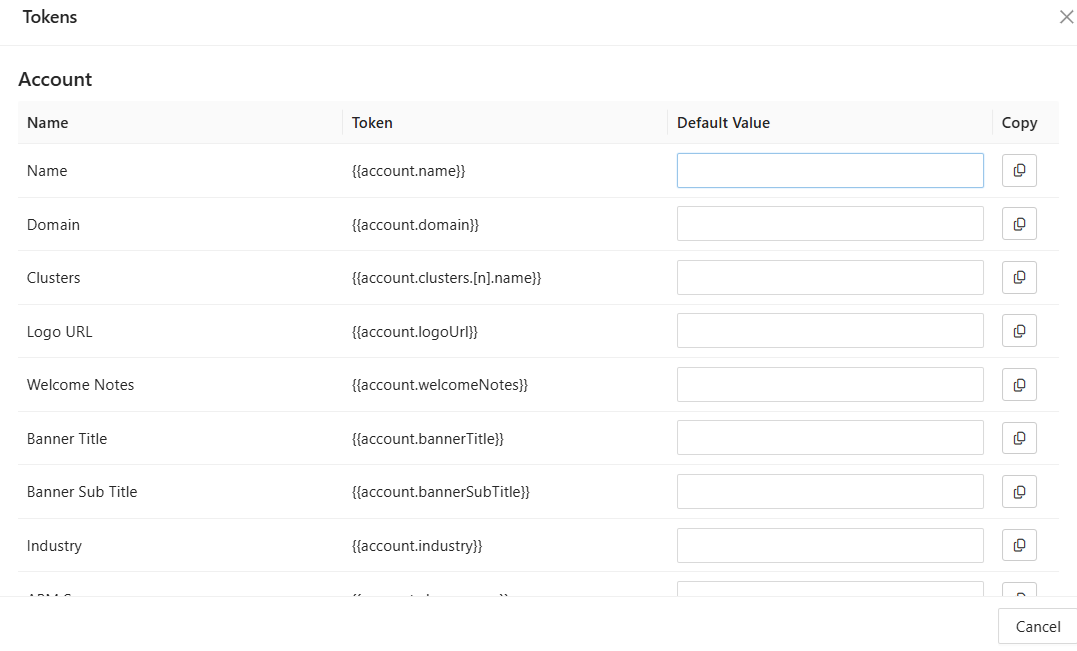
Action - Provides options to manage the reference. The delete icon allows you to remove the Page Block reference from the selected page.Tokens button. The Tokens button opens a window that displays the list of available tokens that can be used in the block. These tokens can be copied and inserted into fields such as Title, Subtitle, or other content elements. When the page is rendered, the system automatically replaces the token with the corresponding dynamic value, allowing the same Page Block to display personalized or context-specific information.
Delete button: The Delete button allows you to remove the Page Block. This option is only enabled when the Page Block is not associated with any ABM pages. If the block is currently referenced by an ABM page, the Delete button remains disabled to prevent accidental removal.
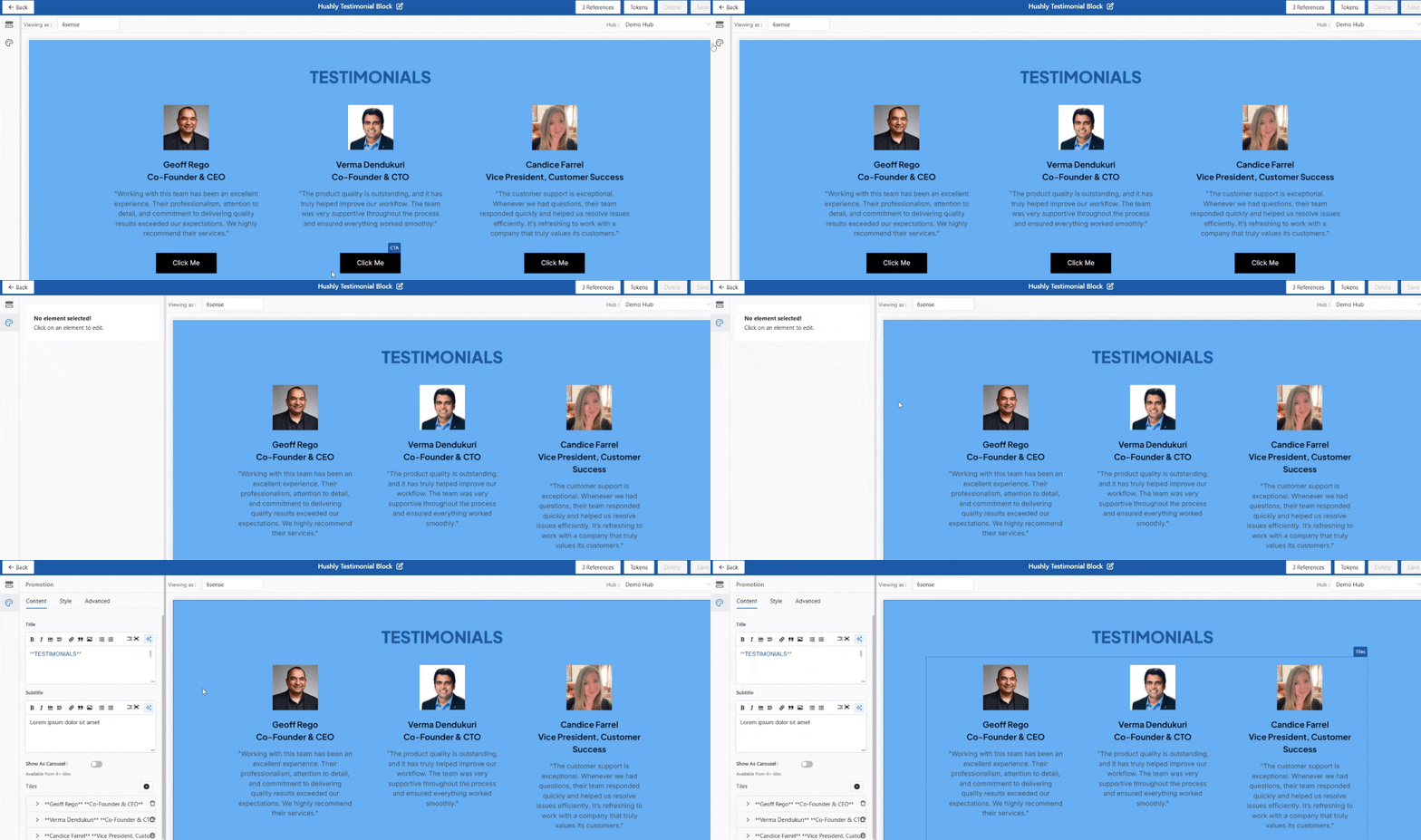
Save button: The Save button becomes active when changes are made to the Page Block through the Configuration panel. Clicking the Save button saves the updates and displays a success message.

Note: The Custom Global Page Block can be used across any of your Hubs and is not restricted to a single Hub.
Was this article helpful?
That’s Great!
Thank you for your feedback
Sorry! We couldn't be helpful
Thank you for your feedback
Feedback sent
We appreciate your effort and will try to fix the article